

Browser Data Cleaner — Chrome and Firefox extension Browser Data Cleaner — Chrome and Firefox extension

Browser Data Cleaner icon

Chrome and Firefox extension

Browser Data Cleaner

Clear history, cache, cookies, site data, downloads list, and autofill data.

Extension ID: mgchhbbmcpgdjalinffnbjfgadceblnc. Privacy Policy

Use case

Key features

Clear history, cache, cookies, site data, downloads list, and autofill data.

Key features

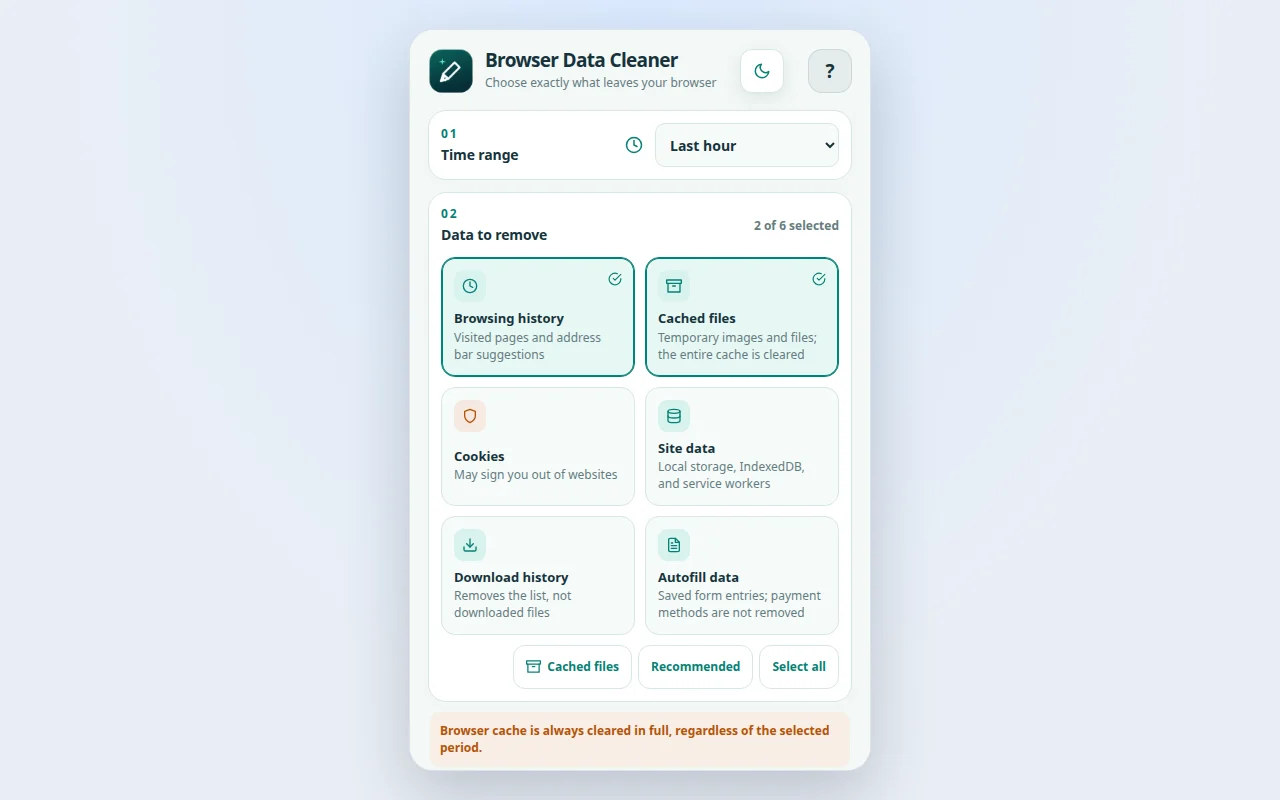
Time range: Choose the last 15 minutes, hour, day, week, four weeks, or all time. Browsing history: Remove visited-page history and related address bar suggestions. Cached files: Clear temporary cached images and files when pages need a fresh reload. Cookies: Remove cookies after a visible warning that websites may sign the user out. Site data: Clear website local storage, IndexedDB data, and service worker registrations. Download history: Remove download-list records without deleting files saved on the device. Autofill data: Clear saved autofill form entries without presenting password deletion as supported. Recommended: Restore the conservative default selection of history and cached files. Clear browsing data?: Review the exact period and categories before every irreversible cleanup. Cleanup happens locally. No browsing data is uploaded: Run entirely in the local browser profile without accounts or data uploads. Choose cache cleaning without selecting history or cookies. Empty selections are remembered, and Escape closes the confirmation screen. Data is deleted only after explicit confirmation.

Watch the video

  1. Open Browser Data Cleaner from the browser toolbar.
  2. Choose the time period and select the data categories to remove.
  3. Read the warnings shown for cache, cookies, downloads, and irreversible deletion.
  4. Open the review screen and confirm the cleanup only when the summary is correct.
  5. Wait for the browser API to finish before closing the popup.
Watch the video

Interface language in this recording: EN

Version: 1.1.1

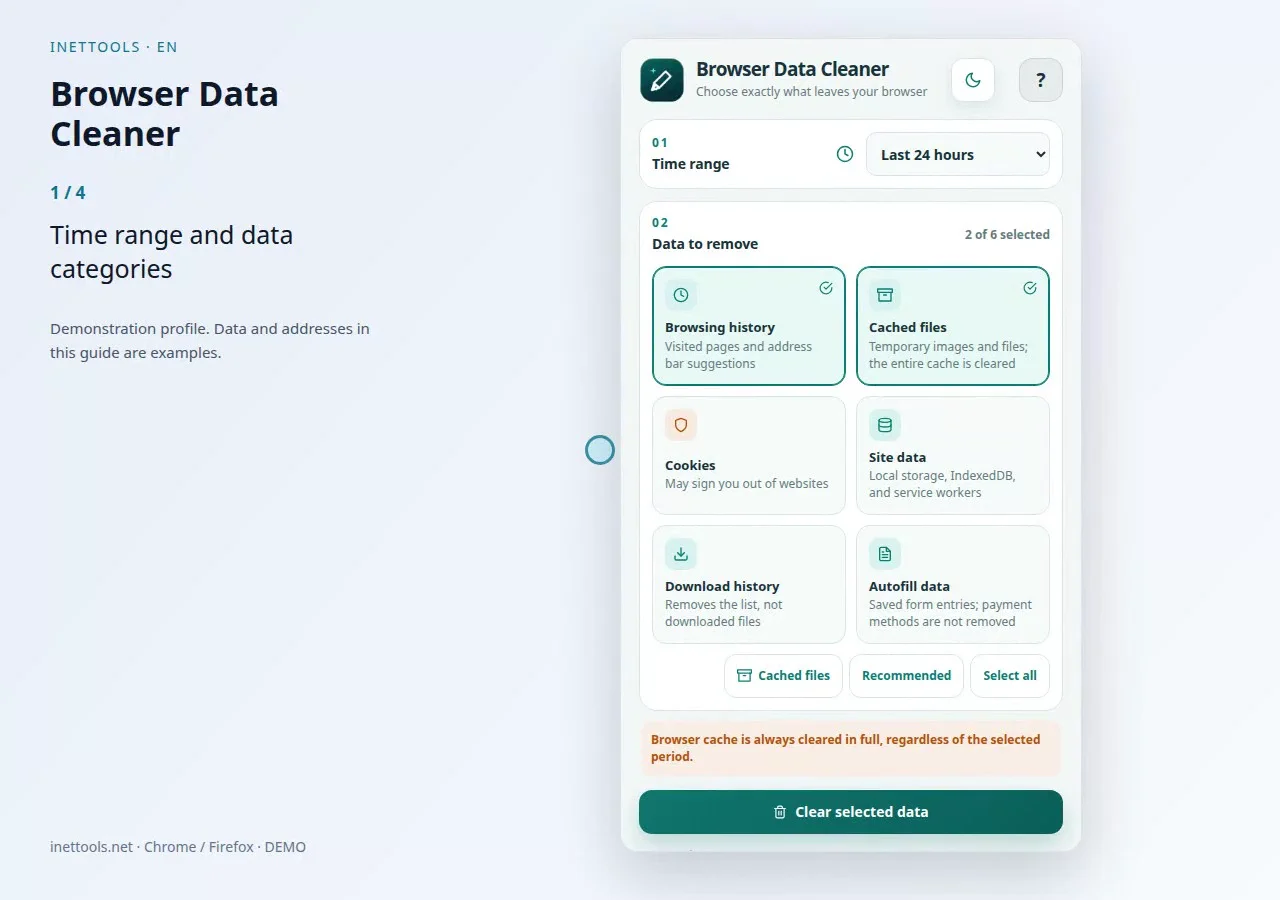
  1. Time range and data categories
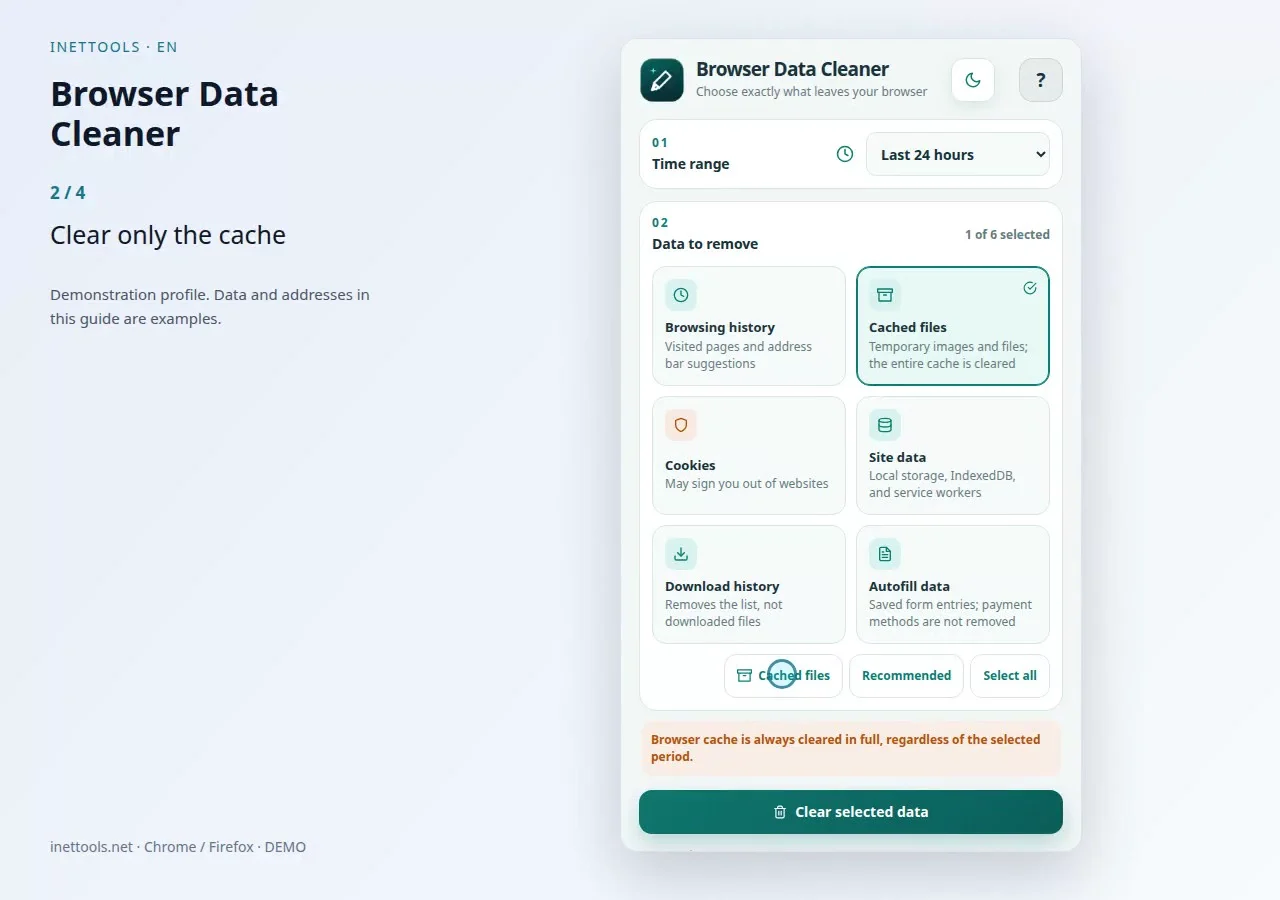
  2. Clear only the cache
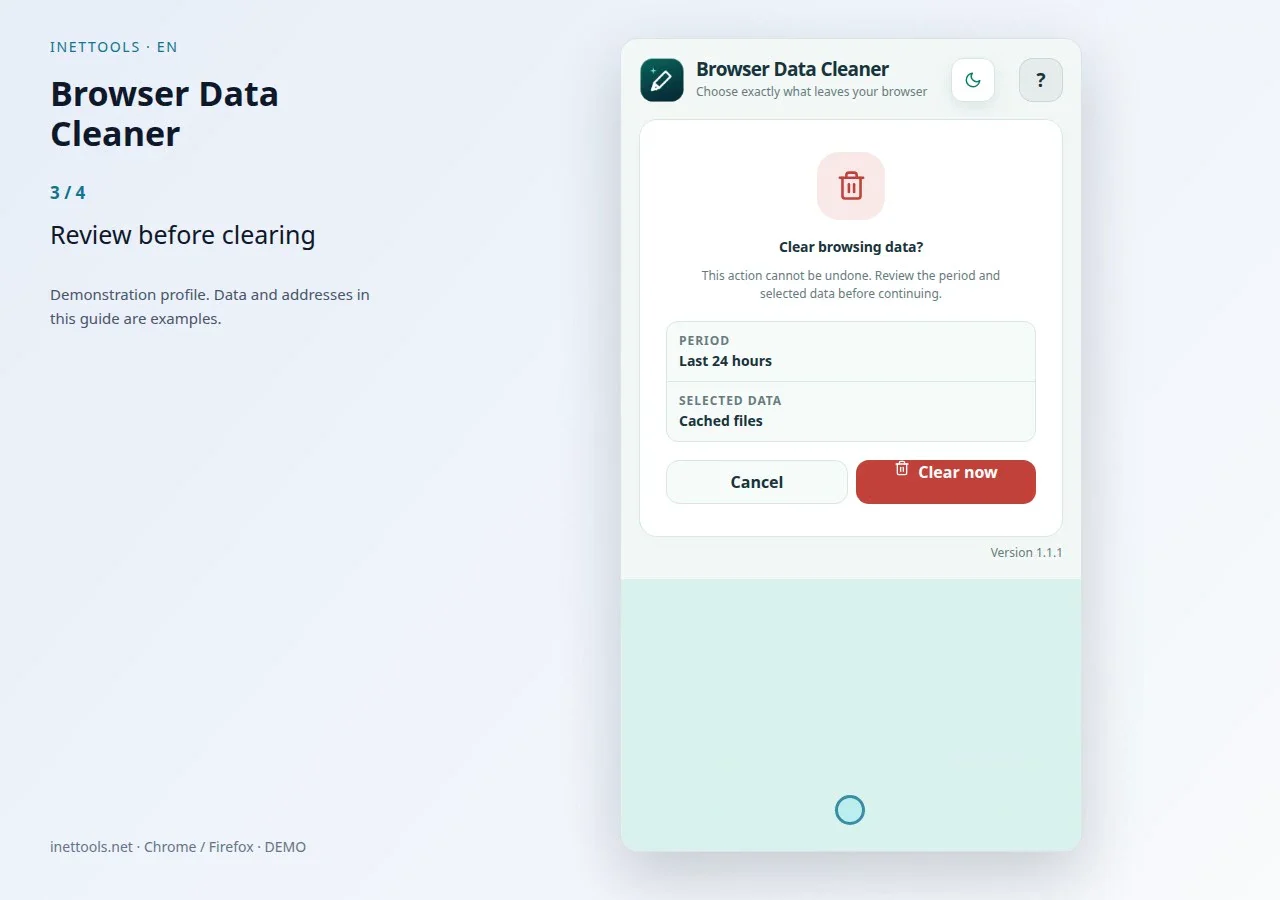
  3. Review before clearing
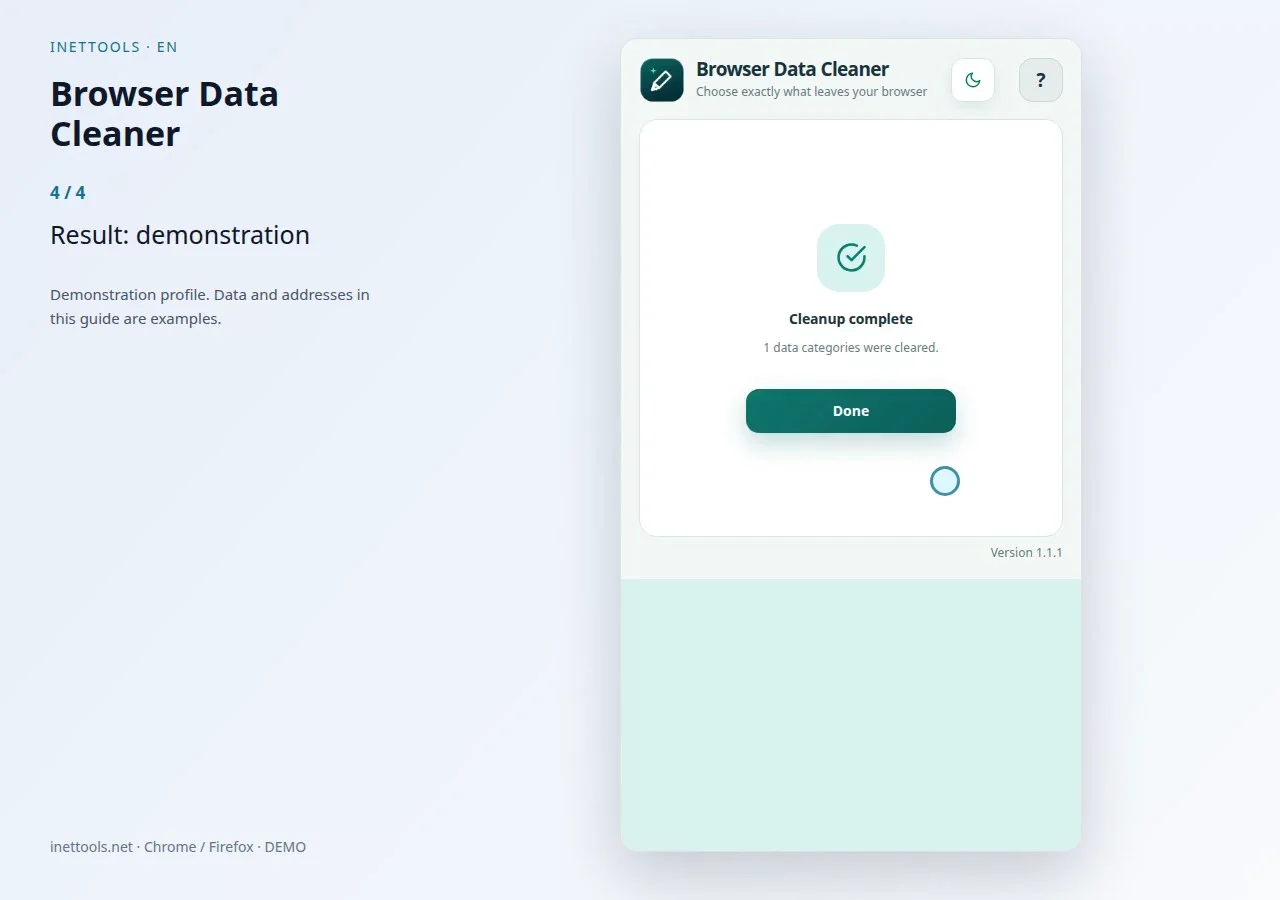
  4. Result: demonstration

Extension screenshots

Extension screenshots

Frames from the current guide, recorded using a demonstration profile.

Browser Data Cleaner — Time range and data categories
Time range and data categories
Browser Data Cleaner — Clear only the cache
Clear only the cache
Browser Data Cleaner — Review before clearing
Review before clearing
Browser Data Cleaner — Result: demonstration
Result: demonstration
Browser Data Cleaner — Browser Data Cleaner
Browser Data Cleaner
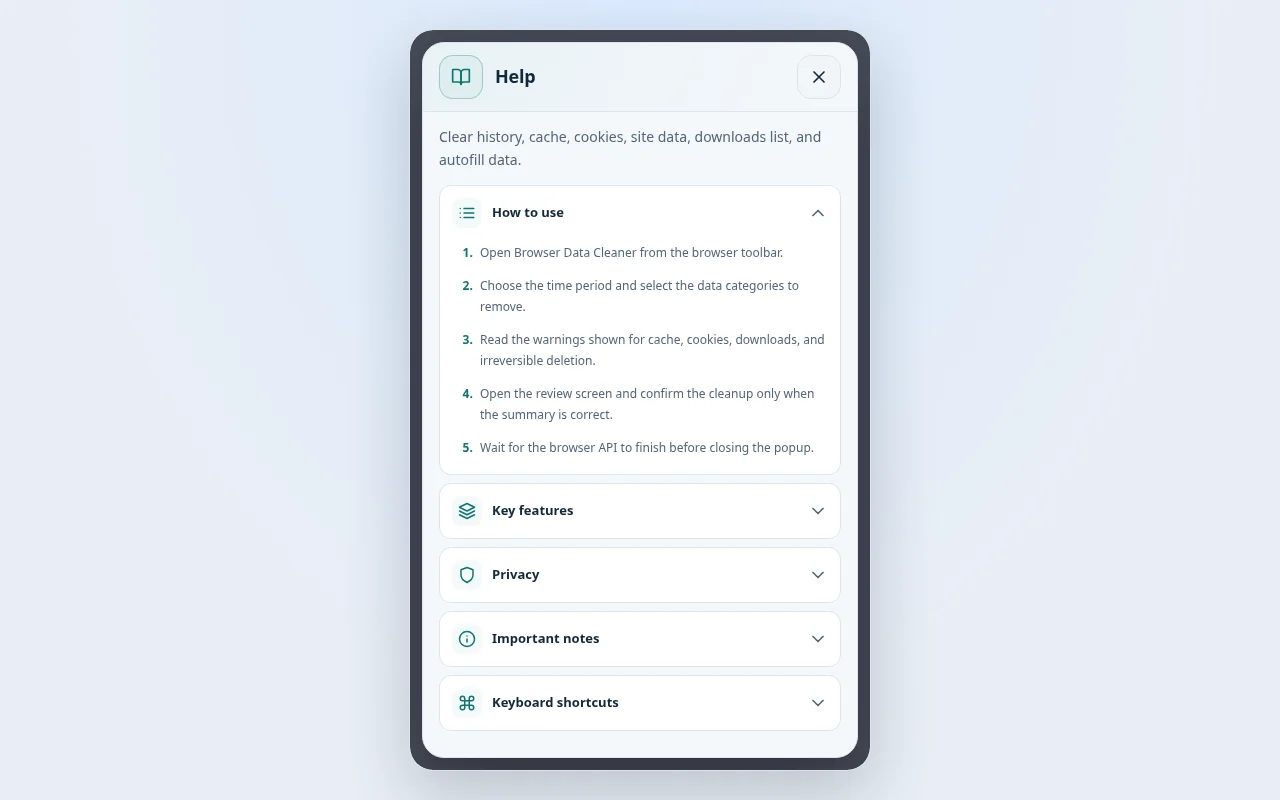
Browser Data Cleaner — Help
Help

Step-by-step instructions · Browser Data Cleaner

Clear history, cache, cookies, site data, downloads list, and autofill data.

How to use

  1. Open Browser Data Cleaner from the browser toolbar.
  2. Choose the time period and select the data categories to remove.
  3. Read the warnings shown for cache, cookies, downloads, and irreversible deletion.
  4. Open the review screen and confirm the cleanup only when the summary is correct.
  5. Wait for the browser API to finish before closing the popup.

Key features

  • Time range: Choose the last 15 minutes, hour, day, week, four weeks, or all time.
  • Browsing history: Remove visited-page history and related address bar suggestions.
  • Cached files: Clear temporary cached images and files when pages need a fresh reload.
  • Cookies: Remove cookies after a visible warning that websites may sign the user out.
  • Site data: Clear website local storage, IndexedDB data, and service worker registrations.
  • Download history: Remove download-list records without deleting files saved on the device.
  • Autofill data: Clear saved autofill form entries without presenting password deletion as supported.
  • Recommended: Restore the conservative default selection of history and cached files.
  • Clear browsing data?: Review the exact period and categories before every irreversible cleanup.
  • Cleanup happens locally. No browsing data is uploaded: Run entirely in the local browser profile without accounts or data uploads.
  • Choose cache cleaning without selecting history or cookies. Empty selections are remembered, and Escape closes the confirmation screen. Data is deleted only after explicit confirmation.

Privacy

The extension uses only the browsingData permission after a direct user confirmation. It has no host permissions, analytics, remote code, accounts, or external API calls. Cleanup runs locally and browsing data is never uploaded.

Important notes

Deleting browsing data cannot be undone. Cookies can sign users out of websites. Download-history cleanup removes only the browser list, not downloaded files. Browser cache may be cleared in full even when a shorter time period is selected. Saved passwords are not included because current Chrome versions no longer support password deletion through this extension API.


Important

Privacy

The extension uses only the browsingData permission after a direct user confirmation. It has no host permissions, analytics, remote code, accounts, or external API calls. Cleanup runs locally and browsing data is never uploaded.

Important notes

Deleting browsing data cannot be undone. Cookies can sign users out of websites. Download-history cleanup removes only the browser list, not downloaded files. Browser cache may be cleared in full even when a shorter time period is selected. Saved passwords are not included because current Chrome versions no longer support password deletion through this extension API.

Privacy Policy

Browser Data Cleaner — Chrome / Firefox

Clear history, cache, cookies, site data, downloads list, and autofill data.

Browser Data Cleaner — Chrome and Firefox extension

Clear history, cache, cookies, site data, downloads list, and autofill data.