Screenshots and video

How to separate vocals and instrumental audio — Desktop demonstration
Turn a song into separate vocal and backing tracks. Learn how to choose a source, set the output and listen to the result on a computer or phone. This recording shows the source and available settings before the main action. Follow the steps above to start processing and save the result.

How to separate vocals and instrumental audio — Phone demonstration
Turn a song into separate vocal and backing tracks. Learn how to choose a source, set the output and listen to the result on a computer or phone. This recording shows the source and available settings before the main action. Follow the steps above to start processing and save the result.
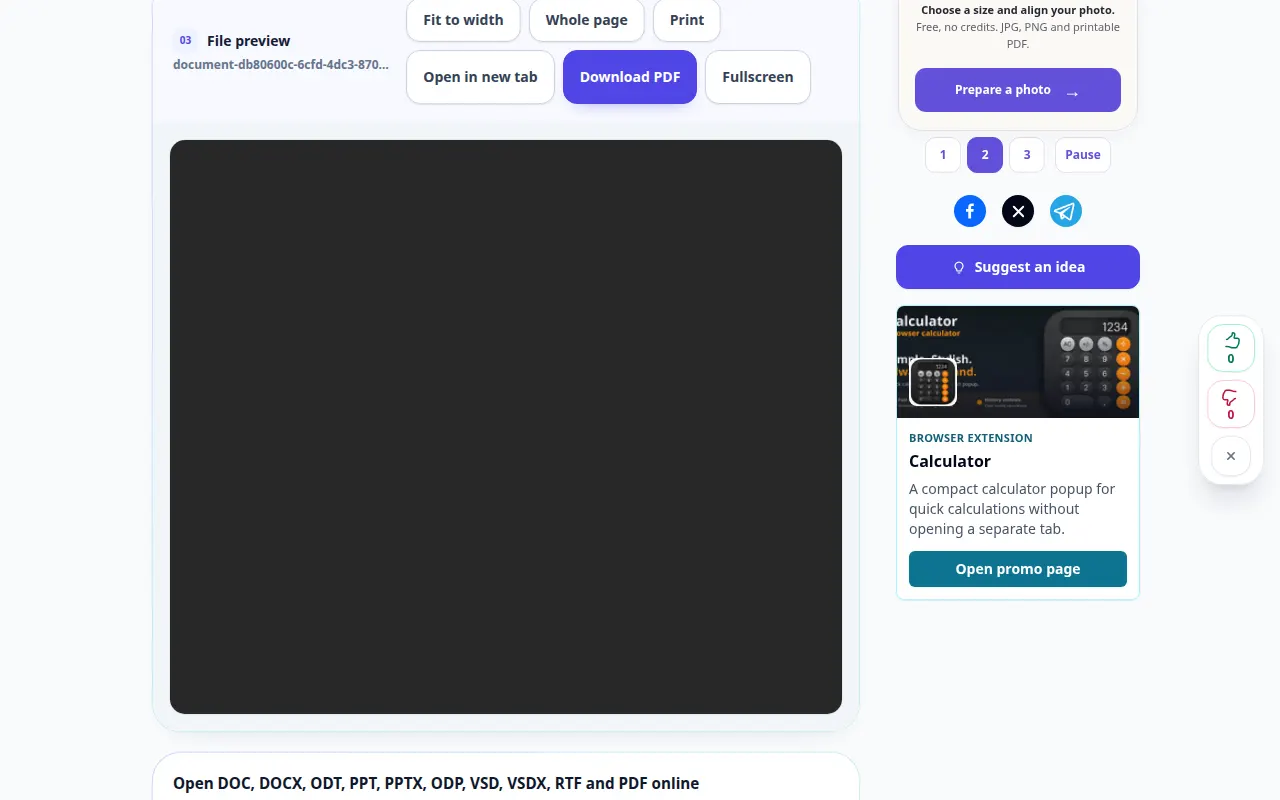
How to open a document online and save a PDF preview — Desktop demonstration
View a document in your browser without installing an office suite. Open a file, check its pages and save the generated PDF preview. This recording shows a demonstration input and the resulting output in the tool.
How to open a document online and save a PDF preview — Phone demonstration
View a document in your browser without installing an office suite. Open a file, check its pages and save the generated PDF preview. This recording shows a demonstration input and the resulting output in the tool.
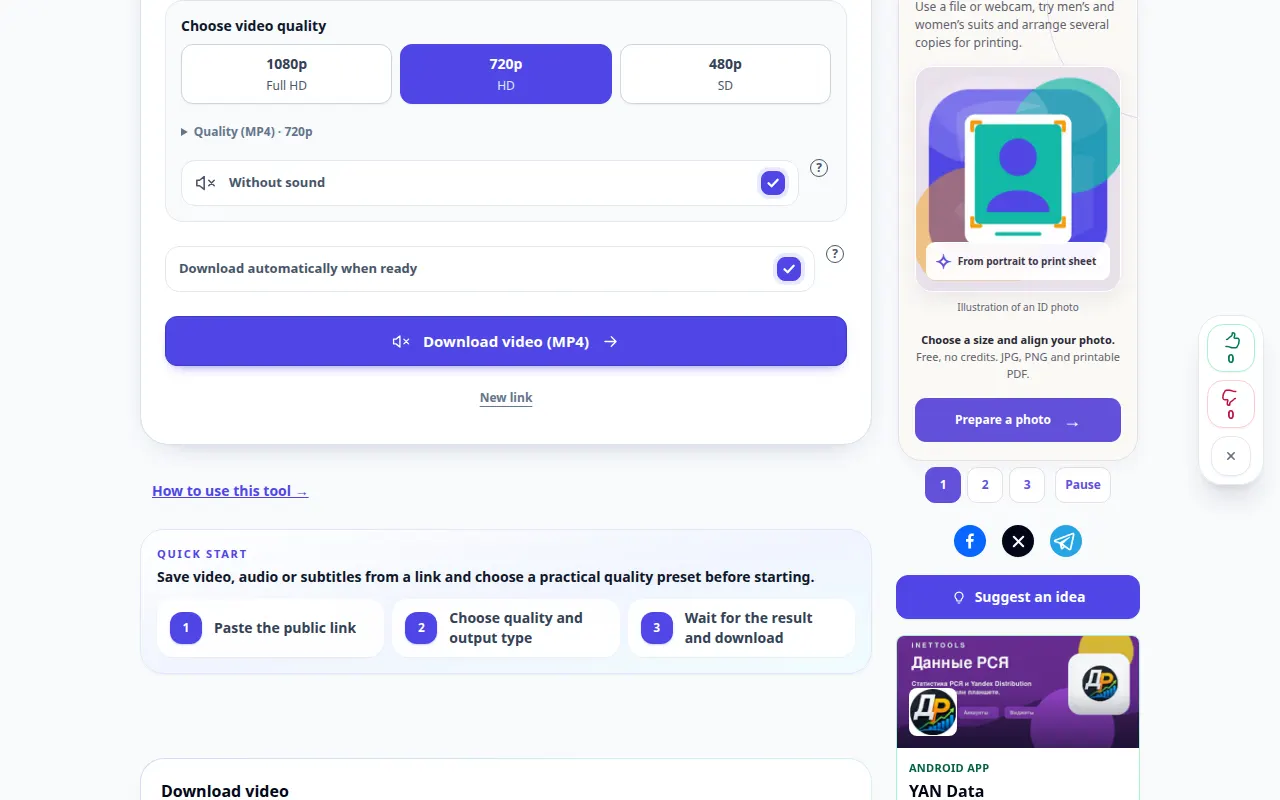
How to save a YouTube video to your device — Desktop demonstration
Find the correct video link, choose an available video format and save the result on desktop or mobile. This recording shows the source and available settings before the main action. Follow the steps above to start processing and save the result.
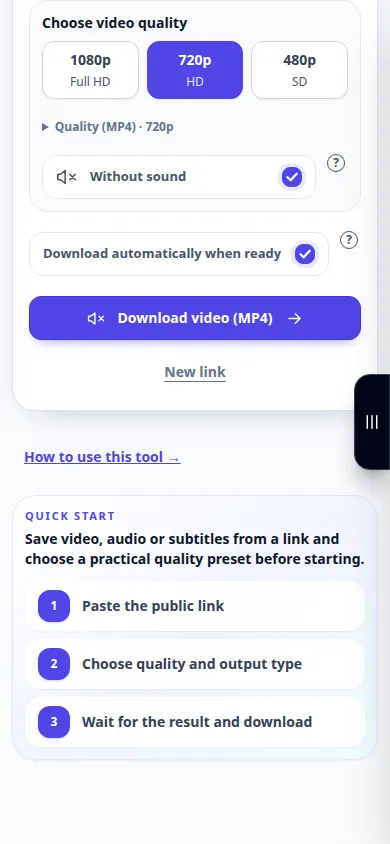
How to save a YouTube video to your device — Phone demonstration
Find the correct video link, choose an available video format and save the result on desktop or mobile. This recording shows the source and available settings before the main action. Follow the steps above to start processing and save the result.
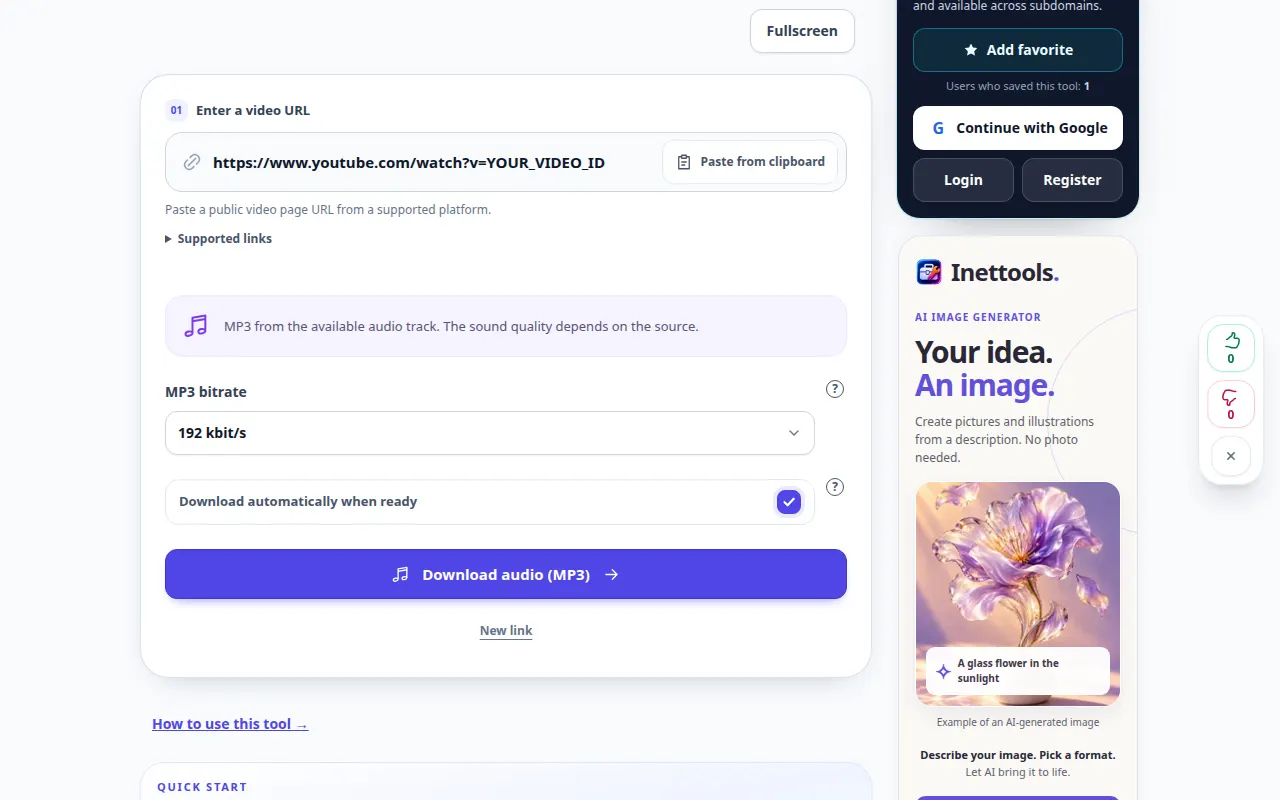
How to save audio from a YouTube video as MP3 — Desktop demonstration
Use a video link to prepare an audio file, then save it to your computer or phone. Learn where to find the result and what to do if preparation fails. This recording shows the source and available settings before the main action. Follow the steps above to start processing and save the result.
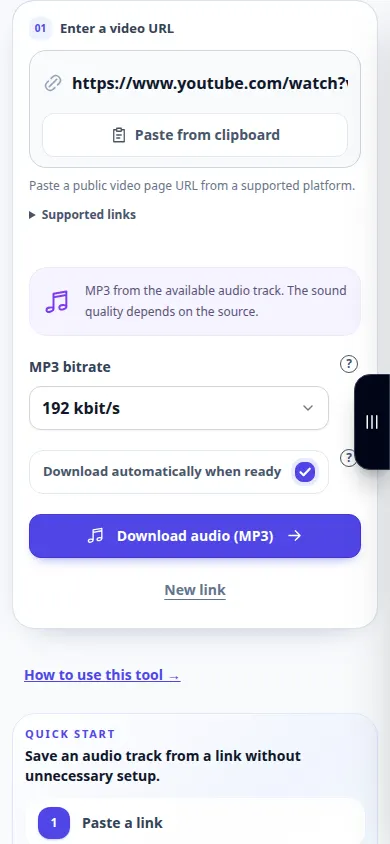
How to save audio from a YouTube video as MP3 — Phone demonstration
Use a video link to prepare an audio file, then save it to your computer or phone. Learn where to find the result and what to do if preparation fails. This recording shows the source and available settings before the main action. Follow the steps above to start processing and save the result.
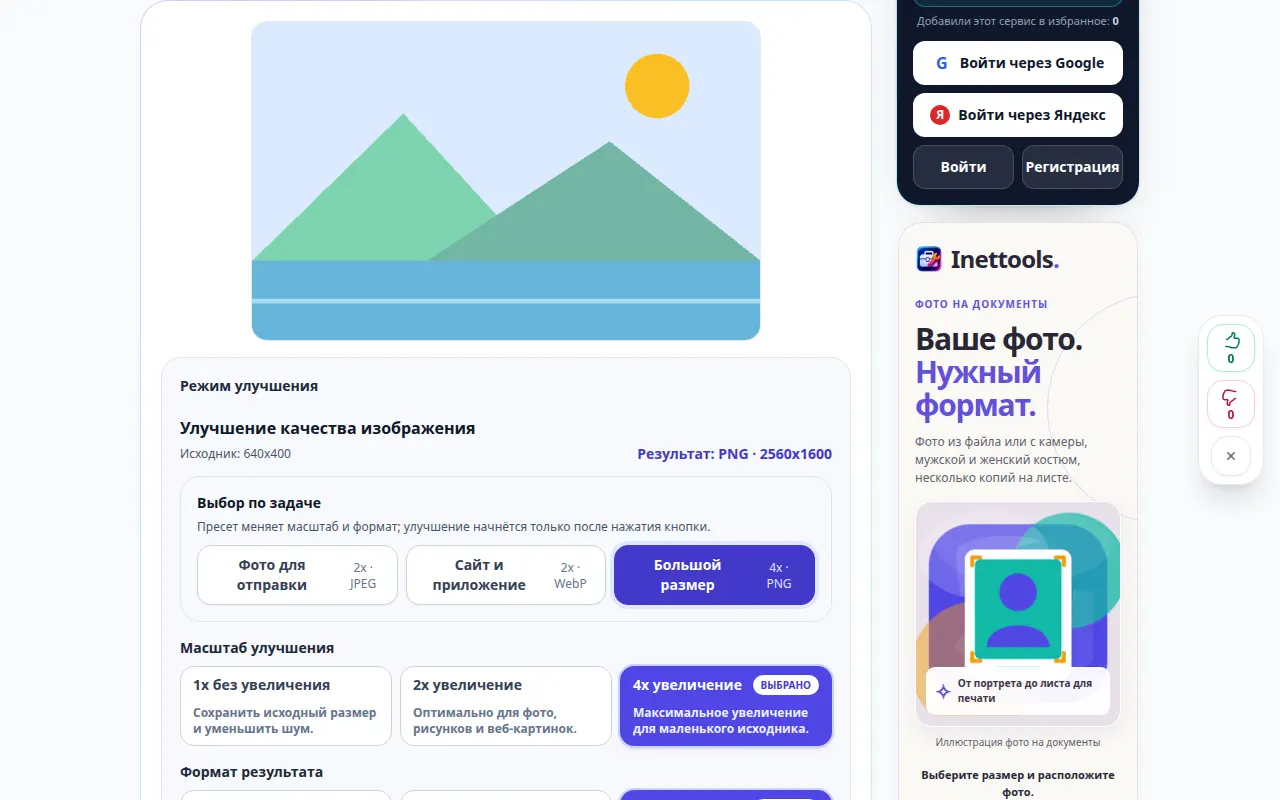
How to improve image quality and compare the result — Desktop demonstration
Choose an enhancement mode, set an enlargement scale and compare the processed image with the original before saving. This recording shows the source and available settings before the main action. Follow the steps above to start processing and save the result.
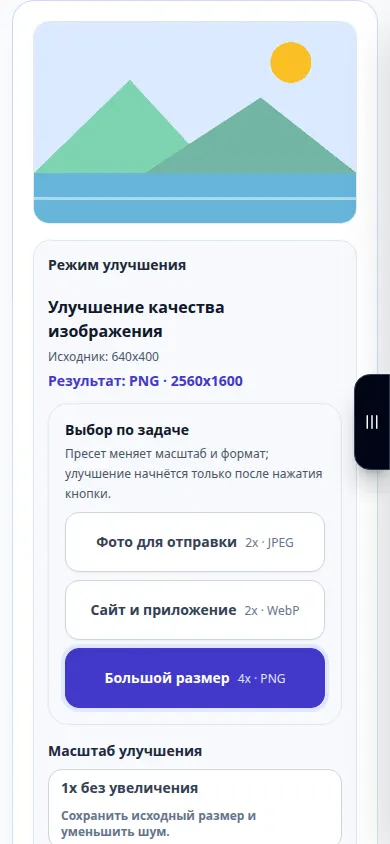
How to improve image quality and compare the result — Phone demonstration
Choose an enhancement mode, set an enlargement scale and compare the processed image with the original before saving. This recording shows the source and available settings before the main action. Follow the steps above to start processing and save the result.
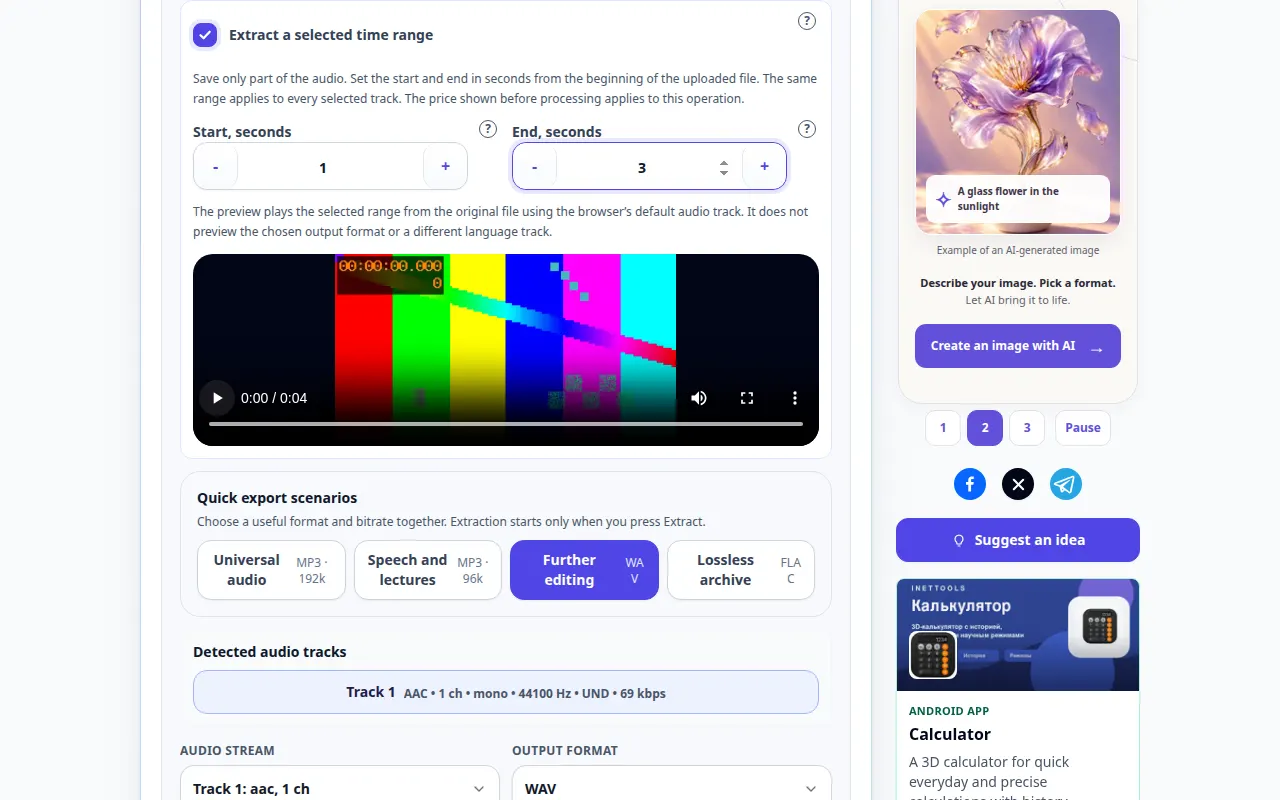
How to extract sound from a video — Desktop demonstration
Save a video soundtrack as a separate audio file for listening or further editing, on a computer or phone. This recording shows the source and available settings before the main action. Follow the steps above to start processing and save the result.
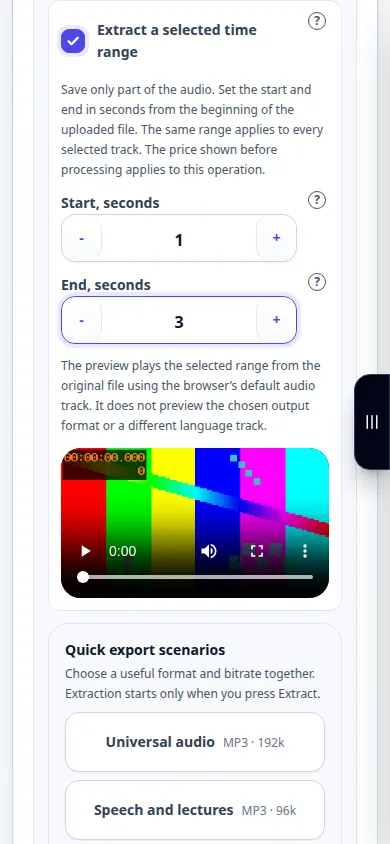
How to extract sound from a video — Phone demonstration
Save a video soundtrack as a separate audio file for listening or further editing, on a computer or phone. This recording shows the source and available settings before the main action. Follow the steps above to start processing and save the result.
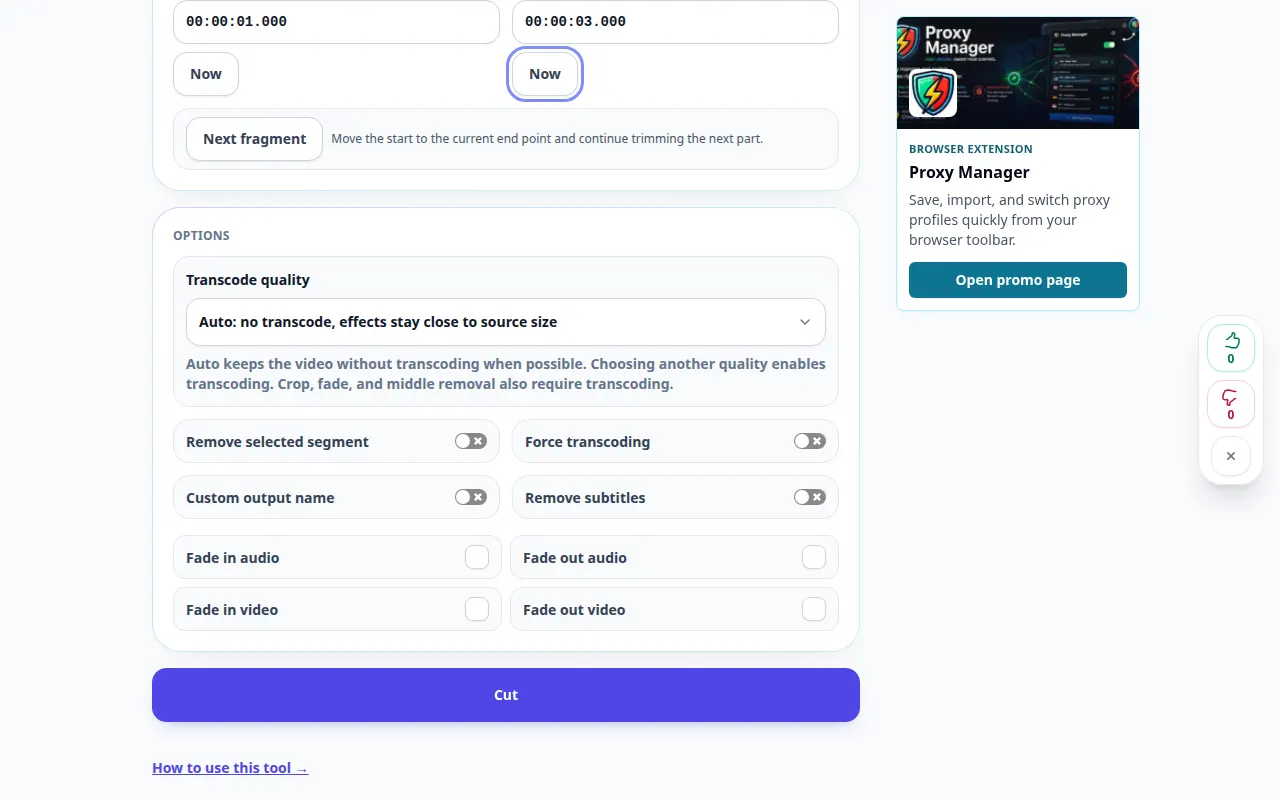
How to trim a video online — Desktop demonstration
Keep the part of a video that you need. Set the start and end, preview the selection and save the finished clip. This recording shows the source and available settings before the main action. Follow the steps above to start processing and save the result.
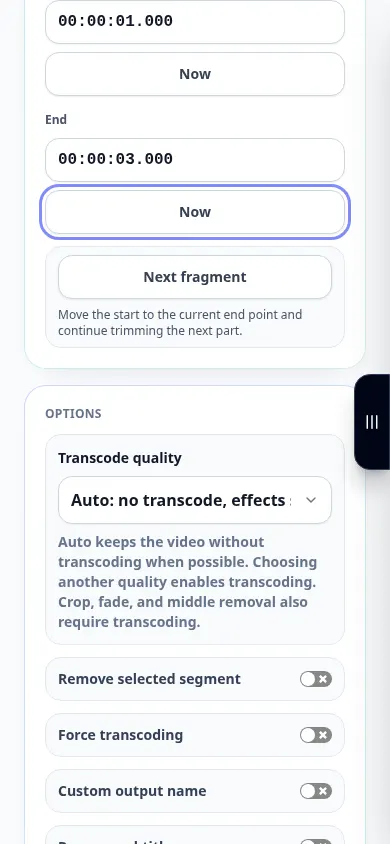
How to trim a video online — Phone demonstration
Keep the part of a video that you need. Set the start and end, preview the selection and save the finished clip. This recording shows the source and available settings before the main action. Follow the steps above to start processing and save the result.
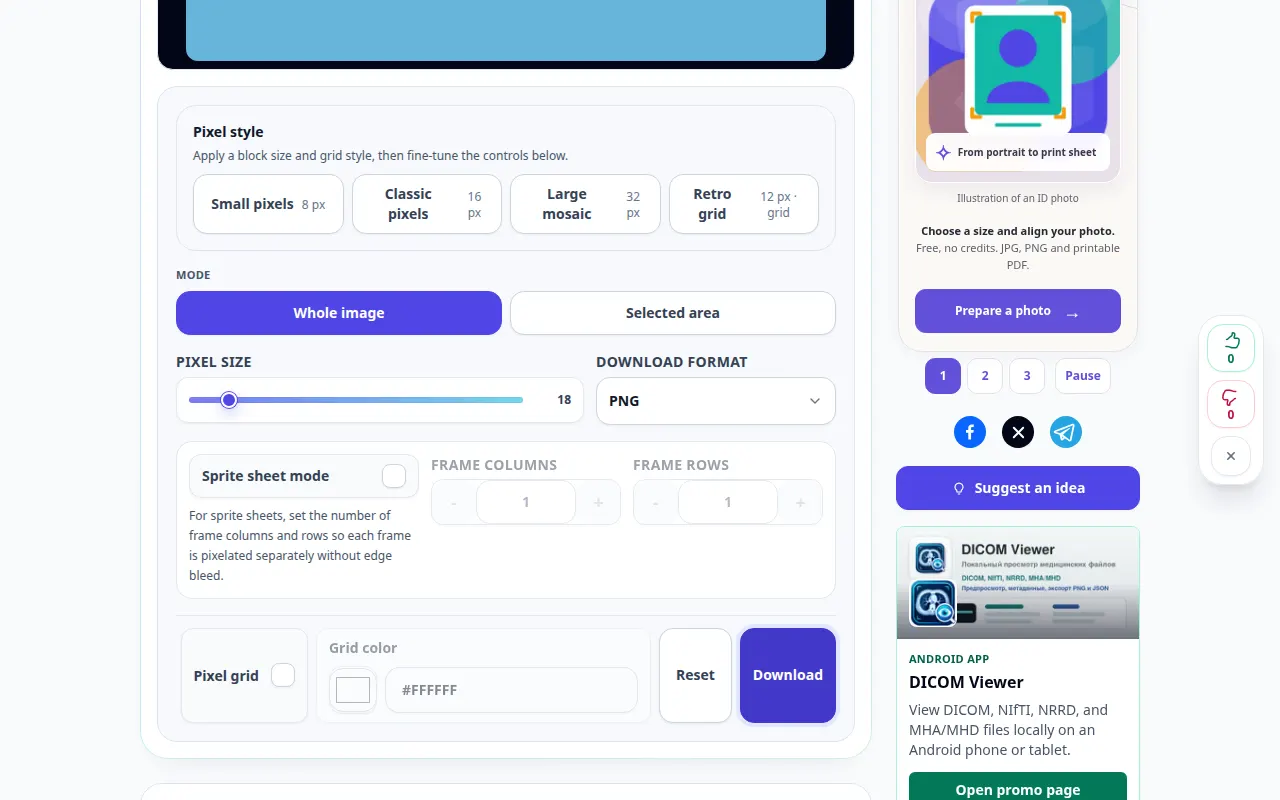
How to pixelate a photo in your browser — Desktop demonstration
Create a mosaic effect, adjust the block size and save the processed image from desktop or mobile. This recording shows a demonstration input and the resulting output in the tool.
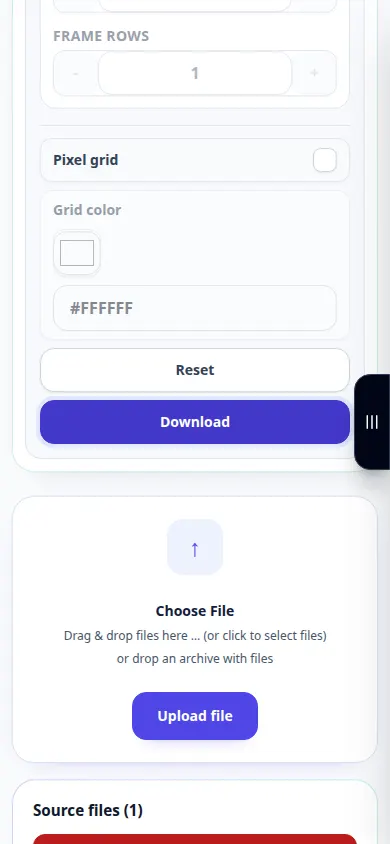
How to pixelate a photo in your browser — Phone demonstration
Create a mosaic effect, adjust the block size and save the processed image from desktop or mobile. This recording shows a demonstration input and the resulting output in the tool.
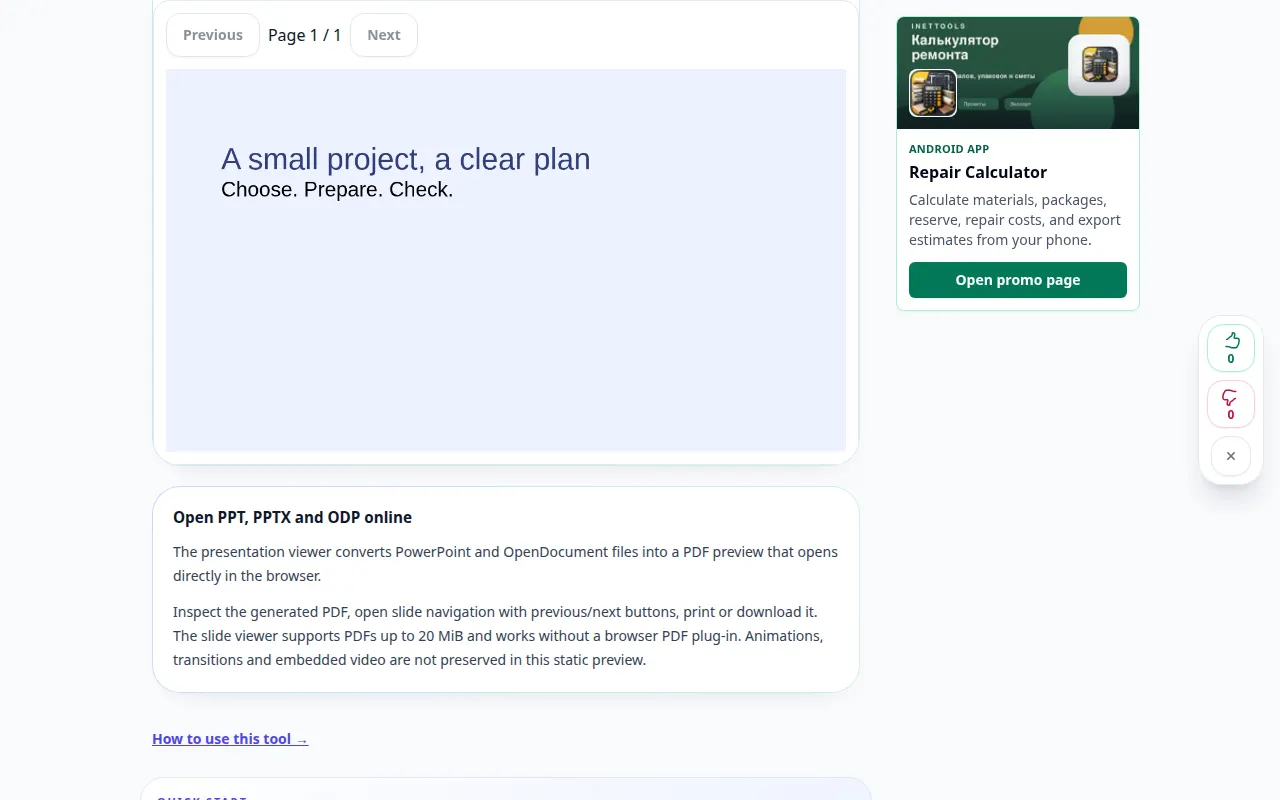
How to open a presentation online — Desktop demonstration
View slides without installing presentation software. Convert a supported presentation to a browser preview and save its PDF. This recording shows a demonstration input and the resulting output in the tool.
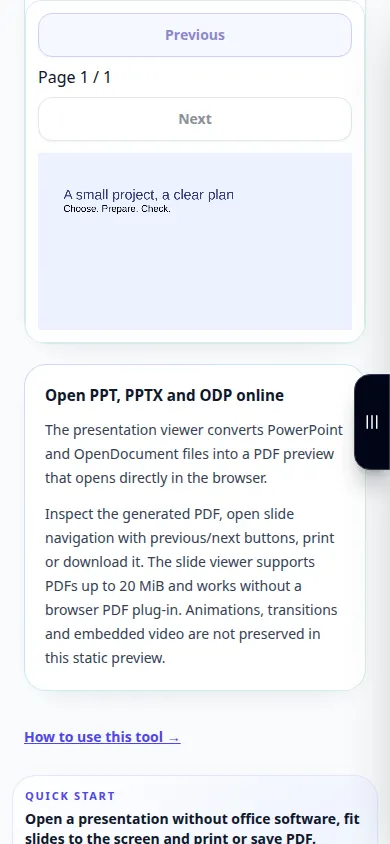
How to open a presentation online — Phone demonstration
View slides without installing presentation software. Convert a supported presentation to a browser preview and save its PDF. This recording shows a demonstration input and the resulting output in the tool.
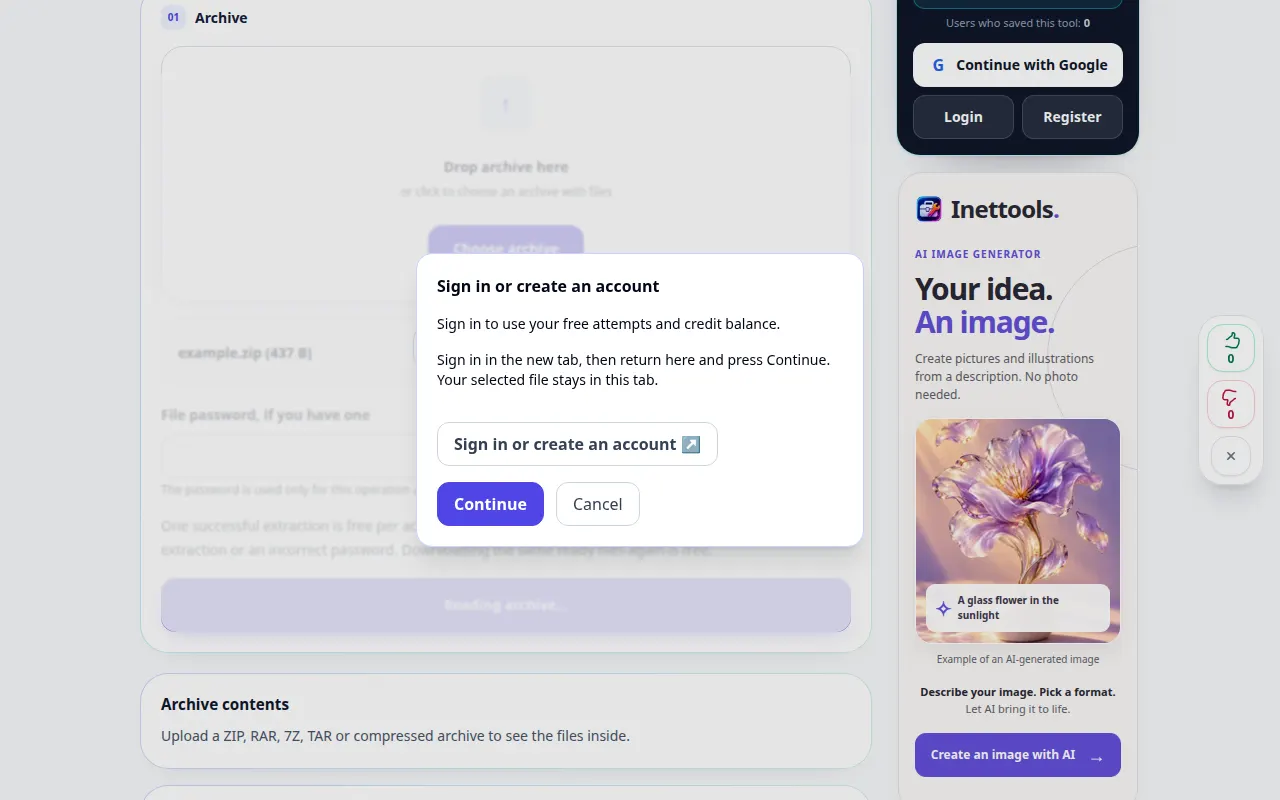
How to open an archive and save its files — Desktop demonstration
Choose an archive, inspect its contents and save the extracted files you need on a computer or phone. This recording shows the source and available settings before the main action. Follow the steps above to start processing and save the result.
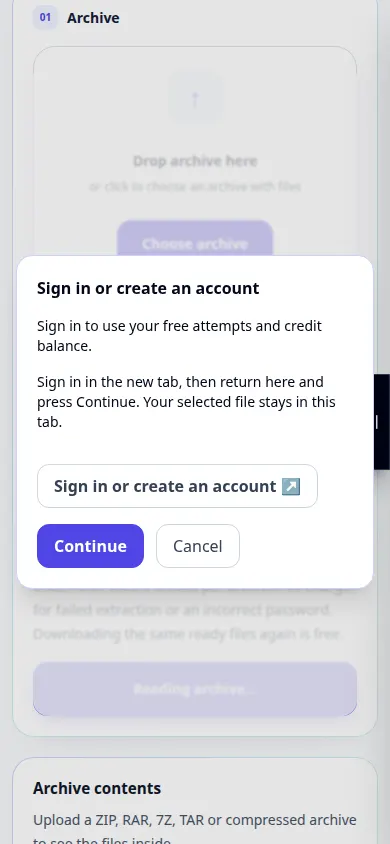
How to open an archive and save its files — Phone demonstration
Choose an archive, inspect its contents and save the extracted files you need on a computer or phone. This recording shows the source and available settings before the main action. Follow the steps above to start processing and save the result.
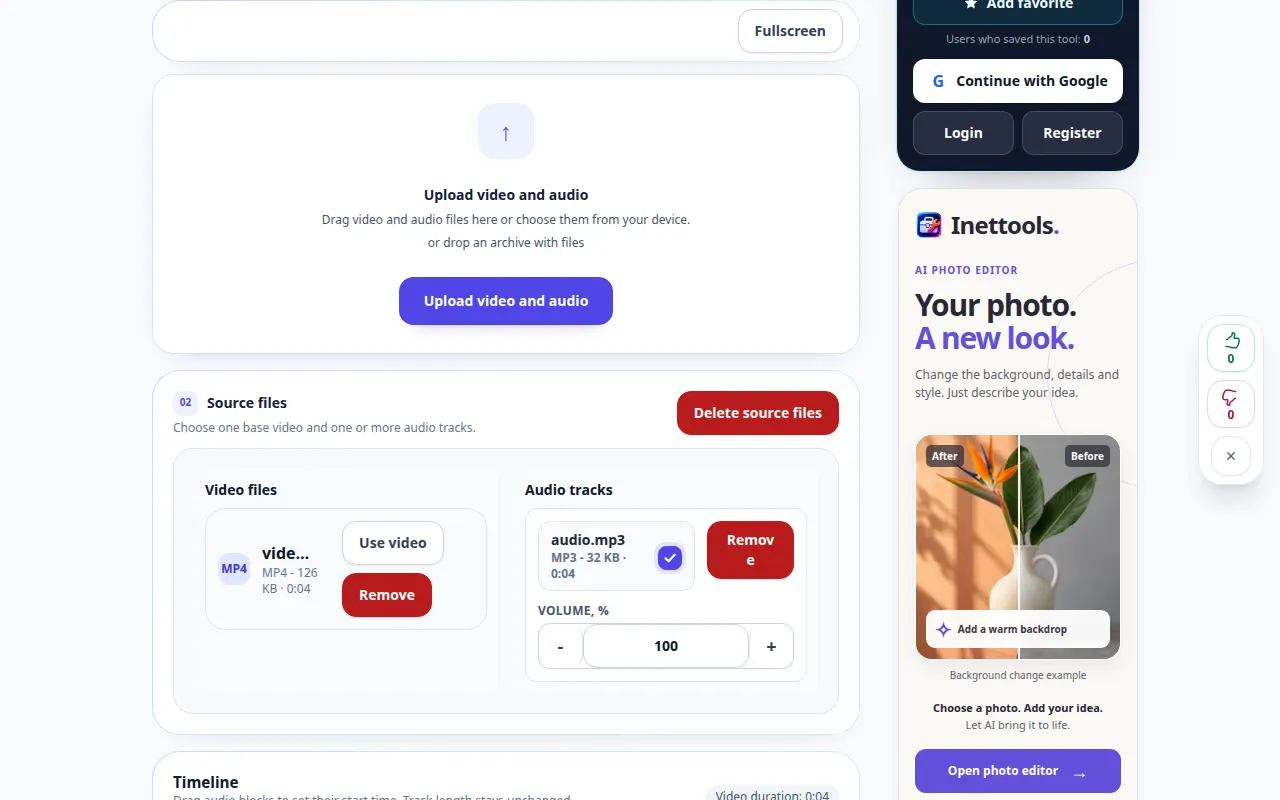
How to add music or a voice track to a video — Desktop demonstration
Place a separate audio file over a video and balance it with the original sound. This recording shows the source and available settings before the main action. Follow the steps above to start processing and save the result.
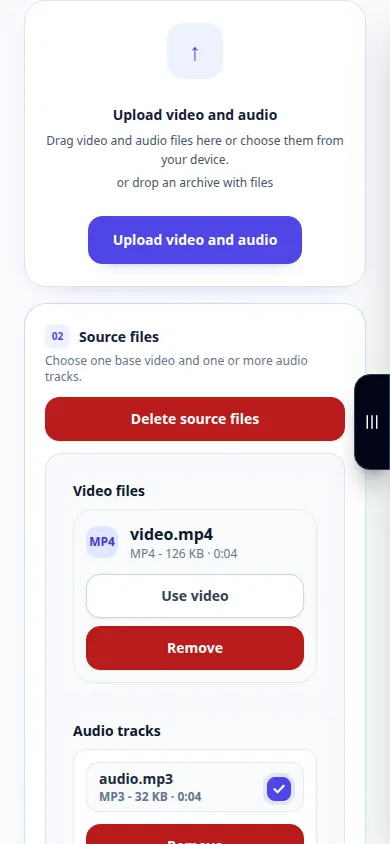
How to add music or a voice track to a video — Phone demonstration
Place a separate audio file over a video and balance it with the original sound. This recording shows the source and available settings before the main action. Follow the steps above to start processing and save the result.
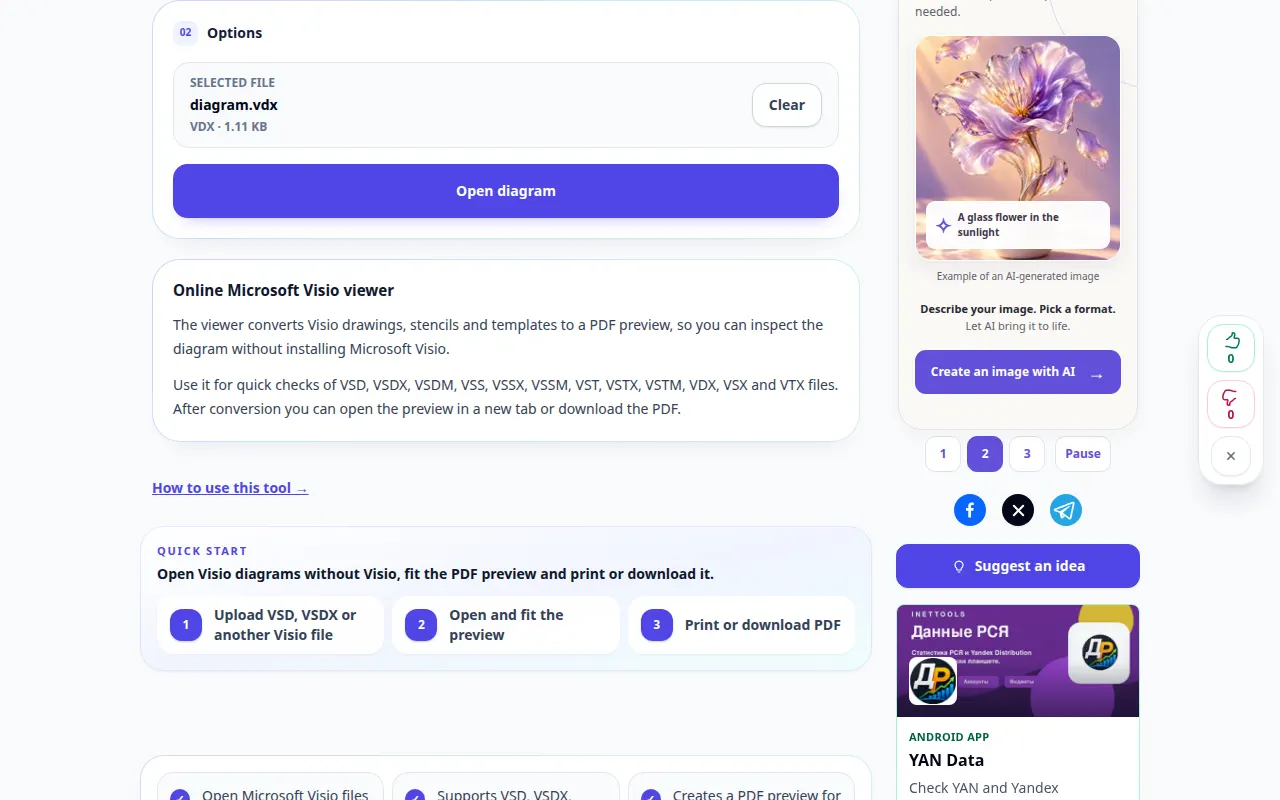
How to open a Visio diagram without Visio — Desktop demonstration
Preview a Visio drawing in your browser and save its PDF representation. This recording shows the source and available settings before the main action. Follow the steps above to start processing and save the result.
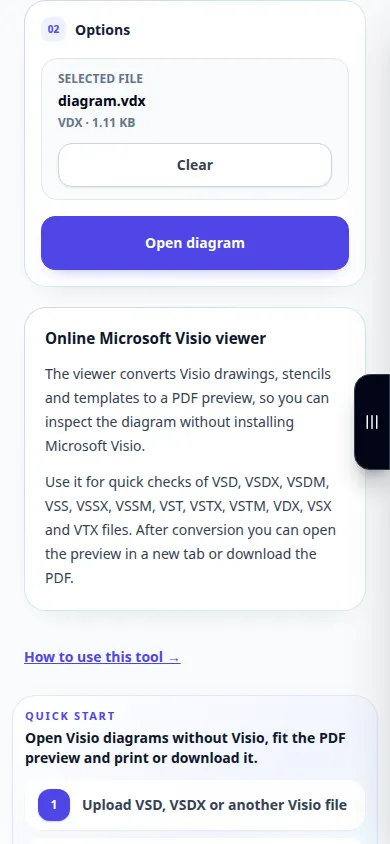
How to open a Visio diagram without Visio — Phone demonstration
Preview a Visio drawing in your browser and save its PDF representation. This recording shows the source and available settings before the main action. Follow the steps above to start processing and save the result.
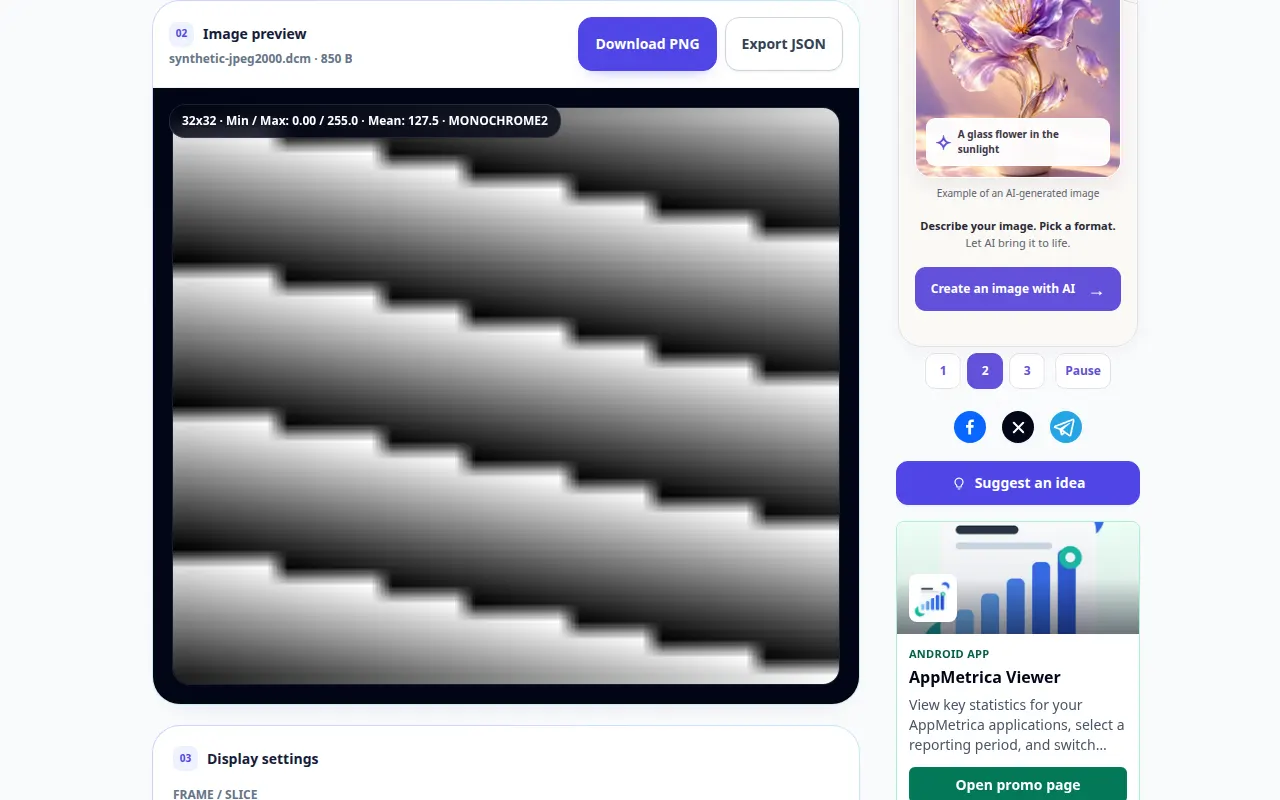
How to open a DICOM image and inspect its tags — Desktop demonstration
View DICOM pixels, including JPEG 2000, HTJ2K and JPEG XL, adjust the display window and inspect metadata. This recording shows a demonstration input and the resulting output in the tool.
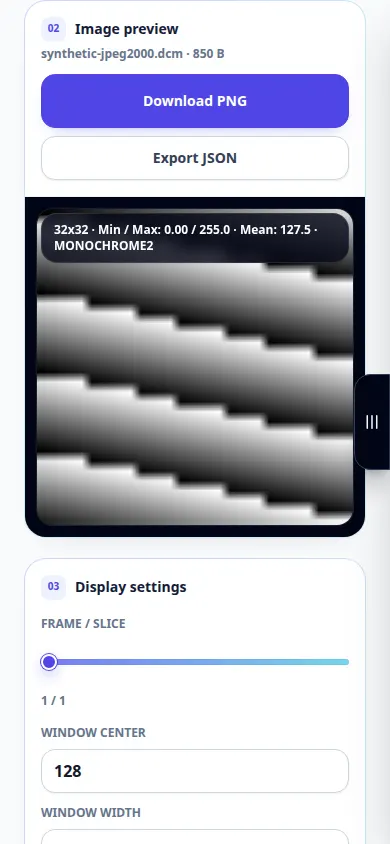
How to open a DICOM image and inspect its tags — Phone demonstration
View DICOM pixels, including JPEG 2000, HTJ2K and JPEG XL, adjust the display window and inspect metadata. This recording shows a demonstration input and the resulting output in the tool.
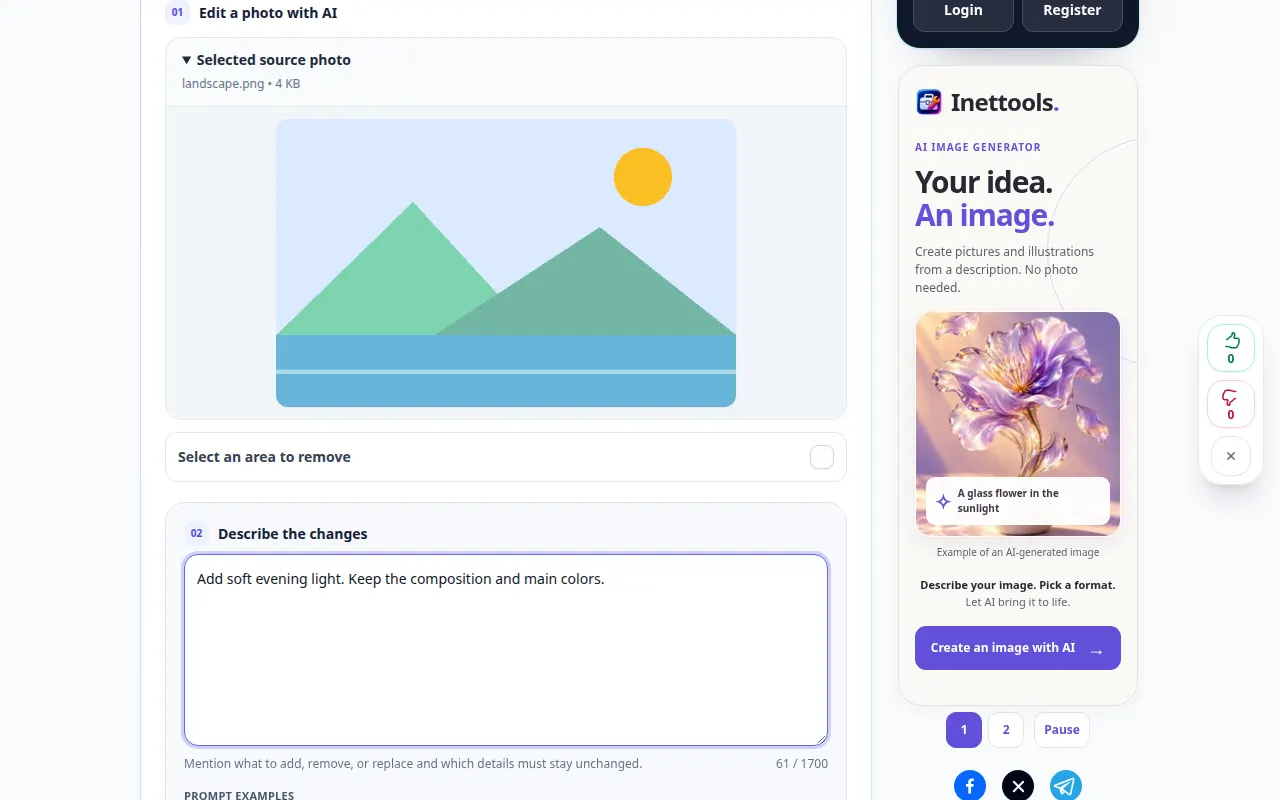
How to edit a photo with a written instruction — Desktop demonstration
Describe a change to a photo, review the processing options and compare the generated result. This recording shows the source and available settings before the main action. Follow the steps above to start processing and save the result.
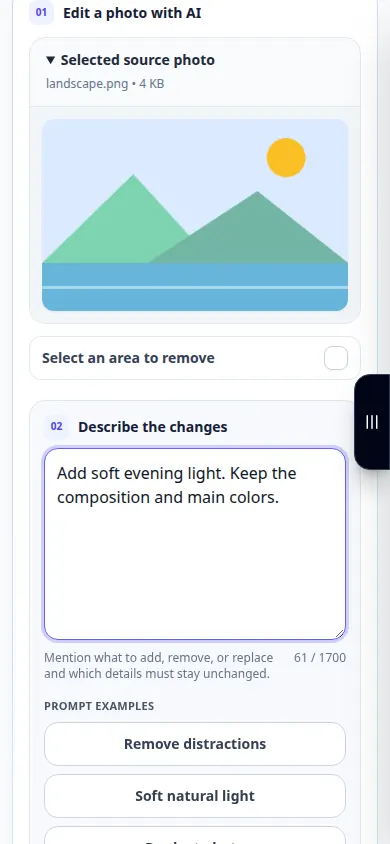
How to edit a photo with a written instruction — Phone demonstration
Describe a change to a photo, review the processing options and compare the generated result. This recording shows the source and available settings before the main action. Follow the steps above to start processing and save the result.
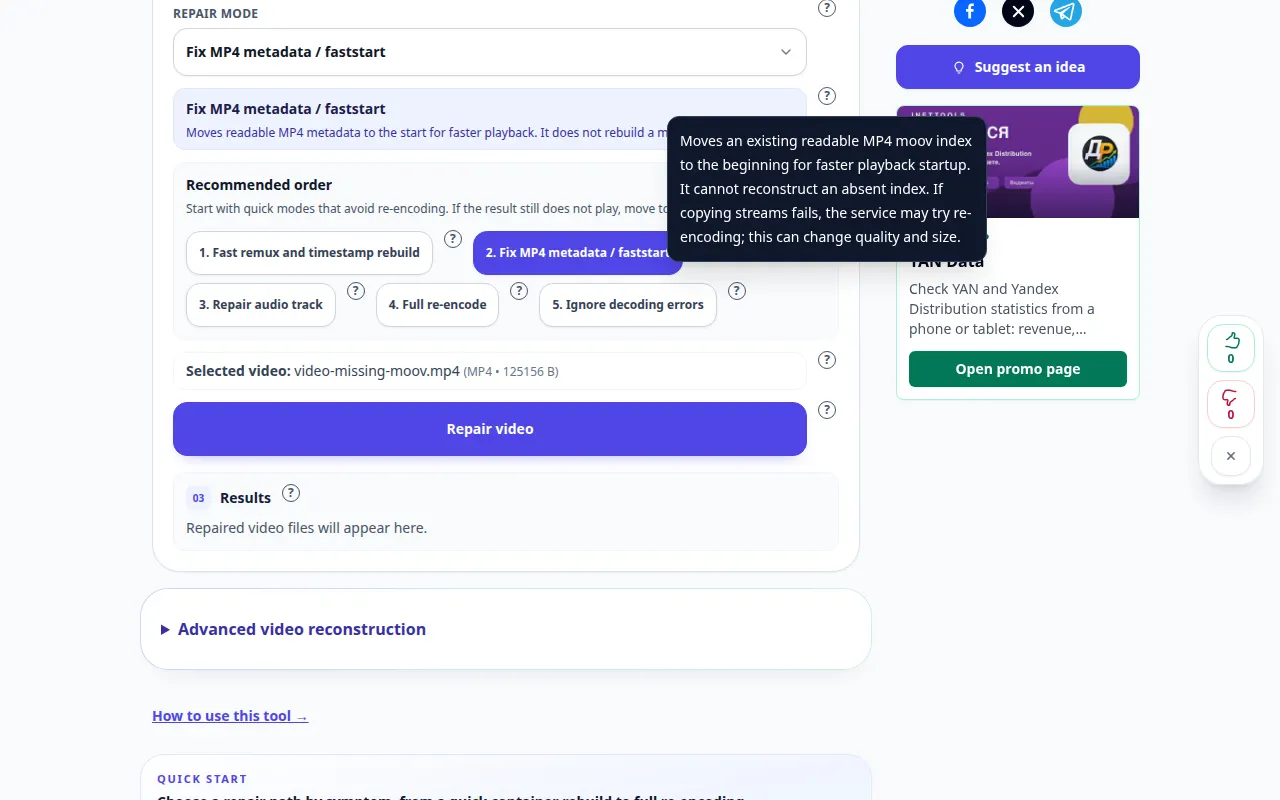
How to try repairing a damaged video — Desktop demonstration
Use the help beside the eight ordinary repair modes and the separate advanced reconstruction options. Learn how to choose a healthy sample and check the result. This recording shows the source and available settings before the main action. Follow the steps above to start processing and save the result.
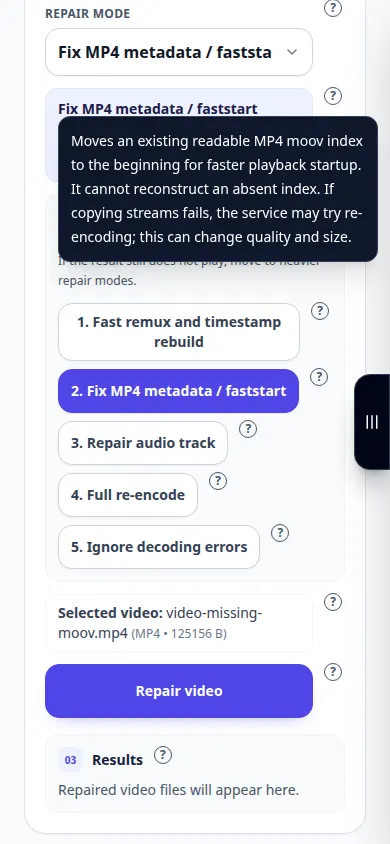
How to try repairing a damaged video — Phone demonstration
Use the help beside the eight ordinary repair modes and the separate advanced reconstruction options. Learn how to choose a healthy sample and check the result. This recording shows the source and available settings before the main action. Follow the steps above to start processing and save the result.
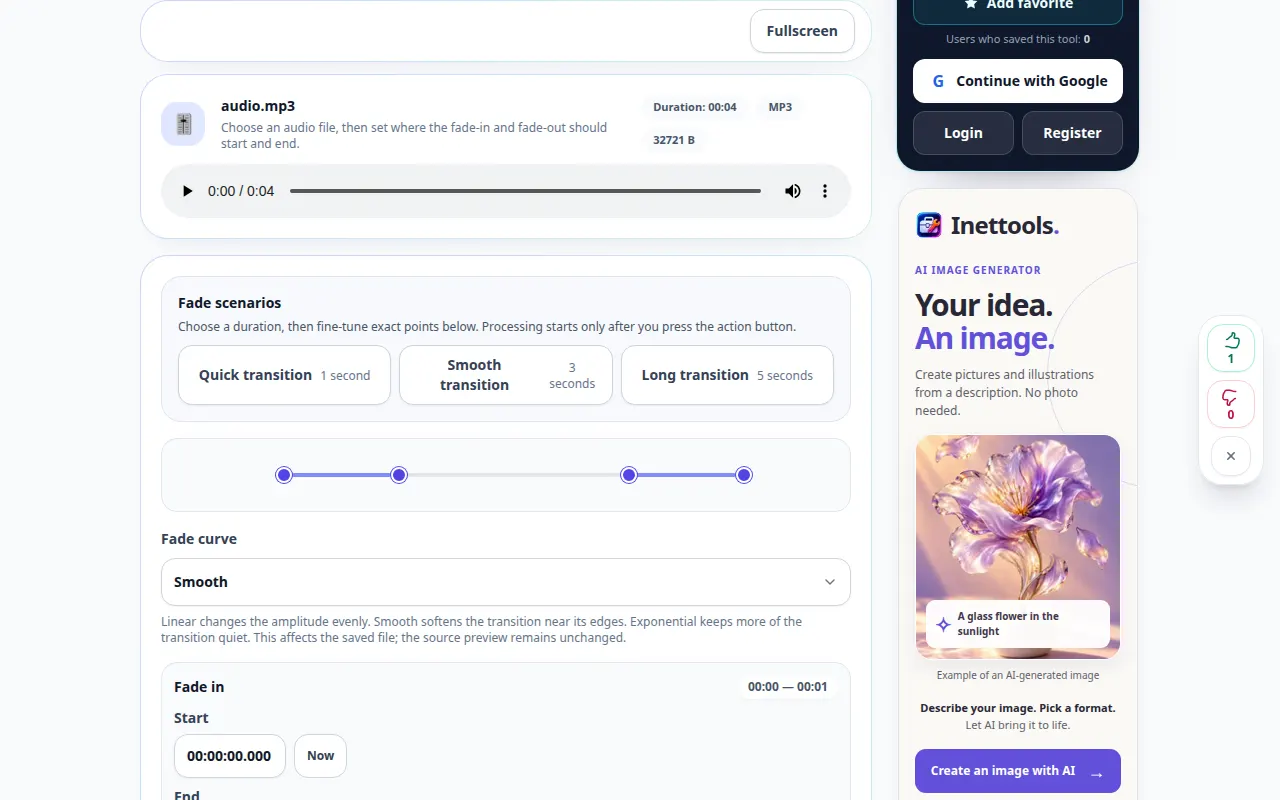
How to gradually increase or decrease audio volume — Desktop demonstration
Create a gradual rise from silence or a gradual reduction to silence at the beginning or end of a recording. This recording shows the source and available settings before the main action. Follow the steps above to start processing and save the result.
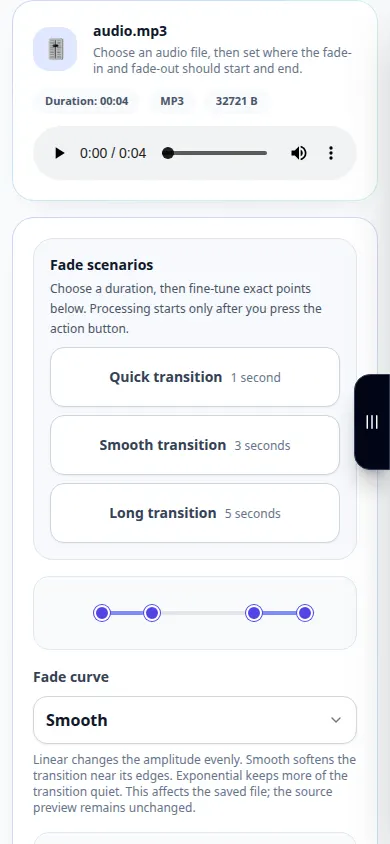
How to gradually increase or decrease audio volume — Phone demonstration
Create a gradual rise from silence or a gradual reduction to silence at the beginning or end of a recording. This recording shows the source and available settings before the main action. Follow the steps above to start processing and save the result.
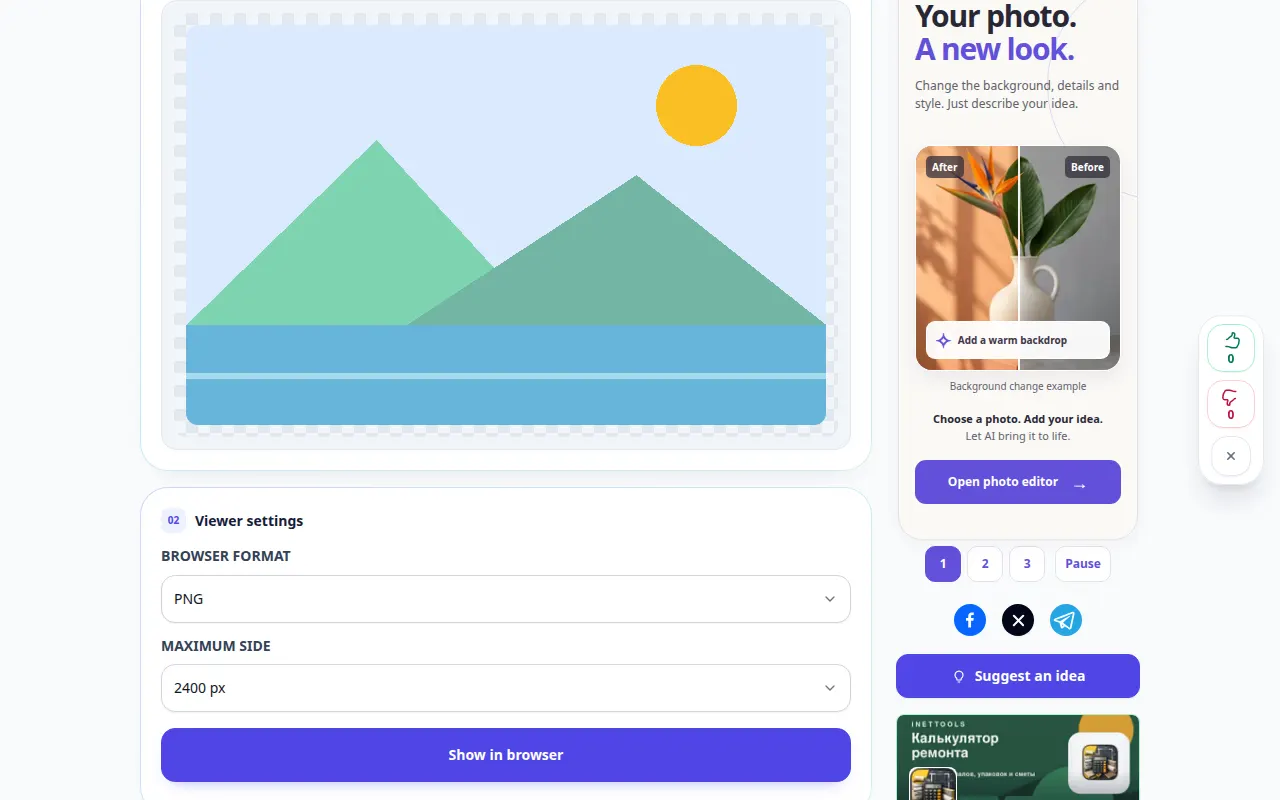
How to view an image and save another format — Desktop demonstration
Open an image, inspect its dimensions and create a supported output copy. This recording shows a demonstration input and the resulting output in the tool.
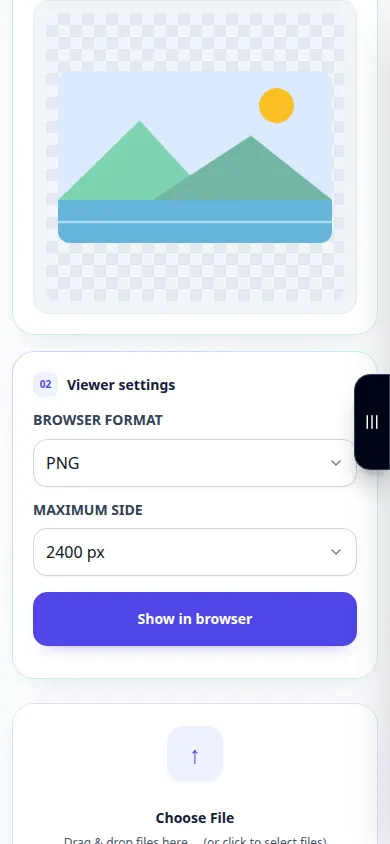
How to view an image and save another format — Phone demonstration
Open an image, inspect its dimensions and create a supported output copy. This recording shows a demonstration input and the resulting output in the tool.
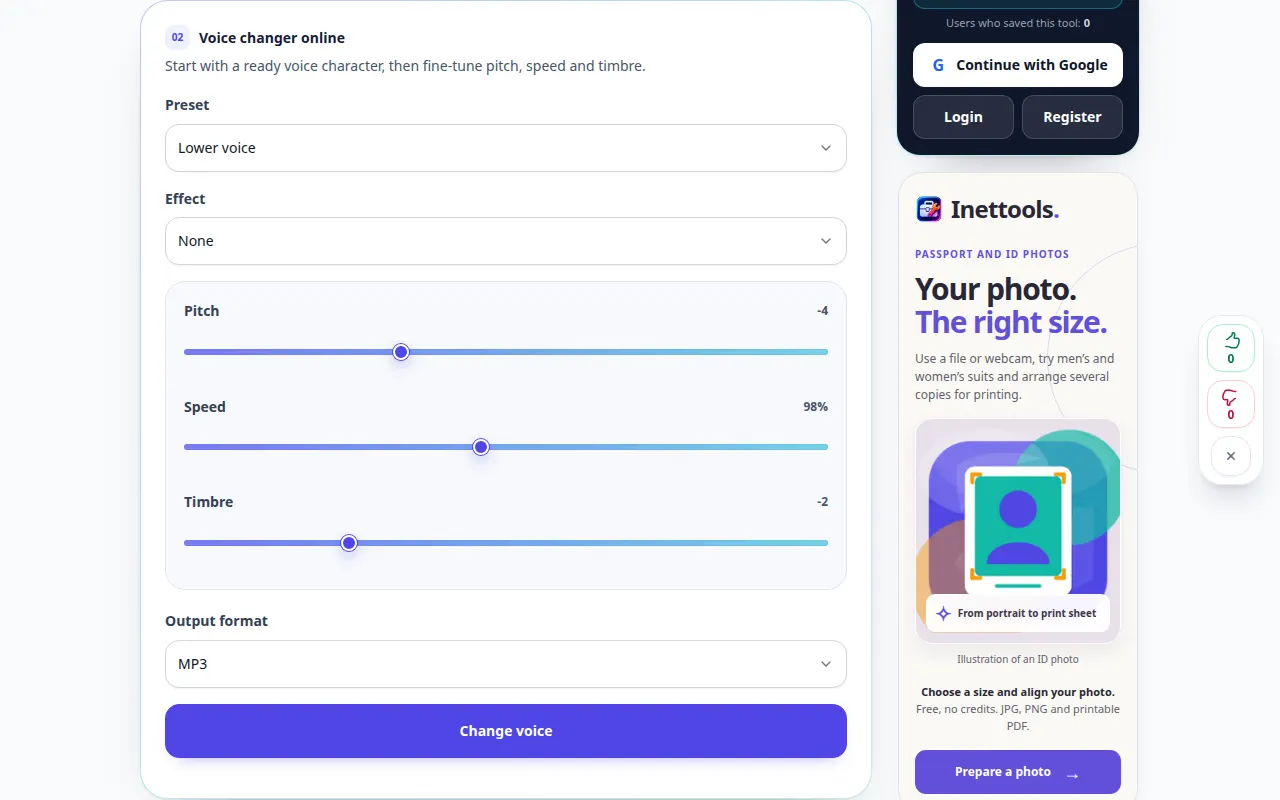
How to change voice pitch and add effects — Desktop demonstration
Try a voice preset and adjust pitch, speed and timbre before exporting a new recording. This recording shows the source and available settings before the main action. Follow the steps above to start processing and save the result.
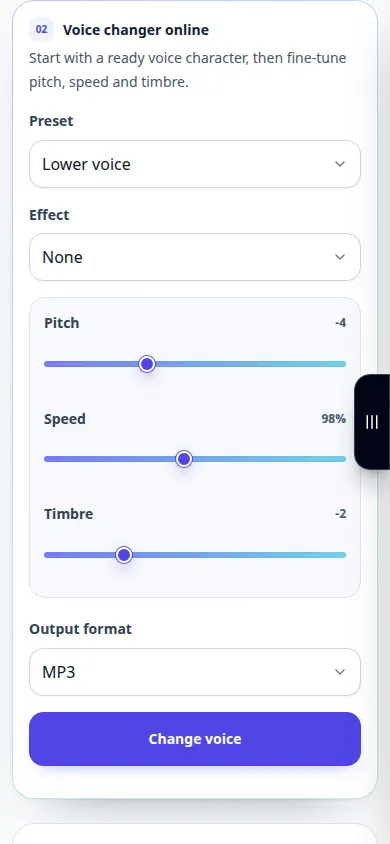
How to change voice pitch and add effects — Phone demonstration
Try a voice preset and adjust pitch, speed and timbre before exporting a new recording. This recording shows the source and available settings before the main action. Follow the steps above to start processing and save the result.
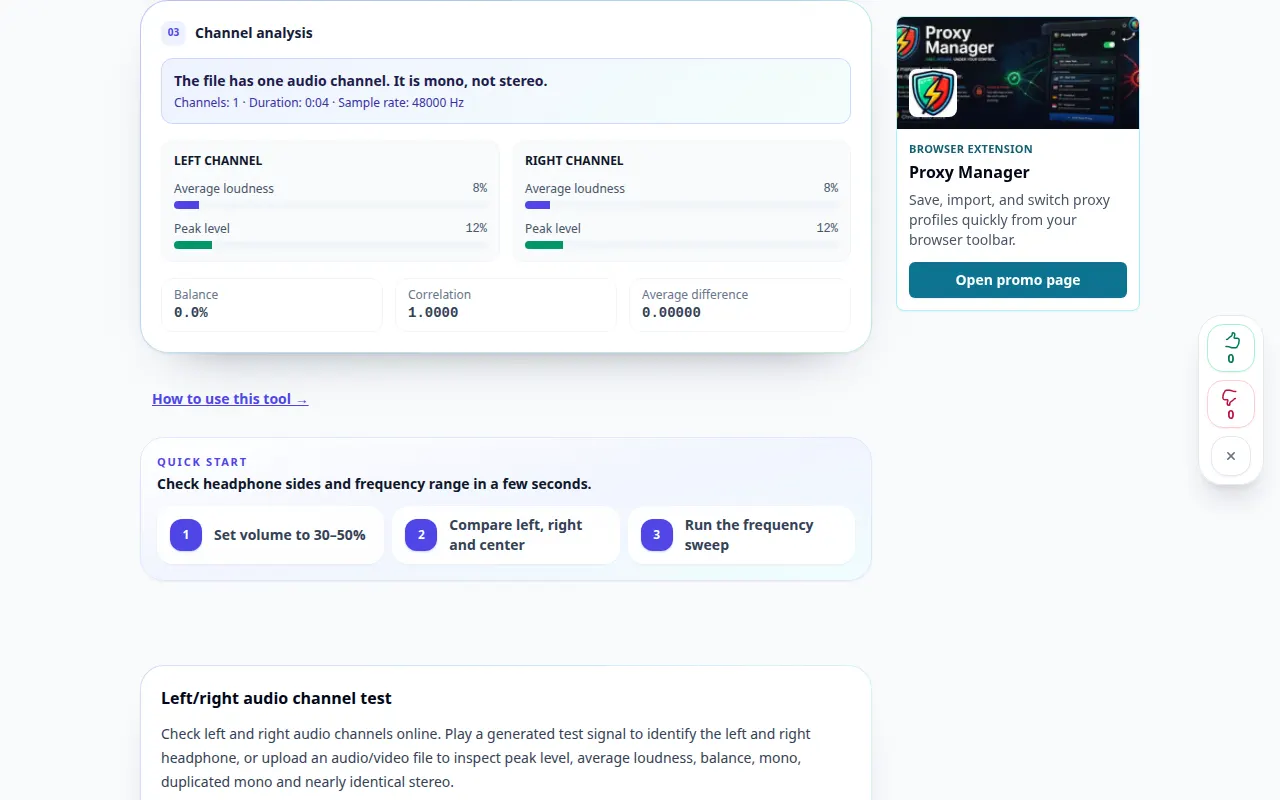
How to check left and right audio channels — Desktop demonstration
Listen to stereo channels and inspect whether the two sides differ. This recording shows a demonstration input and the resulting output in the tool.
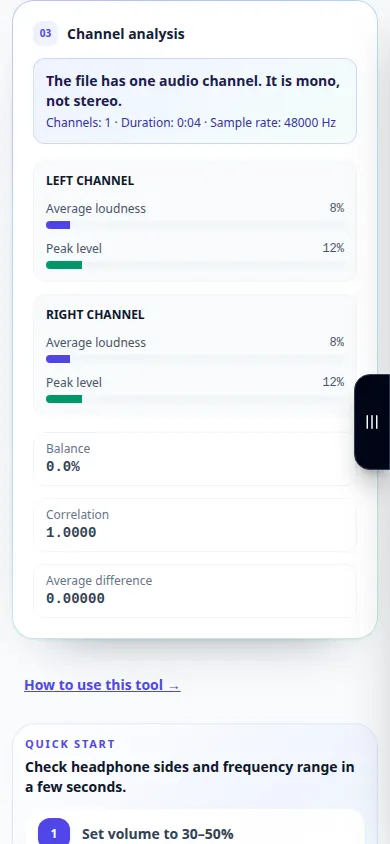
How to check left and right audio channels — Phone demonstration
Listen to stereo channels and inspect whether the two sides differ. This recording shows a demonstration input and the resulting output in the tool.
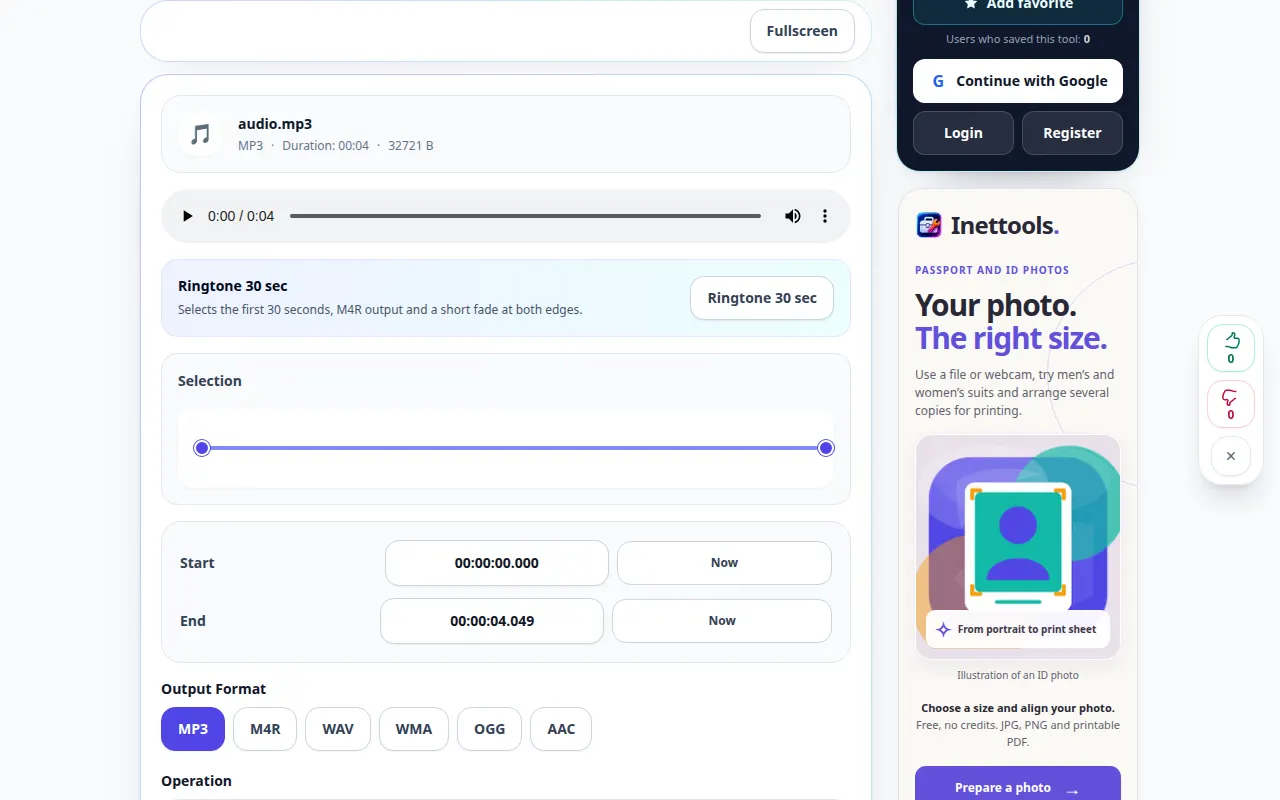
How to cut a section from an audio recording — Desktop demonstration
Choose exact start and end times and save a shorter audio copy. This recording shows the source and available settings before the main action. Follow the steps above to start processing and save the result.
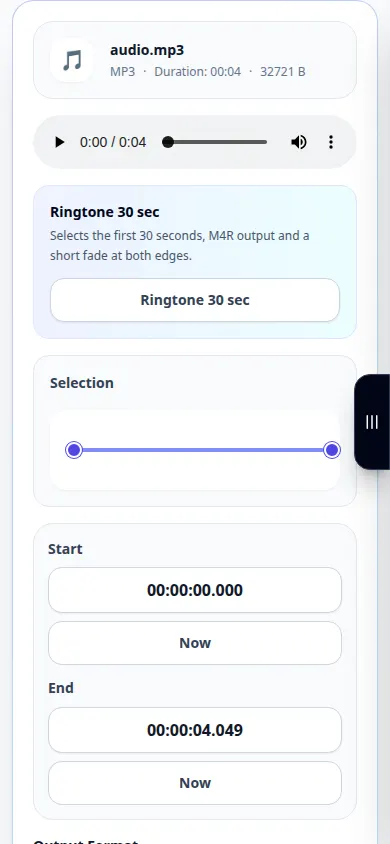
How to cut a section from an audio recording — Phone demonstration
Choose exact start and end times and save a shorter audio copy. This recording shows the source and available settings before the main action. Follow the steps above to start processing and save the result.
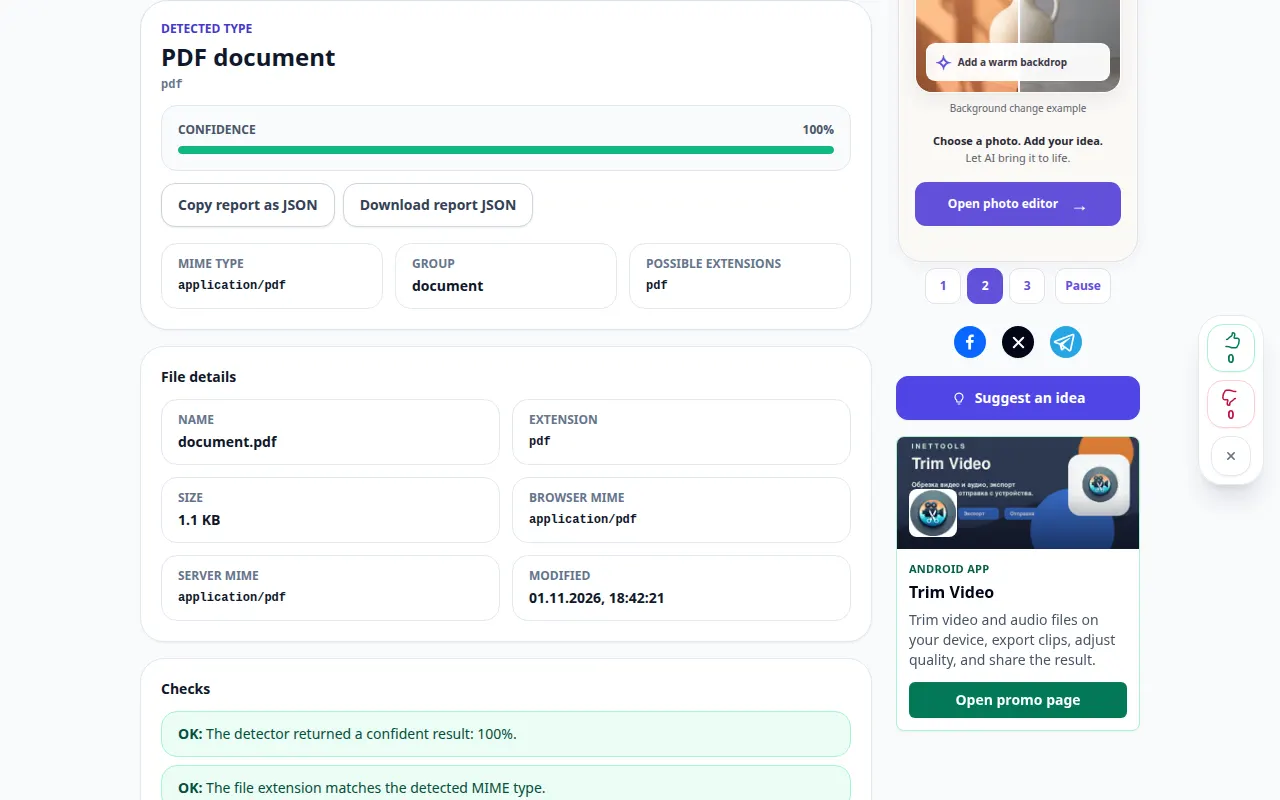
How to identify a file by its contents — Desktop demonstration
Check a file signature instead of relying only on the extension in its name. This recording shows a demonstration input and the resulting output in the tool.
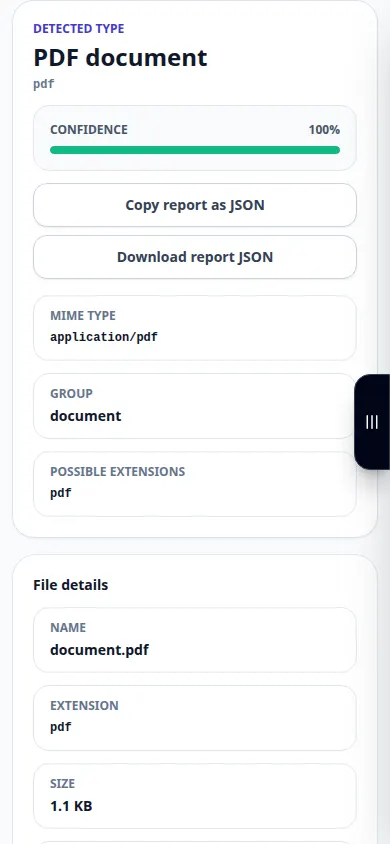
How to identify a file by its contents — Phone demonstration
Check a file signature instead of relying only on the extension in its name. This recording shows a demonstration input and the resulting output in the tool.
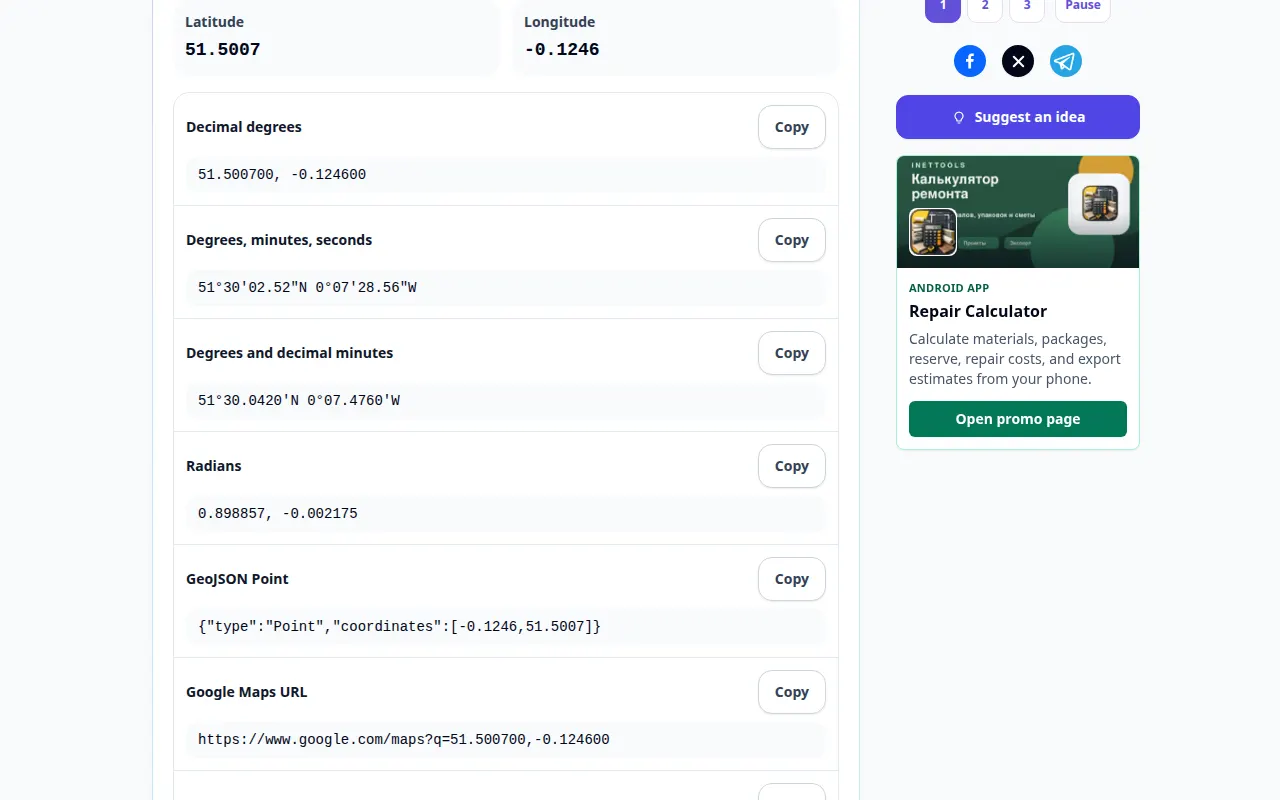
How to convert latitude and longitude formats — Desktop demonstration
Turn geographic coordinates into another supported notation and check their location. This recording shows a demonstration input and the resulting output in the tool.
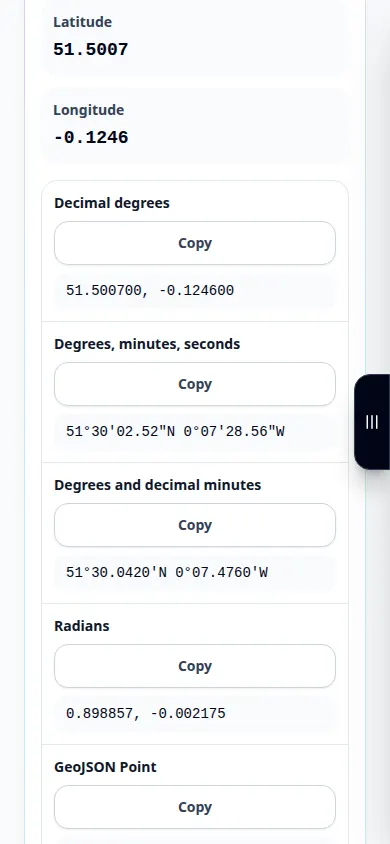
How to convert latitude and longitude formats — Phone demonstration
Turn geographic coordinates into another supported notation and check their location. This recording shows a demonstration input and the resulting output in the tool.
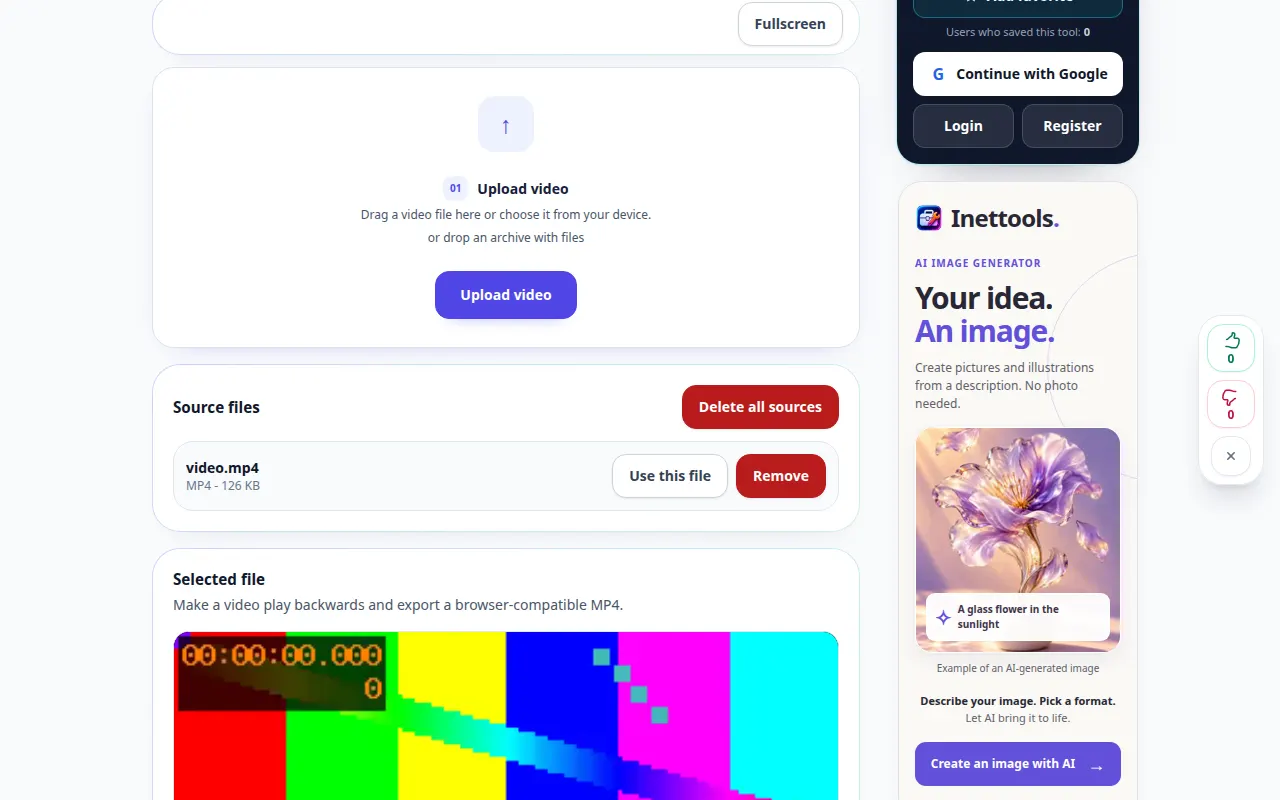
How to play a video backward — Desktop demonstration
Create a reversed copy and review the available sound and output settings. This recording shows the source and available settings before the main action. Follow the steps above to start processing and save the result.
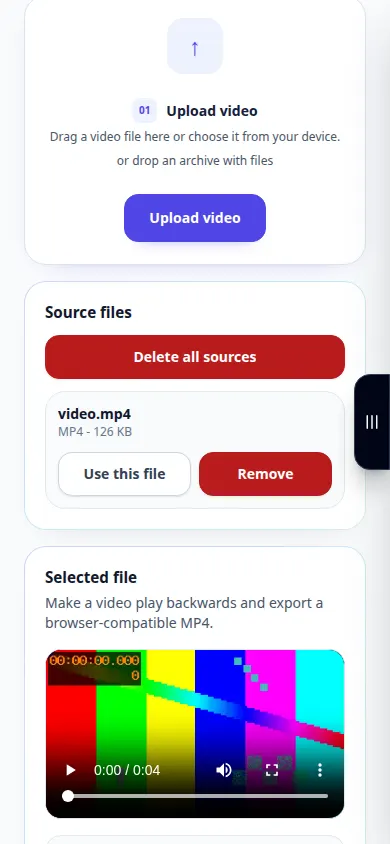
How to play a video backward — Phone demonstration
Create a reversed copy and review the available sound and output settings. This recording shows the source and available settings before the main action. Follow the steps above to start processing and save the result.
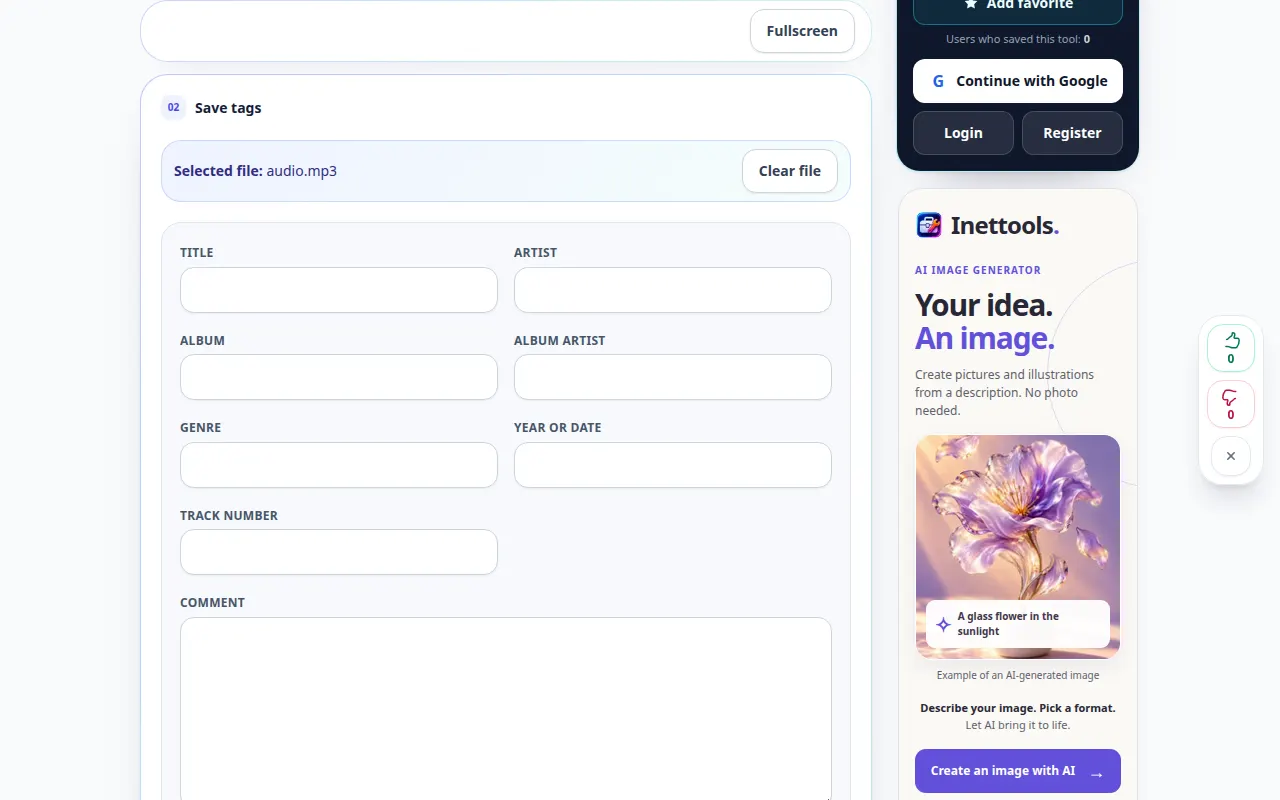
How to edit MP3 title, artist and album — Desktop demonstration
Update the metadata shown by a music player and save an edited copy. This recording shows the source and available settings before the main action. Follow the steps above to start processing and save the result.
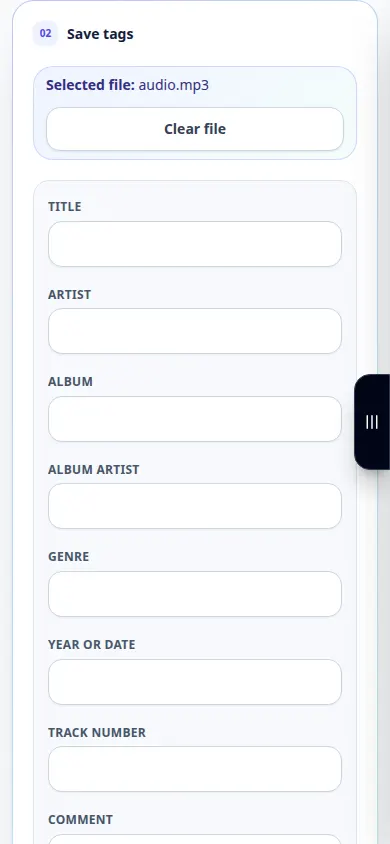
How to edit MP3 title, artist and album — Phone demonstration
Update the metadata shown by a music player and save an edited copy. This recording shows the source and available settings before the main action. Follow the steps above to start processing and save the result.
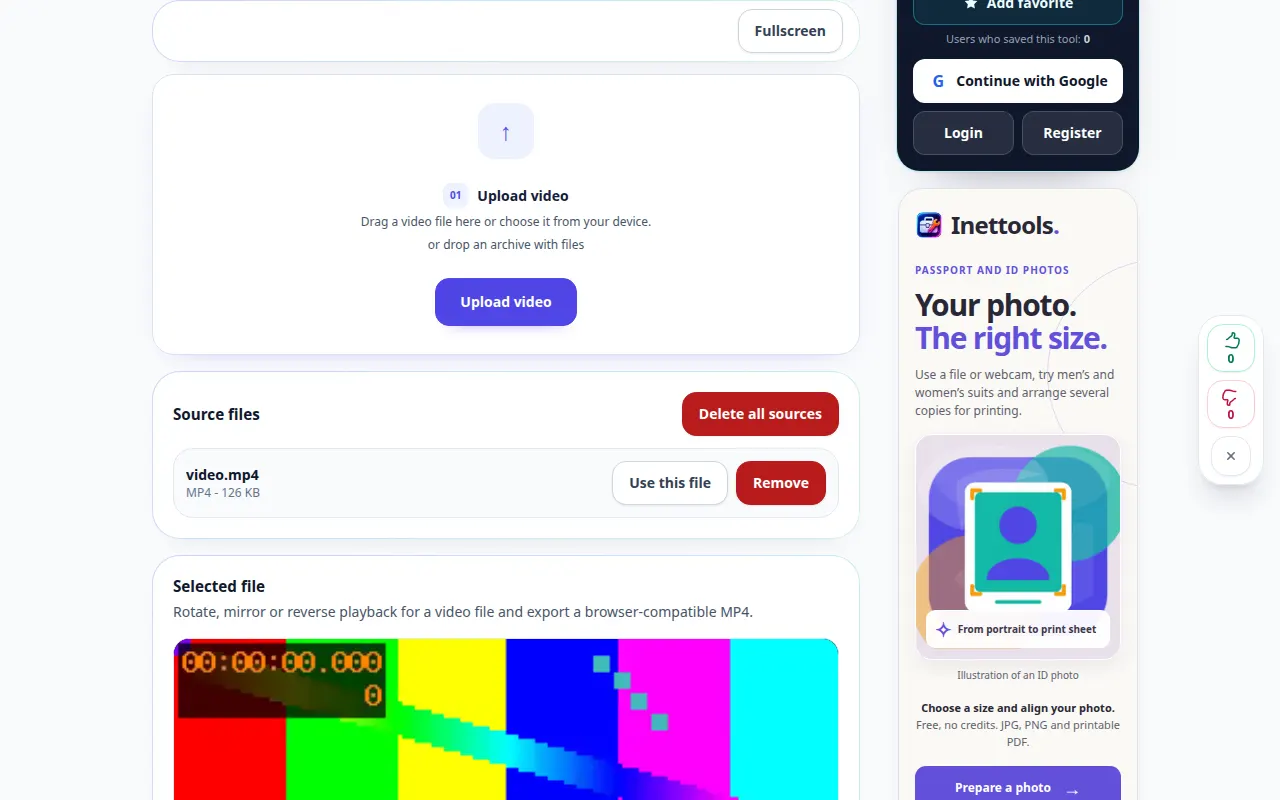
How to rotate a sideways video — Desktop demonstration
Choose an orientation and save a video that displays the right way up. This recording shows the source and available settings before the main action. Follow the steps above to start processing and save the result.
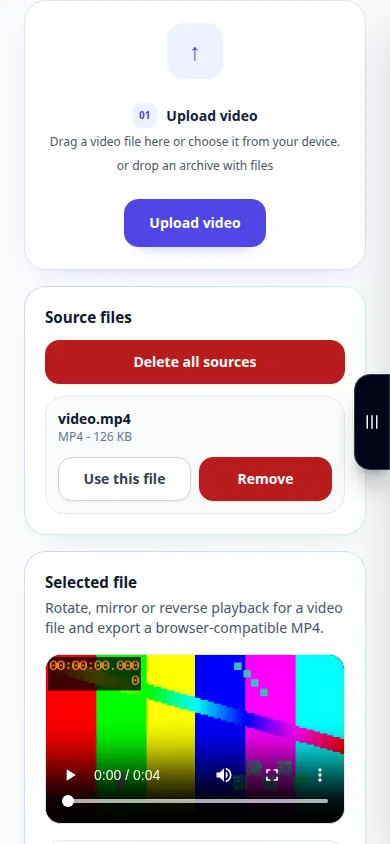
How to rotate a sideways video — Phone demonstration
Choose an orientation and save a video that displays the right way up. This recording shows the source and available settings before the main action. Follow the steps above to start processing and save the result.
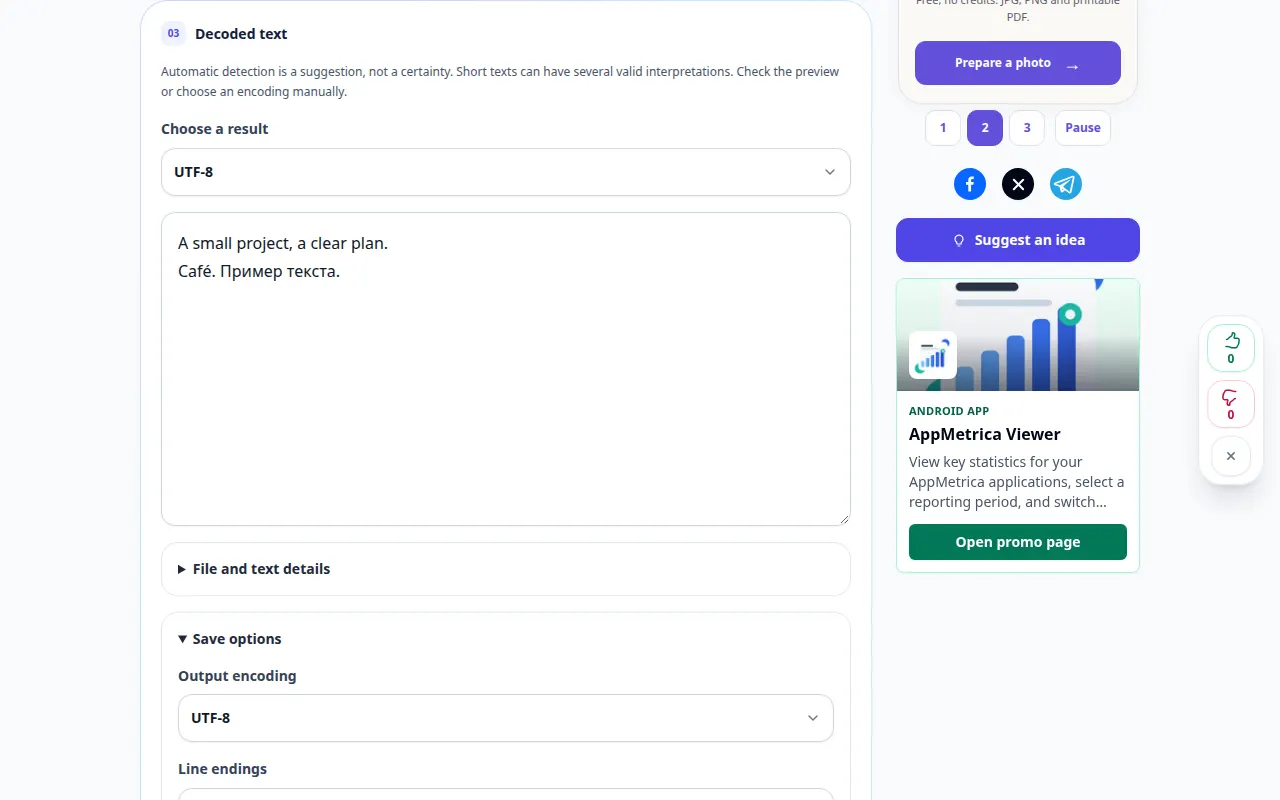
How to diagnose and convert text encoding — Desktop demonstration
Read text with the intended character encoding and prepare a correctly encoded copy. This recording shows a demonstration input and the resulting output in the tool.
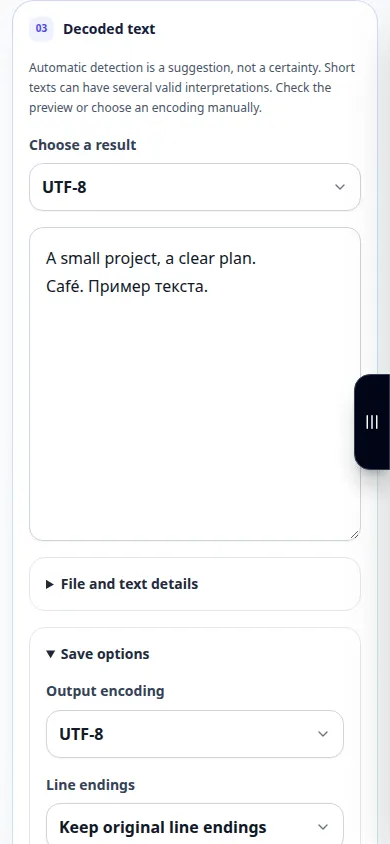
How to diagnose and convert text encoding — Phone demonstration
Read text with the intended character encoding and prepare a correctly encoded copy. This recording shows a demonstration input and the resulting output in the tool.
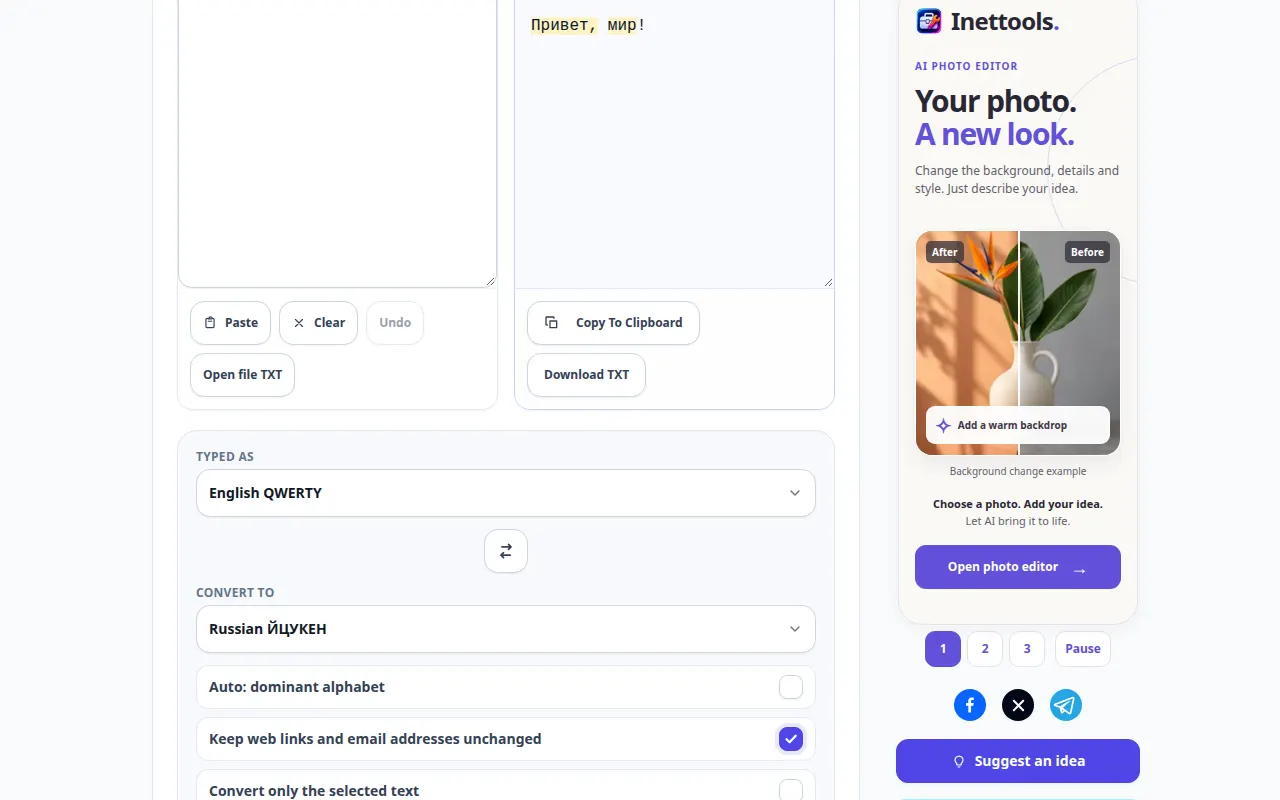
How to fix text typed with the wrong keyboard layout — Desktop demonstration
Convert mistyped keyboard characters without retyping the whole passage. This recording shows a demonstration input and the resulting output in the tool.
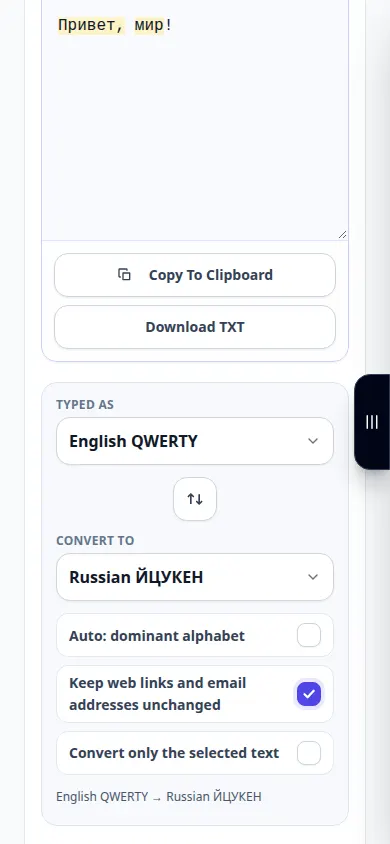
How to fix text typed with the wrong keyboard layout — Phone demonstration
Convert mistyped keyboard characters without retyping the whole passage. This recording shows a demonstration input and the resulting output in the tool.
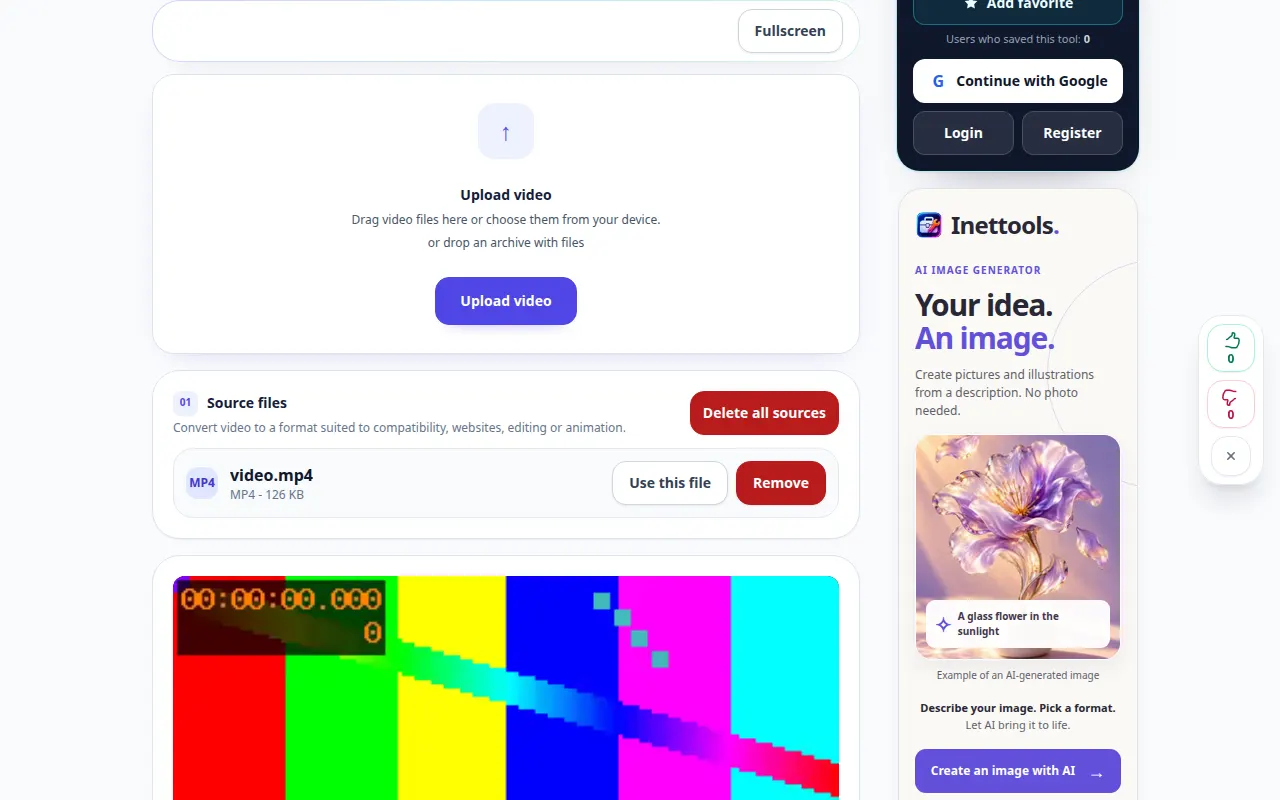
How to convert a video to another format — Desktop demonstration
Choose a supported target format and review compatibility before starting conversion. This recording shows the source and available settings before the main action. Follow the steps above to start processing and save the result.
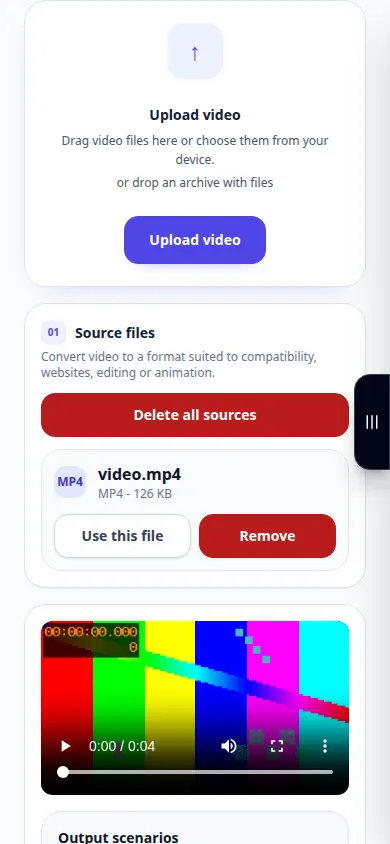
How to convert a video to another format — Phone demonstration
Choose a supported target format and review compatibility before starting conversion. This recording shows the source and available settings before the main action. Follow the steps above to start processing and save the result.
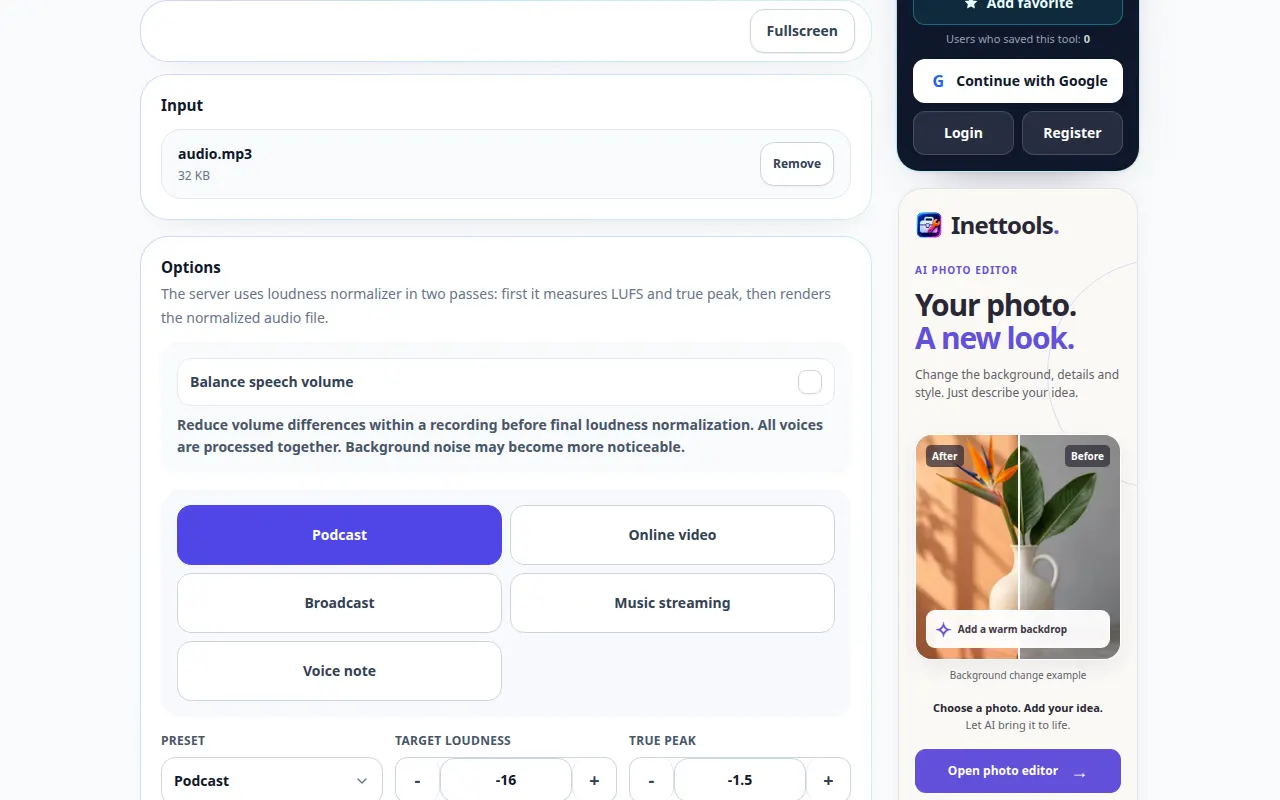
How to normalize audio loudness — Desktop demonstration
Bring recordings closer to a chosen loudness target while checking peaks and listening quality. This recording shows the source and available settings before the main action. Follow the steps above to start processing and save the result.
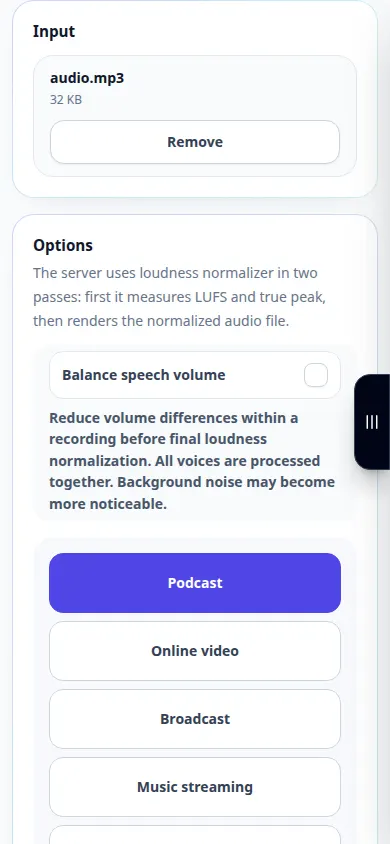
How to normalize audio loudness — Phone demonstration
Bring recordings closer to a chosen loudness target while checking peaks and listening quality. This recording shows the source and available settings before the main action. Follow the steps above to start processing and save the result.
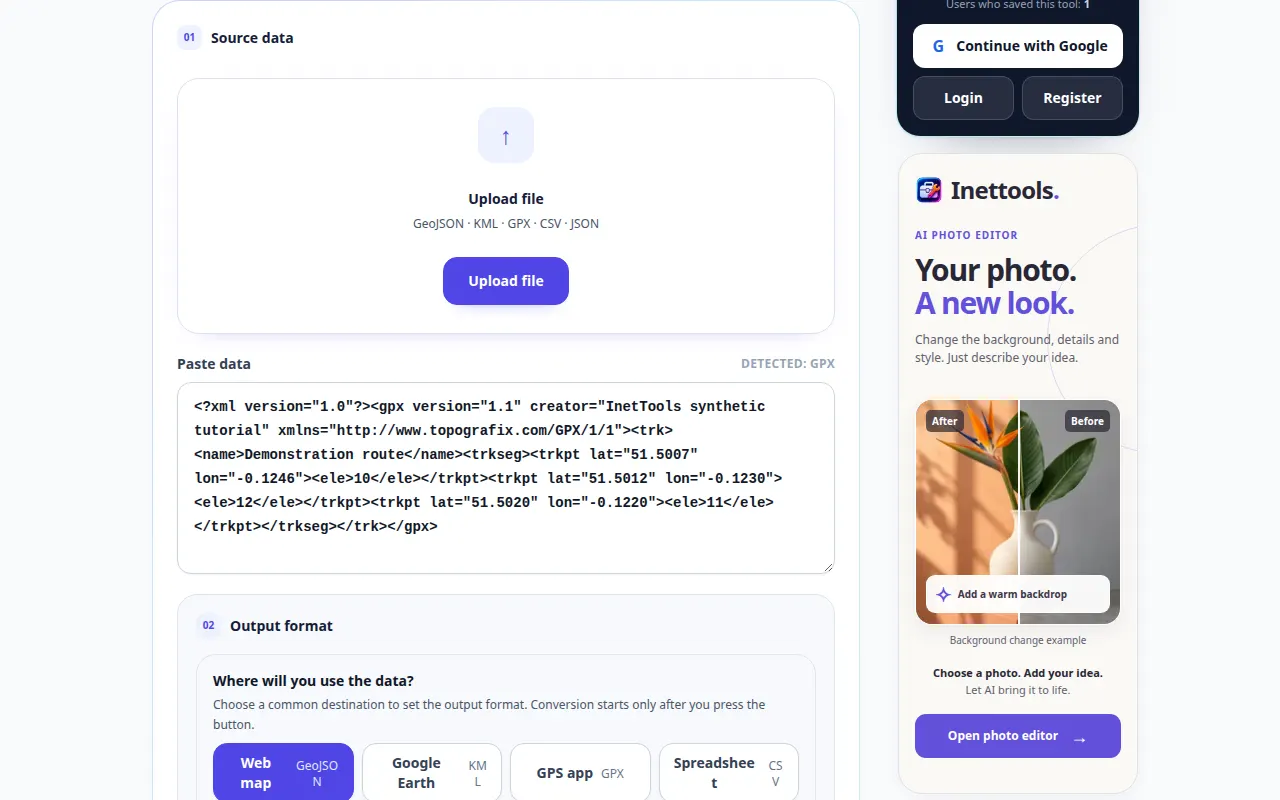
How to convert a route or geodata file — Desktop demonstration
Change a supported geographic file into another available format and verify the geometry. This recording shows the source and available settings before the main action. Follow the steps above to start processing and save the result.
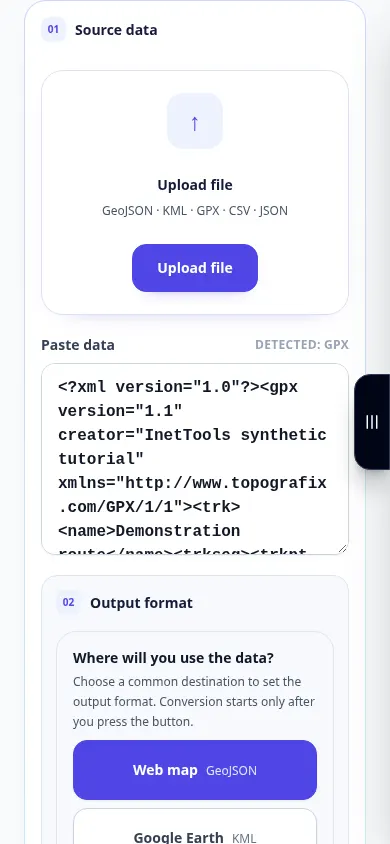
How to convert a route or geodata file — Phone demonstration
Change a supported geographic file into another available format and verify the geometry. This recording shows the source and available settings before the main action. Follow the steps above to start processing and save the result.
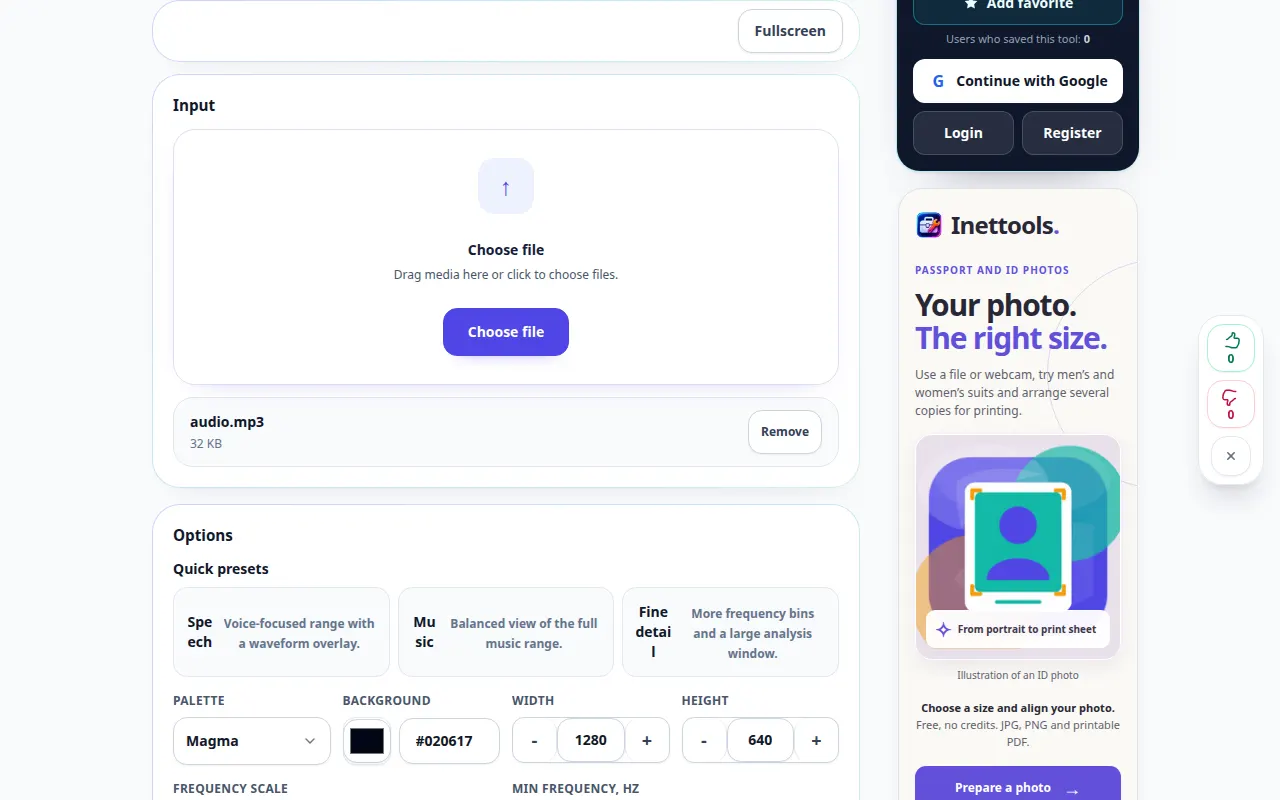
How to build a spectrogram from an audio recording — Desktop demonstration
Inspect how frequencies change over time and export an available visualization. This recording shows the source and available settings before the main action. Follow the steps above to start processing and save the result.
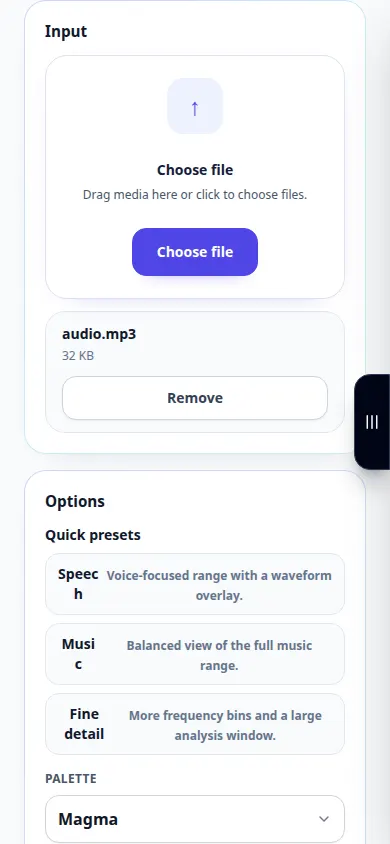
How to build a spectrogram from an audio recording — Phone demonstration
Inspect how frequencies change over time and export an available visualization. This recording shows the source and available settings before the main action. Follow the steps above to start processing and save the result.
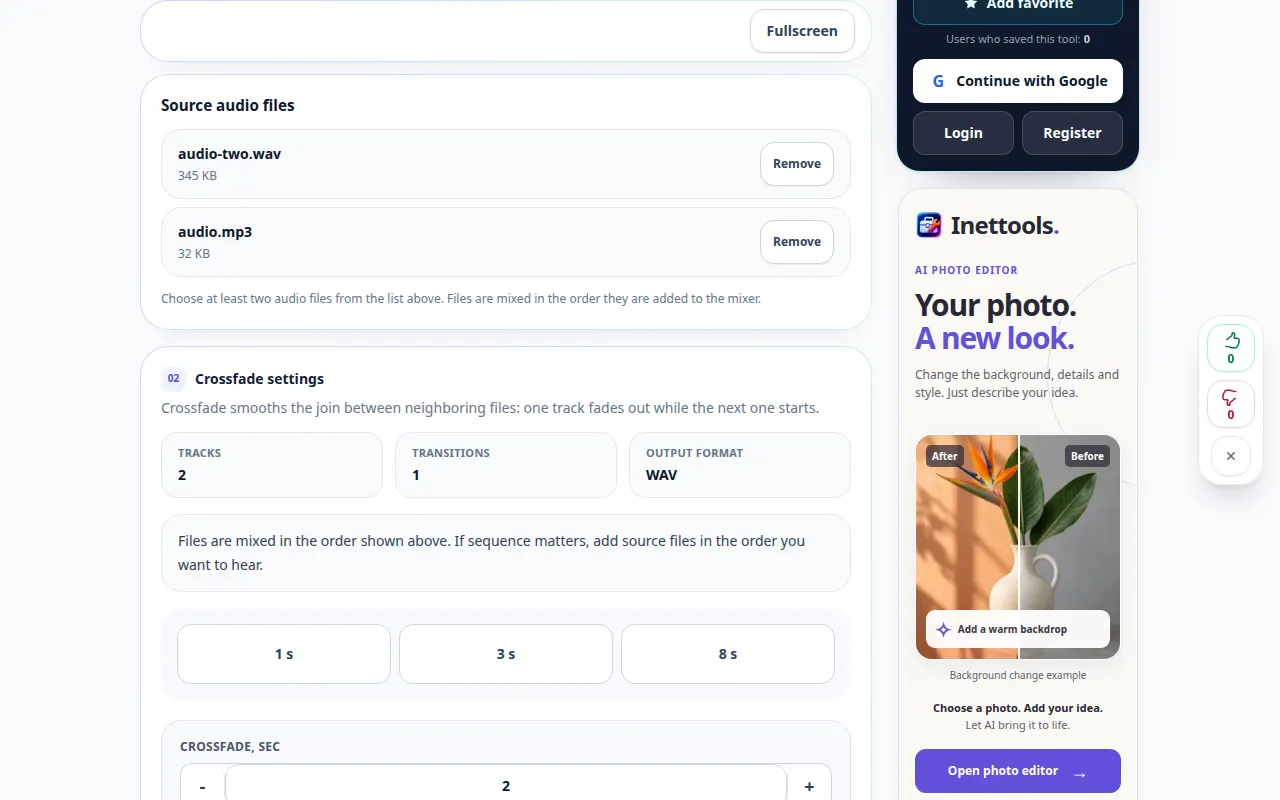
How to join audio with a crossfade — Desktop demonstration
Overlap the end of one recording with the start of another for a smoother transition. This recording shows the source and available settings before the main action. Follow the steps above to start processing and save the result.
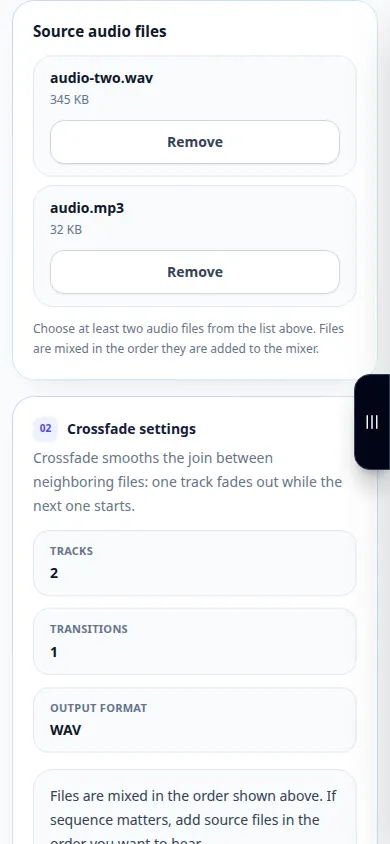
How to join audio with a crossfade — Phone demonstration
Overlap the end of one recording with the start of another for a smoother transition. This recording shows the source and available settings before the main action. Follow the steps above to start processing and save the result.
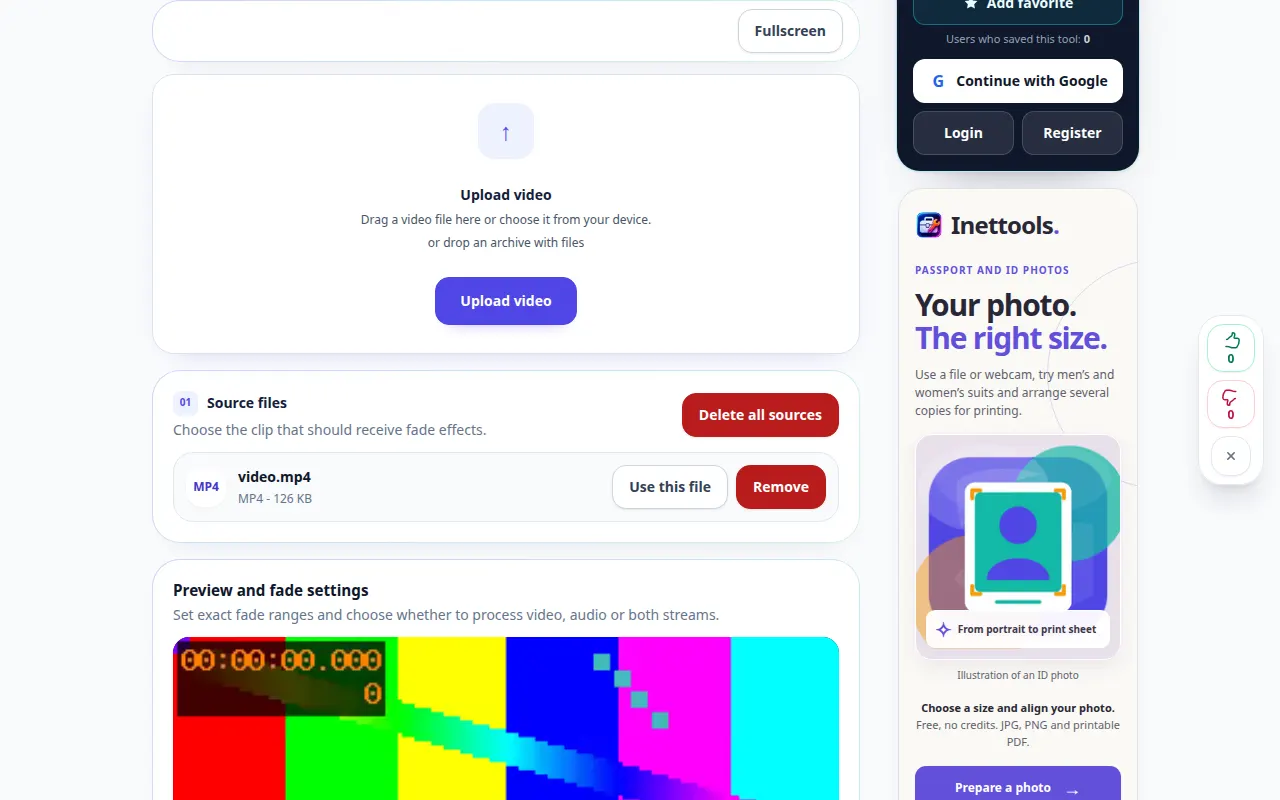
How to make a video gradually appear from black or disappear to black — Desktop demonstration
Gradually reveal the picture at the start or darken it to black at the end, without changing the frame dimensions. This recording shows the source and available settings before the main action. Follow the steps above to start processing and save the result.
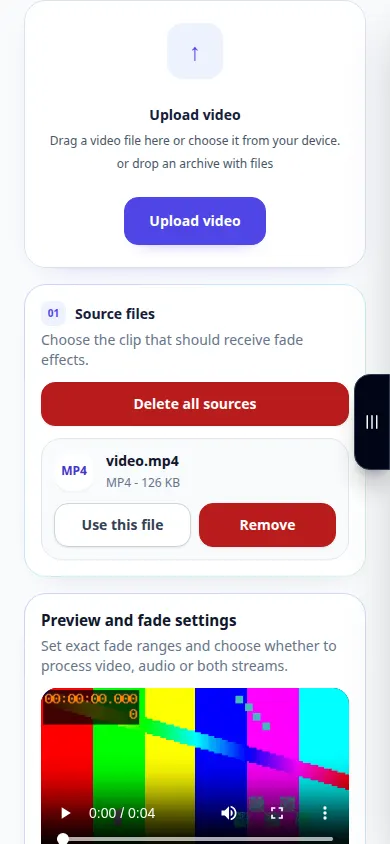
How to make a video gradually appear from black or disappear to black — Phone demonstration
Gradually reveal the picture at the start or darken it to black at the end, without changing the frame dimensions. This recording shows the source and available settings before the main action. Follow the steps above to start processing and save the result.
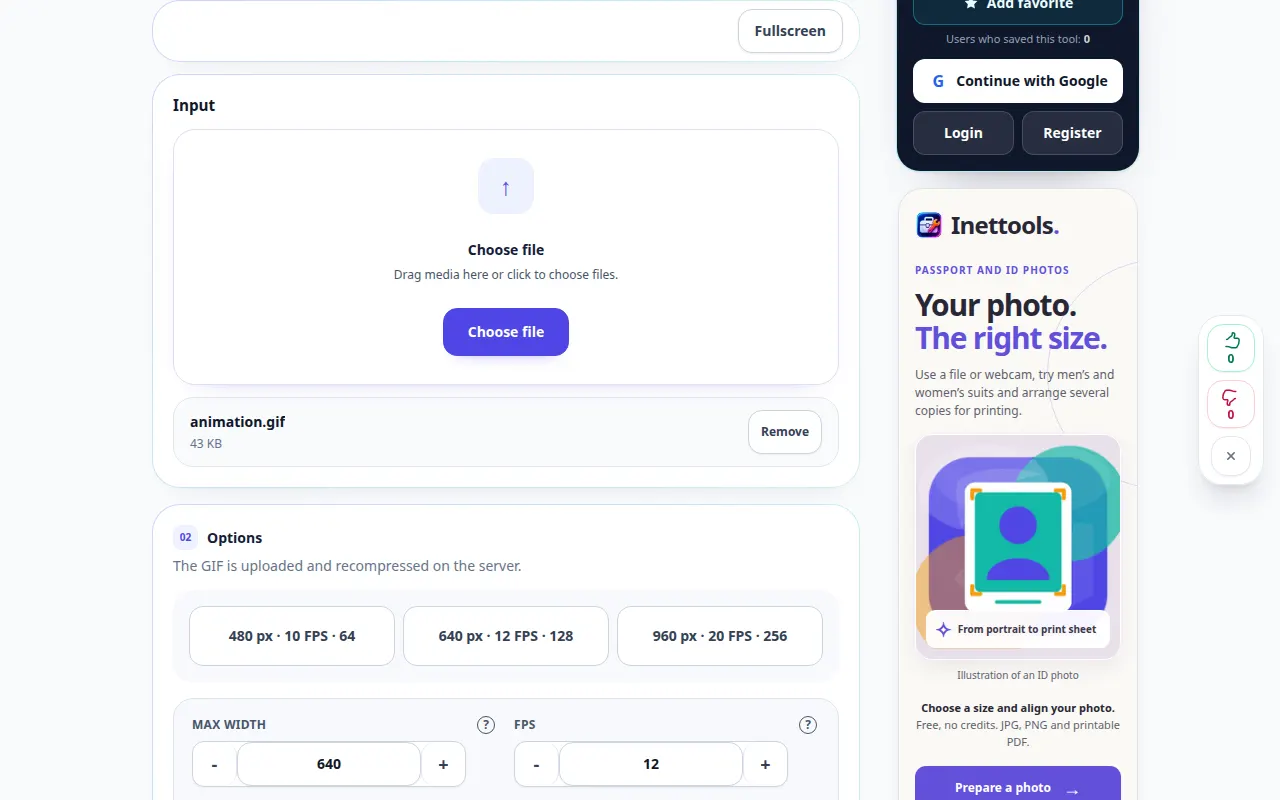
Optimize GIF — Desktop demonstration
Upload and recompress the selected GIF with the current settings. This recording shows the source and available settings before the main action. Follow the steps above to start processing and save the result.
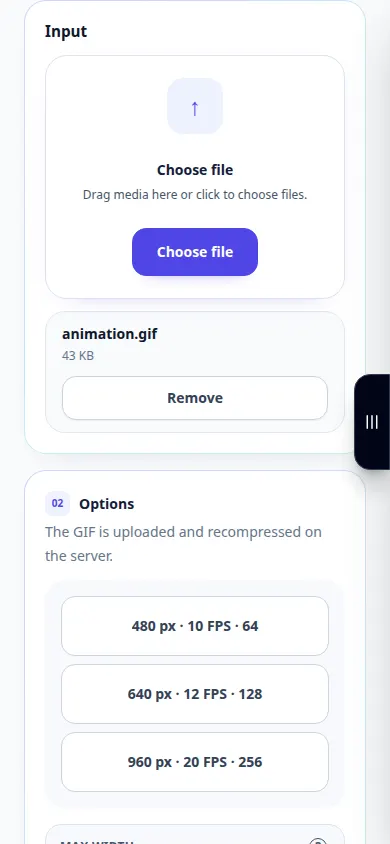
Optimize GIF — Phone demonstration
Upload and recompress the selected GIF with the current settings. This recording shows the source and available settings before the main action. Follow the steps above to start processing and save the result.
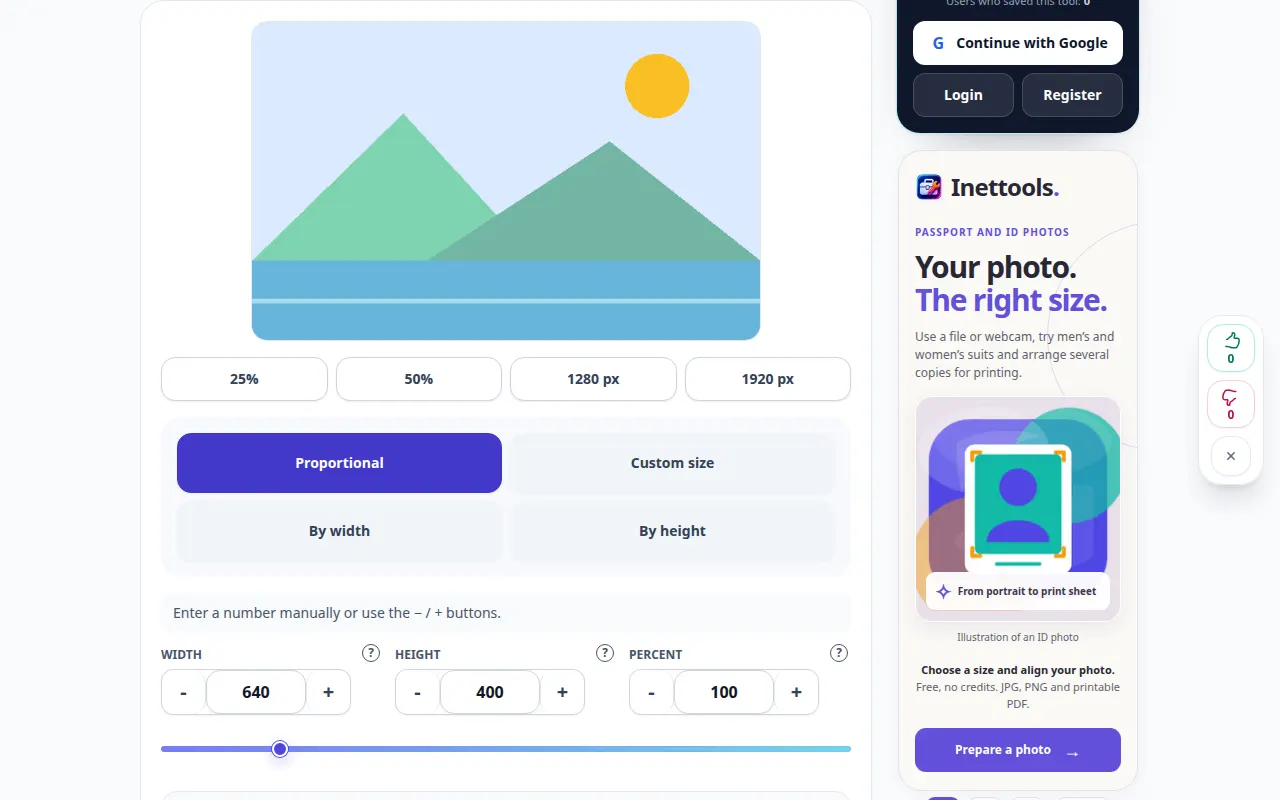
How to resize a photo to exact dimensions — Desktop demonstration
Set image dimensions, keep proportions and save a supported output copy. This recording shows the source and available settings before the main action. Follow the steps above to start processing and save the result.
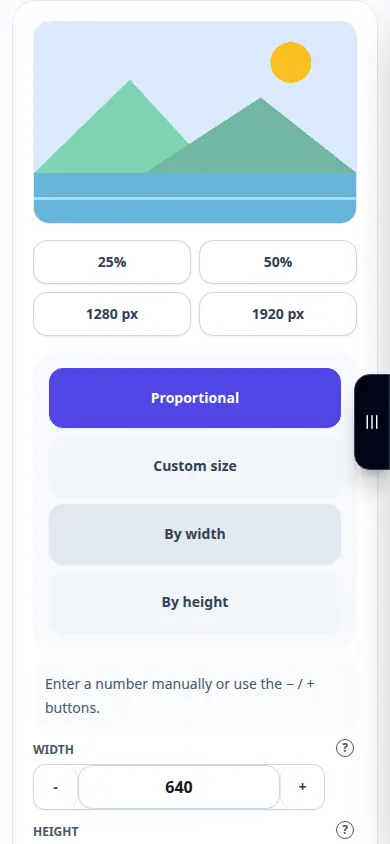
How to resize a photo to exact dimensions — Phone demonstration
Set image dimensions, keep proportions and save a supported output copy. This recording shows the source and available settings before the main action. Follow the steps above to start processing and save the result.
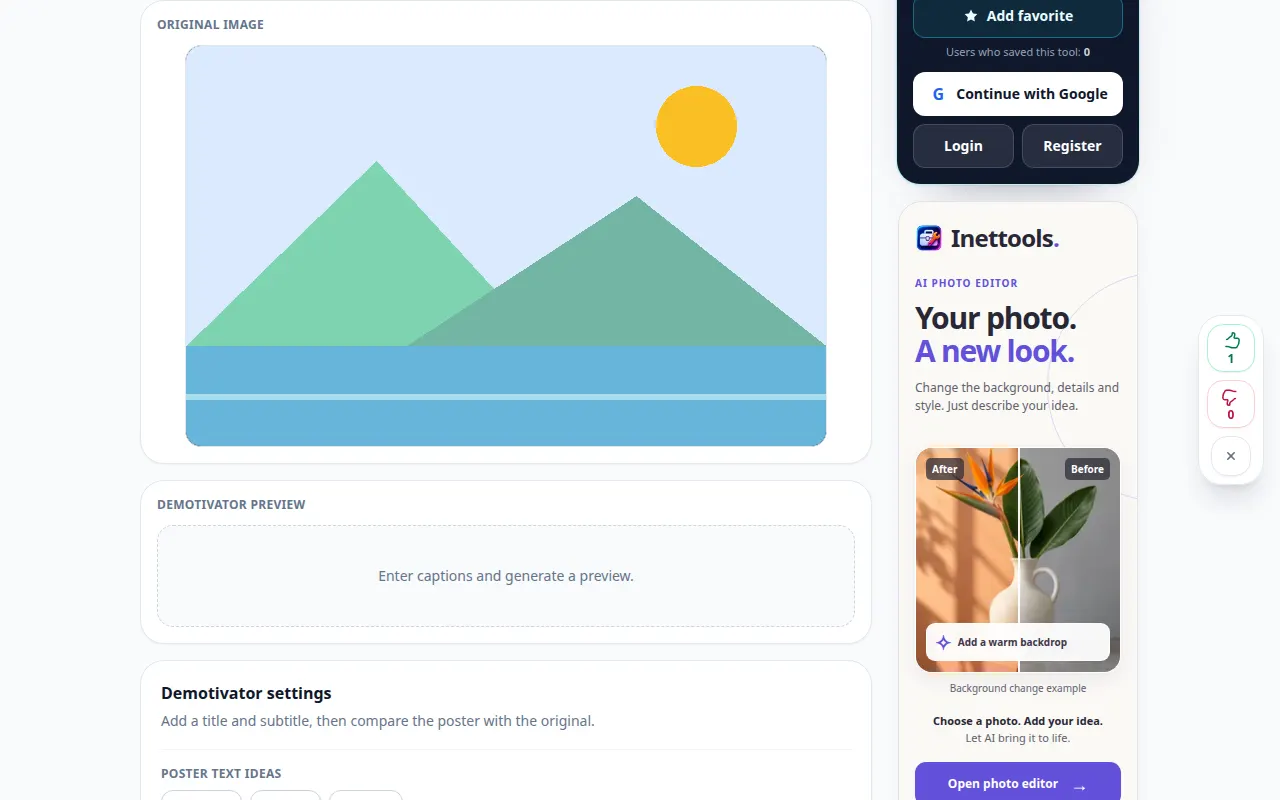
How to make a demotivator from a picture — Desktop demonstration
Add a title and caption around an image and export the finished composition. This recording shows the source and available settings before the main action. Follow the steps above to start processing and save the result.
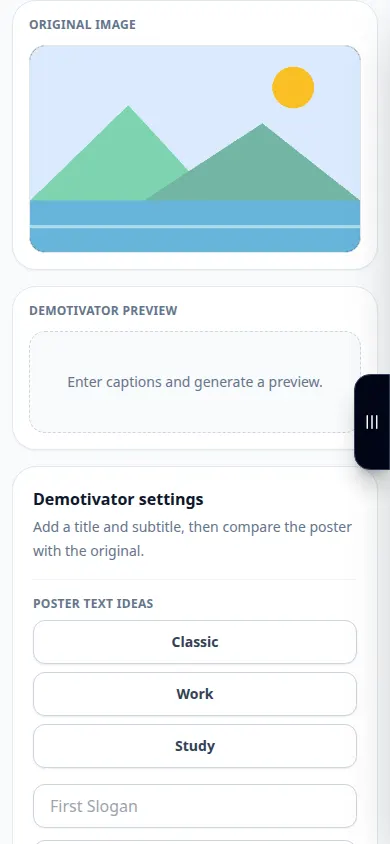
How to make a demotivator from a picture — Phone demonstration
Add a title and caption around an image and export the finished composition. This recording shows the source and available settings before the main action. Follow the steps above to start processing and save the result.
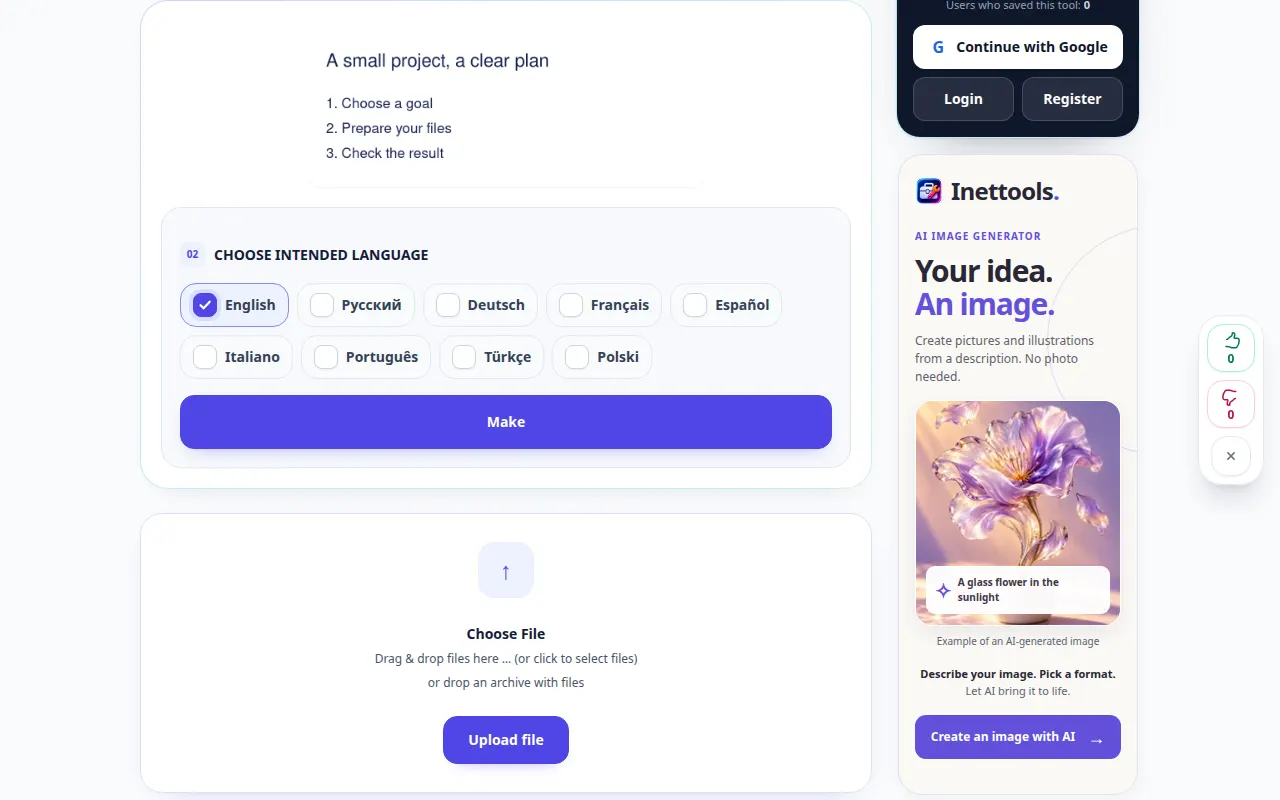
How to recognize text in a picture — Desktop demonstration
Extract editable text from an image and review recognition mistakes before using it. This recording shows the source and available settings before the main action. Follow the steps above to start processing and save the result.
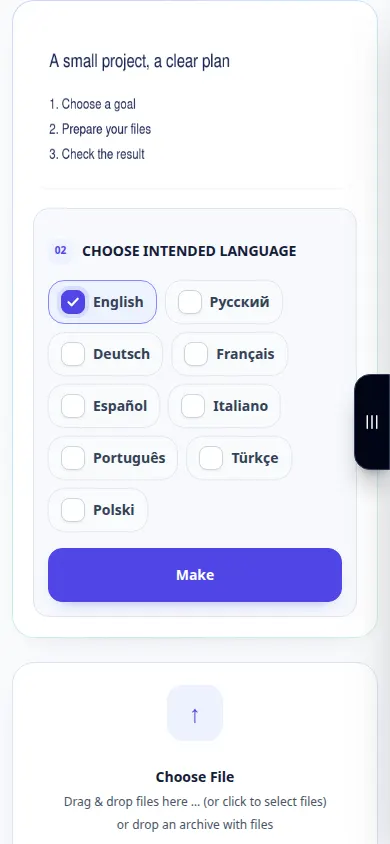
How to recognize text in a picture — Phone demonstration
Extract editable text from an image and review recognition mistakes before using it. This recording shows the source and available settings before the main action. Follow the steps above to start processing and save the result.
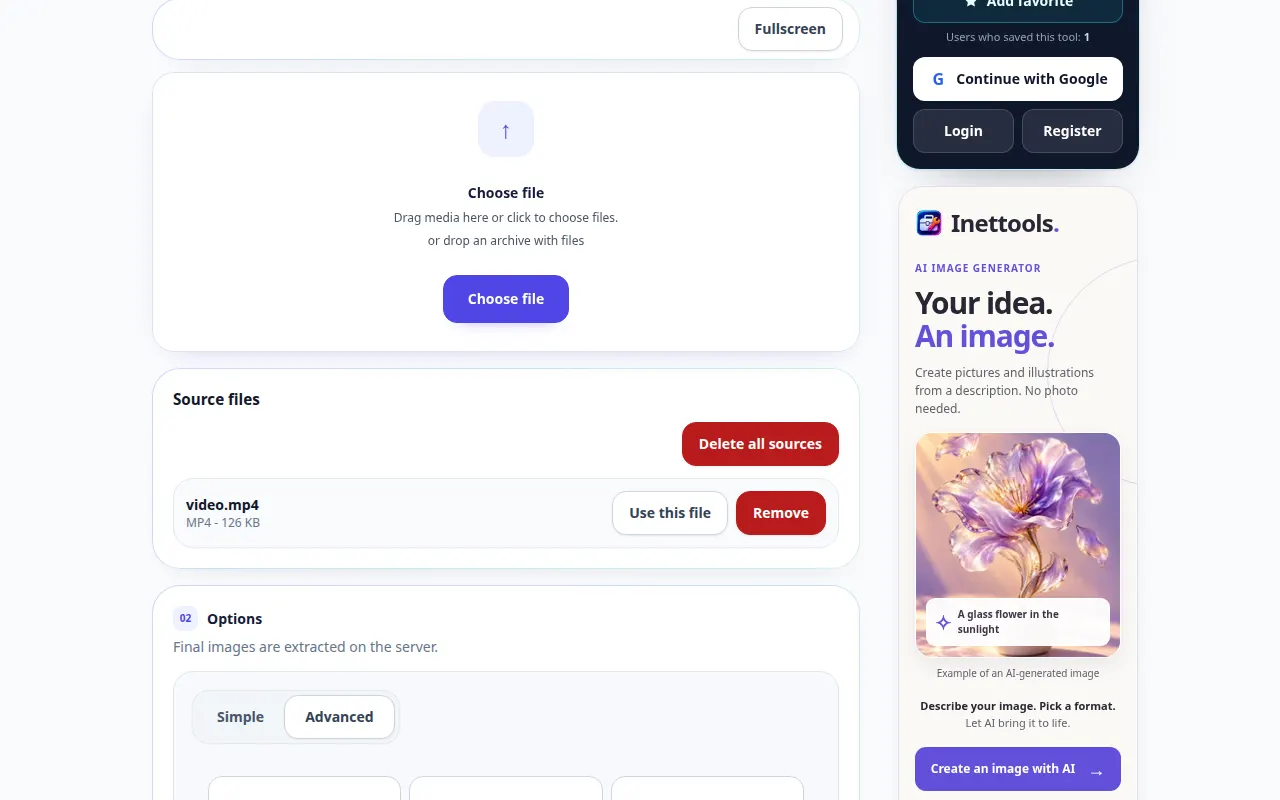
How to extract still frames from a video — Desktop demonstration
Choose frame extraction settings and save images from a clip. This recording shows the source and available settings before the main action. Follow the steps above to start processing and save the result.
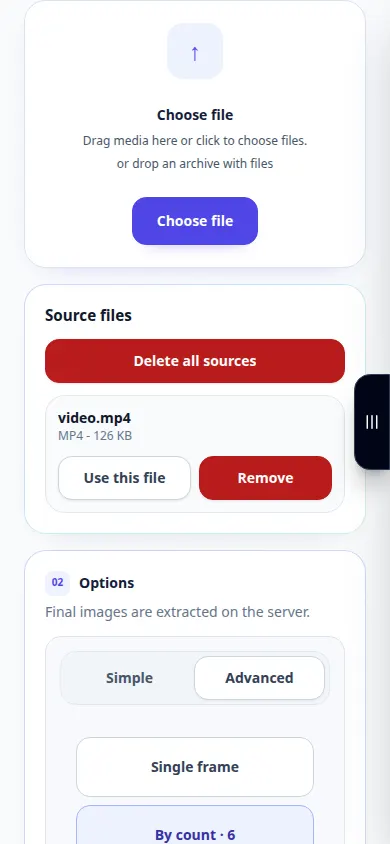
How to extract still frames from a video — Phone demonstration
Choose frame extraction settings and save images from a clip. This recording shows the source and available settings before the main action. Follow the steps above to start processing and save the result.
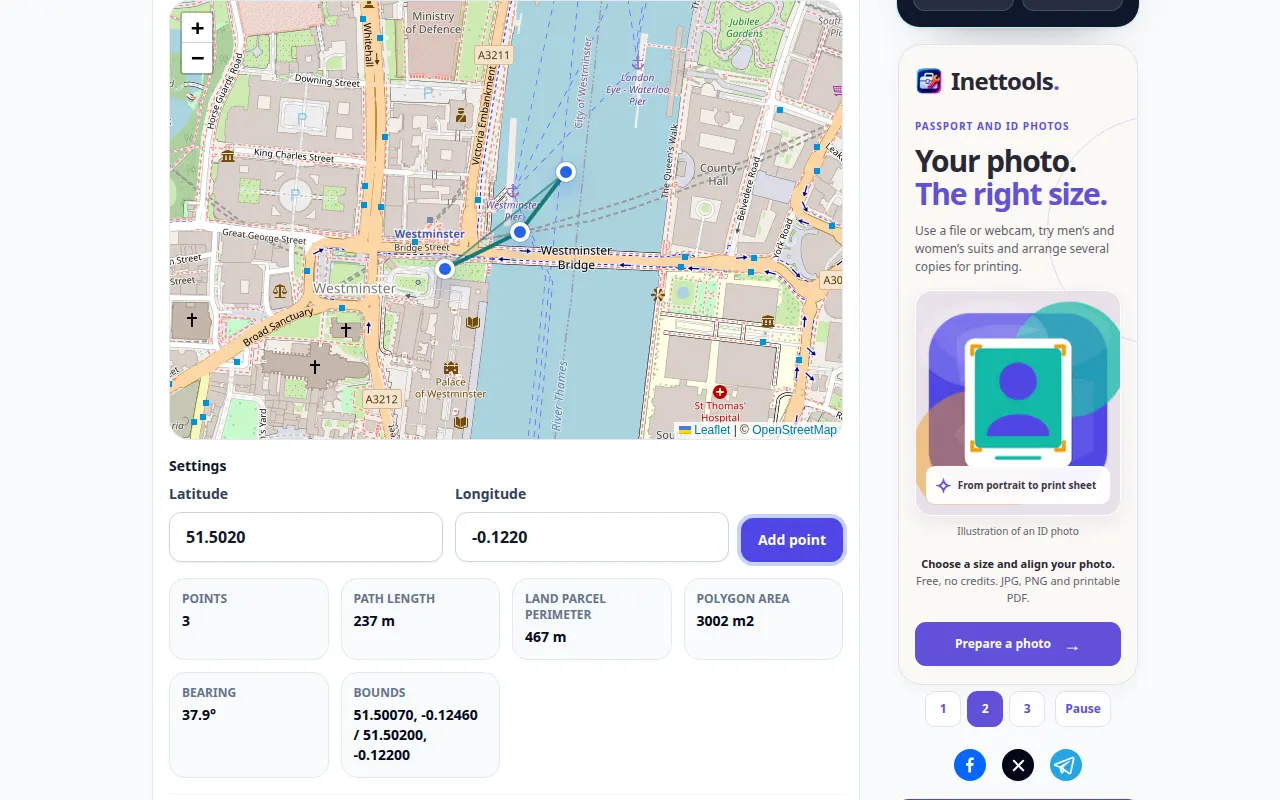
How to measure distance or area on a map — Desktop demonstration
Mark points on a map and inspect the length or area calculated from their geometry. This recording shows a demonstration input and the resulting output in the tool.
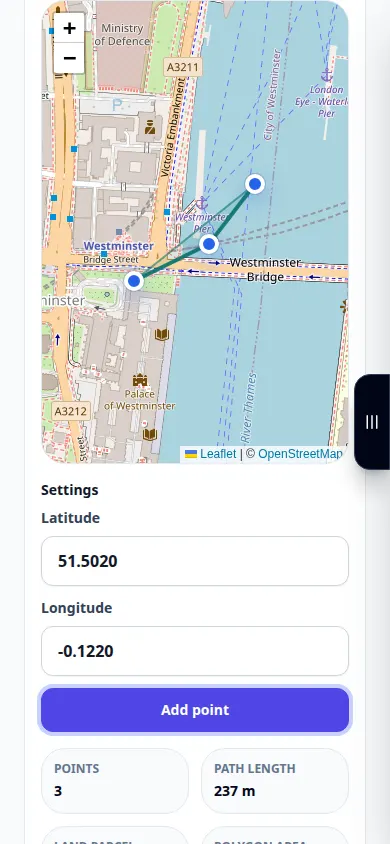
How to measure distance or area on a map — Phone demonstration
Mark points on a map and inspect the length or area calculated from their geometry. This recording shows a demonstration input and the resulting output in the tool.
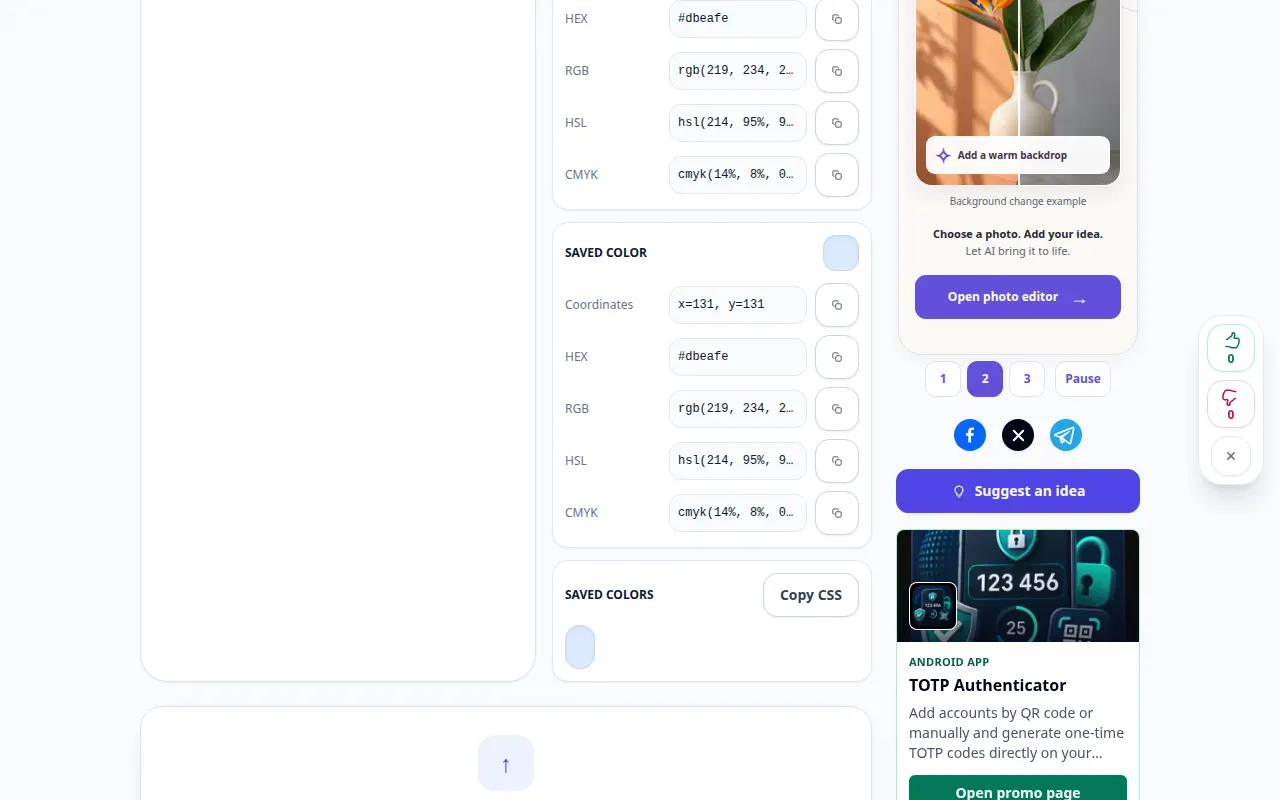
How to find a pixel color in an image — Desktop demonstration
Inspect a color in a picture and copy the displayed color code. This recording shows a demonstration input and the resulting output in the tool.
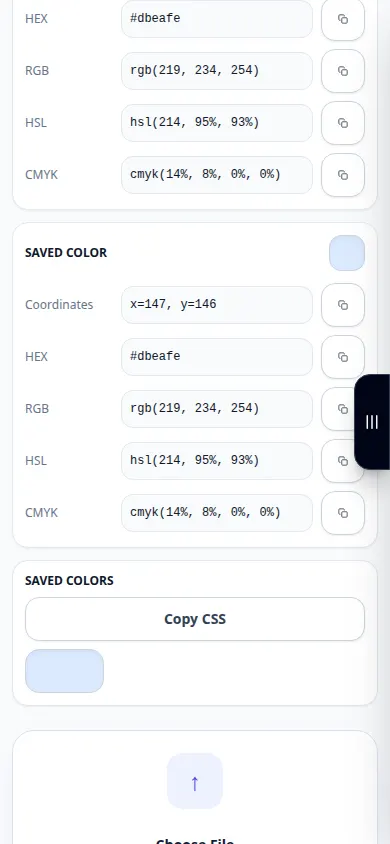
How to find a pixel color in an image — Phone demonstration
Inspect a color in a picture and copy the displayed color code. This recording shows a demonstration input and the resulting output in the tool.
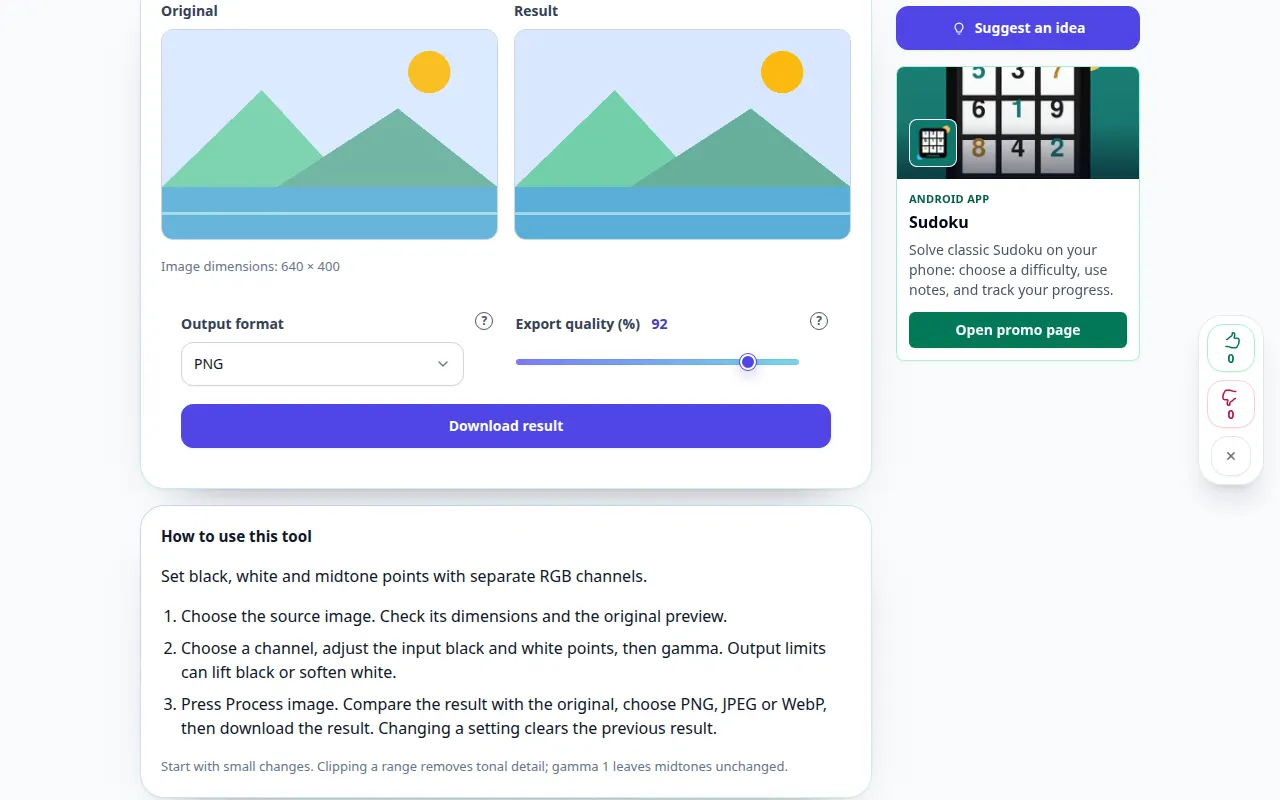
How to use this tool: Photo levels editor — Desktop demonstration
Set black, white and midtone points with separate RGB channels. This recording shows a demonstration input and the resulting output in the tool.
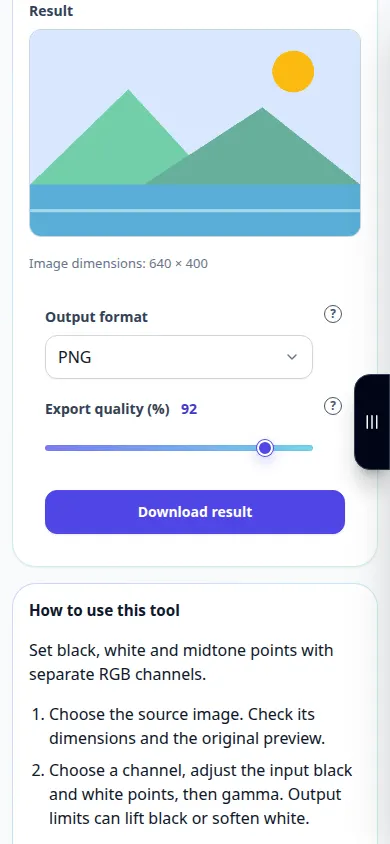
How to use this tool: Photo levels editor — Phone demonstration
Set black, white and midtone points with separate RGB channels. This recording shows a demonstration input and the resulting output in the tool.
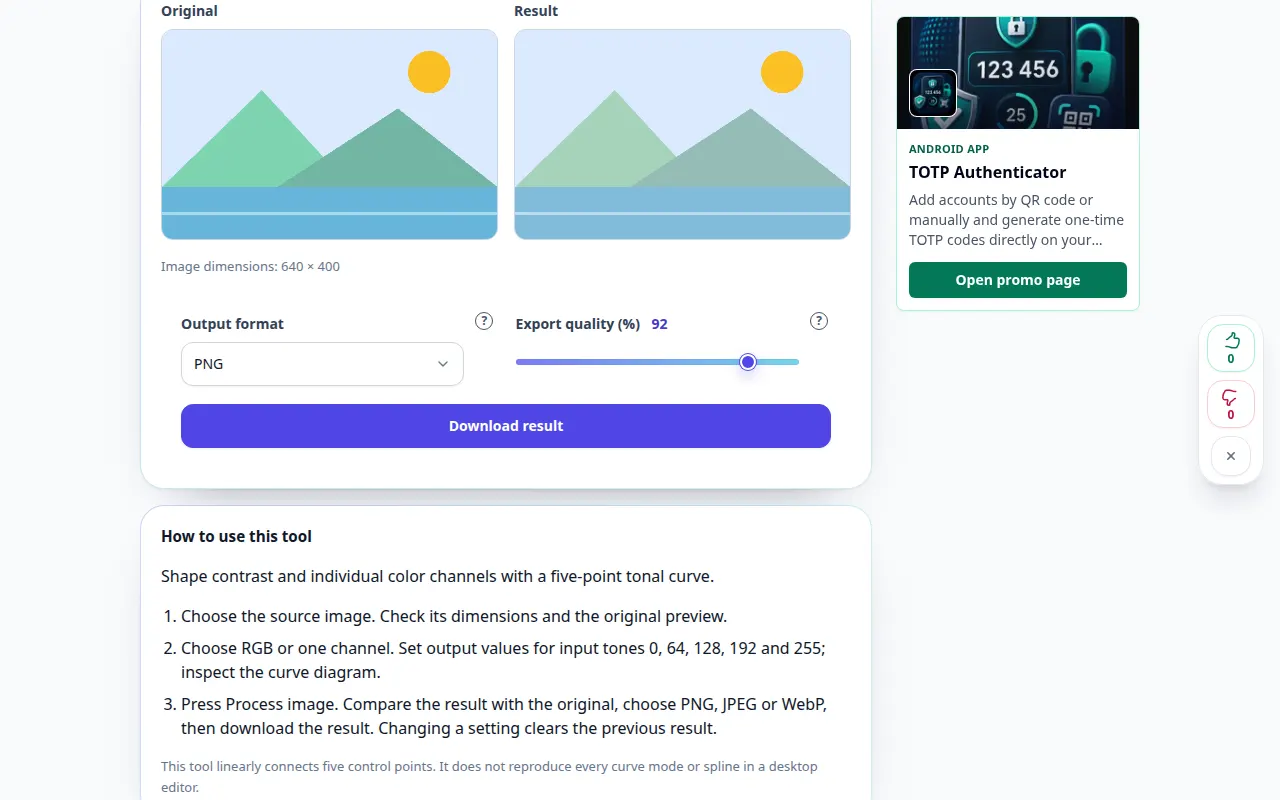
How to use this tool: RGB curves editor — Desktop demonstration
Shape contrast and individual color channels with a five-point tonal curve. This recording shows a demonstration input and the resulting output in the tool.
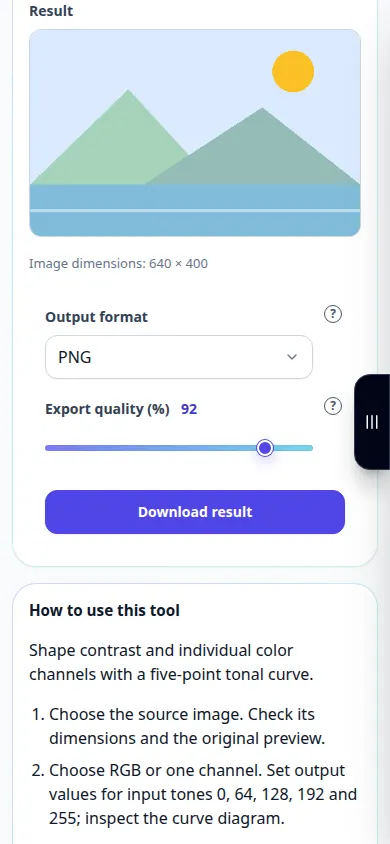
How to use this tool: RGB curves editor — Phone demonstration
Shape contrast and individual color channels with a five-point tonal curve. This recording shows a demonstration input and the resulting output in the tool.
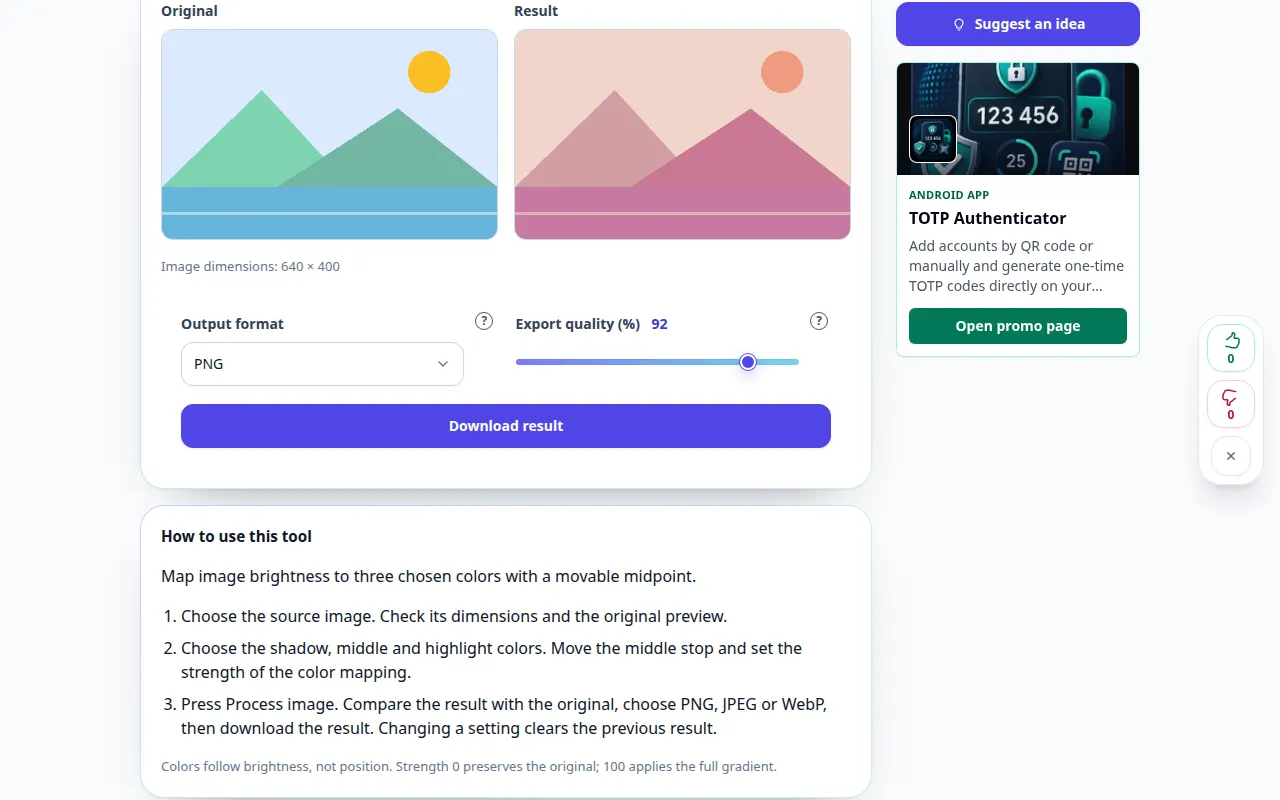
How to use this tool: Gradient map for photos — Desktop demonstration
Map image brightness to three chosen colors with a movable midpoint. This recording shows a demonstration input and the resulting output in the tool.
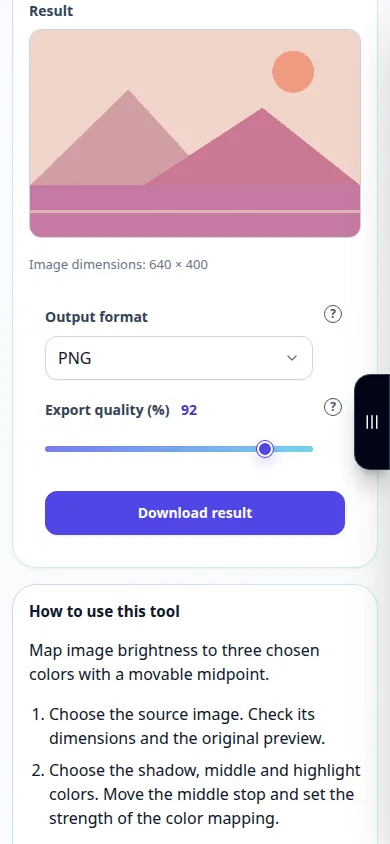
How to use this tool: Gradient map for photos — Phone demonstration
Map image brightness to three chosen colors with a movable midpoint. This recording shows a demonstration input and the resulting output in the tool.
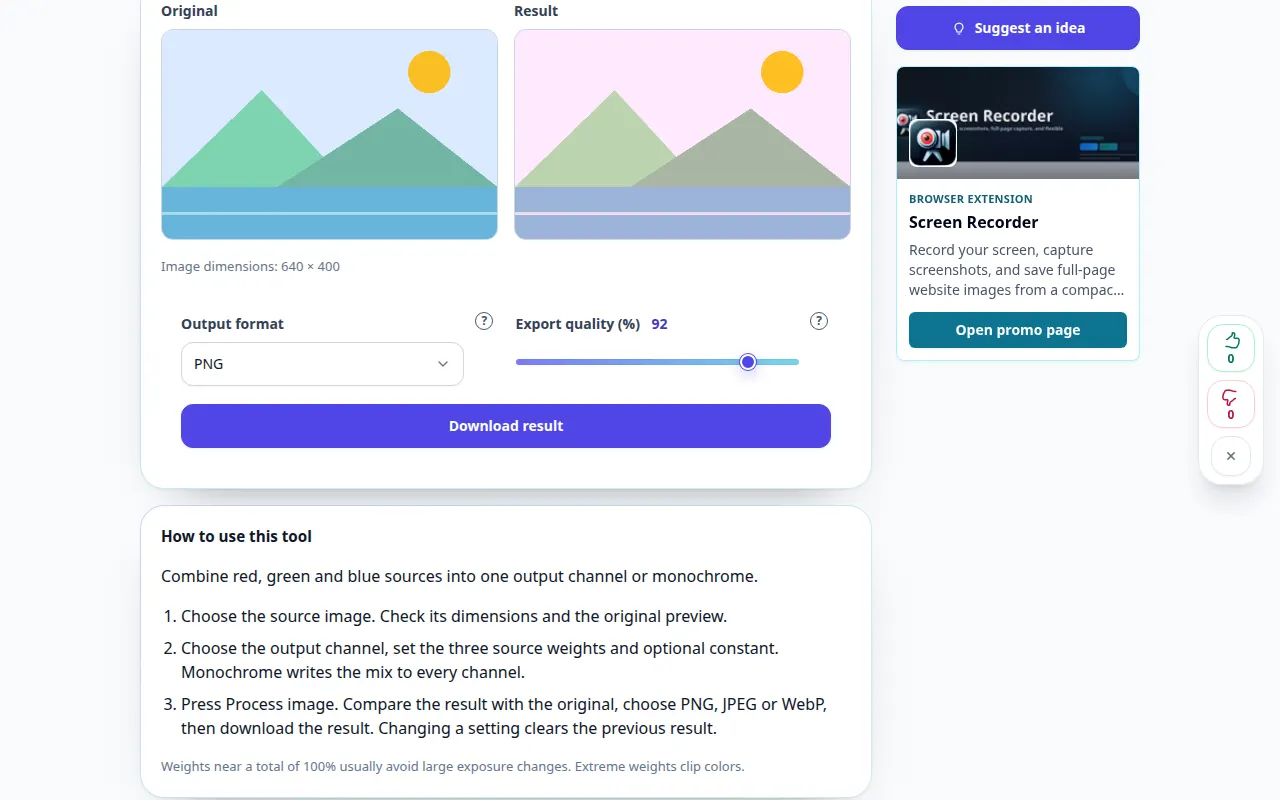
How to use this tool: Photo channel mixer — Desktop demonstration
Combine red, green and blue sources into one output channel or monochrome. This recording shows a demonstration input and the resulting output in the tool.
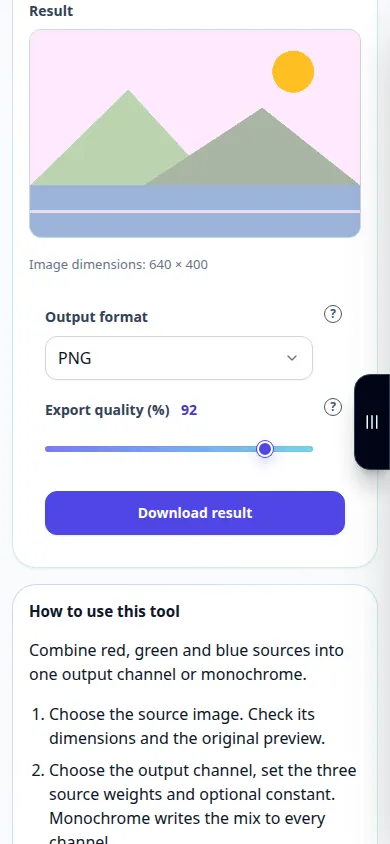
How to use this tool: Photo channel mixer — Phone demonstration
Combine red, green and blue sources into one output channel or monochrome. This recording shows a demonstration input and the resulting output in the tool.
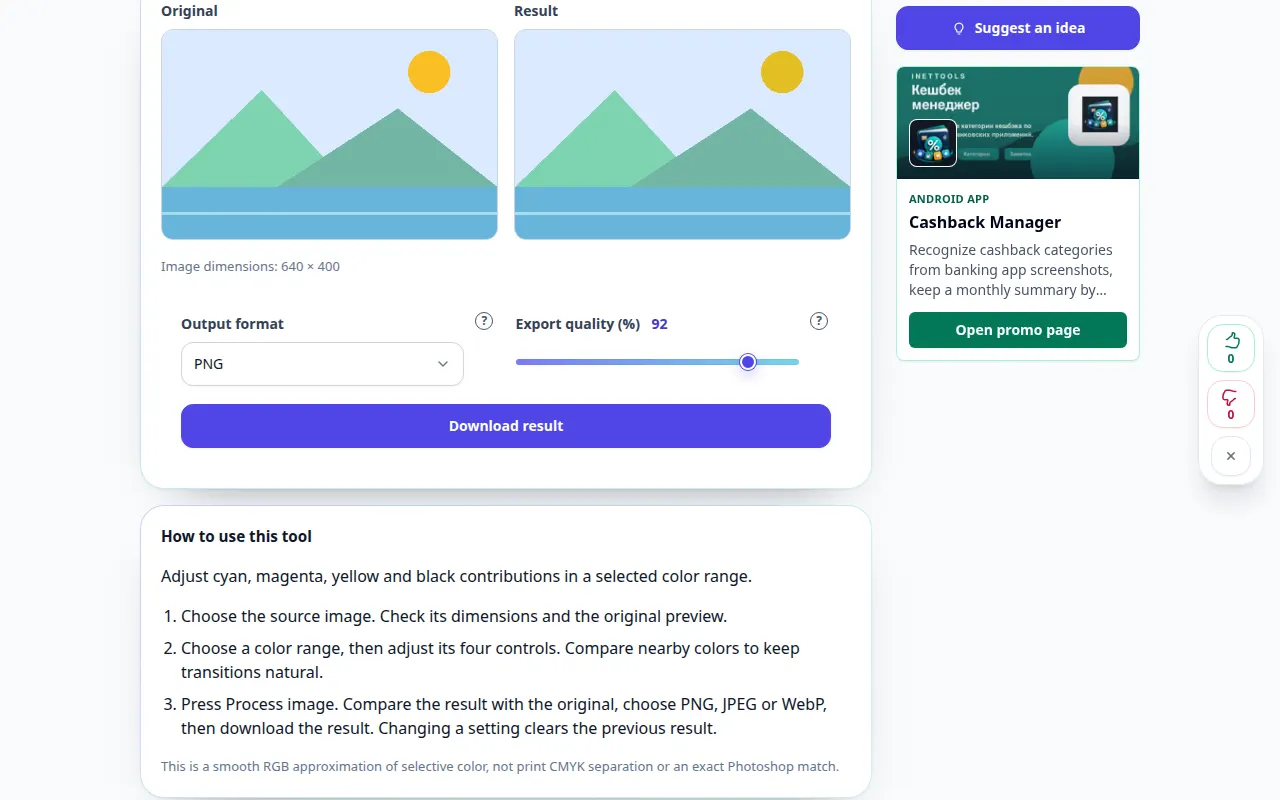
How to use this tool: Selective color correction — Desktop demonstration
Adjust cyan, magenta, yellow and black contributions in a selected color range. This recording shows a demonstration input and the resulting output in the tool.
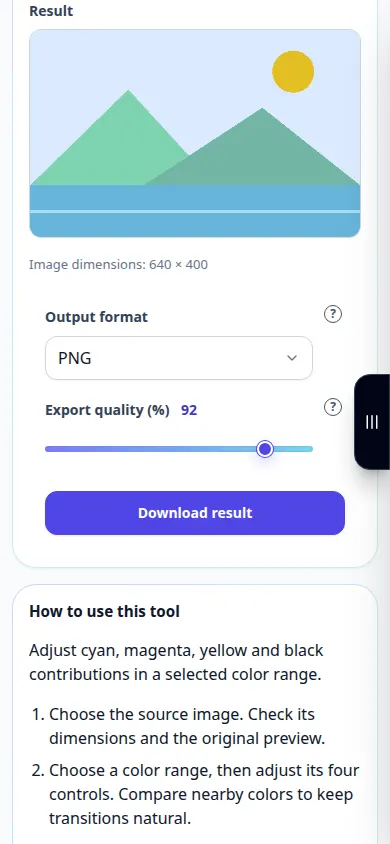
How to use this tool: Selective color correction — Phone demonstration
Adjust cyan, magenta, yellow and black contributions in a selected color range. This recording shows a demonstration input and the resulting output in the tool.
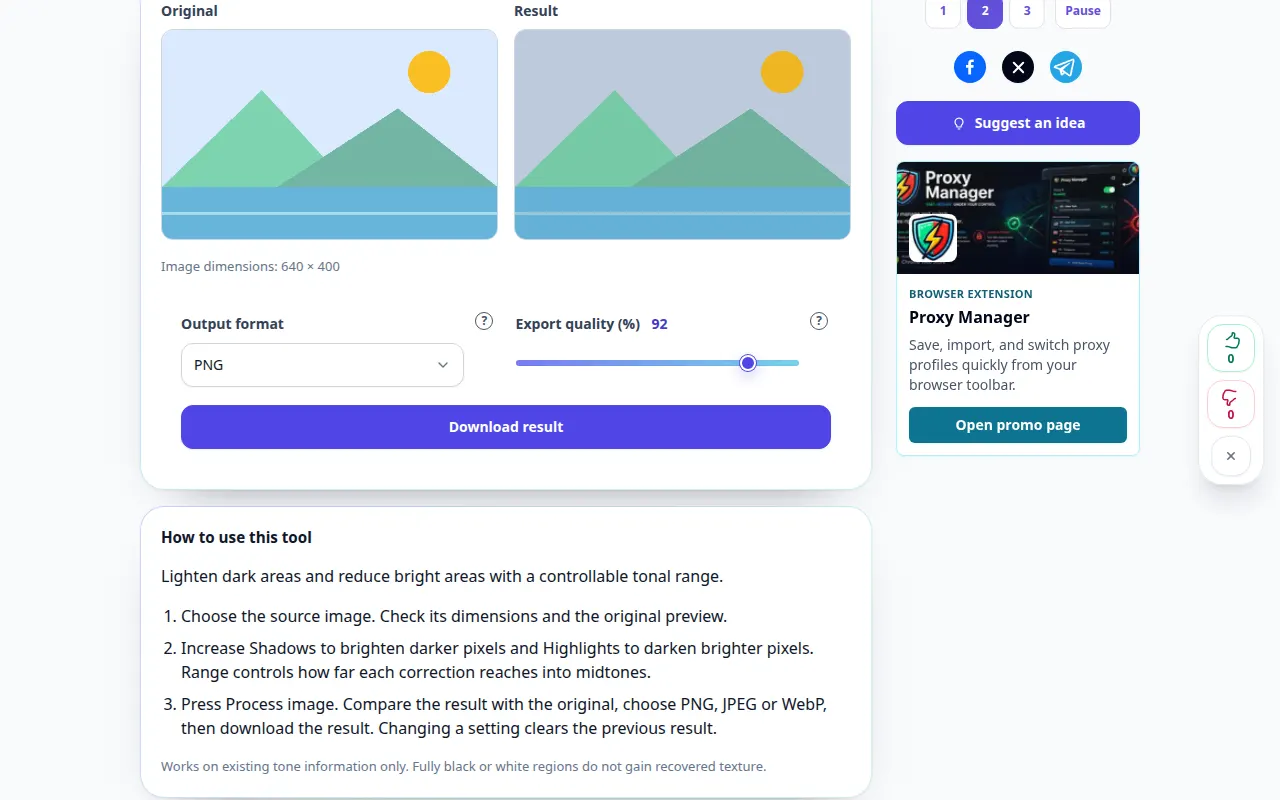
How to use this tool: Shadows and highlights — Desktop demonstration
Lighten dark areas and reduce bright areas with a controllable tonal range. This recording shows a demonstration input and the resulting output in the tool.
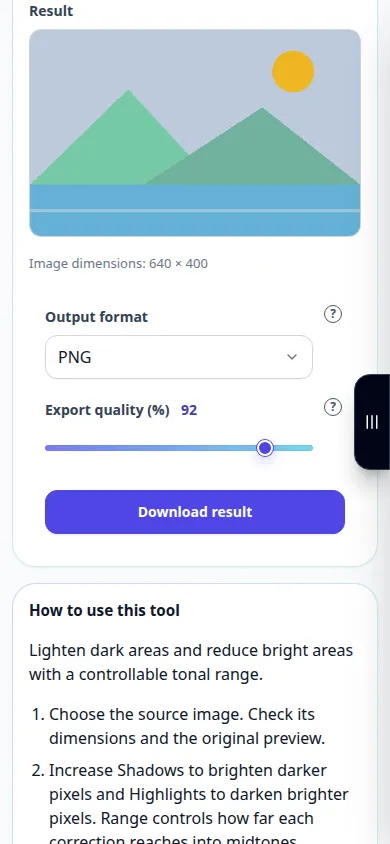
How to use this tool: Shadows and highlights — Phone demonstration
Lighten dark areas and reduce bright areas with a controllable tonal range. This recording shows a demonstration input and the resulting output in the tool.
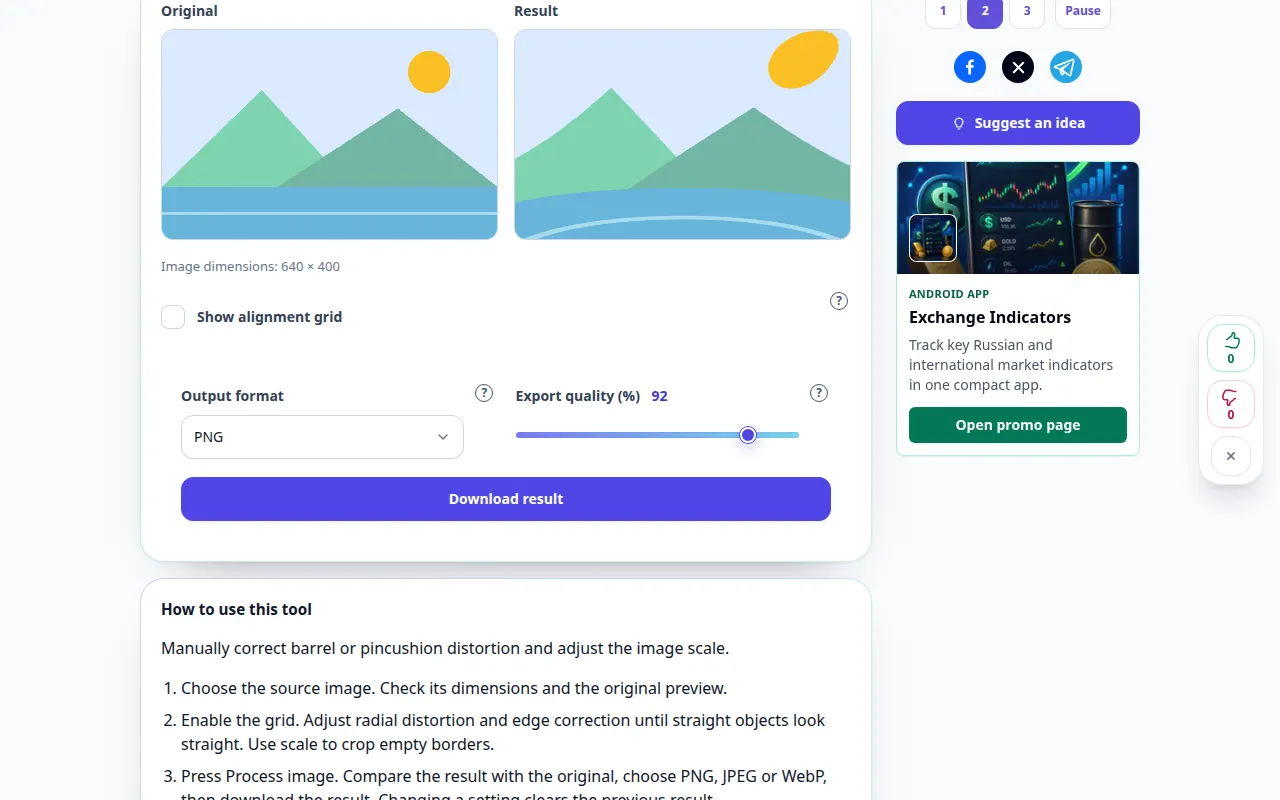
How to use this tool: Lens distortion correction — Desktop demonstration
Manually correct barrel or pincushion distortion and adjust the image scale. This recording shows a demonstration input and the resulting output in the tool.
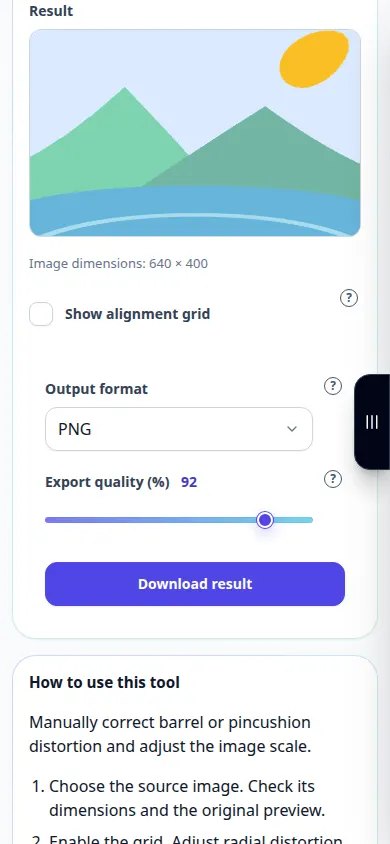
How to use this tool: Lens distortion correction — Phone demonstration
Manually correct barrel or pincushion distortion and adjust the image scale. This recording shows a demonstration input and the resulting output in the tool.
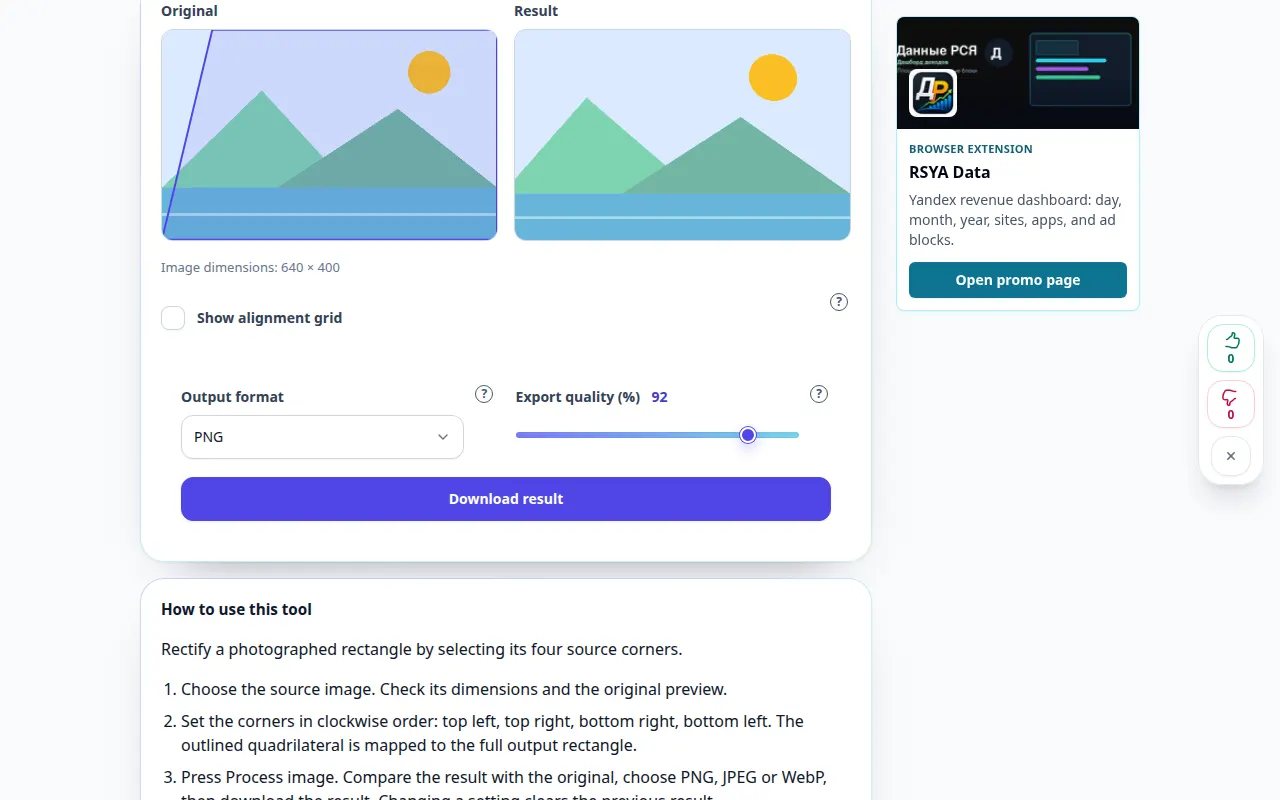
How to use this tool: Photo perspective correction — Desktop demonstration
Rectify a photographed rectangle by selecting its four source corners. This recording shows a demonstration input and the resulting output in the tool.
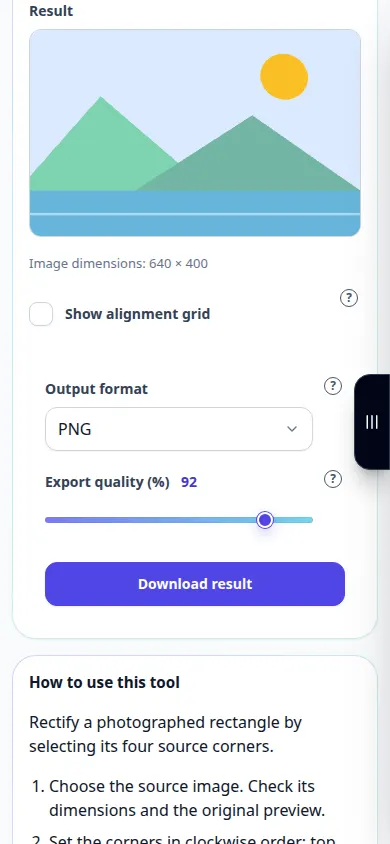
How to use this tool: Photo perspective correction — Phone demonstration
Rectify a photographed rectangle by selecting its four source corners. This recording shows a demonstration input and the resulting output in the tool.
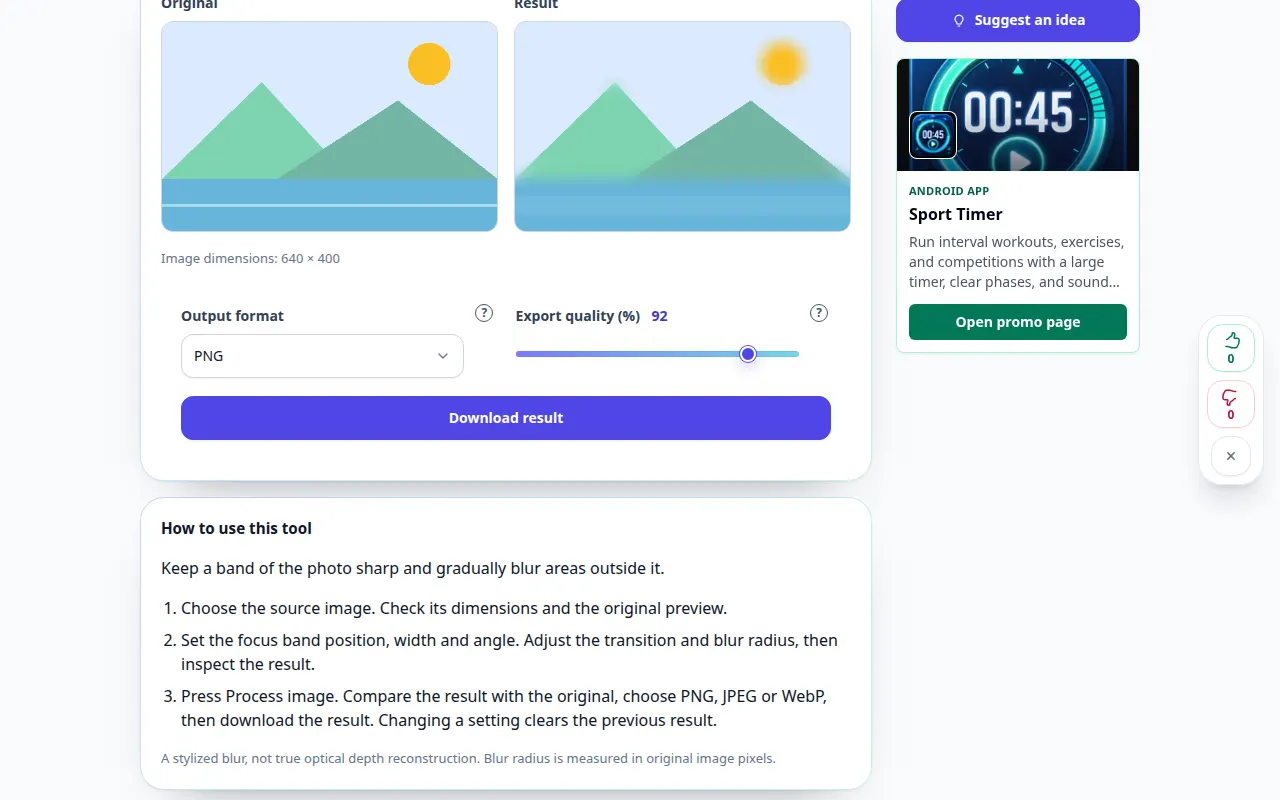
How to use this tool: Tilt-Shift photo effect — Desktop demonstration
Keep a band of the photo sharp and gradually blur areas outside it. This recording shows a demonstration input and the resulting output in the tool.
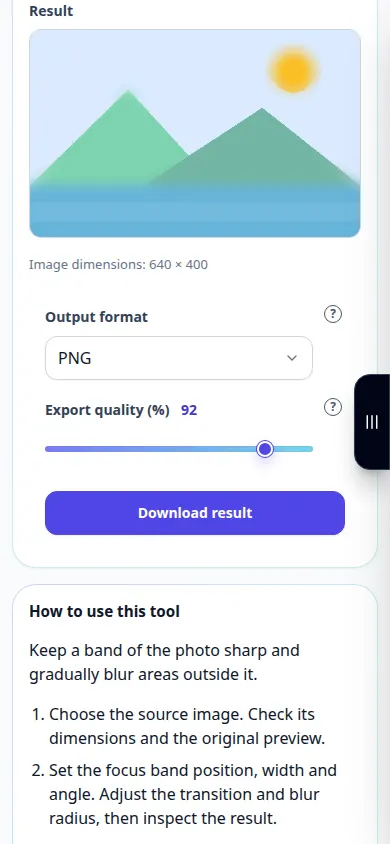
How to use this tool: Tilt-Shift photo effect — Phone demonstration
Keep a band of the photo sharp and gradually blur areas outside it. This recording shows a demonstration input and the resulting output in the tool.
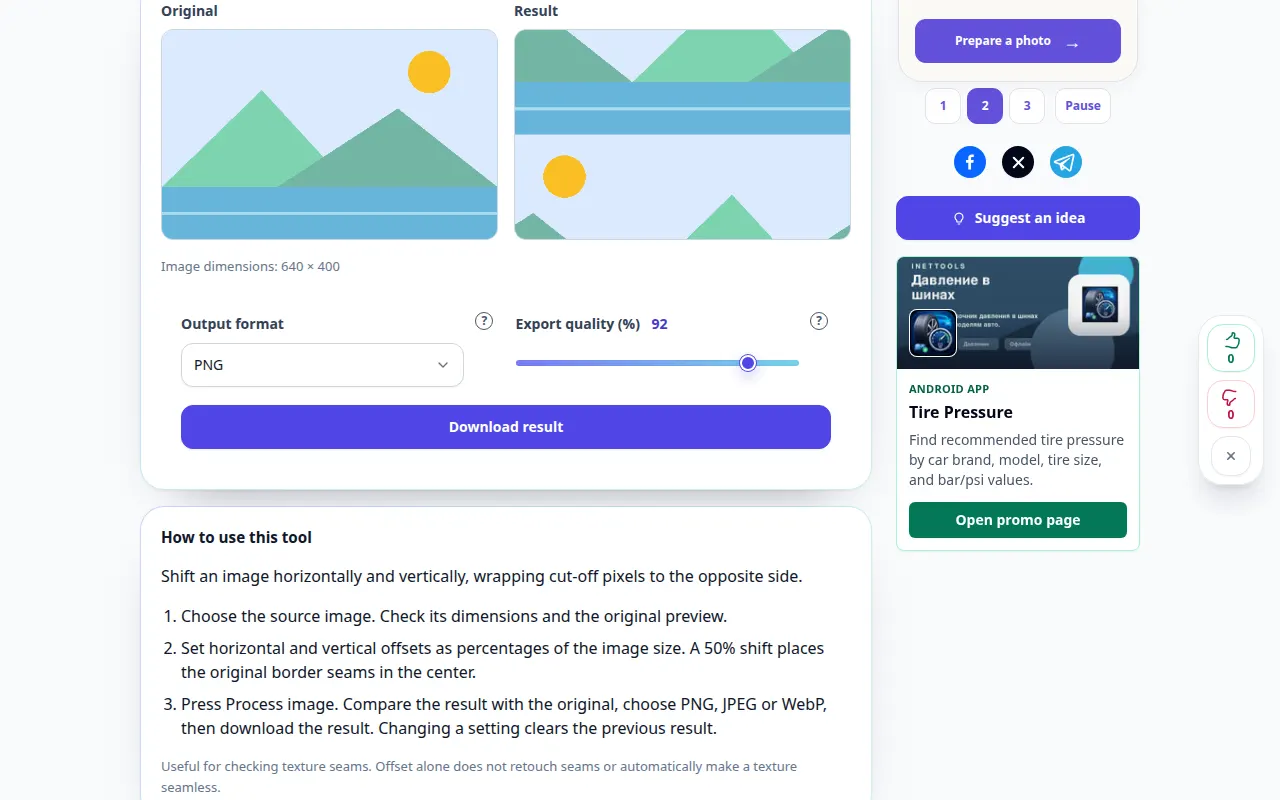
How to use this tool: Image offset with wraparound — Desktop demonstration
Shift an image horizontally and vertically, wrapping cut-off pixels to the opposite side. This recording shows a demonstration input and the resulting output in the tool.
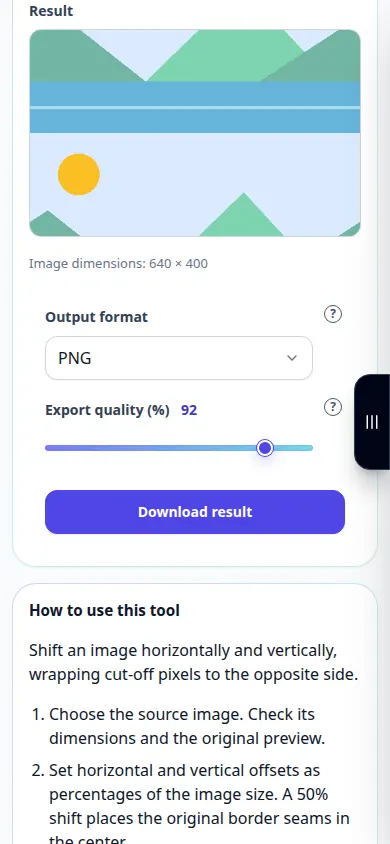
How to use this tool: Image offset with wraparound — Phone demonstration
Shift an image horizontally and vertically, wrapping cut-off pixels to the opposite side. This recording shows a demonstration input and the resulting output in the tool.
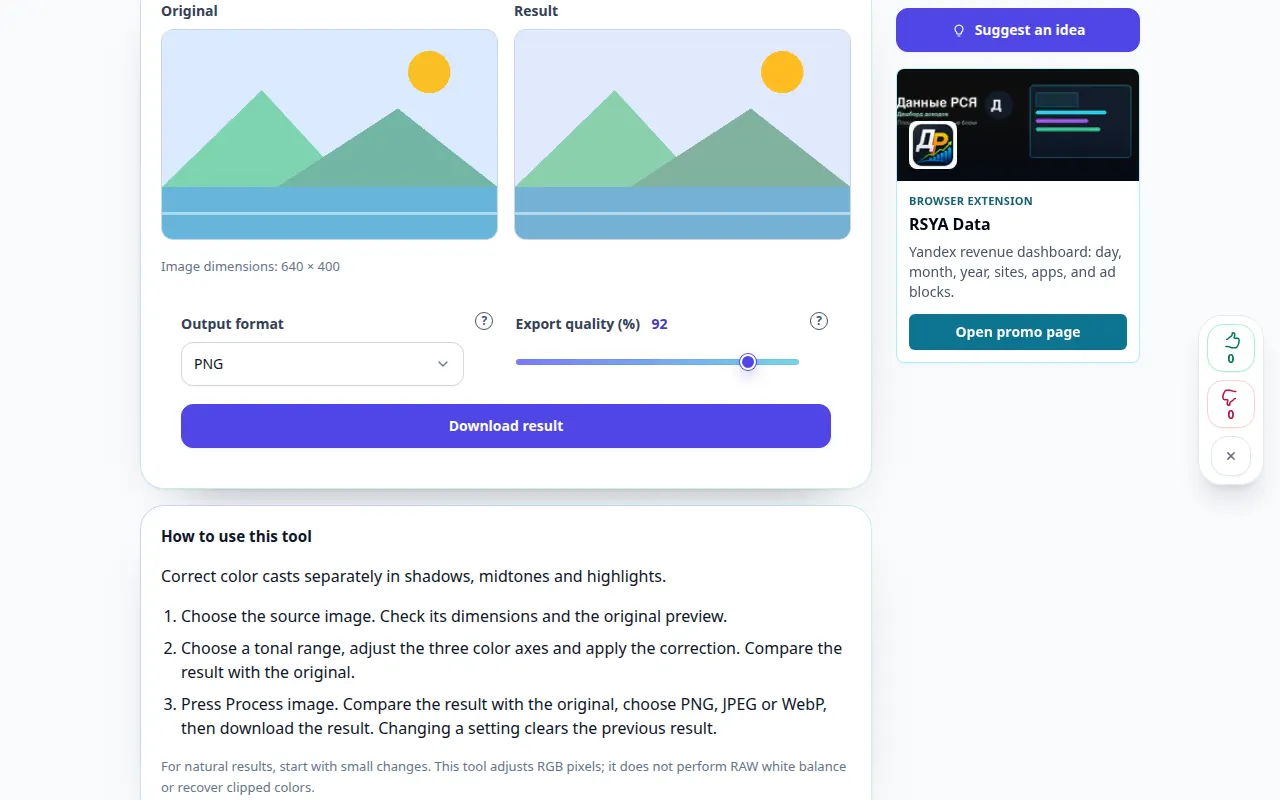
How to use this tool: Photo color balance — Desktop demonstration
Correct color casts separately in shadows, midtones and highlights. This recording shows a demonstration input and the resulting output in the tool.
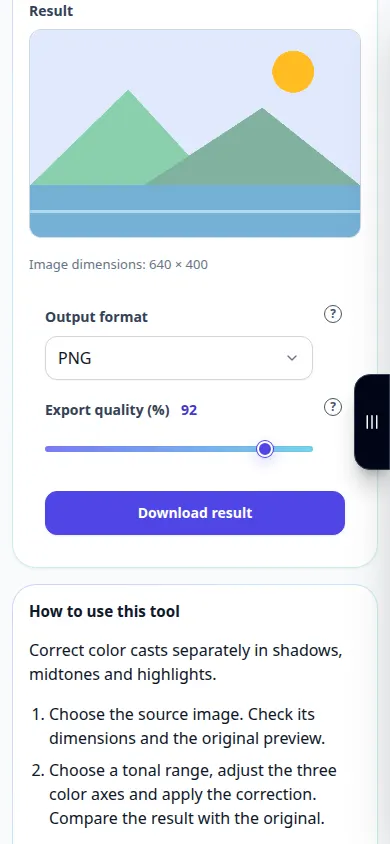
How to use this tool: Photo color balance — Phone demonstration
Correct color casts separately in shadows, midtones and highlights. This recording shows a demonstration input and the resulting output in the tool.
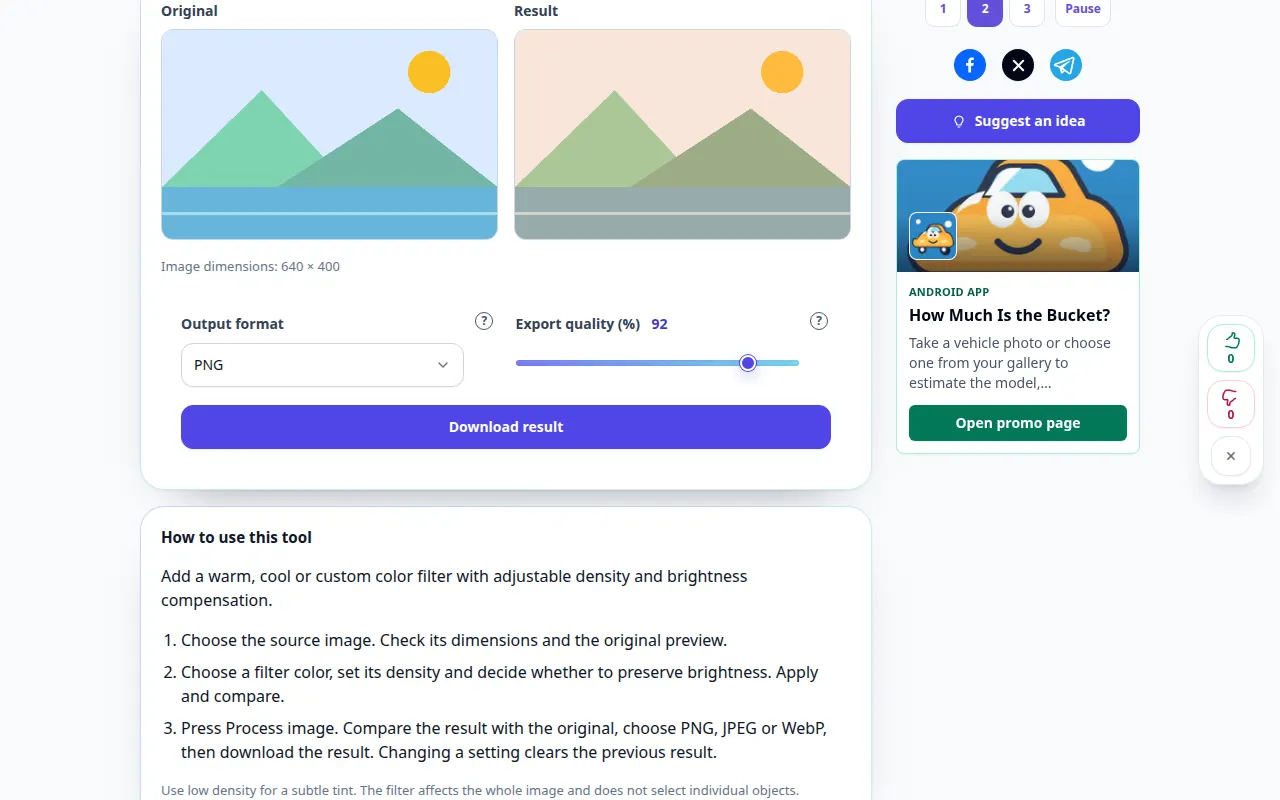
How to use this tool: Color photo filter — Desktop demonstration
Add a warm, cool or custom color filter with adjustable density and brightness compensation. This recording shows a demonstration input and the resulting output in the tool.
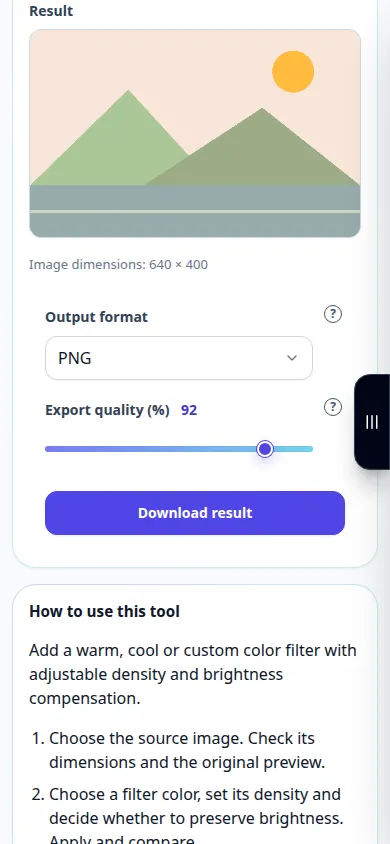
How to use this tool: Color photo filter — Phone demonstration
Add a warm, cool or custom color filter with adjustable density and brightness compensation. This recording shows a demonstration input and the resulting output in the tool.
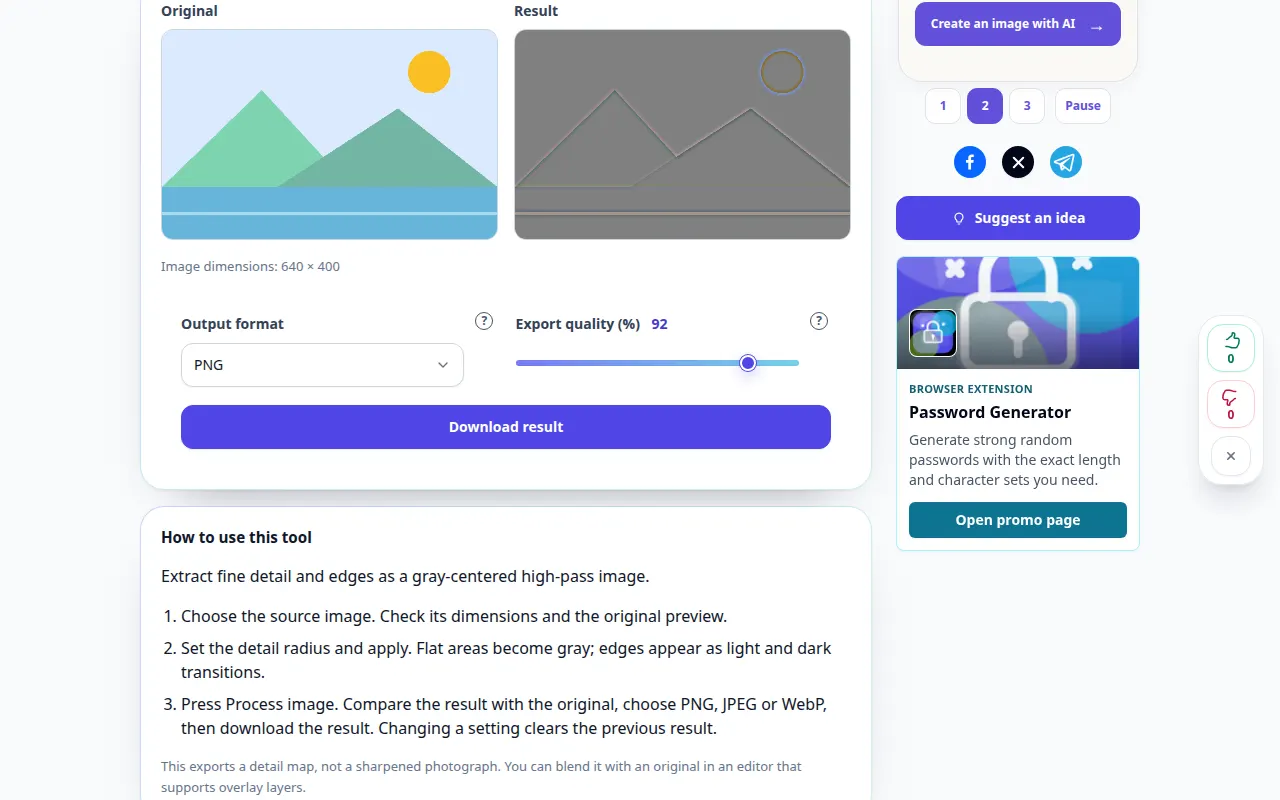
How to use this tool: High Pass detail map — Desktop demonstration
Extract fine detail and edges as a gray-centered high-pass image. This recording shows a demonstration input and the resulting output in the tool.
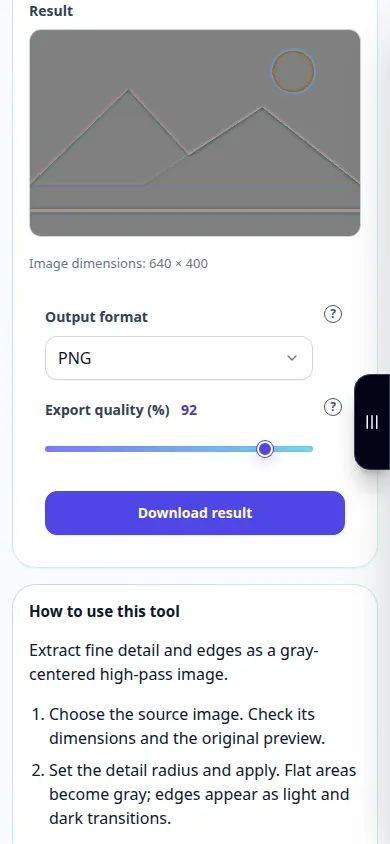
How to use this tool: High Pass detail map — Phone demonstration
Extract fine detail and edges as a gray-centered high-pass image. This recording shows a demonstration input and the resulting output in the tool.
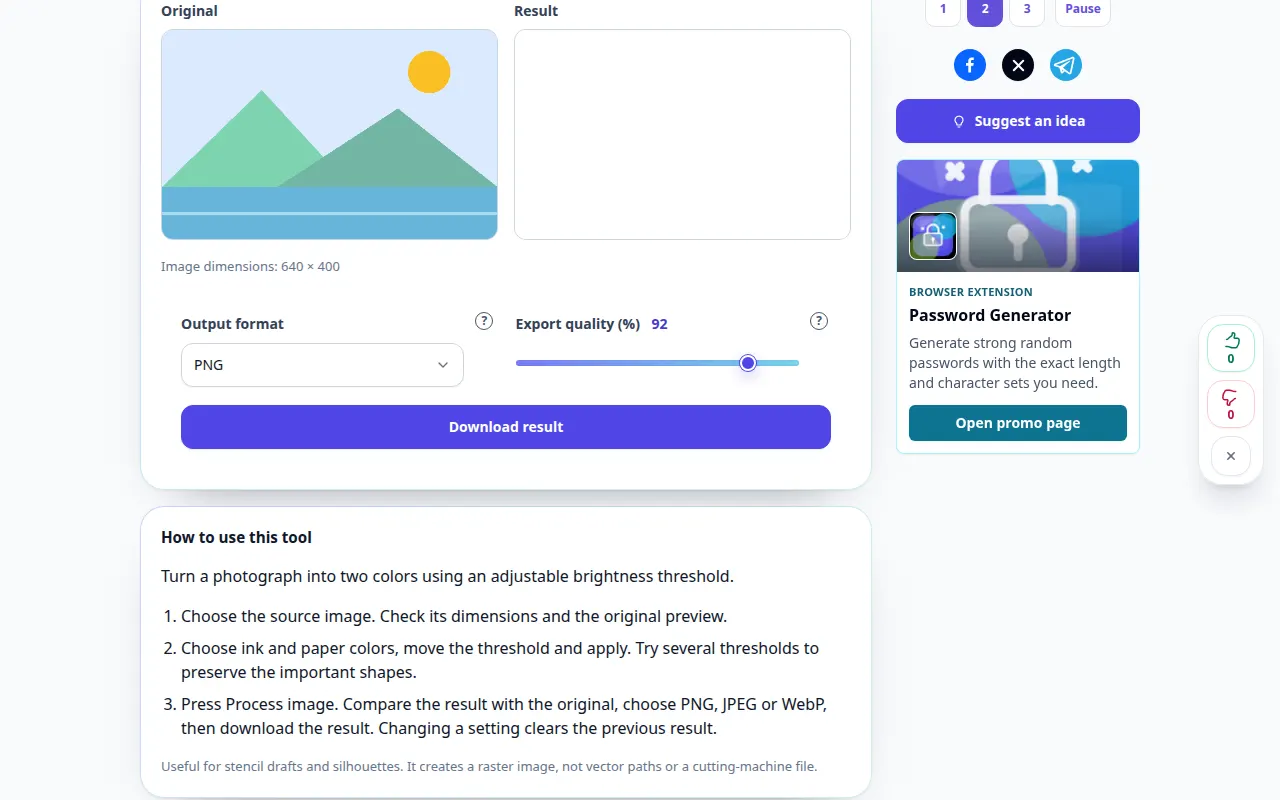
How to use this tool: Two-color image threshold — Desktop demonstration
Turn a photograph into two colors using an adjustable brightness threshold. This recording shows a demonstration input and the resulting output in the tool.
How to use this tool: Two-color image threshold — Phone demonstration
Turn a photograph into two colors using an adjustable brightness threshold. This recording shows a demonstration input and the resulting output in the tool.
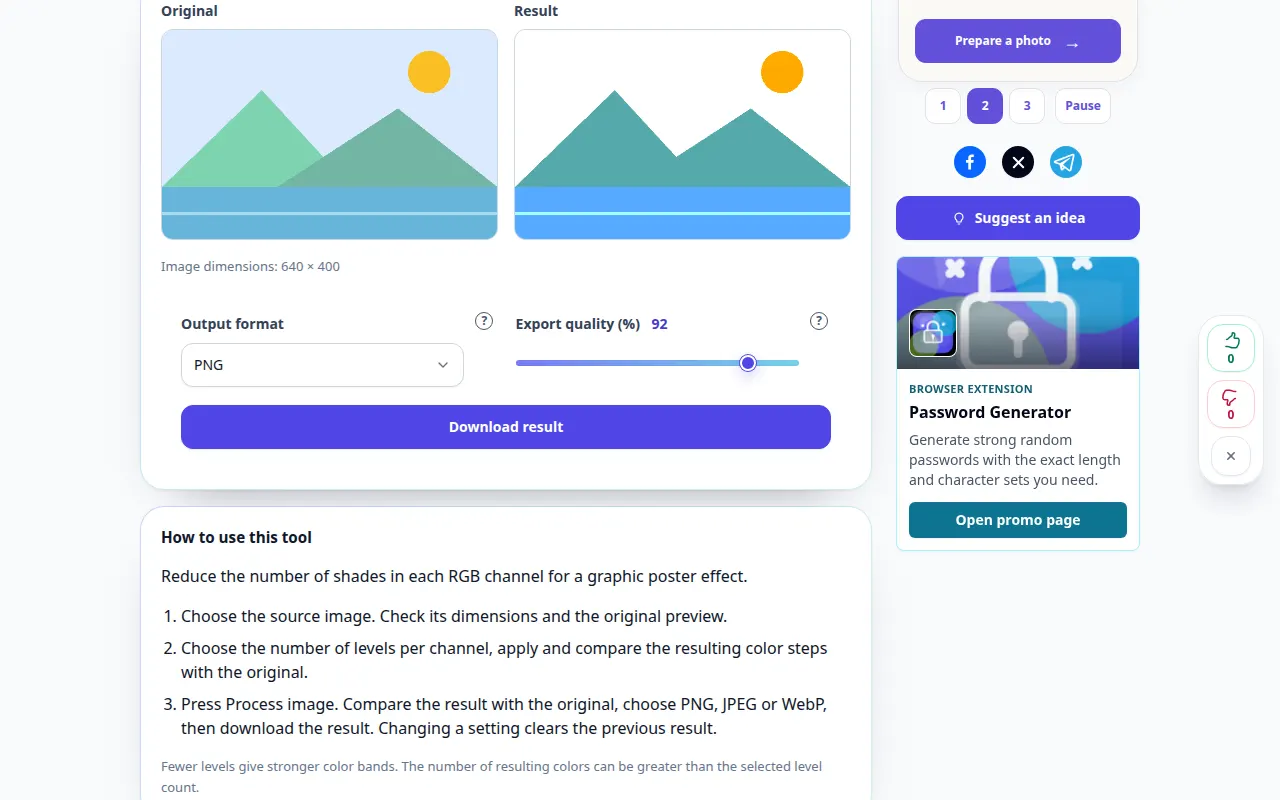
How to use this tool: Posterize a photo — Desktop demonstration
Reduce the number of shades in each RGB channel for a graphic poster effect. This recording shows a demonstration input and the resulting output in the tool.
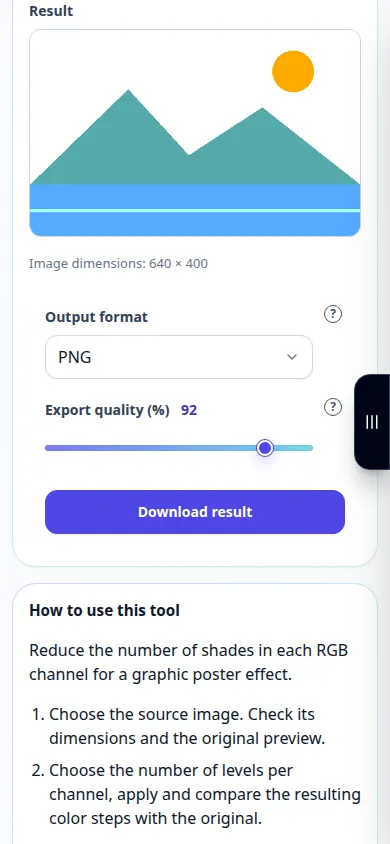
How to use this tool: Posterize a photo — Phone demonstration
Reduce the number of shades in each RGB channel for a graphic poster effect. This recording shows a demonstration input and the resulting output in the tool.
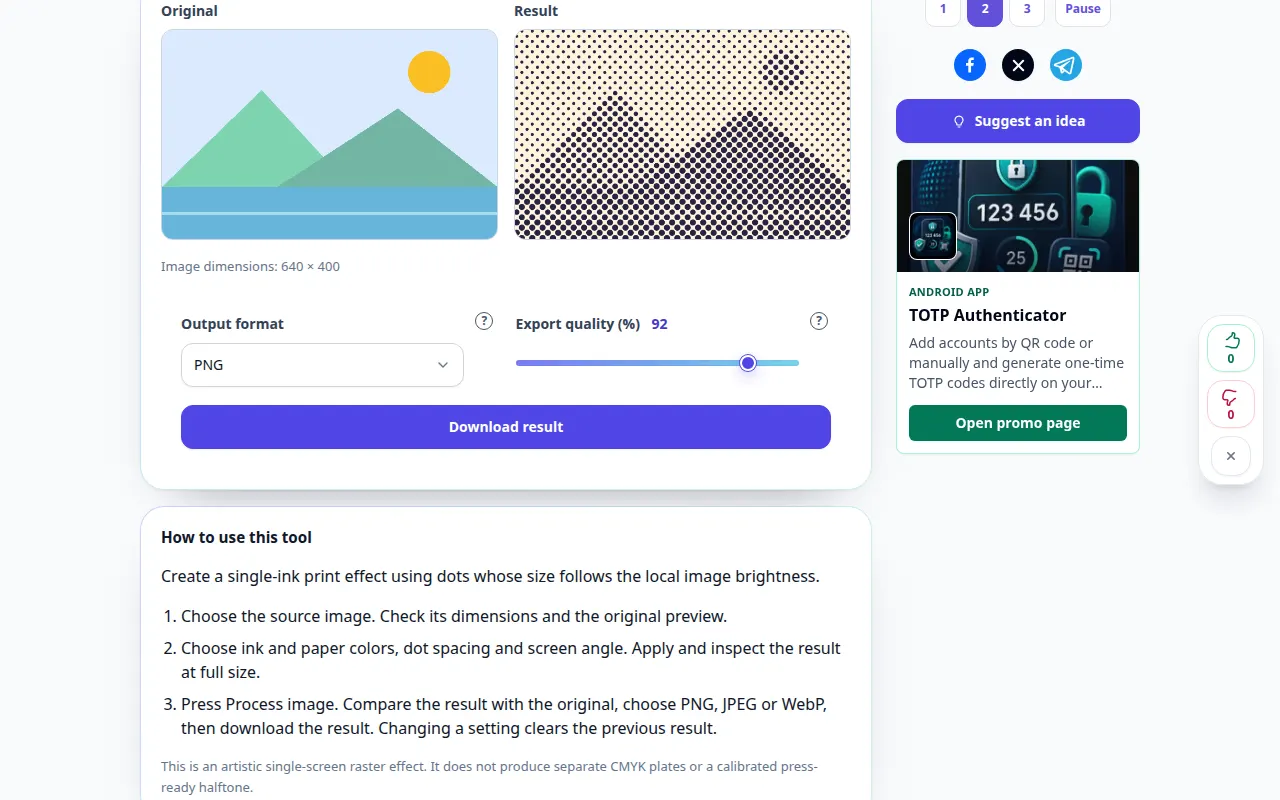
How to use this tool: Halftone dot effect — Desktop demonstration
Create a single-ink print effect using dots whose size follows the local image brightness. This recording shows a demonstration input and the resulting output in the tool.
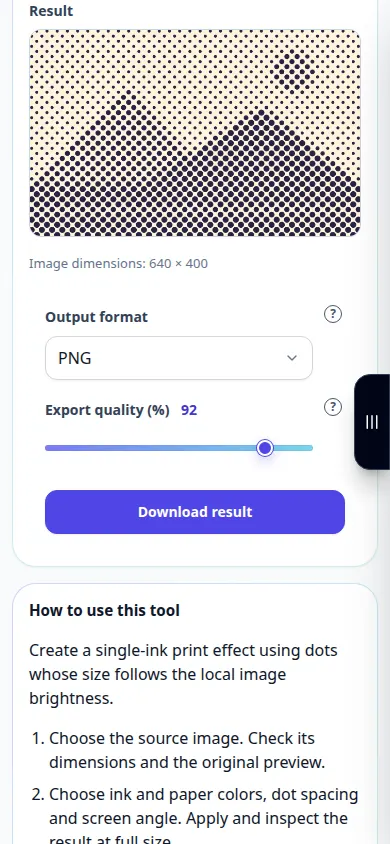
How to use this tool: Halftone dot effect — Phone demonstration
Create a single-ink print effect using dots whose size follows the local image brightness. This recording shows a demonstration input and the resulting output in the tool.
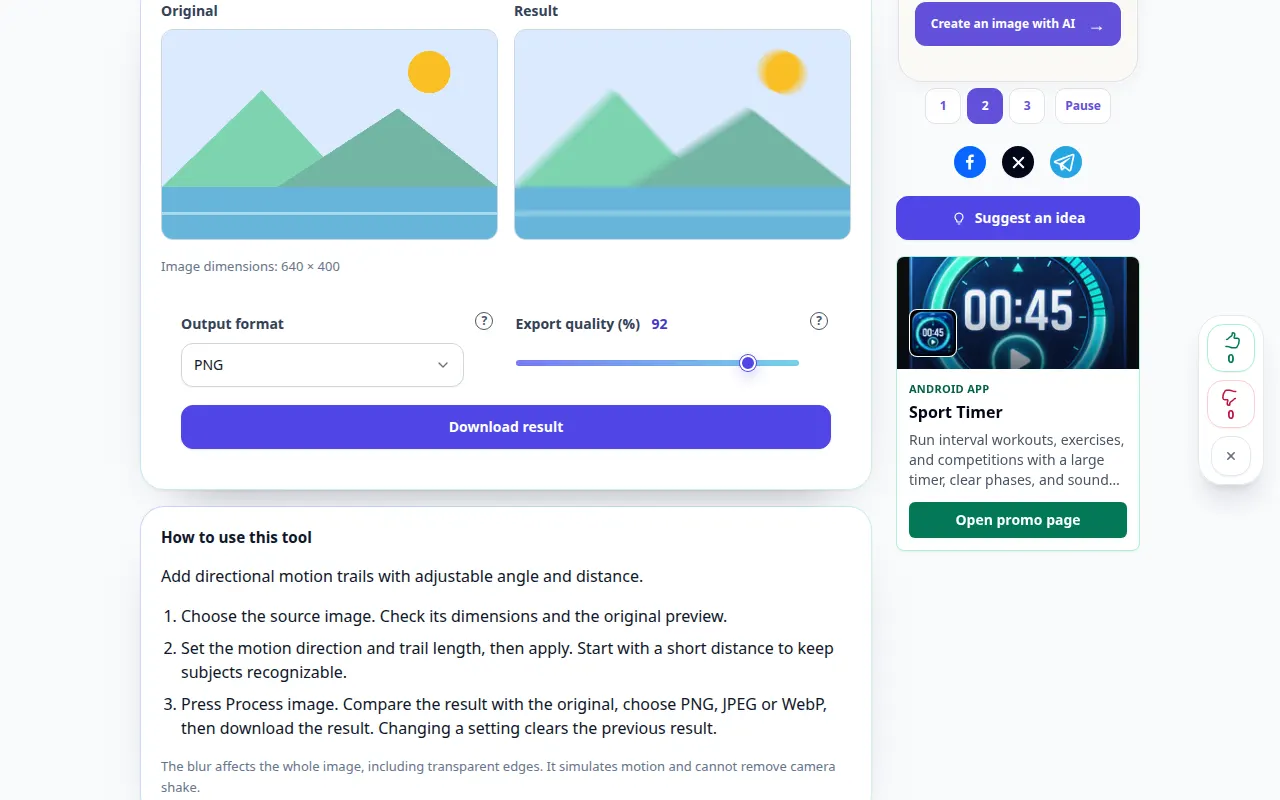
How to use this tool: Motion blur — Desktop demonstration
Add directional motion trails with adjustable angle and distance. This recording shows a demonstration input and the resulting output in the tool.
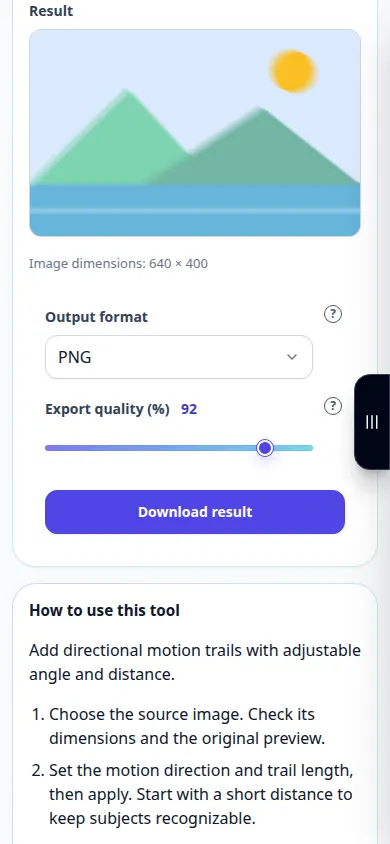
How to use this tool: Motion blur — Phone demonstration
Add directional motion trails with adjustable angle and distance. This recording shows a demonstration input and the resulting output in the tool.
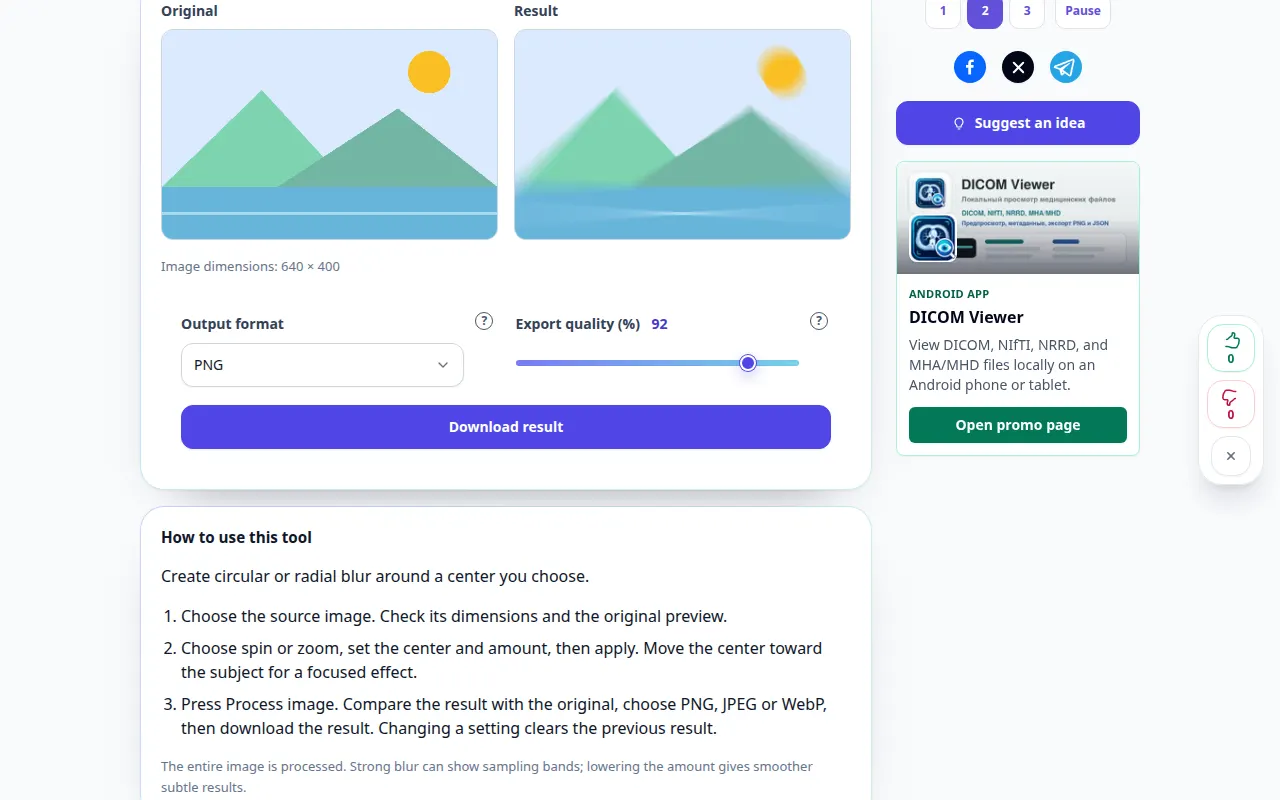
How to use this tool: Radial spin and zoom blur — Desktop demonstration
Create circular or radial blur around a center you choose. This recording shows a demonstration input and the resulting output in the tool.
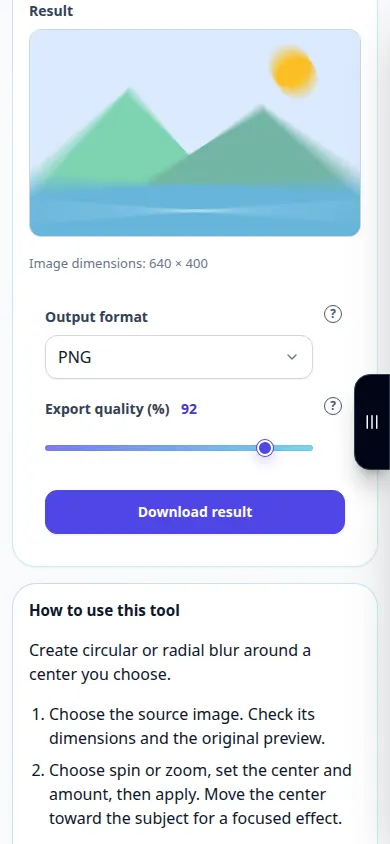
How to use this tool: Radial spin and zoom blur — Phone demonstration
Create circular or radial blur around a center you choose. This recording shows a demonstration input and the resulting output in the tool.
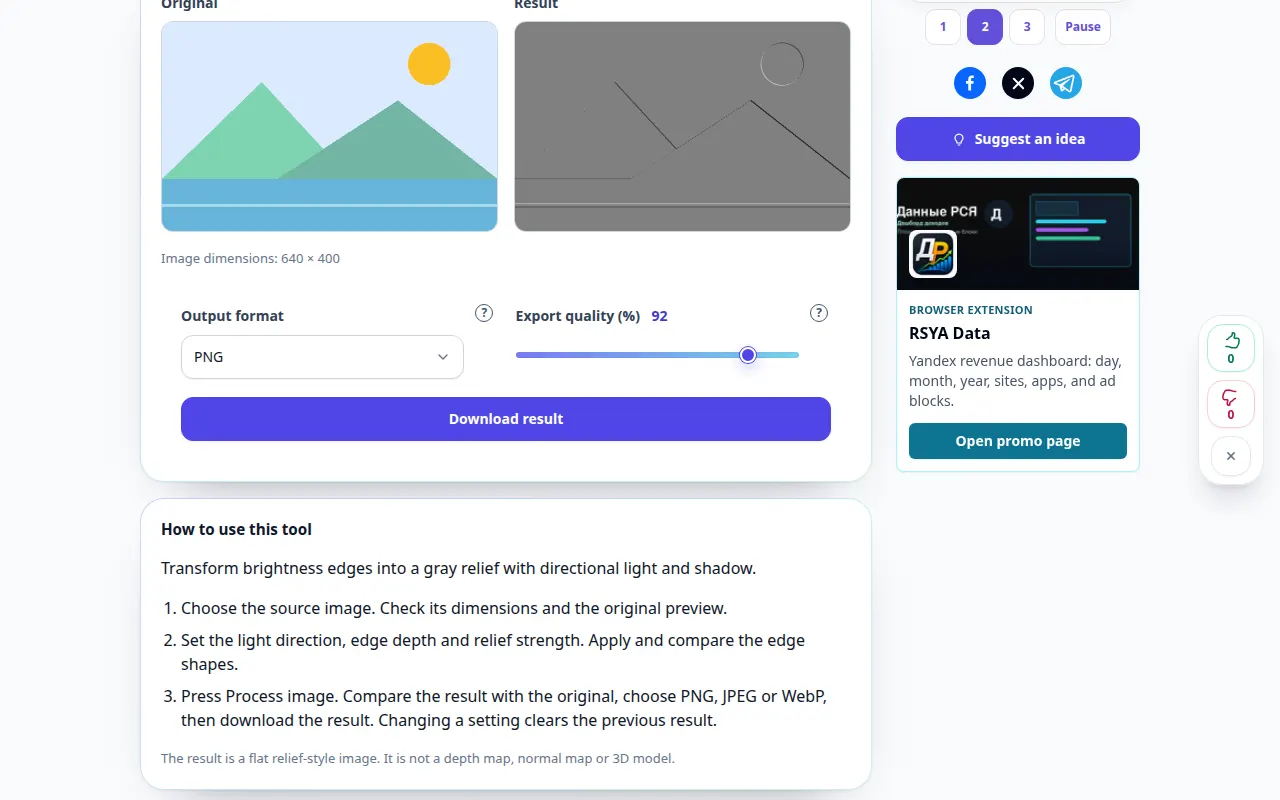
How to use this tool: Photo emboss effect — Desktop demonstration
Transform brightness edges into a gray relief with directional light and shadow. This recording shows a demonstration input and the resulting output in the tool.
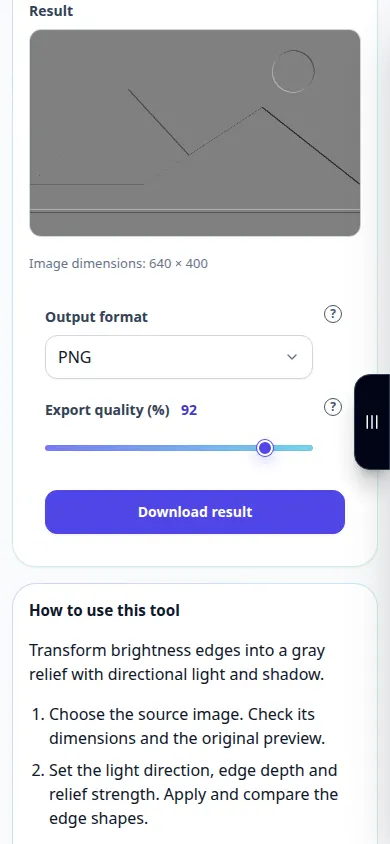
How to use this tool: Photo emboss effect — Phone demonstration
Transform brightness edges into a gray relief with directional light and shadow. This recording shows a demonstration input and the resulting output in the tool.
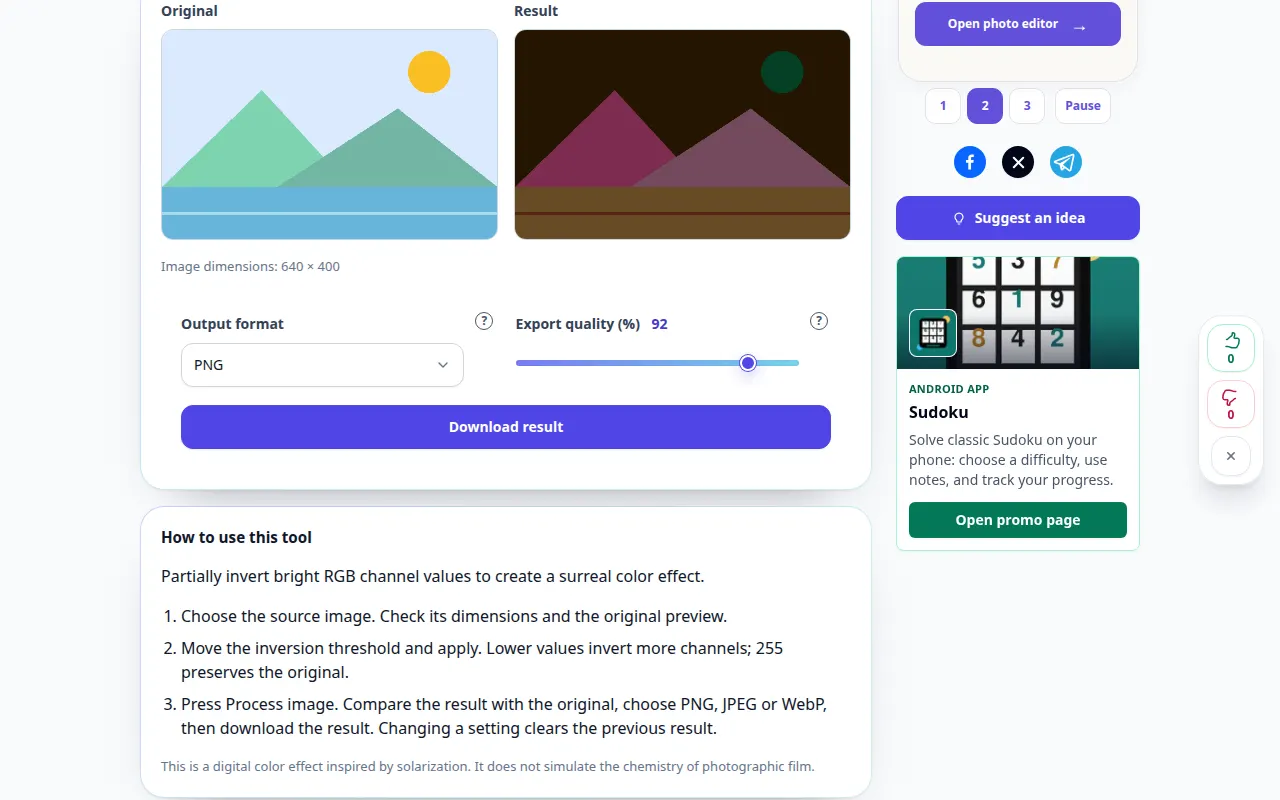
How to use this tool: Solarize a photo — Desktop demonstration
Partially invert bright RGB channel values to create a surreal color effect. This recording shows a demonstration input and the resulting output in the tool.
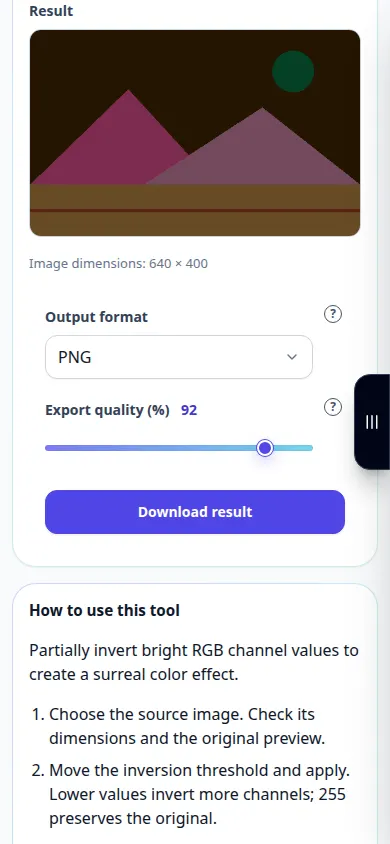
How to use this tool: Solarize a photo — Phone demonstration
Partially invert bright RGB channel values to create a surreal color effect. This recording shows a demonstration input and the resulting output in the tool.
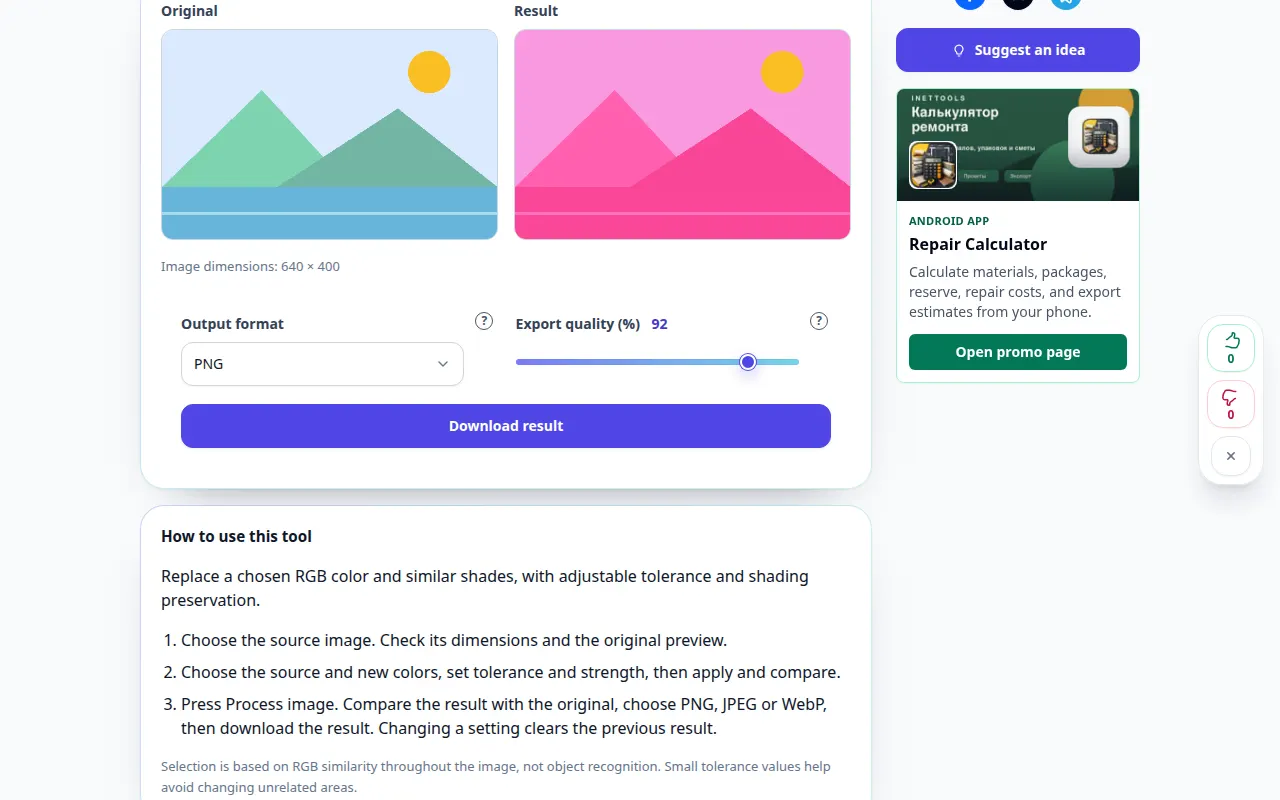
How to use this tool: Replace a color in a photo — Desktop demonstration
Replace a chosen RGB color and similar shades, with adjustable tolerance and shading preservation. This recording shows a demonstration input and the resulting output in the tool.
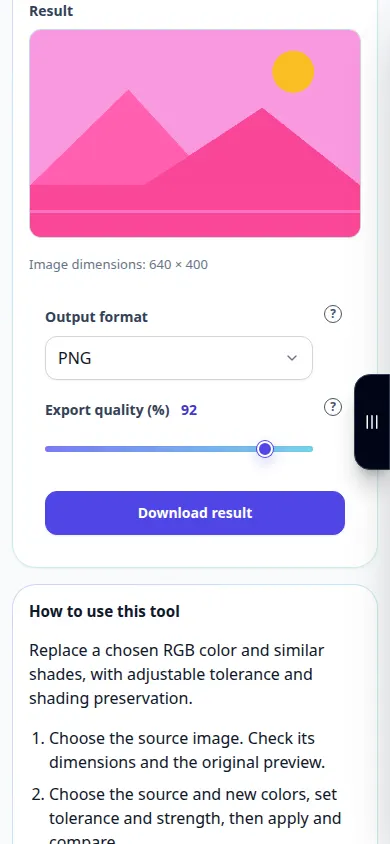
How to use this tool: Replace a color in a photo — Phone demonstration
Replace a chosen RGB color and similar shades, with adjustable tolerance and shading preservation. This recording shows a demonstration input and the resulting output in the tool.
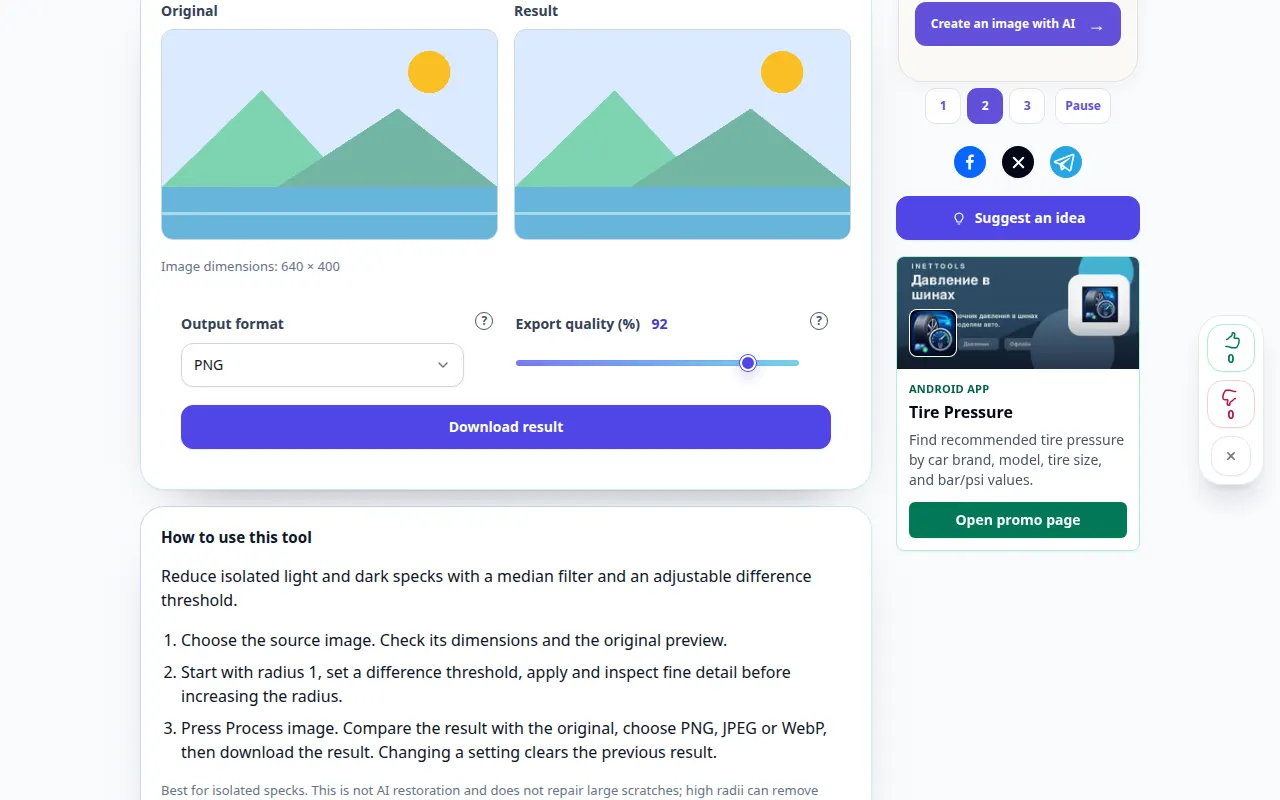
How to use this tool: Median photo denoise — Desktop demonstration
Reduce isolated light and dark specks with a median filter and an adjustable difference threshold. This recording shows a demonstration input and the resulting output in the tool.
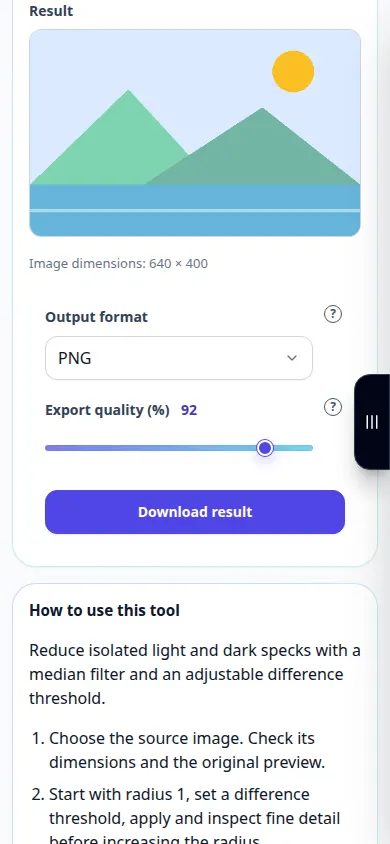
How to use this tool: Median photo denoise — Phone demonstration
Reduce isolated light and dark specks with a median filter and an adjustable difference threshold. This recording shows a demonstration input and the resulting output in the tool.
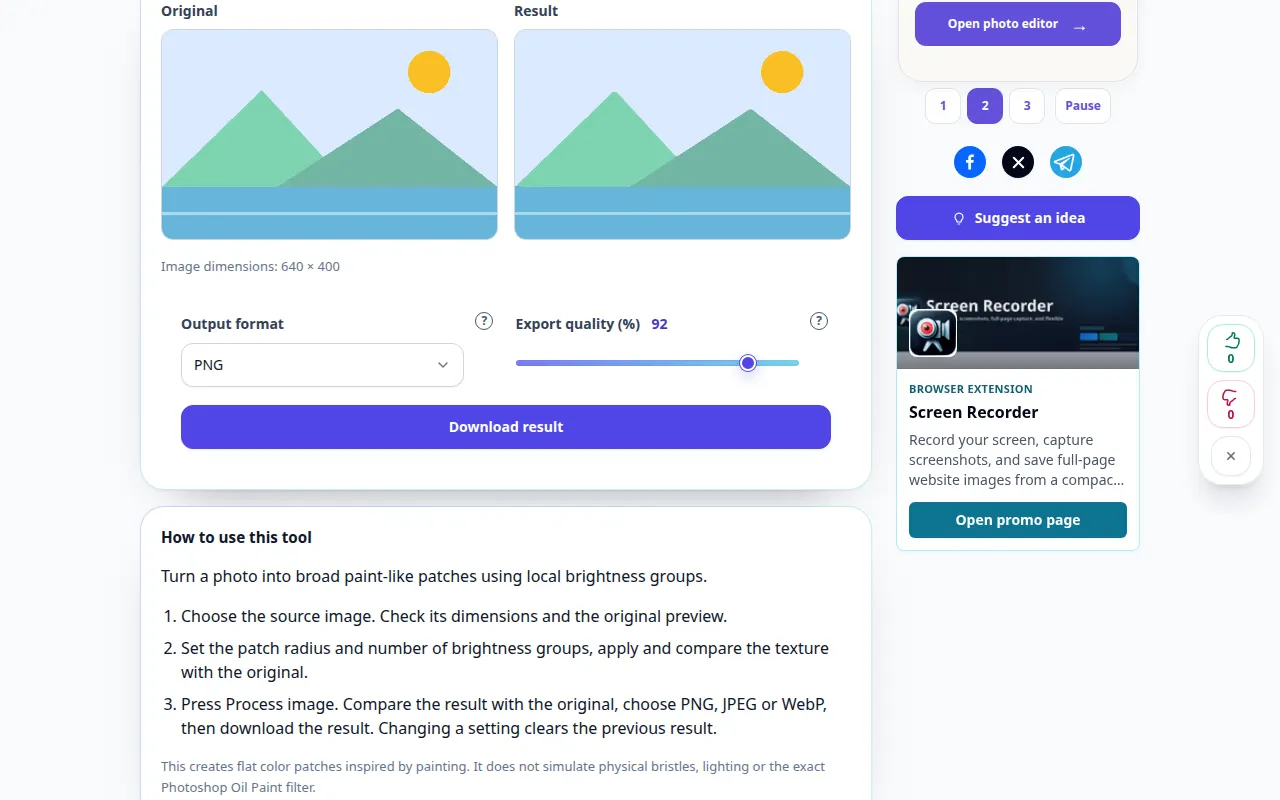
How to use this tool: Oil painting photo effect — Desktop demonstration
Turn a photo into broad paint-like patches using local brightness groups. This recording shows a demonstration input and the resulting output in the tool.
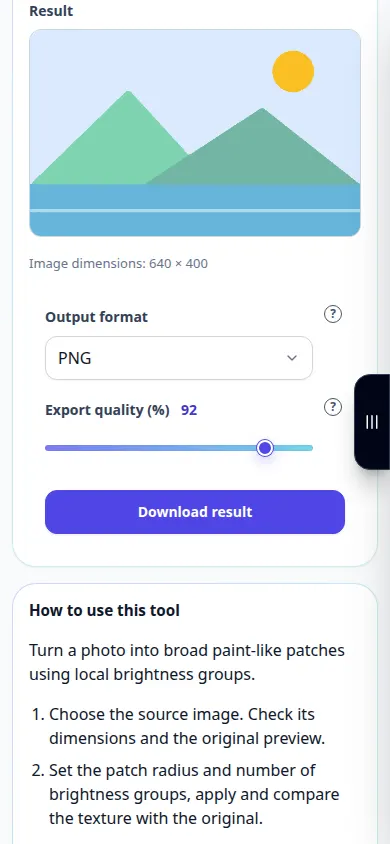
How to use this tool: Oil painting photo effect — Phone demonstration
Turn a photo into broad paint-like patches using local brightness groups. This recording shows a demonstration input and the resulting output in the tool.
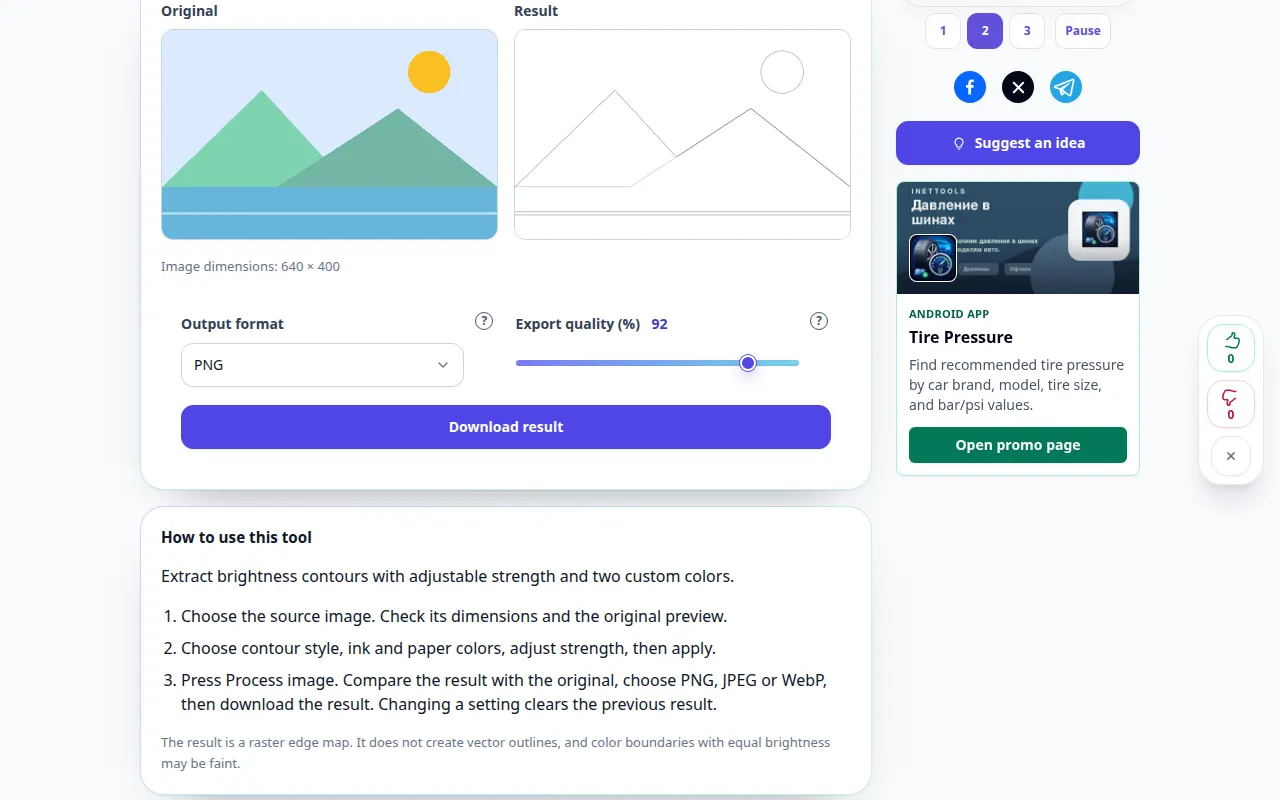
How to use this tool: Find photo edges — Desktop demonstration
Extract brightness contours with adjustable strength and two custom colors. This recording shows a demonstration input and the resulting output in the tool.
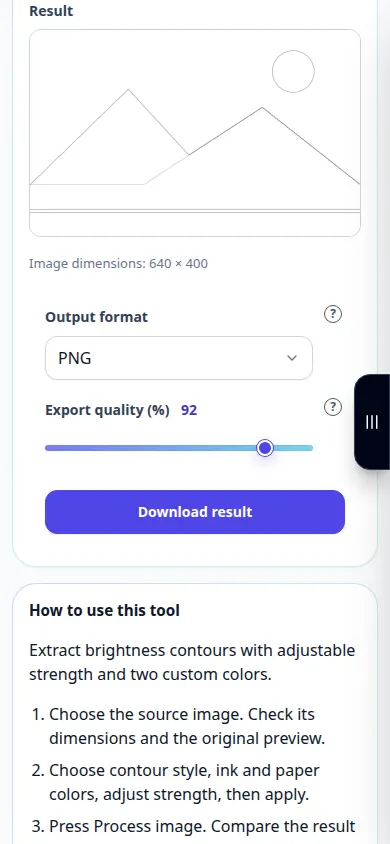
How to use this tool: Find photo edges — Phone demonstration
Extract brightness contours with adjustable strength and two custom colors. This recording shows a demonstration input and the resulting output in the tool.
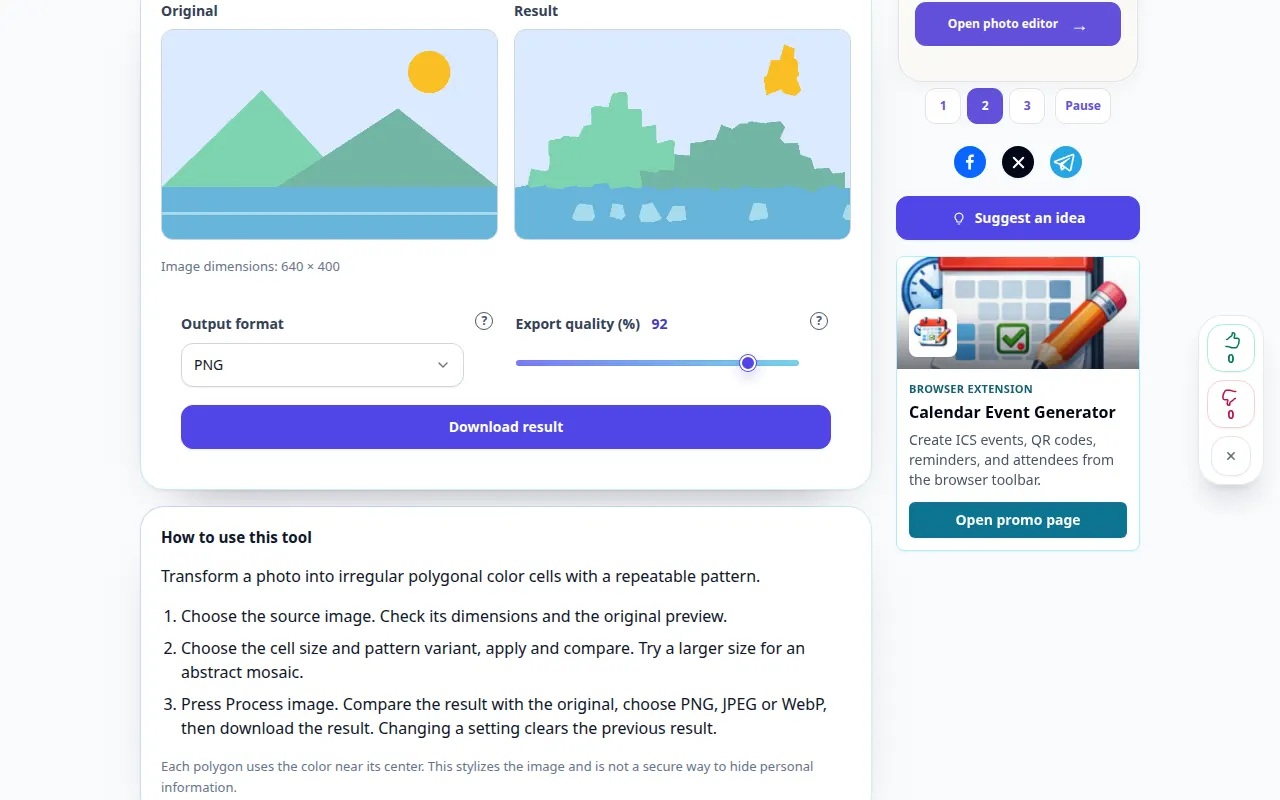
How to use this tool: Crystallize a photo — Desktop demonstration
Transform a photo into irregular polygonal color cells with a repeatable pattern. This recording shows a demonstration input and the resulting output in the tool.
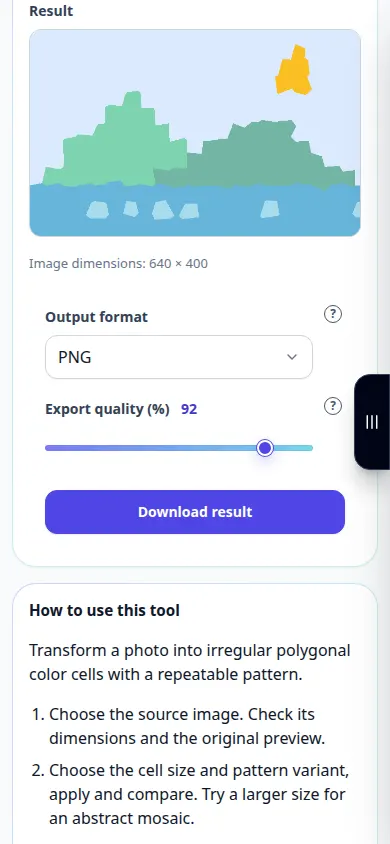
How to use this tool: Crystallize a photo — Phone demonstration
Transform a photo into irregular polygonal color cells with a repeatable pattern. This recording shows a demonstration input and the resulting output in the tool.
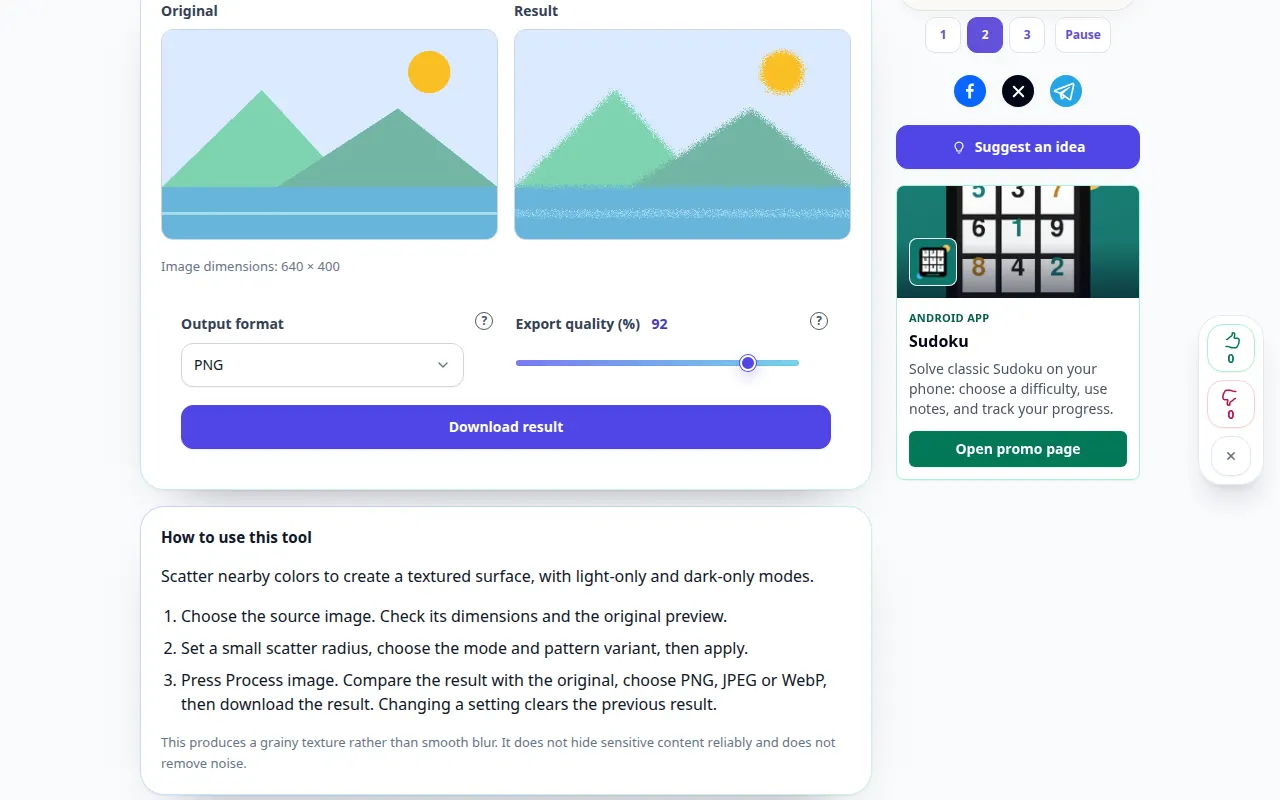
How to use this tool: Diffuse photo pixels — Desktop demonstration
Scatter nearby colors to create a textured surface, with light-only and dark-only modes. This recording shows a demonstration input and the resulting output in the tool.
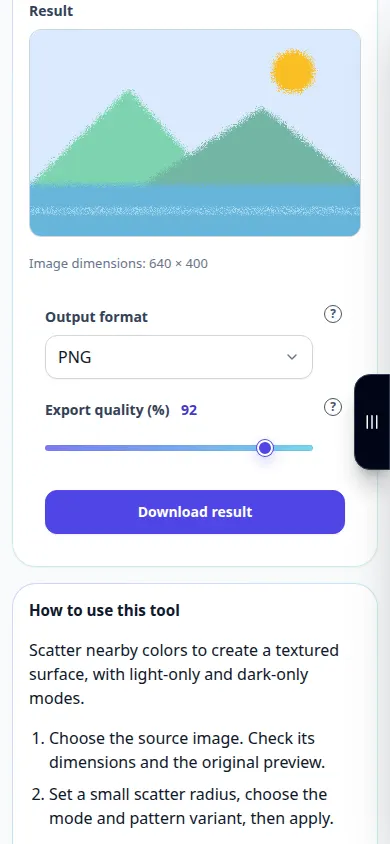
How to use this tool: Diffuse photo pixels — Phone demonstration
Scatter nearby colors to create a textured surface, with light-only and dark-only modes. This recording shows a demonstration input and the resulting output in the tool.
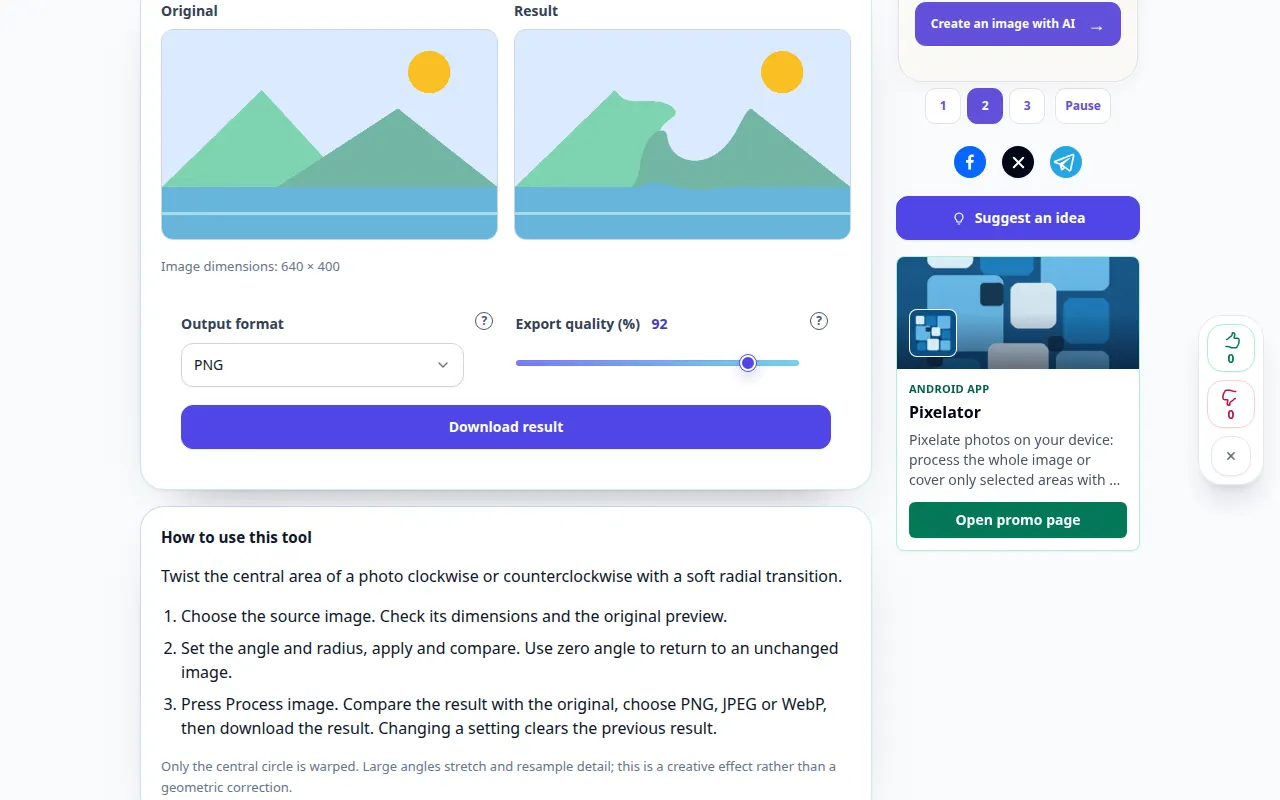
How to use this tool: Twirl a photo — Desktop demonstration
Twist the central area of a photo clockwise or counterclockwise with a soft radial transition. This recording shows a demonstration input and the resulting output in the tool.
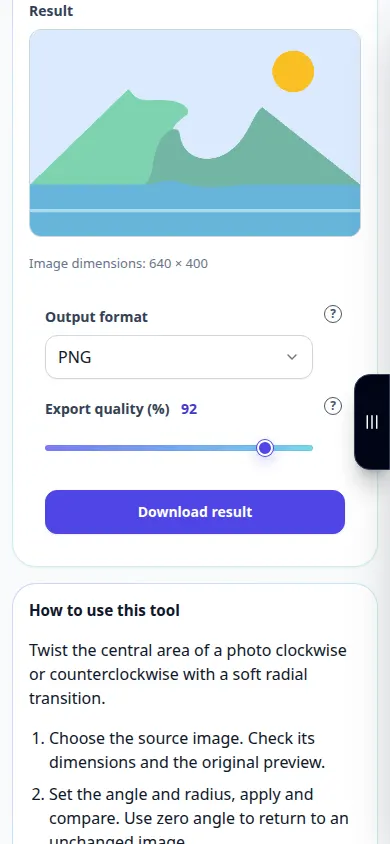
How to use this tool: Twirl a photo — Phone demonstration
Twist the central area of a photo clockwise or counterclockwise with a soft radial transition. This recording shows a demonstration input and the resulting output in the tool.
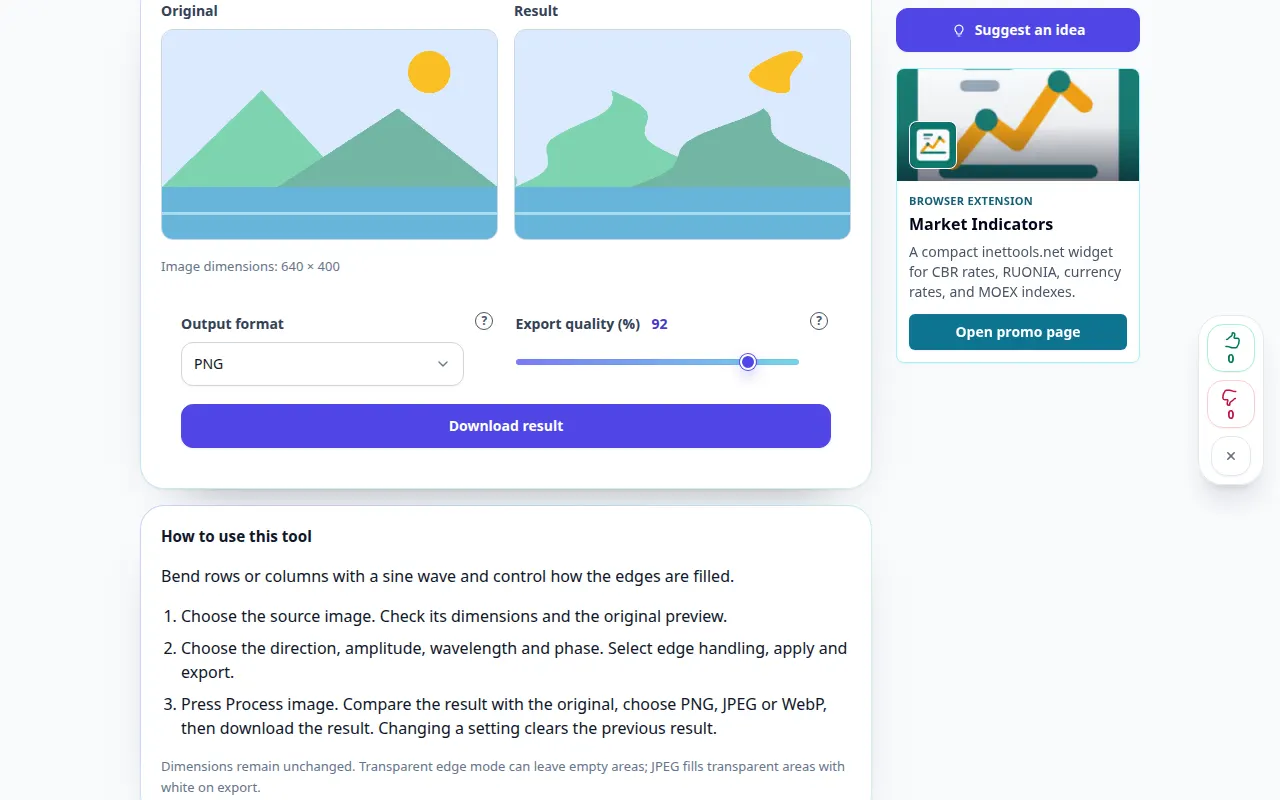
How to use this tool: Wave distortion for photos — Desktop demonstration
Bend rows or columns with a sine wave and control how the edges are filled. This recording shows a demonstration input and the resulting output in the tool.
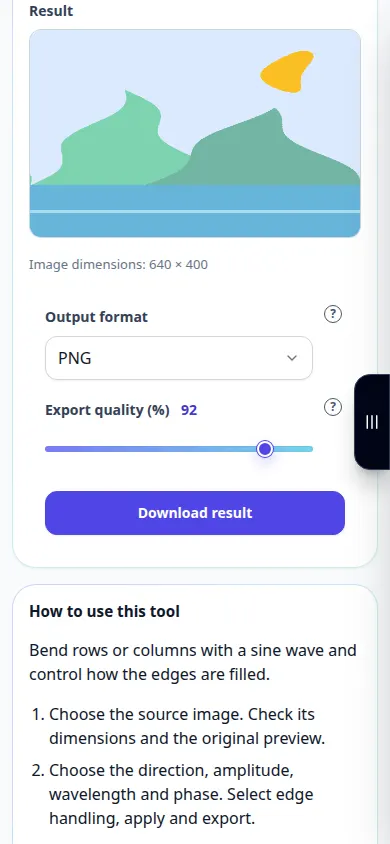
How to use this tool: Wave distortion for photos — Phone demonstration
Bend rows or columns with a sine wave and control how the edges are filled. This recording shows a demonstration input and the resulting output in the tool.
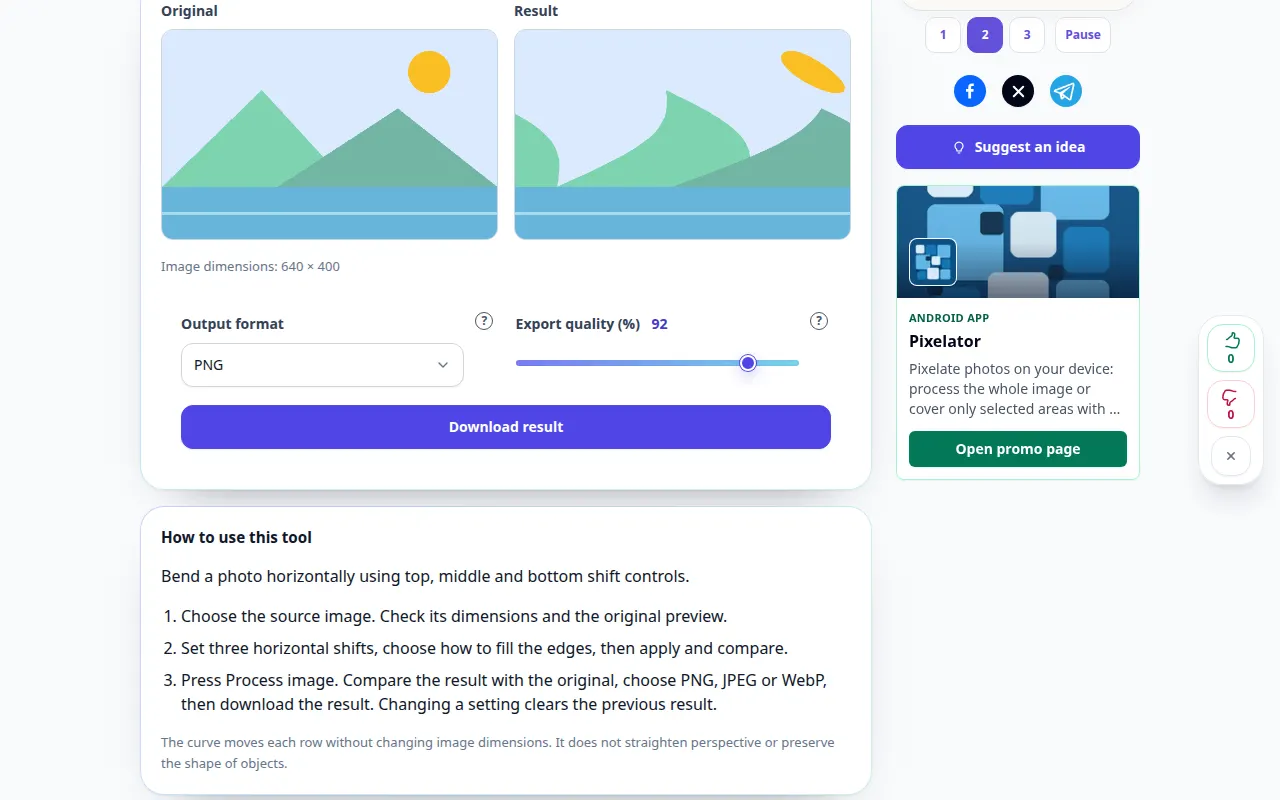
How to use this tool: Shear a photo along a curve — Desktop demonstration
Bend a photo horizontally using top, middle and bottom shift controls. This recording shows a demonstration input and the resulting output in the tool.
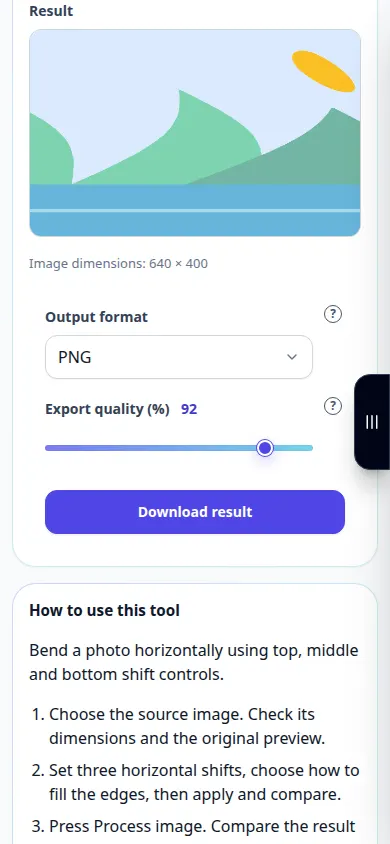
How to use this tool: Shear a photo along a curve — Phone demonstration
Bend a photo horizontally using top, middle and bottom shift controls. This recording shows a demonstration input and the resulting output in the tool.
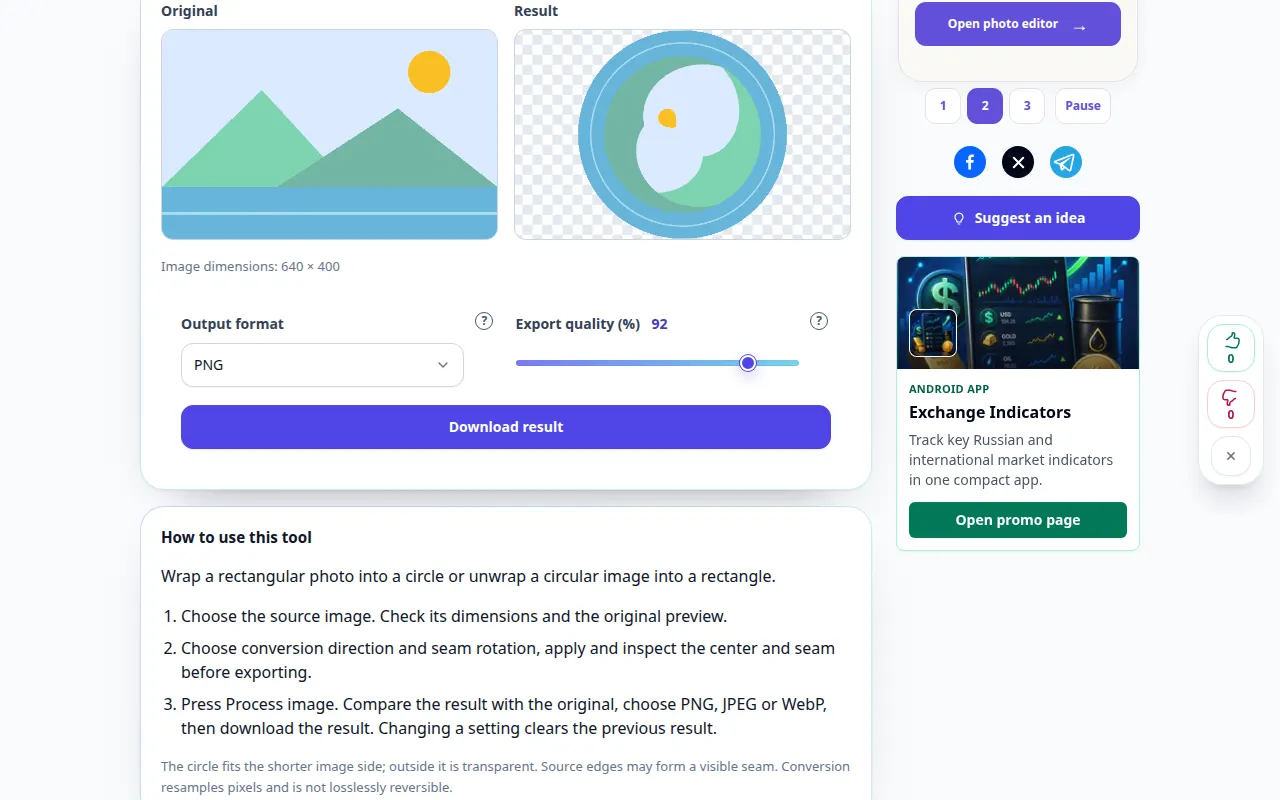
How to use this tool: Polar coordinates photo effect — Desktop demonstration
Wrap a rectangular photo into a circle or unwrap a circular image into a rectangle. This recording shows a demonstration input and the resulting output in the tool.
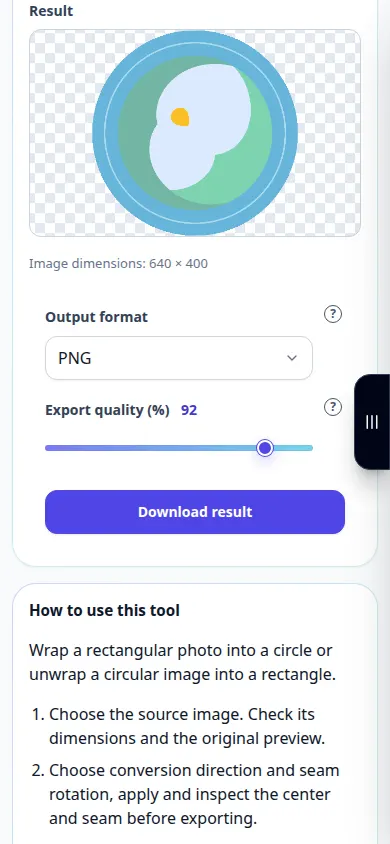
How to use this tool: Polar coordinates photo effect — Phone demonstration
Wrap a rectangular photo into a circle or unwrap a circular image into a rectangle. This recording shows a demonstration input and the resulting output in the tool.
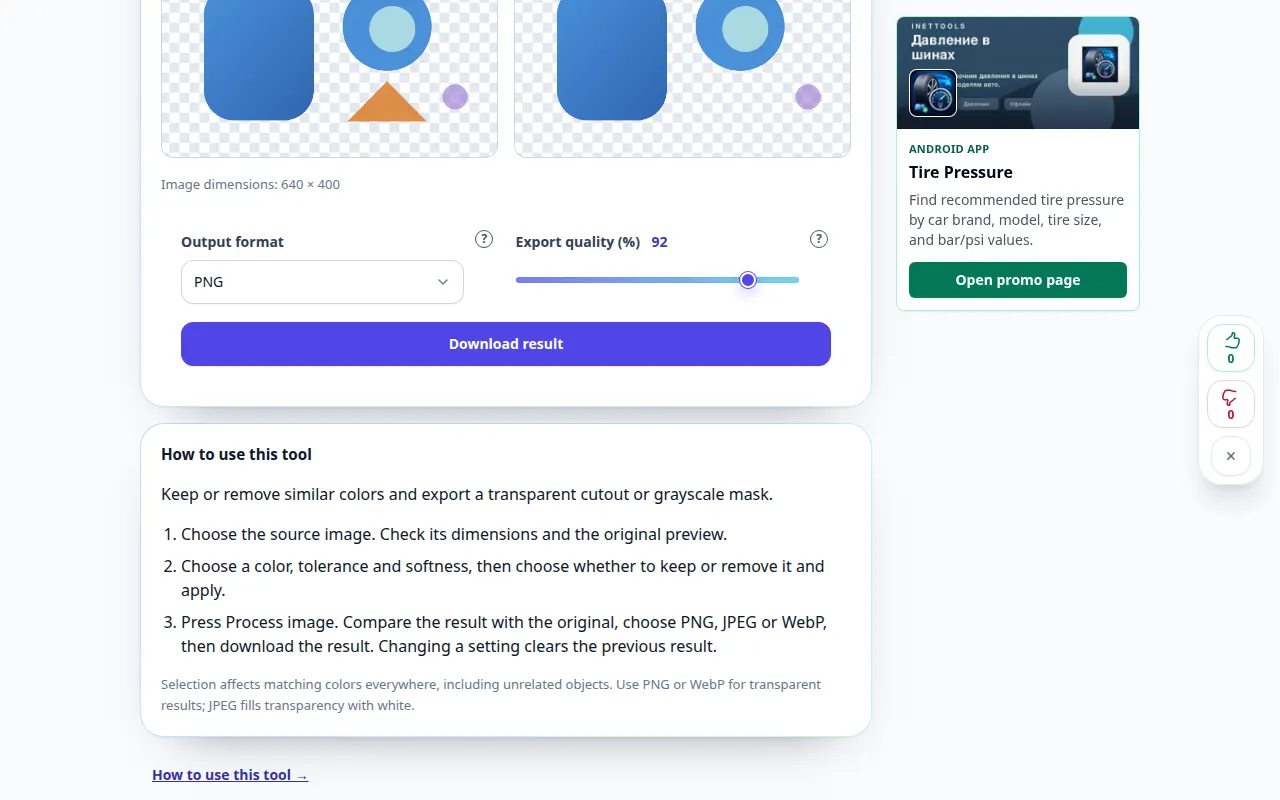
How to use this tool: Select a color range — Desktop demonstration
Keep or remove similar colors and export a transparent cutout or grayscale mask. This recording shows a demonstration input and the resulting output in the tool.
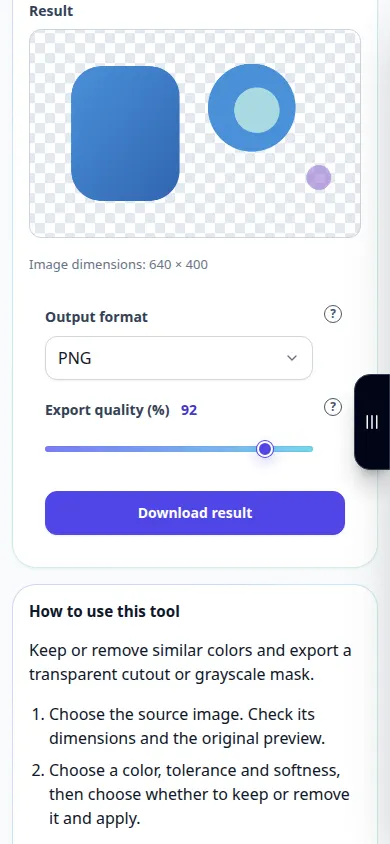
How to use this tool: Select a color range — Phone demonstration
Keep or remove similar colors and export a transparent cutout or grayscale mask. This recording shows a demonstration input and the resulting output in the tool.
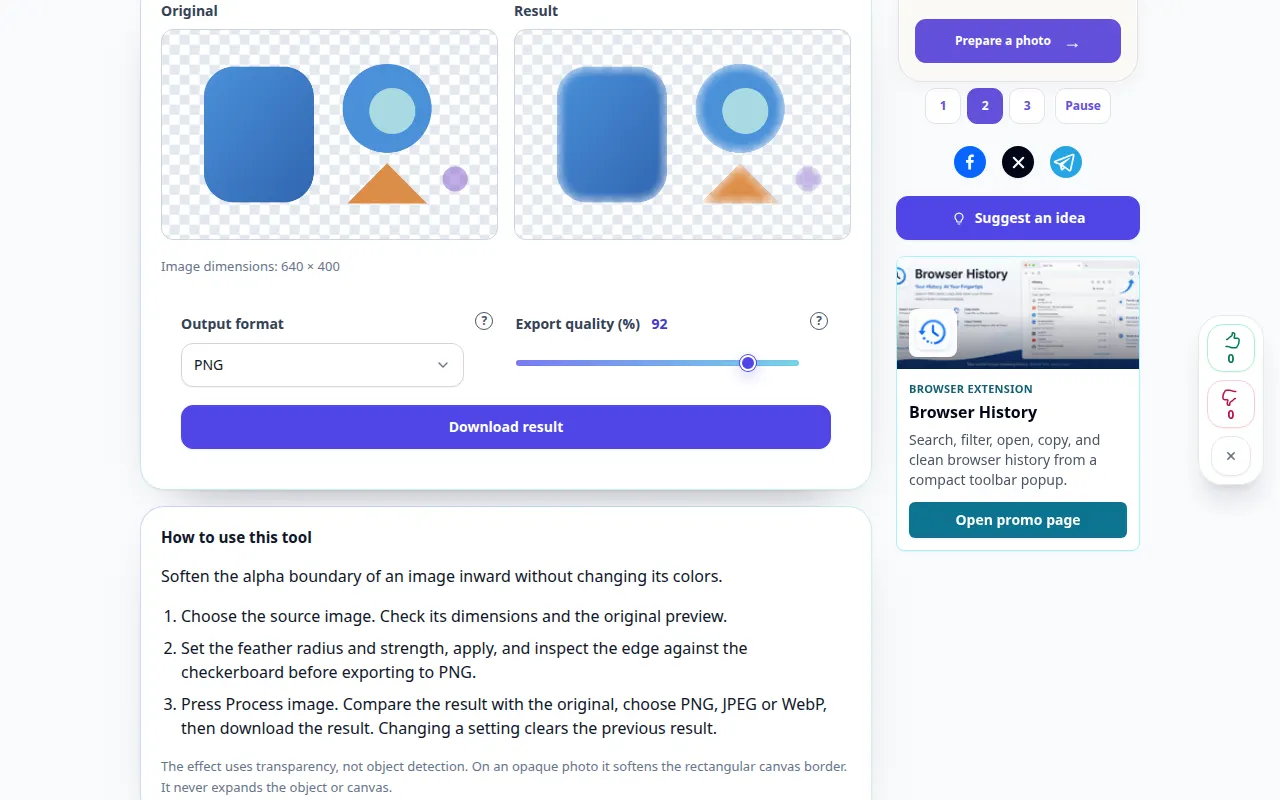
How to use this tool: Feather image edges — Desktop demonstration
Soften the alpha boundary of an image inward without changing its colors. This recording shows a demonstration input and the resulting output in the tool.
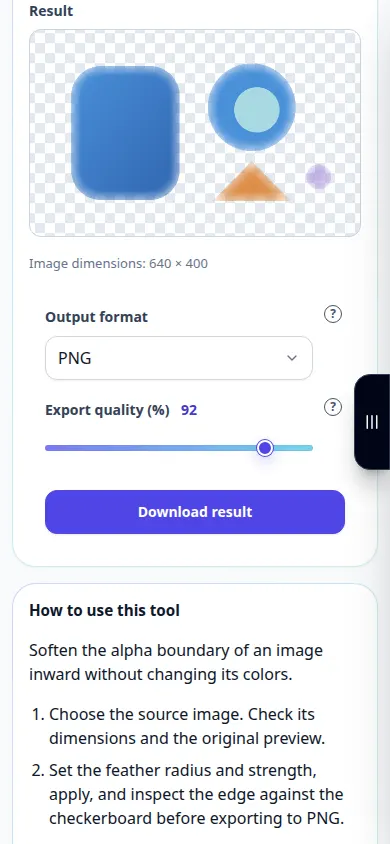
How to use this tool: Feather image edges — Phone demonstration
Soften the alpha boundary of an image inward without changing its colors. This recording shows a demonstration input and the resulting output in the tool.
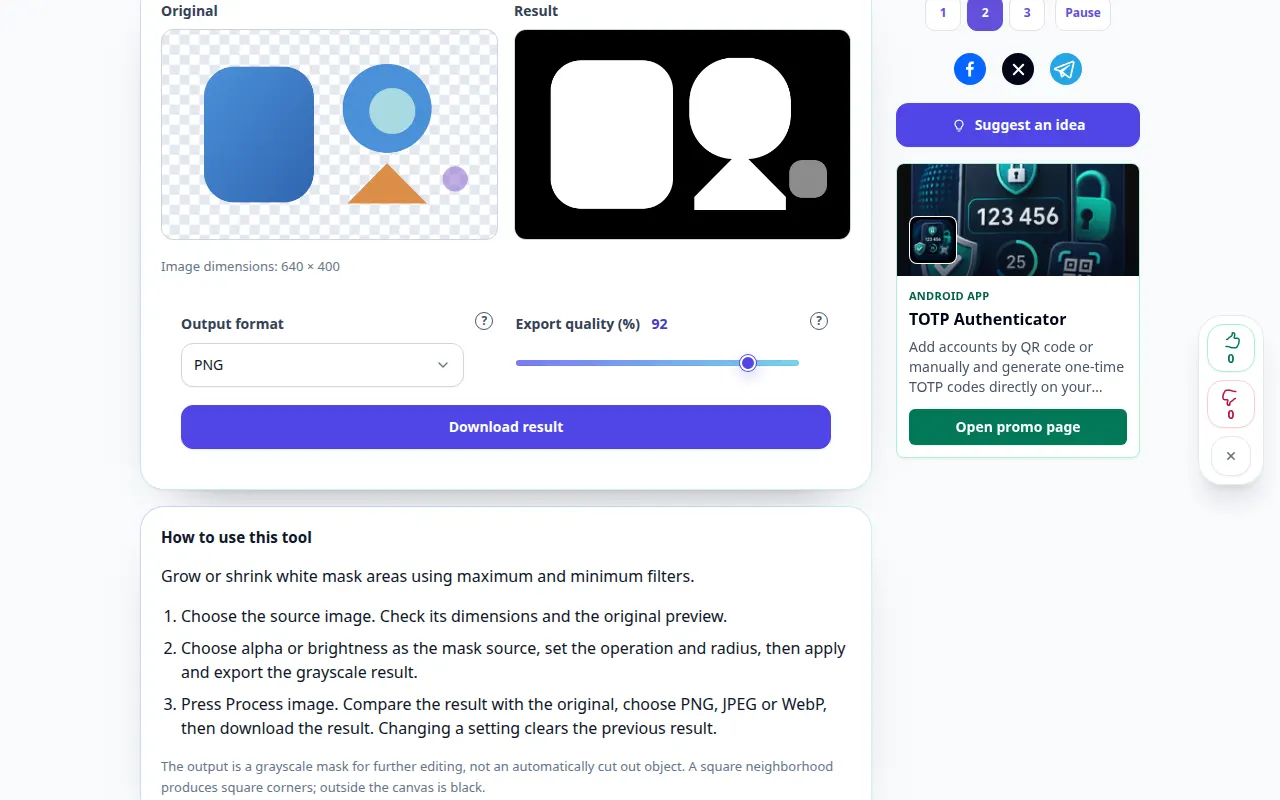
How to use this tool: Expand or contract a mask — Desktop demonstration
Grow or shrink white mask areas using maximum and minimum filters. This recording shows a demonstration input and the resulting output in the tool.
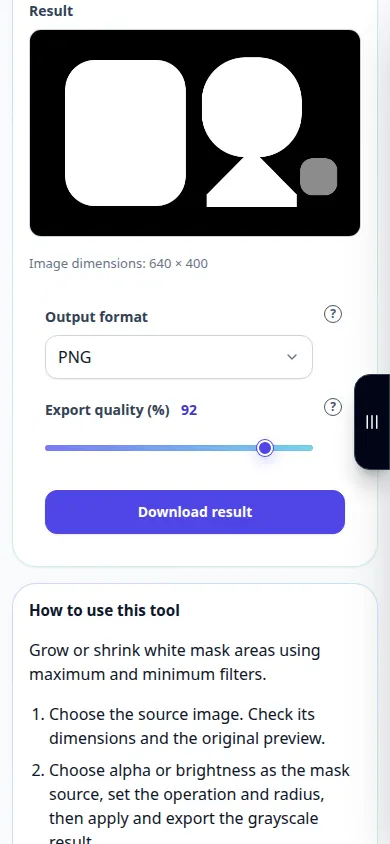
How to use this tool: Expand or contract a mask — Phone demonstration
Grow or shrink white mask areas using maximum and minimum filters. This recording shows a demonstration input and the resulting output in the tool.
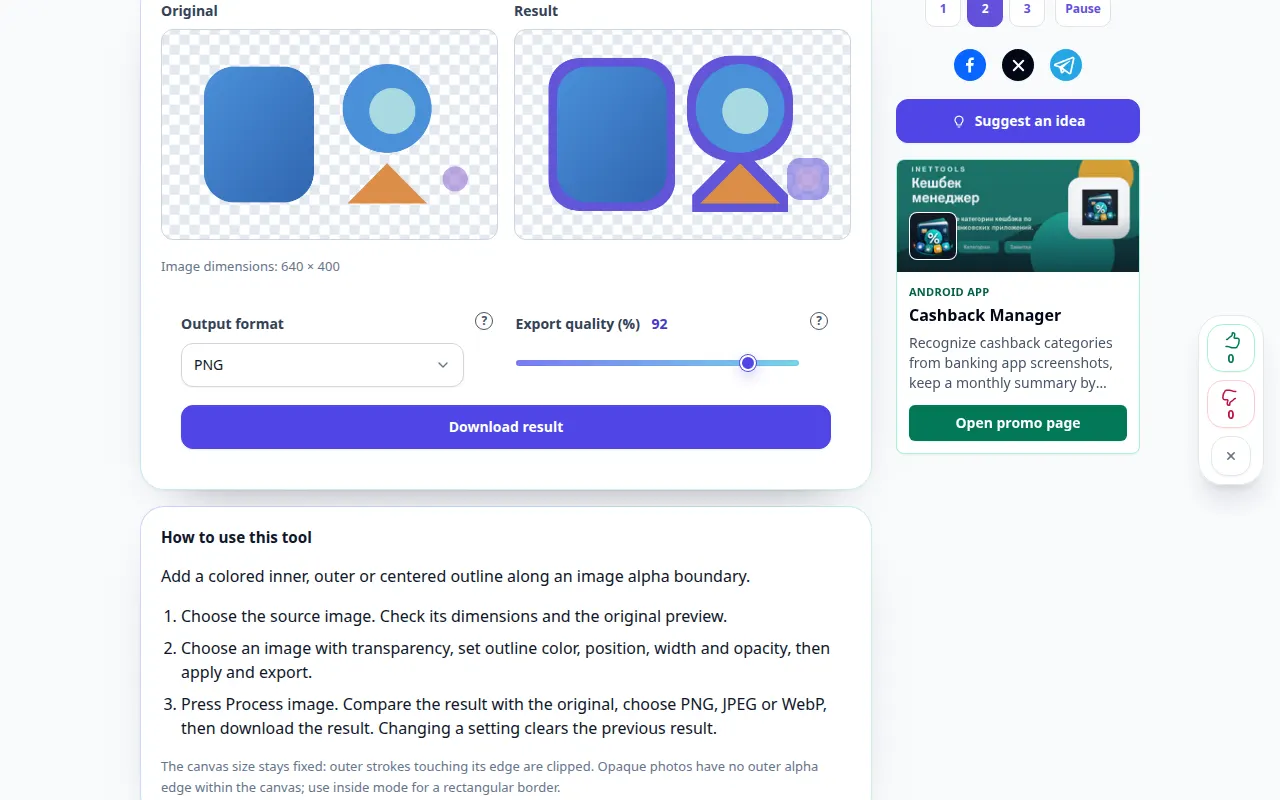
How to use this tool: Outline a transparent object — Desktop demonstration
Add a colored inner, outer or centered outline along an image alpha boundary. This recording shows a demonstration input and the resulting output in the tool.
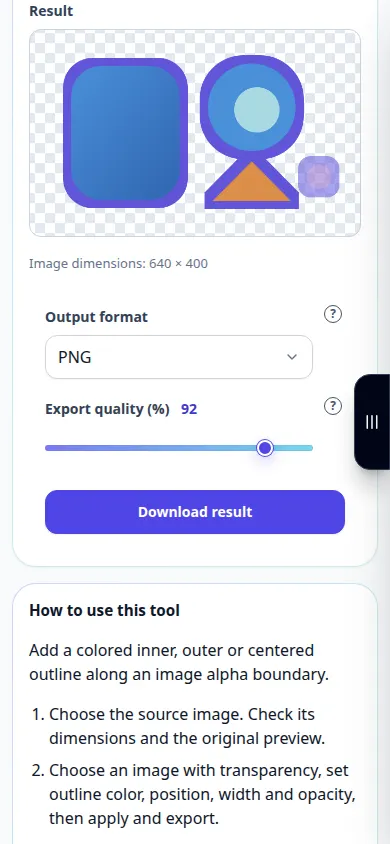
How to use this tool: Outline a transparent object — Phone demonstration
Add a colored inner, outer or centered outline along an image alpha boundary. This recording shows a demonstration input and the resulting output in the tool.
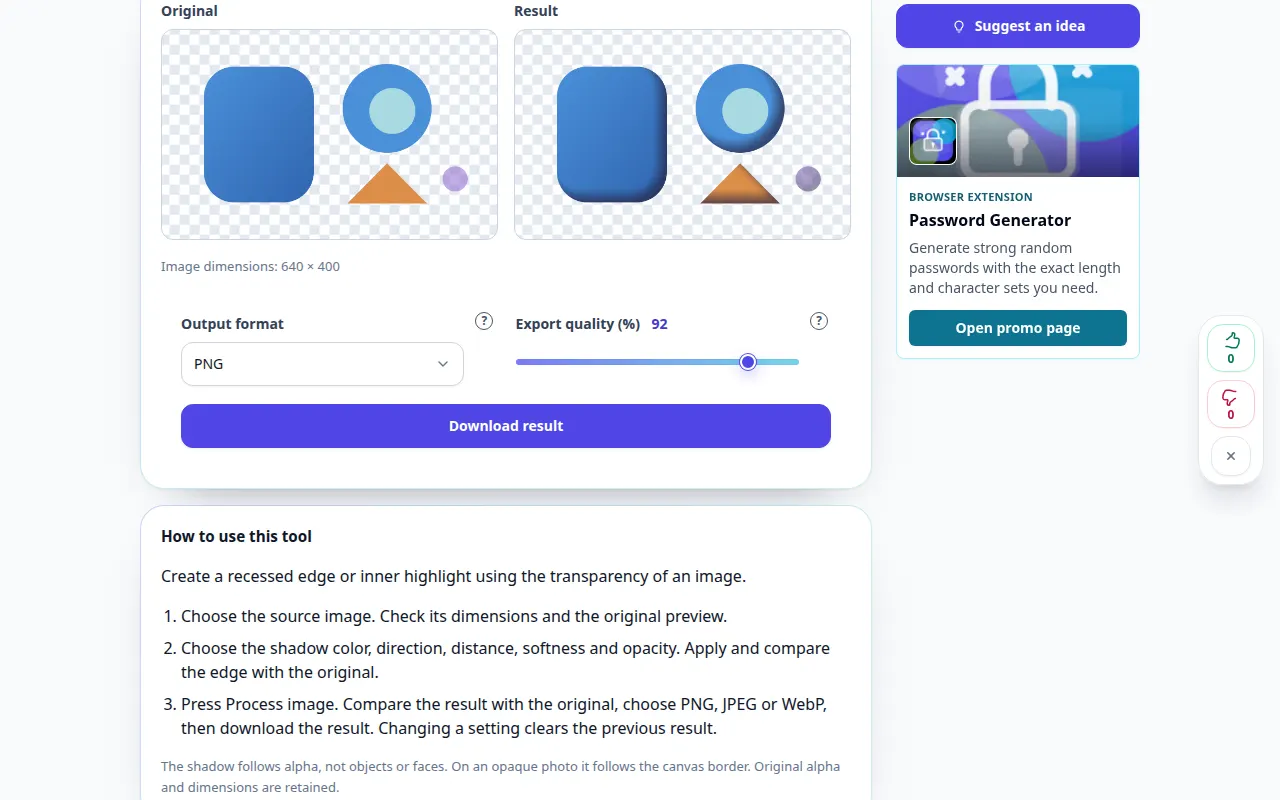
How to use this tool: Add an inner shadow — Desktop demonstration
Create a recessed edge or inner highlight using the transparency of an image. This recording shows a demonstration input and the resulting output in the tool.
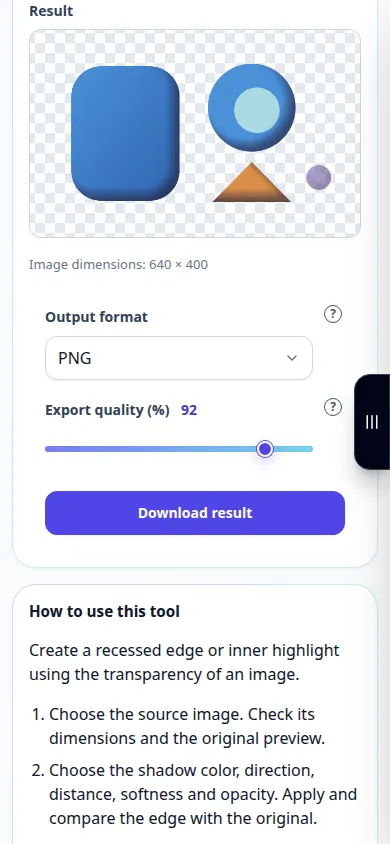
How to use this tool: Add an inner shadow — Phone demonstration
Create a recessed edge or inner highlight using the transparency of an image. This recording shows a demonstration input and the resulting output in the tool.
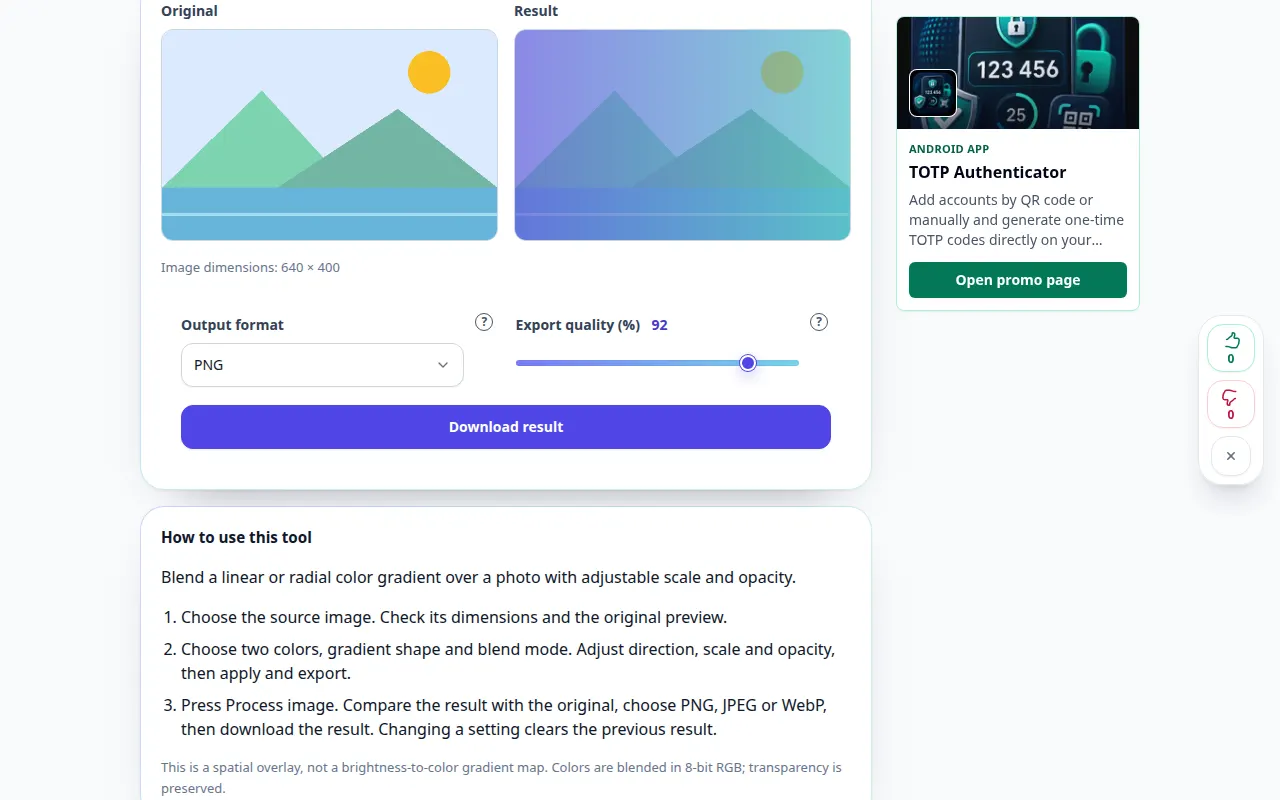
How to use this tool: Overlay a gradient on a photo — Desktop demonstration
Blend a linear or radial color gradient over a photo with adjustable scale and opacity. This recording shows a demonstration input and the resulting output in the tool.
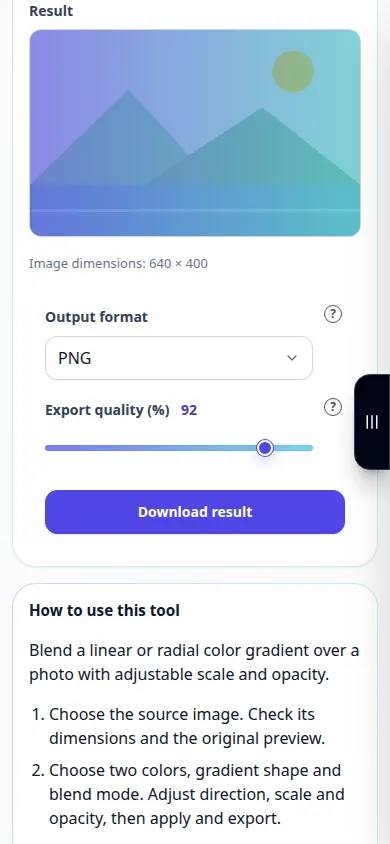
How to use this tool: Overlay a gradient on a photo — Phone demonstration
Blend a linear or radial color gradient over a photo with adjustable scale and opacity. This recording shows a demonstration input and the resulting output in the tool.
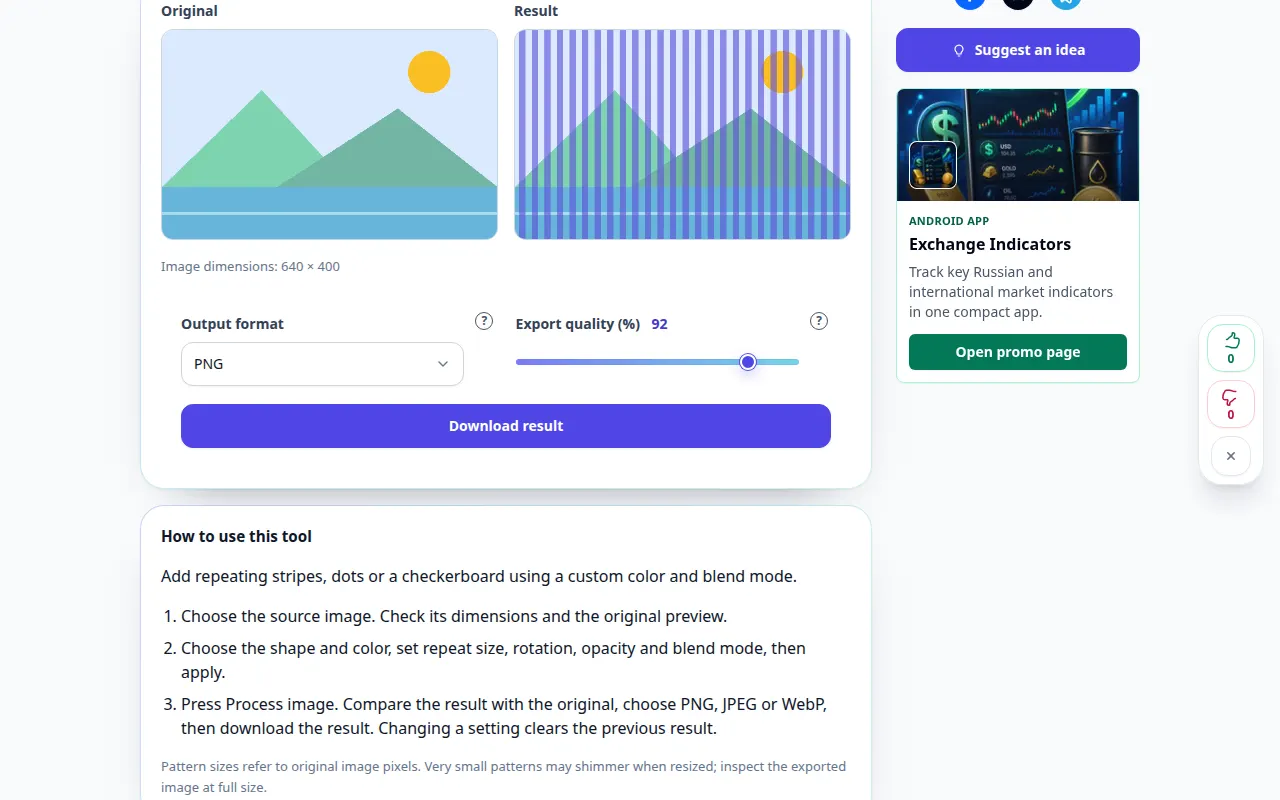
How to use this tool: Overlay a pattern on a photo — Desktop demonstration
Add repeating stripes, dots or a checkerboard using a custom color and blend mode. This recording shows a demonstration input and the resulting output in the tool.
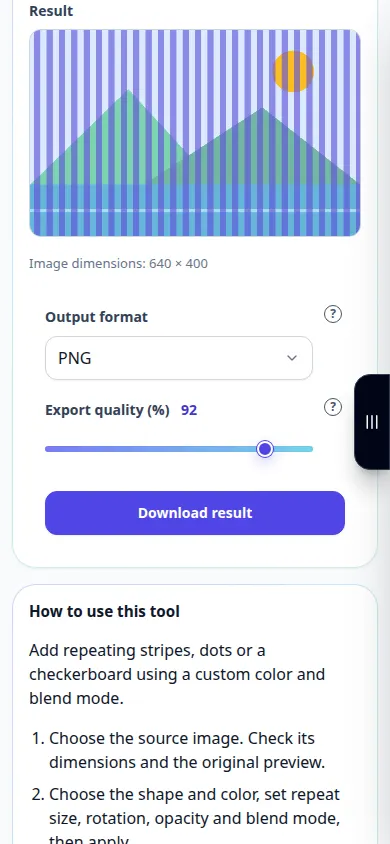
How to use this tool: Overlay a pattern on a photo — Phone demonstration
Add repeating stripes, dots or a checkerboard using a custom color and blend mode. This recording shows a demonstration input and the resulting output in the tool.
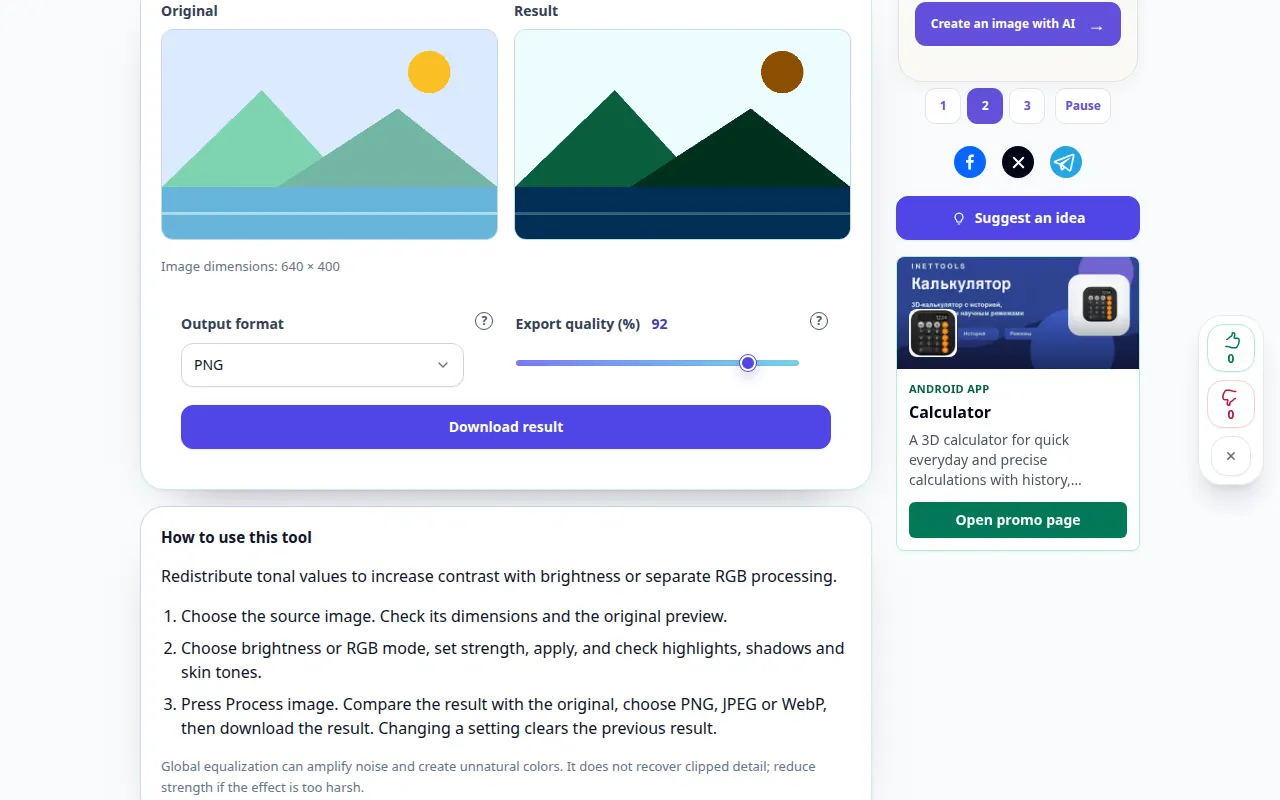
How to use this tool: Equalize an image histogram — Desktop demonstration
Redistribute tonal values to increase contrast with brightness or separate RGB processing. This recording shows a demonstration input and the resulting output in the tool.
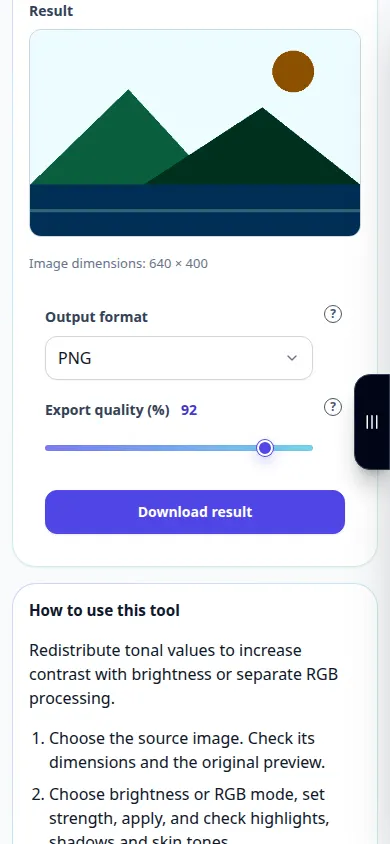
How to use this tool: Equalize an image histogram — Phone demonstration
Redistribute tonal values to increase contrast with brightness or separate RGB processing. This recording shows a demonstration input and the resulting output in the tool.
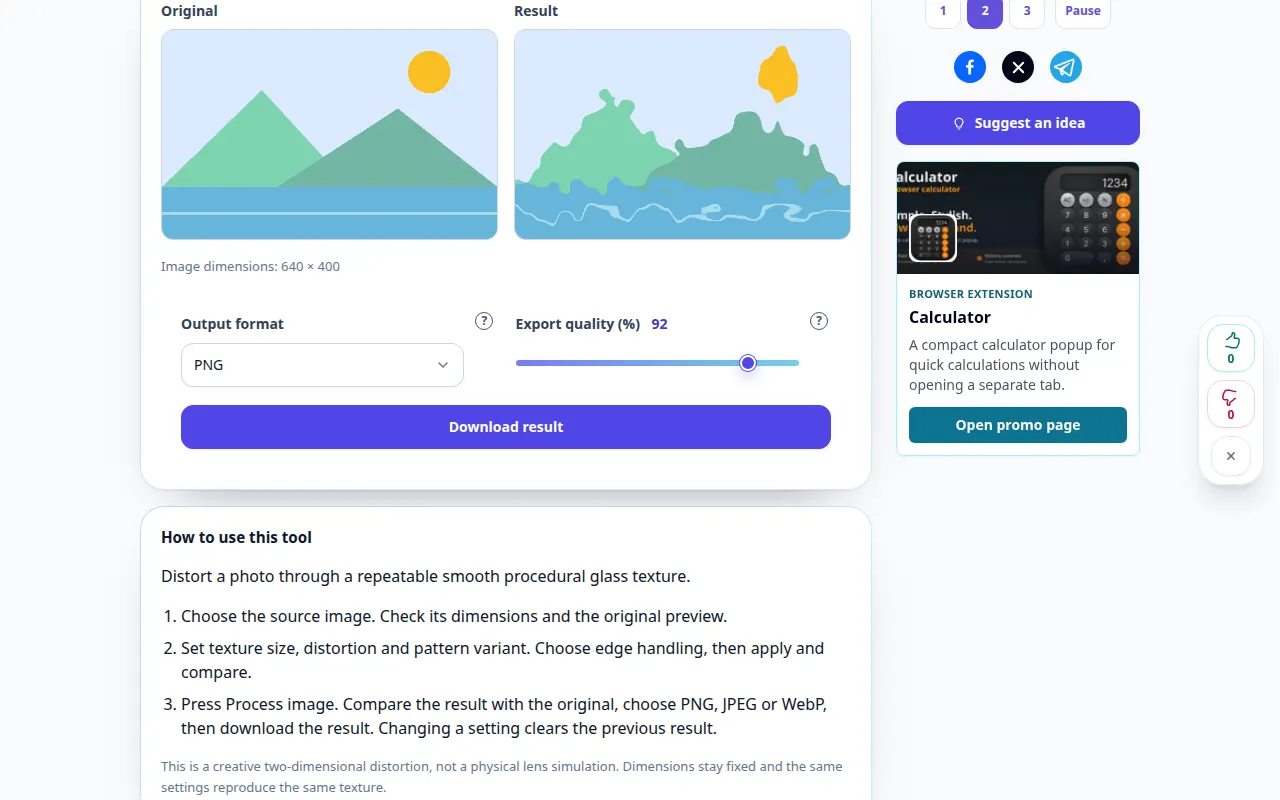
How to use this tool: Glass distortion effect — Desktop demonstration
Distort a photo through a repeatable smooth procedural glass texture. This recording shows a demonstration input and the resulting output in the tool.
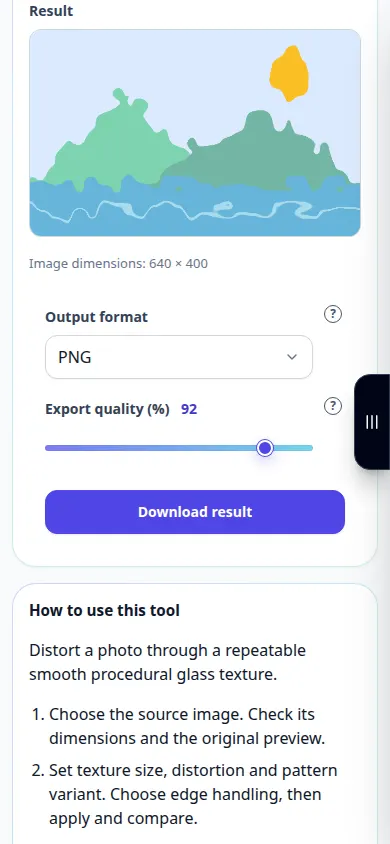
How to use this tool: Glass distortion effect — Phone demonstration
Distort a photo through a repeatable smooth procedural glass texture. This recording shows a demonstration input and the resulting output in the tool.
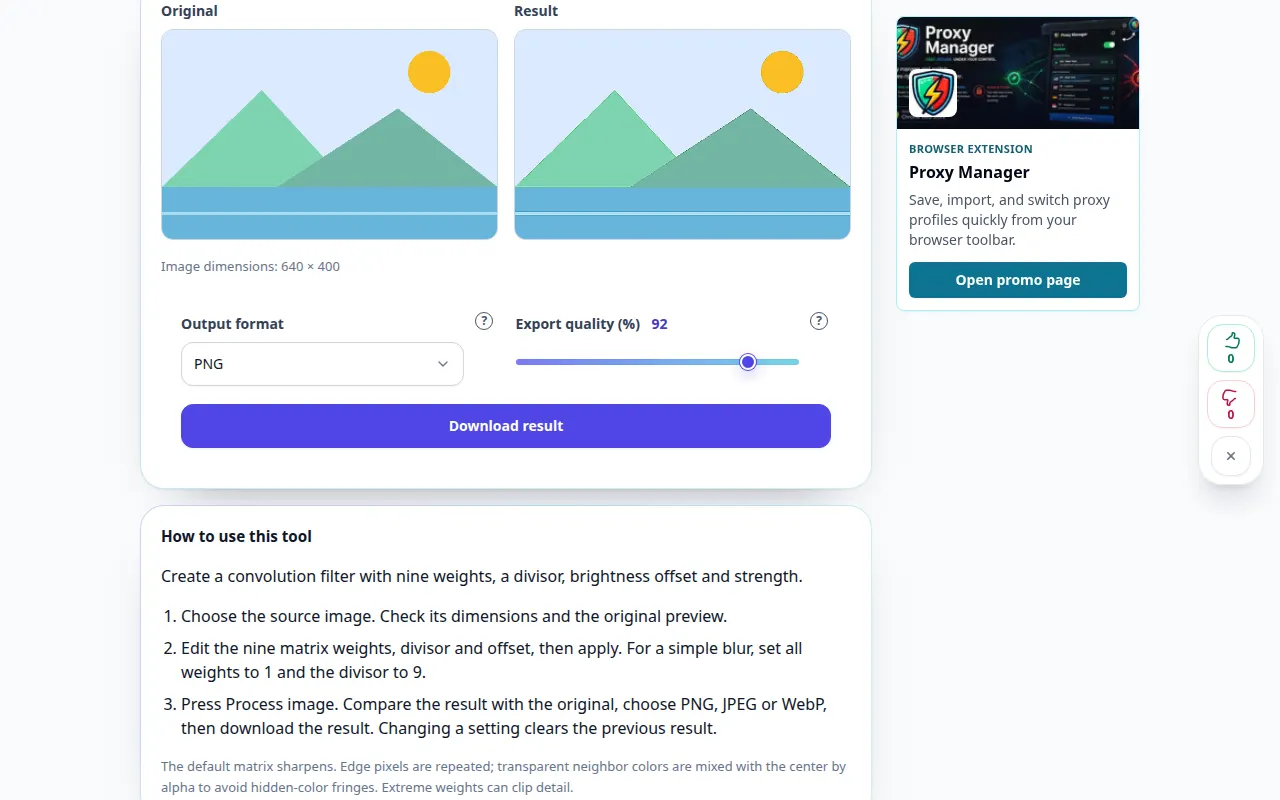
How to use this tool: Custom 3×3 image filter — Desktop demonstration
Create a convolution filter with nine weights, a divisor, brightness offset and strength. This recording shows a demonstration input and the resulting output in the tool.
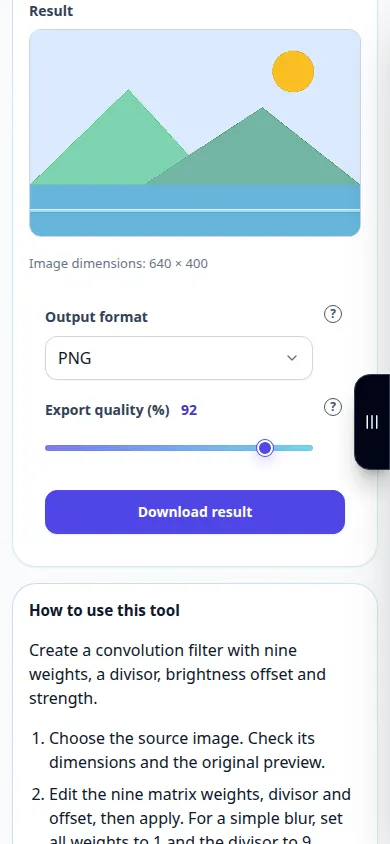
How to use this tool: Custom 3×3 image filter — Phone demonstration
Create a convolution filter with nine weights, a divisor, brightness offset and strength. This recording shows a demonstration input and the resulting output in the tool.
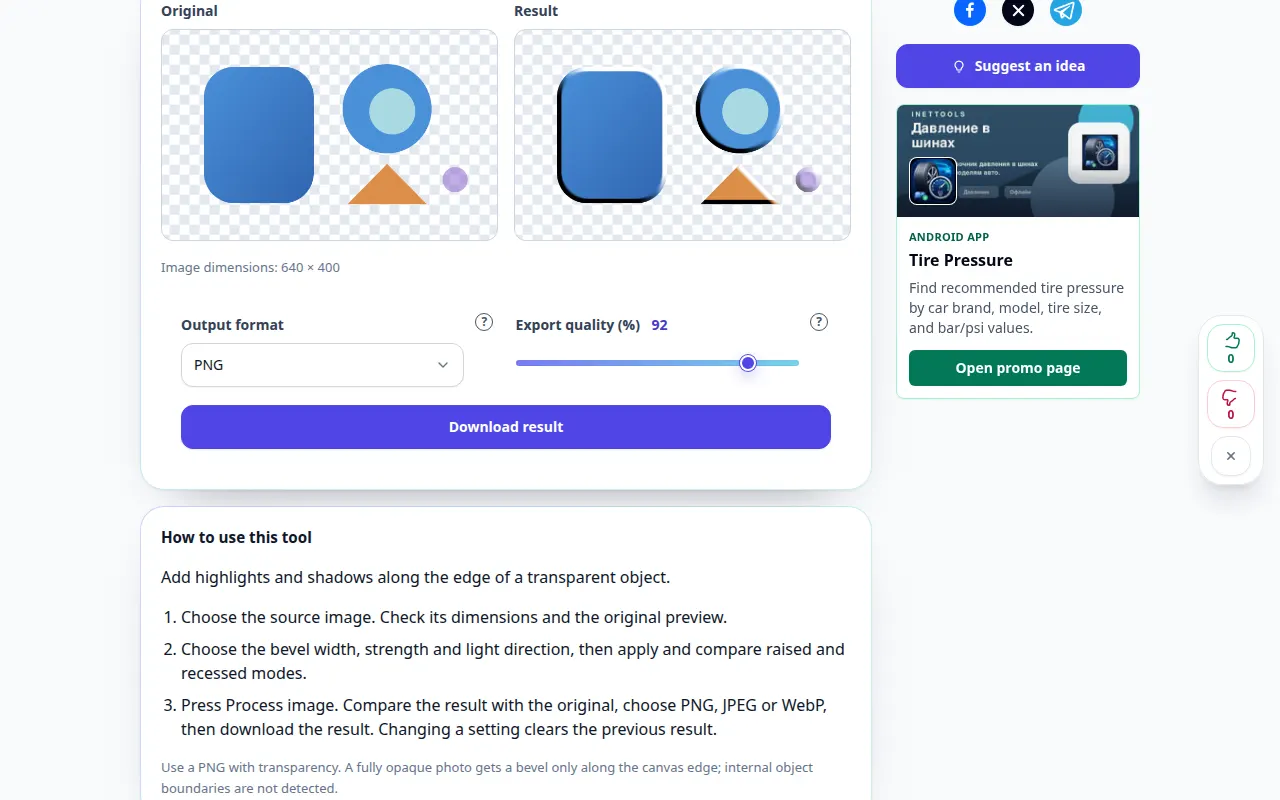
How to use this tool: Bevel a transparent edge — Desktop demonstration
Add highlights and shadows along the edge of a transparent object. This recording shows a demonstration input and the resulting output in the tool.
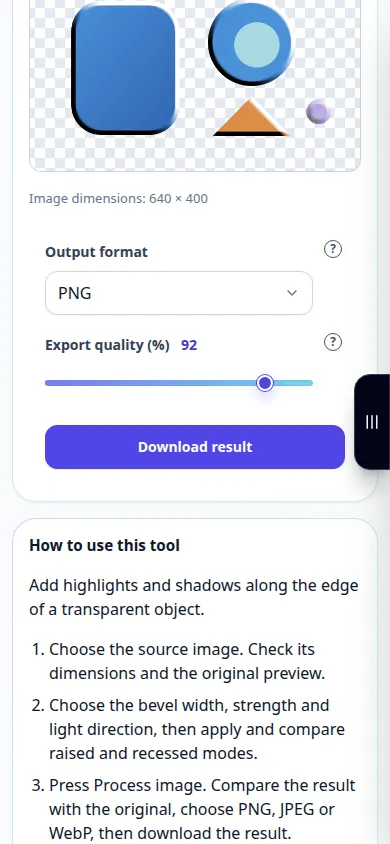
How to use this tool: Bevel a transparent edge — Phone demonstration
Add highlights and shadows along the edge of a transparent object. This recording shows a demonstration input and the resulting output in the tool.
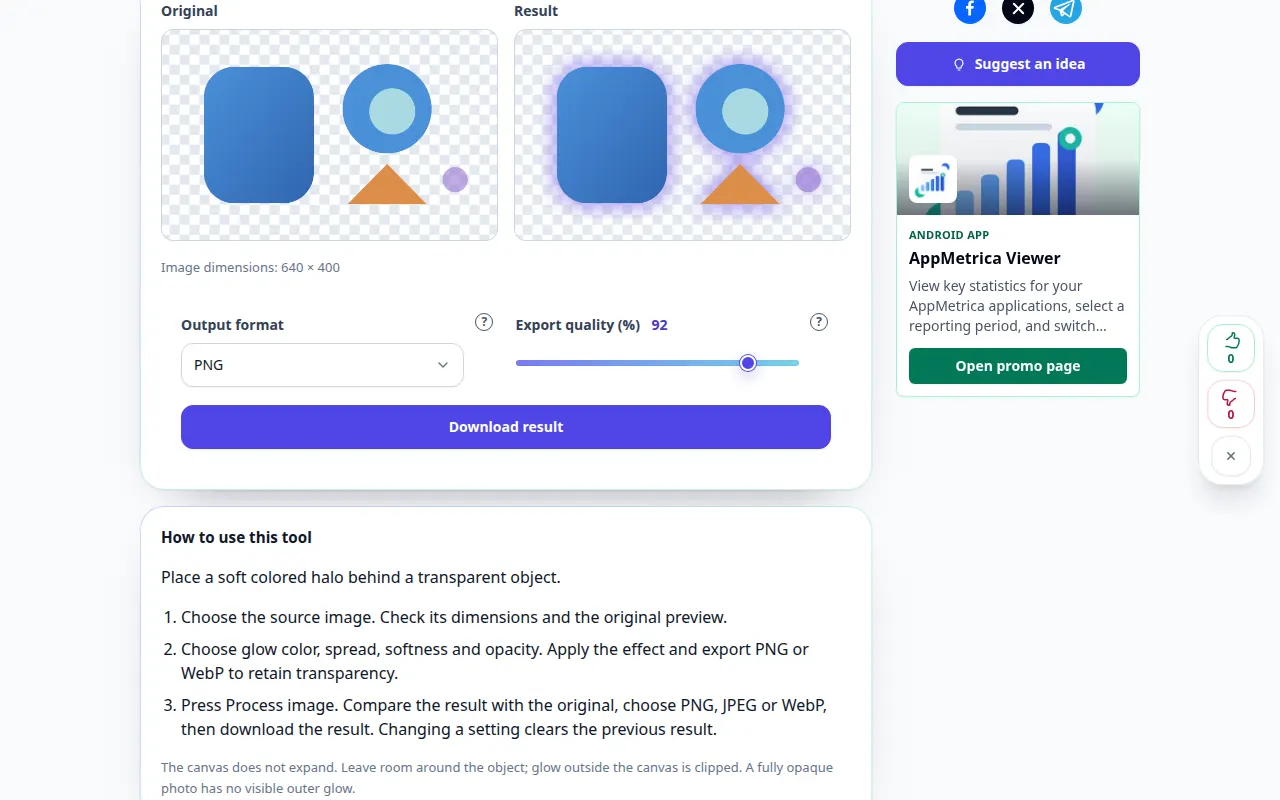
How to use this tool: Outer glow for a transparent image — Desktop demonstration
Place a soft colored halo behind a transparent object. This recording shows a demonstration input and the resulting output in the tool.
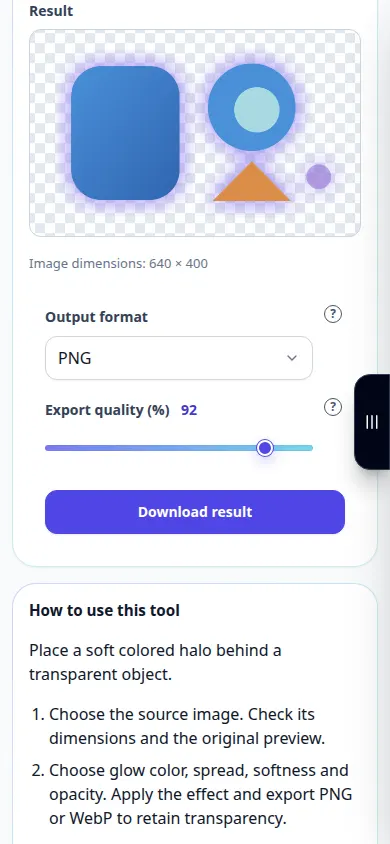
How to use this tool: Outer glow for a transparent image — Phone demonstration
Place a soft colored halo behind a transparent object. This recording shows a demonstration input and the resulting output in the tool.
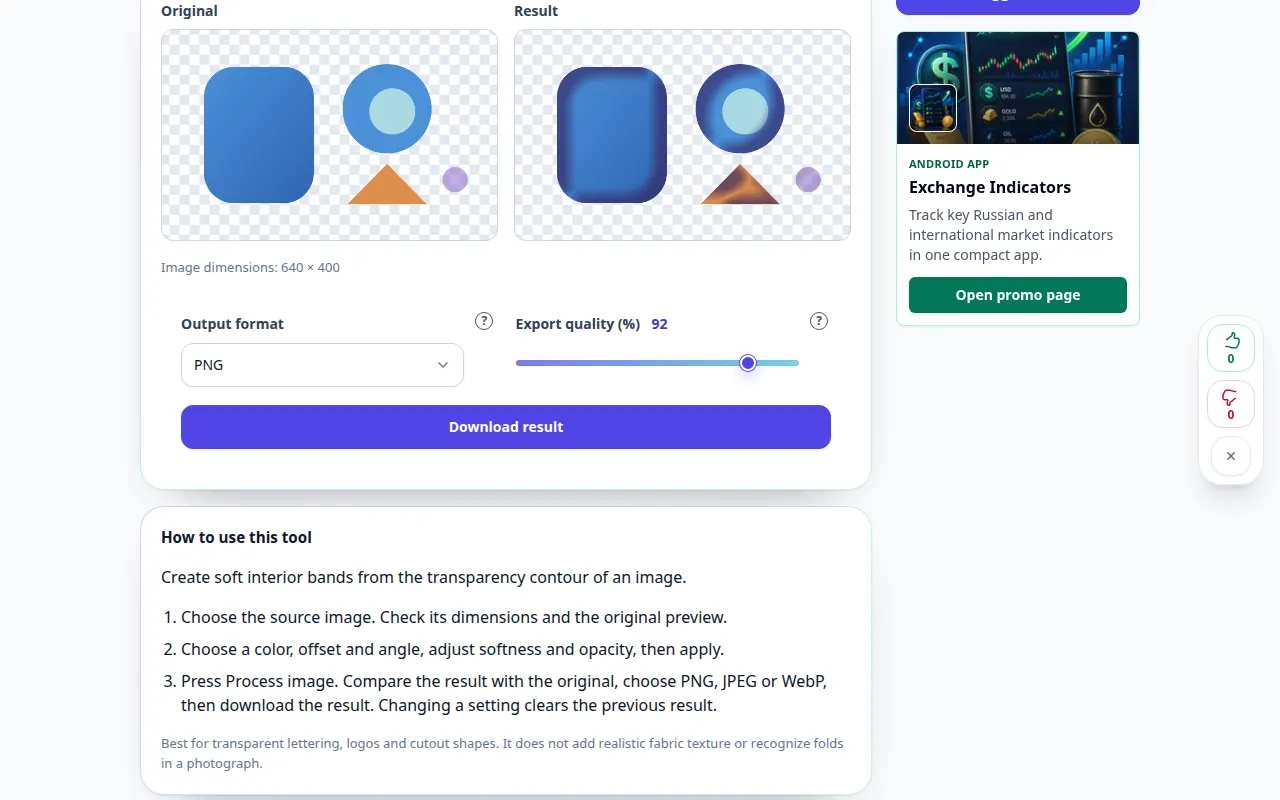
How to use this tool: Satin layer effect — Desktop demonstration
Create soft interior bands from the transparency contour of an image. This recording shows a demonstration input and the resulting output in the tool.
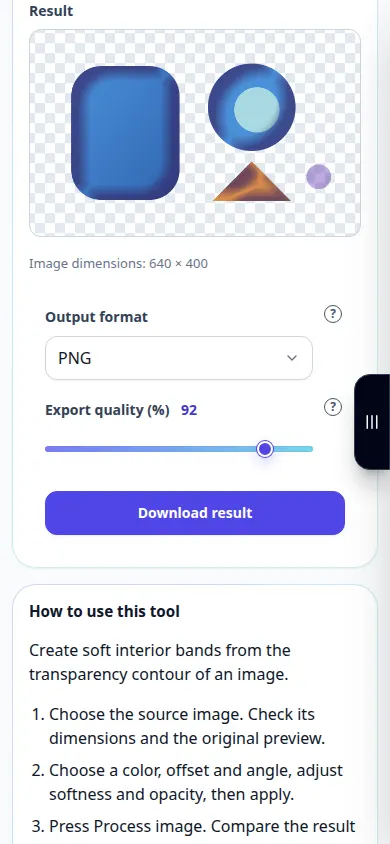
How to use this tool: Satin layer effect — Phone demonstration
Create soft interior bands from the transparency contour of an image. This recording shows a demonstration input and the resulting output in the tool.
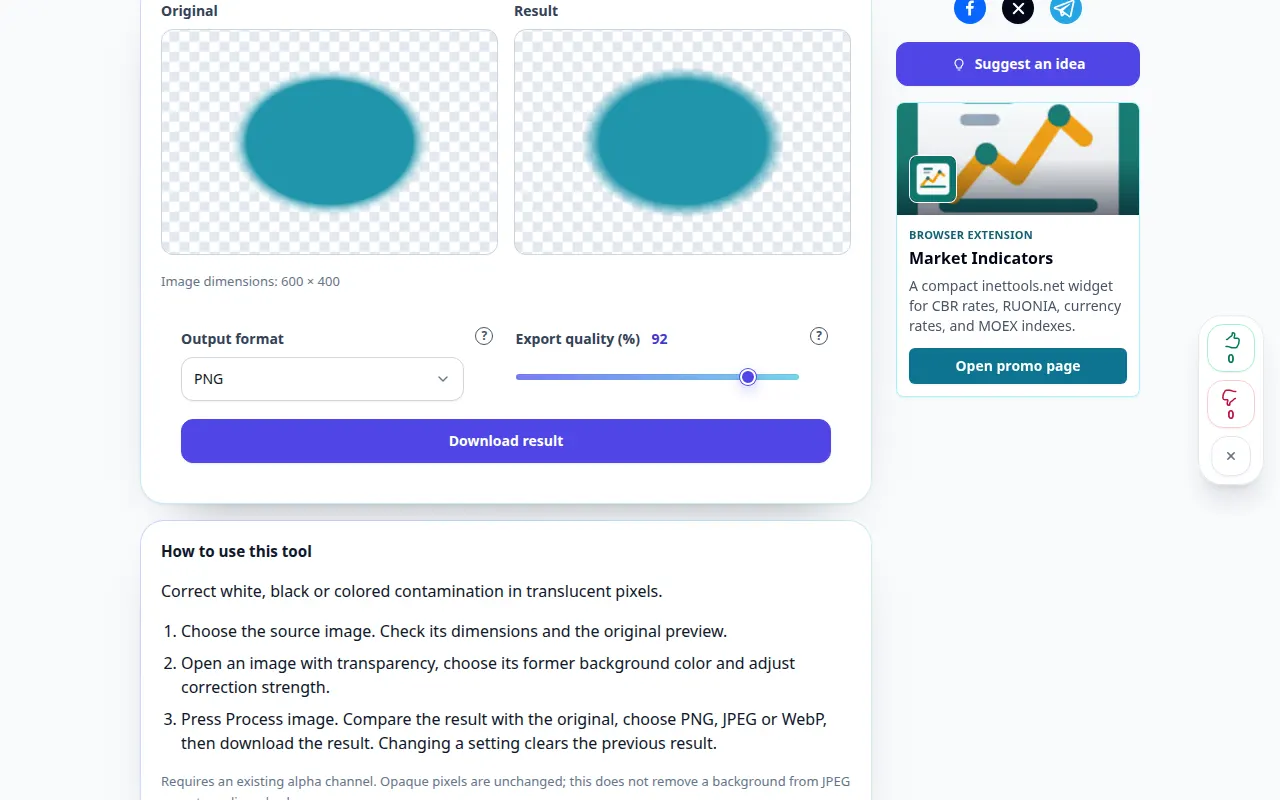
How to use this tool: Remove a color matte from PNG edges — Desktop demonstration
Correct white, black or colored contamination in translucent pixels. This recording shows a demonstration input and the resulting output in the tool.
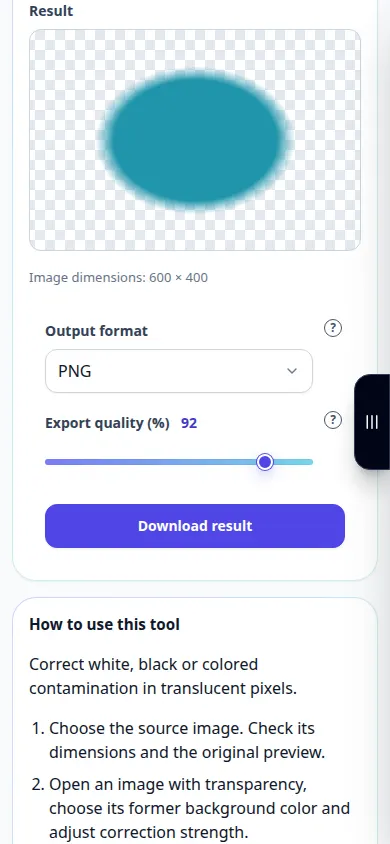
How to use this tool: Remove a color matte from PNG edges — Phone demonstration
Correct white, black or colored contamination in translucent pixels. This recording shows a demonstration input and the resulting output in the tool.
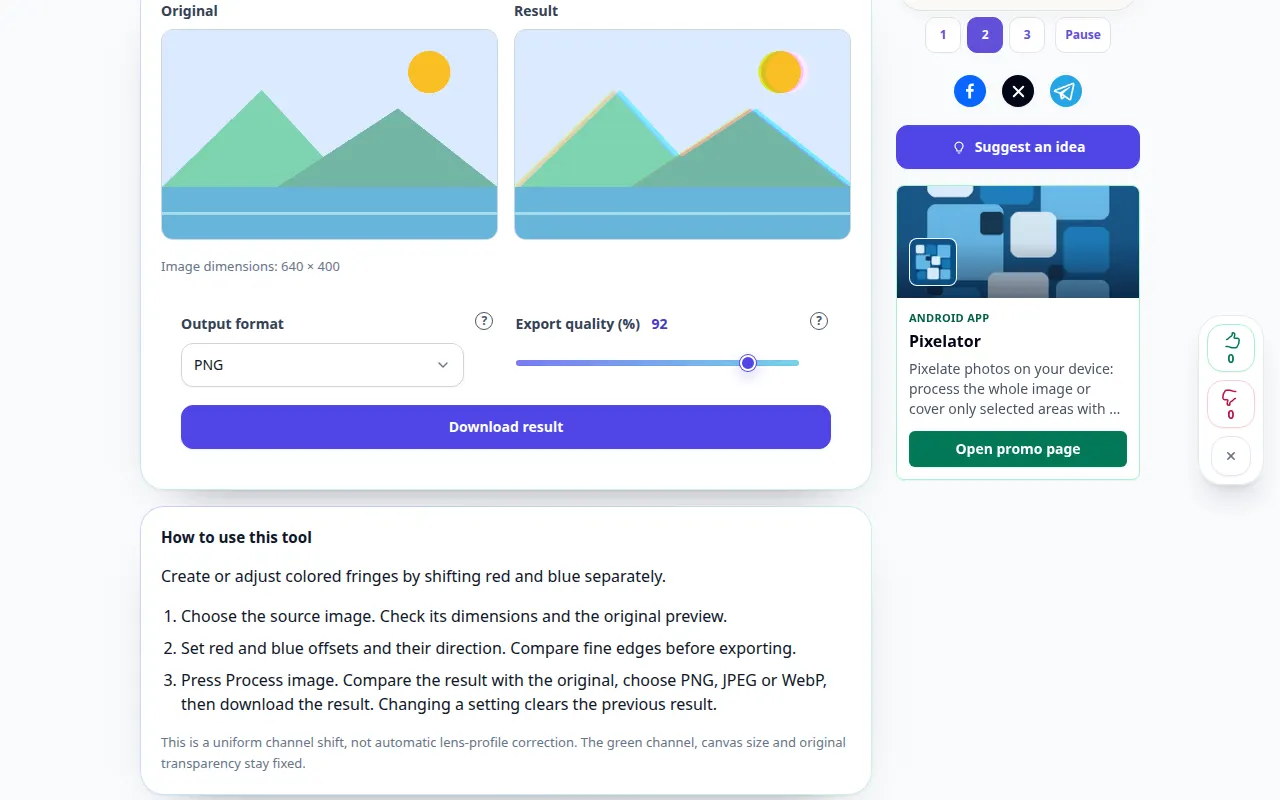
How to use this tool: Shift red and blue image channels — Desktop demonstration
Create or adjust colored fringes by shifting red and blue separately. This recording shows a demonstration input and the resulting output in the tool.
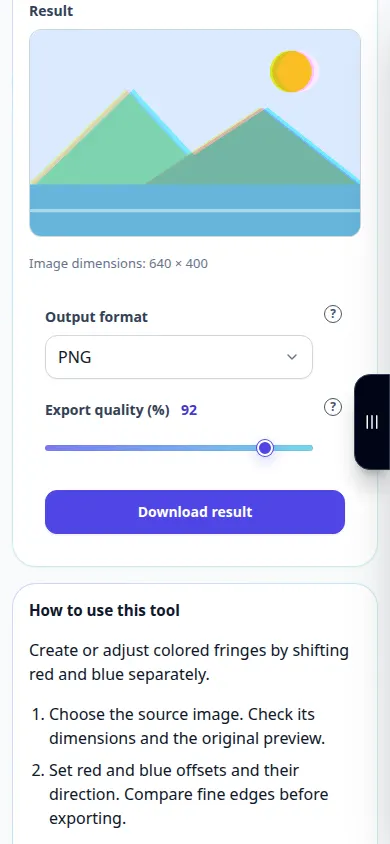
How to use this tool: Shift red and blue image channels — Phone demonstration
Create or adjust colored fringes by shifting red and blue separately. This recording shows a demonstration input and the resulting output in the tool.
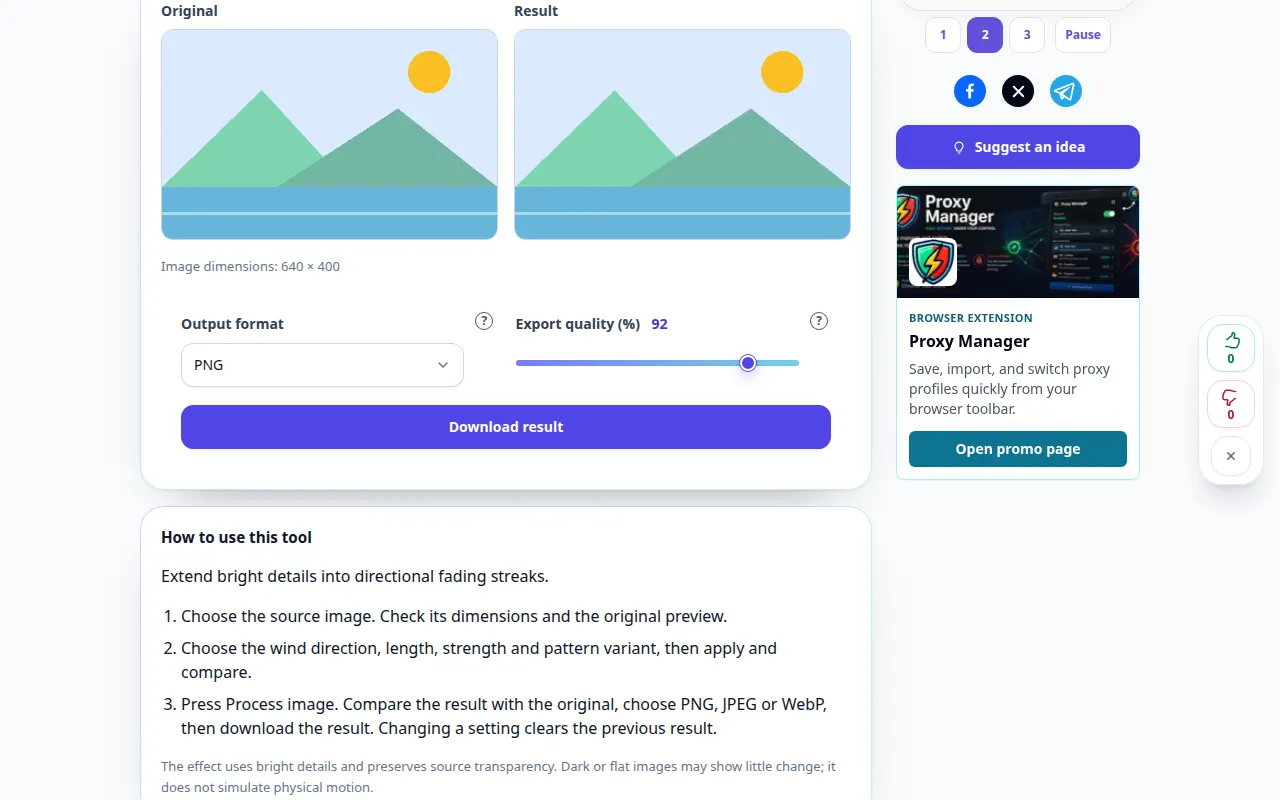
How to use this tool: Wind streaks photo effect — Desktop demonstration
Extend bright details into directional fading streaks. This recording shows a demonstration input and the resulting output in the tool.
How to use this tool: Wind streaks photo effect — Phone demonstration
Extend bright details into directional fading streaks. This recording shows a demonstration input and the resulting output in the tool.
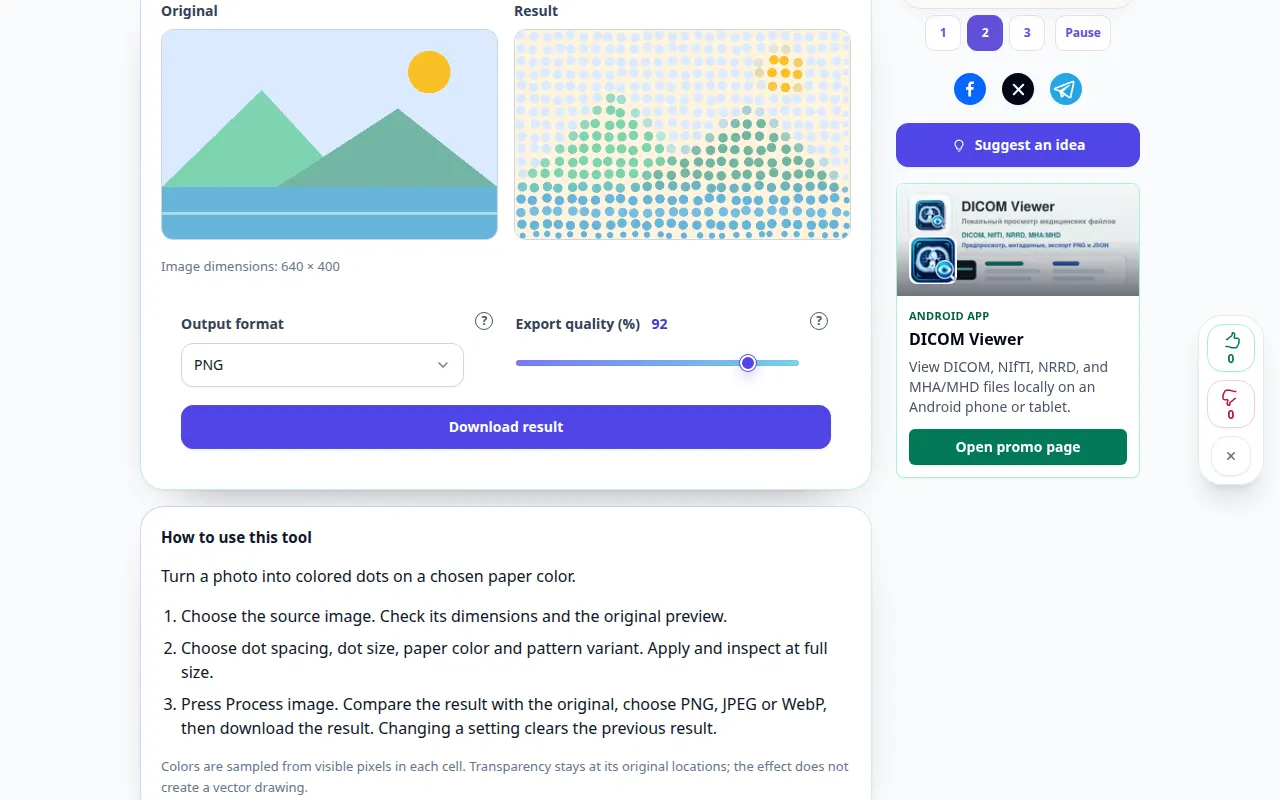
How to use this tool: Pointillist photo effect — Desktop demonstration
Turn a photo into colored dots on a chosen paper color. This recording shows a demonstration input and the resulting output in the tool.
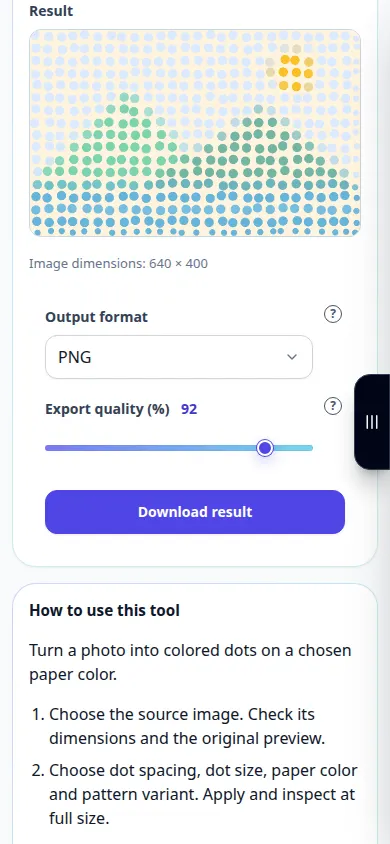
How to use this tool: Pointillist photo effect — Phone demonstration
Turn a photo into colored dots on a chosen paper color. This recording shows a demonstration input and the resulting output in the tool.
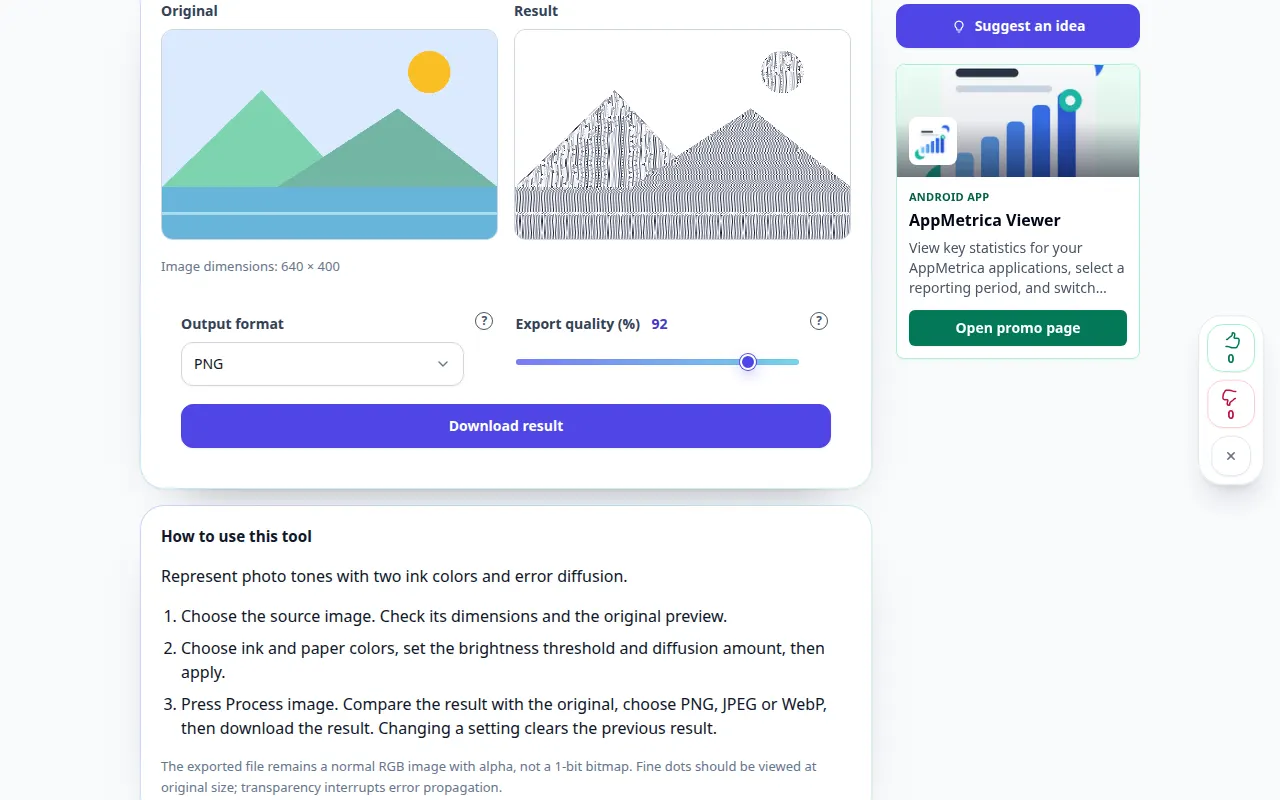
How to use this tool: Two-color diffusion dithering — Desktop demonstration
Represent photo tones with two ink colors and error diffusion. This recording shows a demonstration input and the resulting output in the tool.
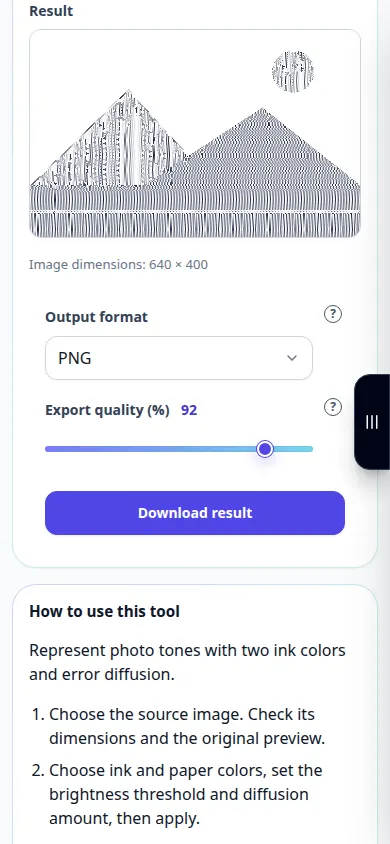
How to use this tool: Two-color diffusion dithering — Phone demonstration
Represent photo tones with two ink colors and error diffusion. This recording shows a demonstration input and the resulting output in the tool.
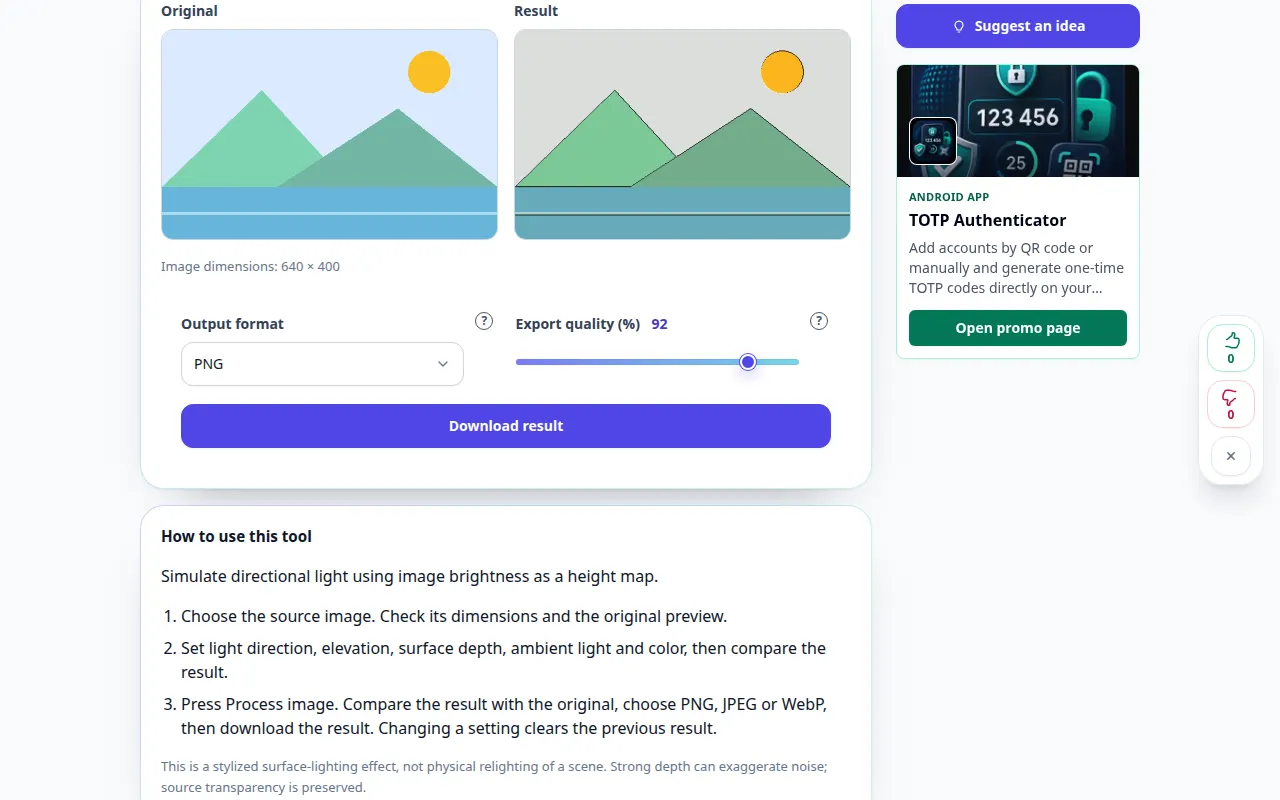
How to use this tool: Relief lighting for a photo — Desktop demonstration
Simulate directional light using image brightness as a height map. This recording shows a demonstration input and the resulting output in the tool.
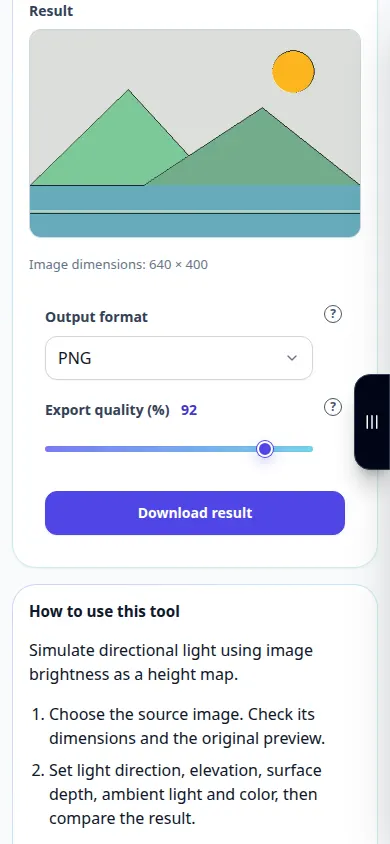
How to use this tool: Relief lighting for a photo — Phone demonstration
Simulate directional light using image brightness as a height map. This recording shows a demonstration input and the resulting output in the tool.
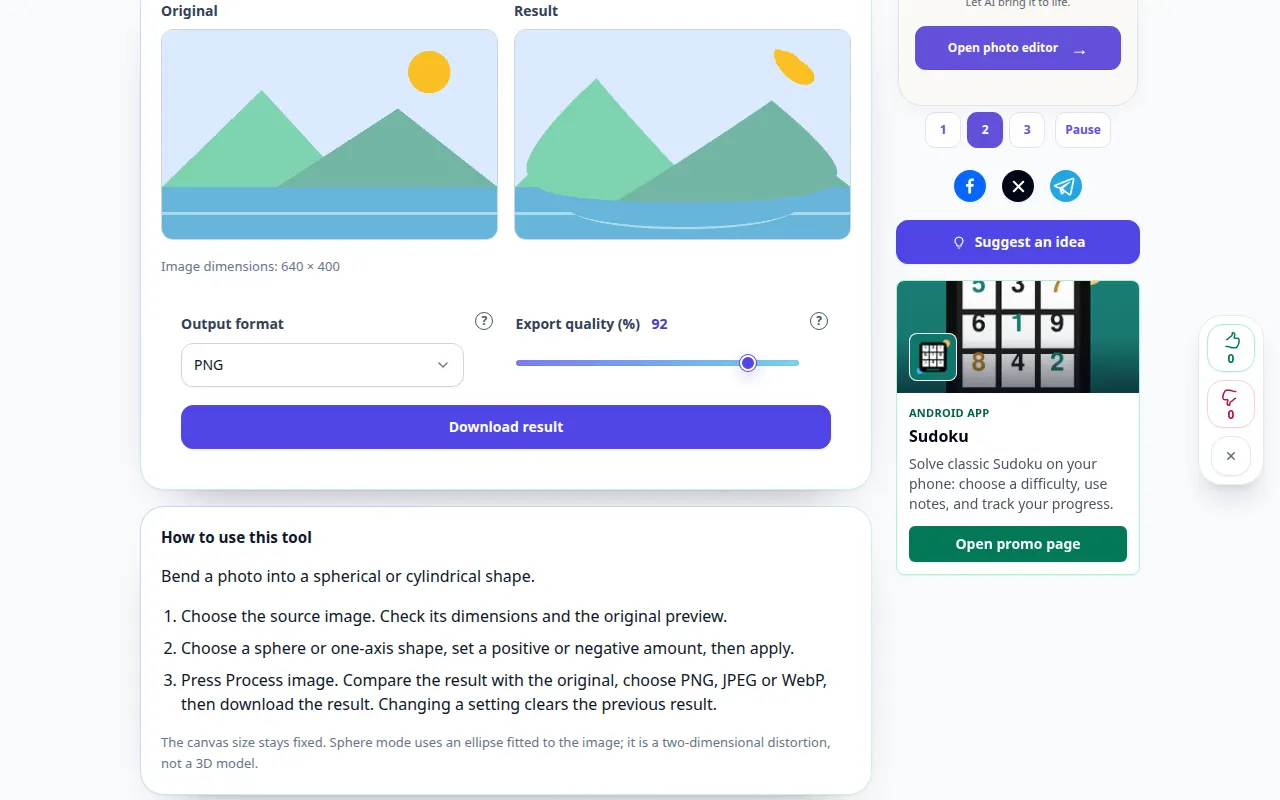
How to use this tool: Spherize a photo — Desktop demonstration
Bend a photo into a spherical or cylindrical shape. This recording shows a demonstration input and the resulting output in the tool.
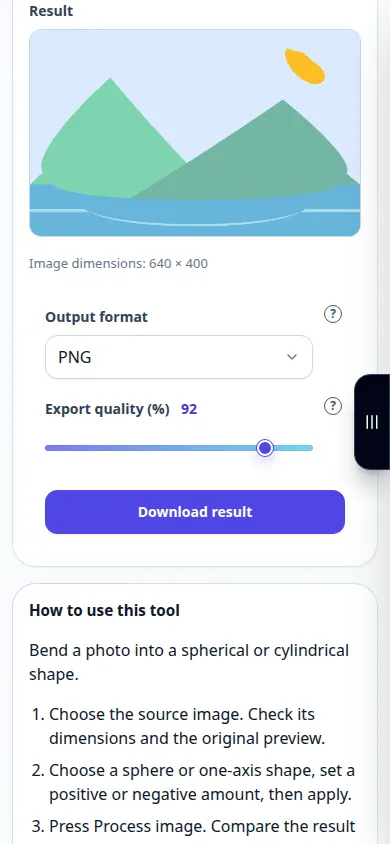
How to use this tool: Spherize a photo — Phone demonstration
Bend a photo into a spherical or cylindrical shape. This recording shows a demonstration input and the resulting output in the tool.
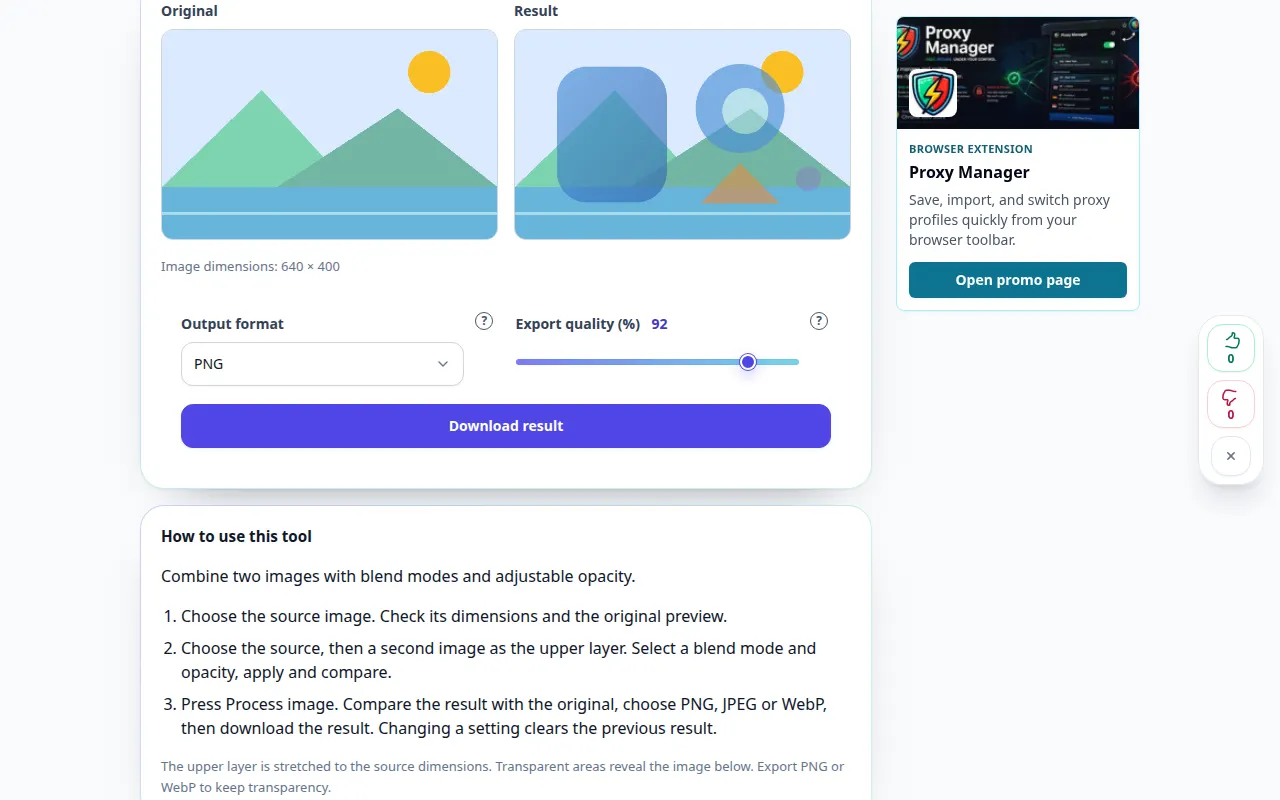
How to use this tool: Blend two images — Desktop demonstration
Combine two images with blend modes and adjustable opacity. This recording shows a demonstration input and the resulting output in the tool.
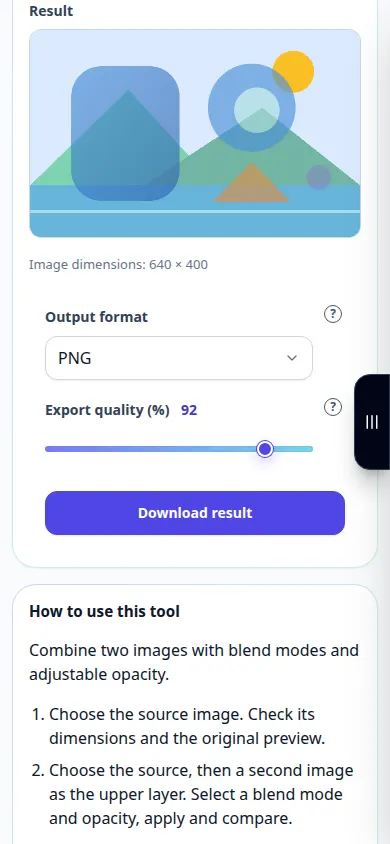
How to use this tool: Blend two images — Phone demonstration
Combine two images with blend modes and adjustable opacity. This recording shows a demonstration input and the resulting output in the tool.
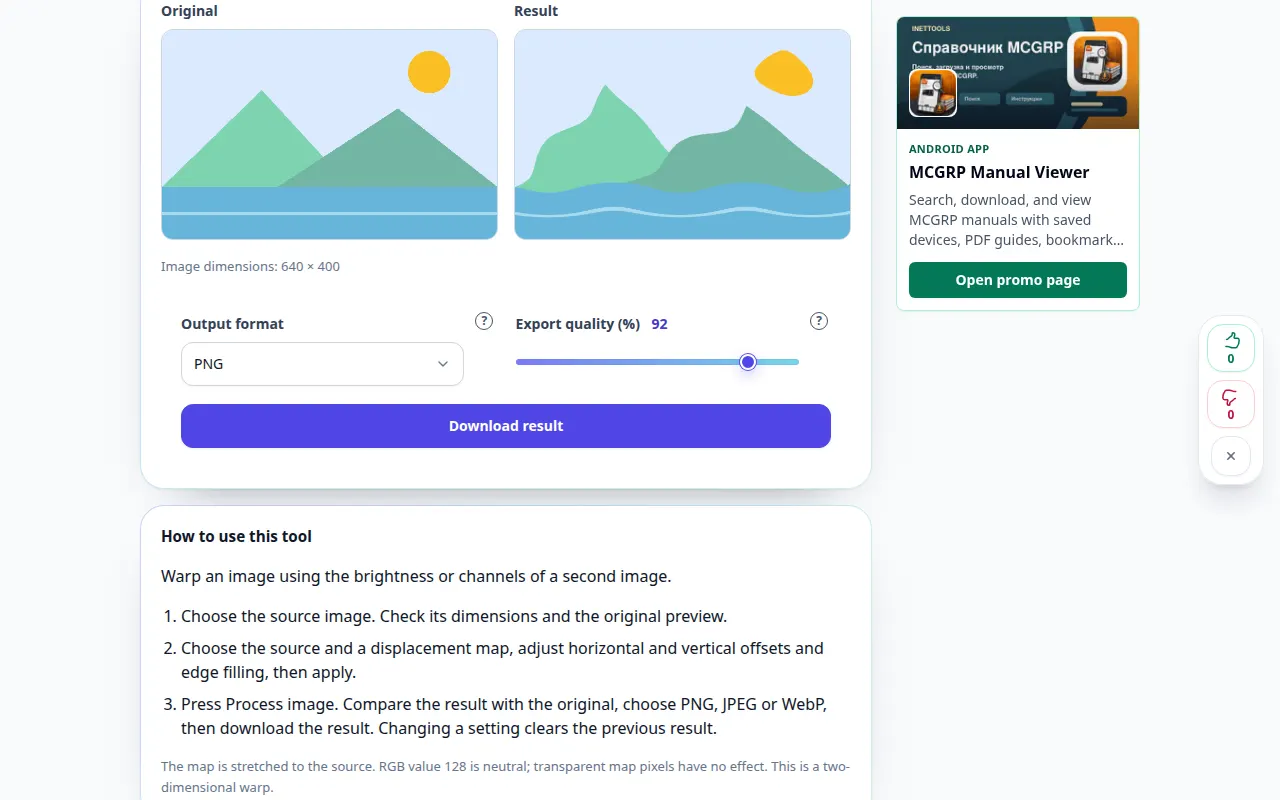
How to use this tool: Distort with a displacement map — Desktop demonstration
Warp an image using the brightness or channels of a second image. This recording shows a demonstration input and the resulting output in the tool.
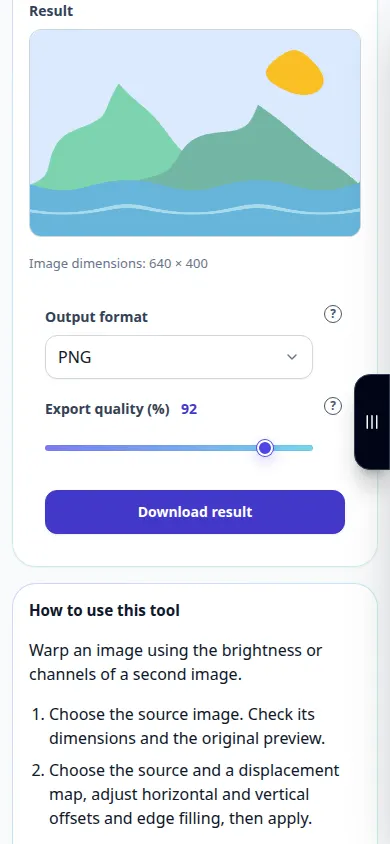
How to use this tool: Distort with a displacement map — Phone demonstration
Warp an image using the brightness or channels of a second image. This recording shows a demonstration input and the resulting output in the tool.
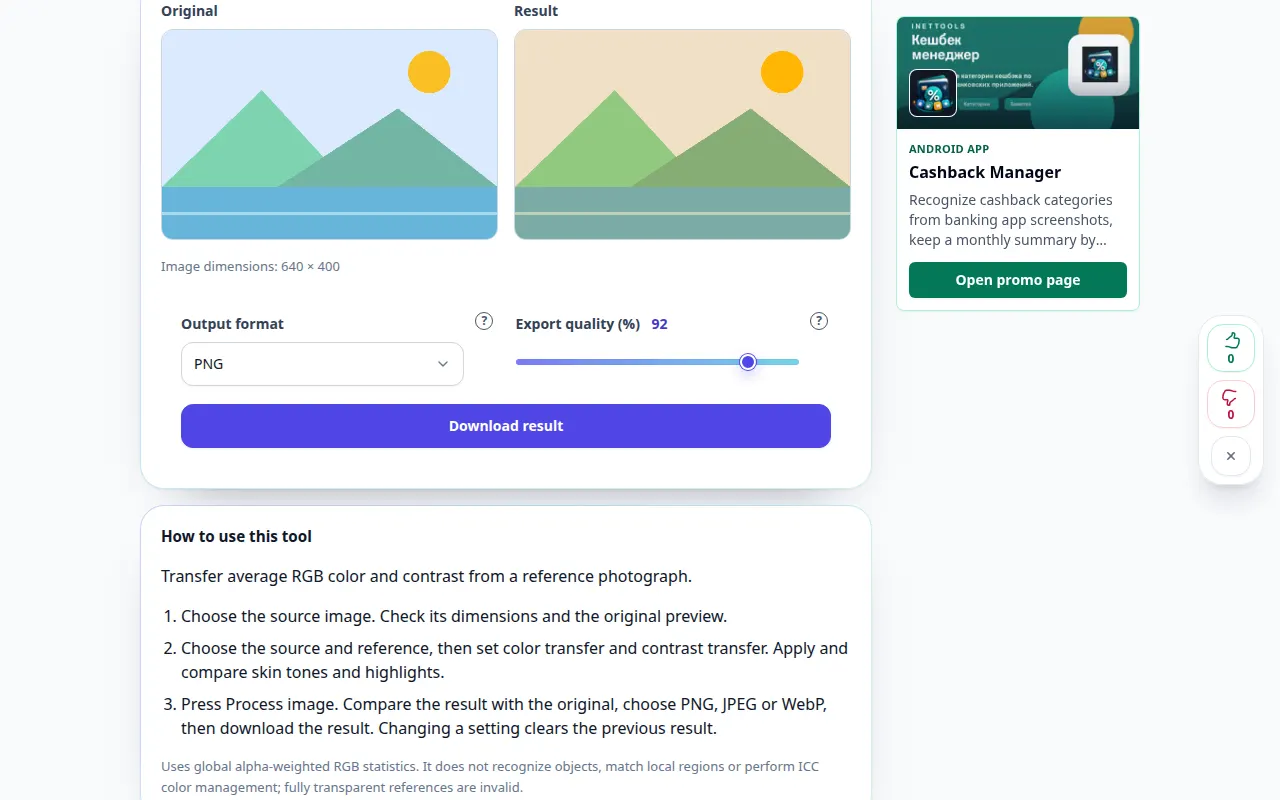
How to use this tool: Match colors to a reference image — Desktop demonstration
Transfer average RGB color and contrast from a reference photograph. This recording shows a demonstration input and the resulting output in the tool.
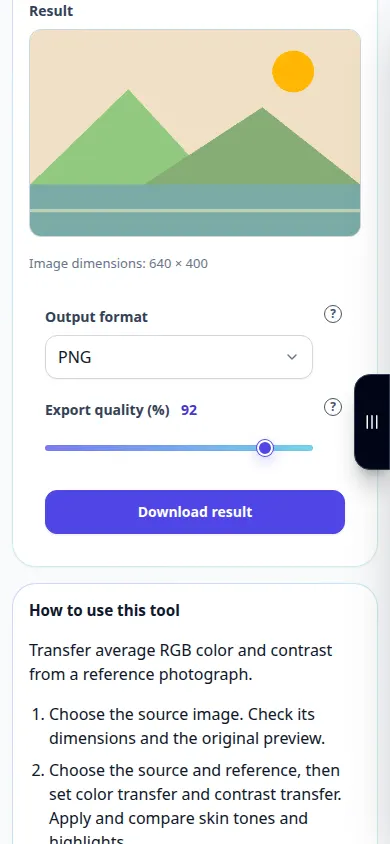
How to use this tool: Match colors to a reference image — Phone demonstration
Transfer average RGB color and contrast from a reference photograph. This recording shows a demonstration input and the resulting output in the tool.
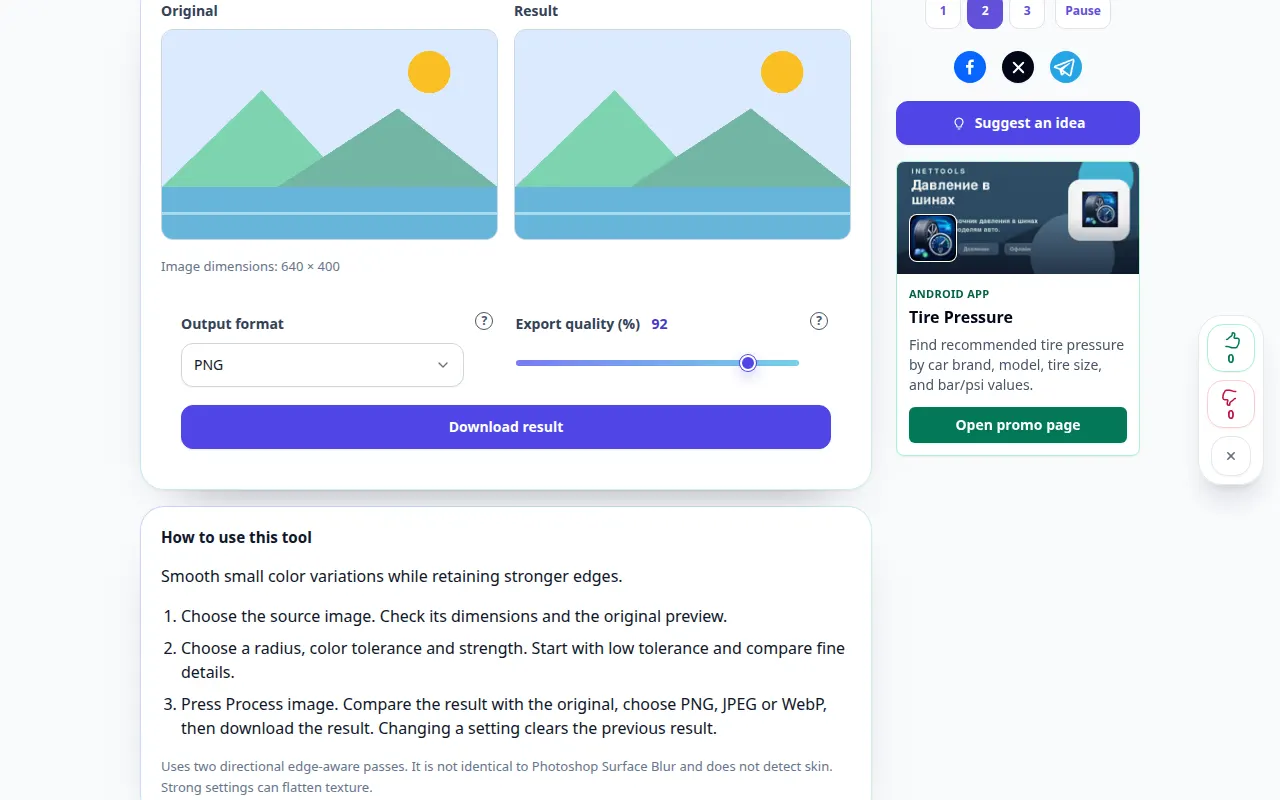
How to use this tool: Edge-preserving surface blur — Desktop demonstration
Smooth small color variations while retaining stronger edges. This recording shows a demonstration input and the resulting output in the tool.
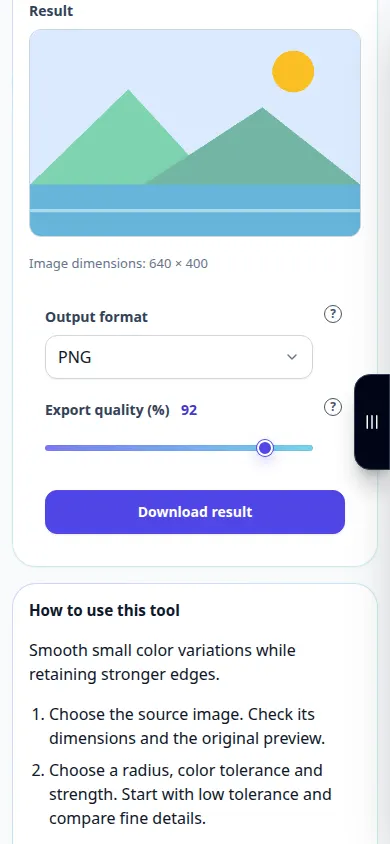
How to use this tool: Edge-preserving surface blur — Phone demonstration
Smooth small color variations while retaining stronger edges. This recording shows a demonstration input and the resulting output in the tool.
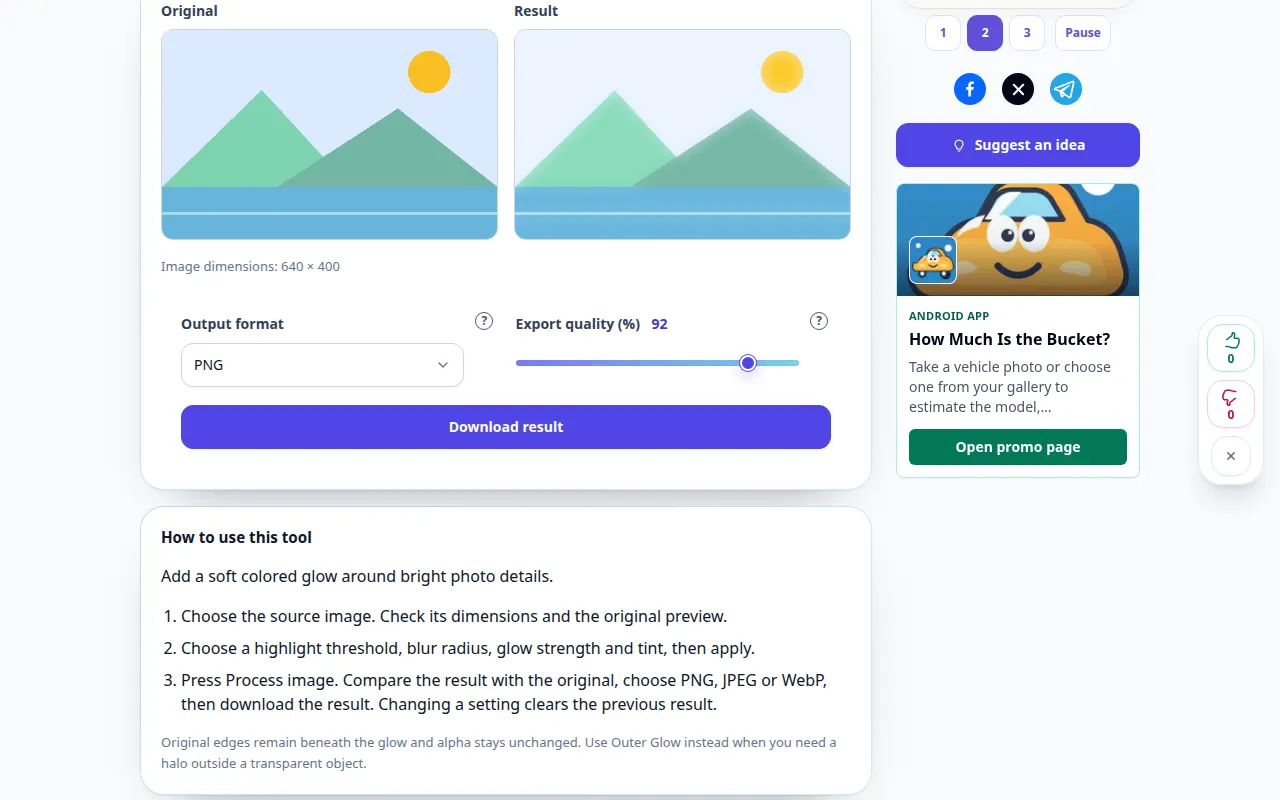
How to use this tool: Diffuse highlight glow — Desktop demonstration
Add a soft colored glow around bright photo details. This recording shows a demonstration input and the resulting output in the tool.
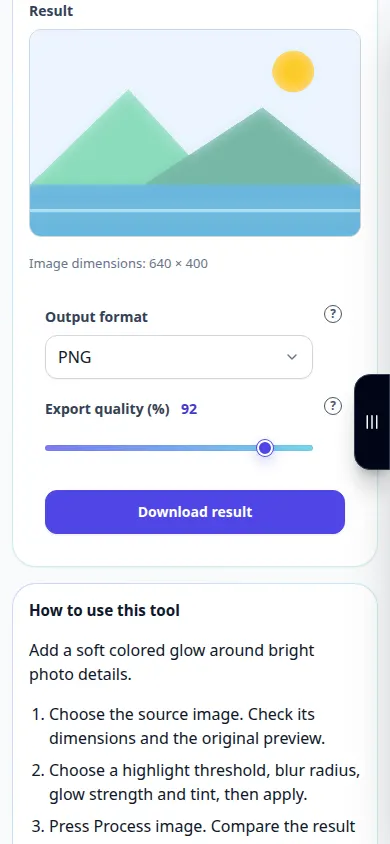
How to use this tool: Diffuse highlight glow — Phone demonstration
Add a soft colored glow around bright photo details. This recording shows a demonstration input and the resulting output in the tool.
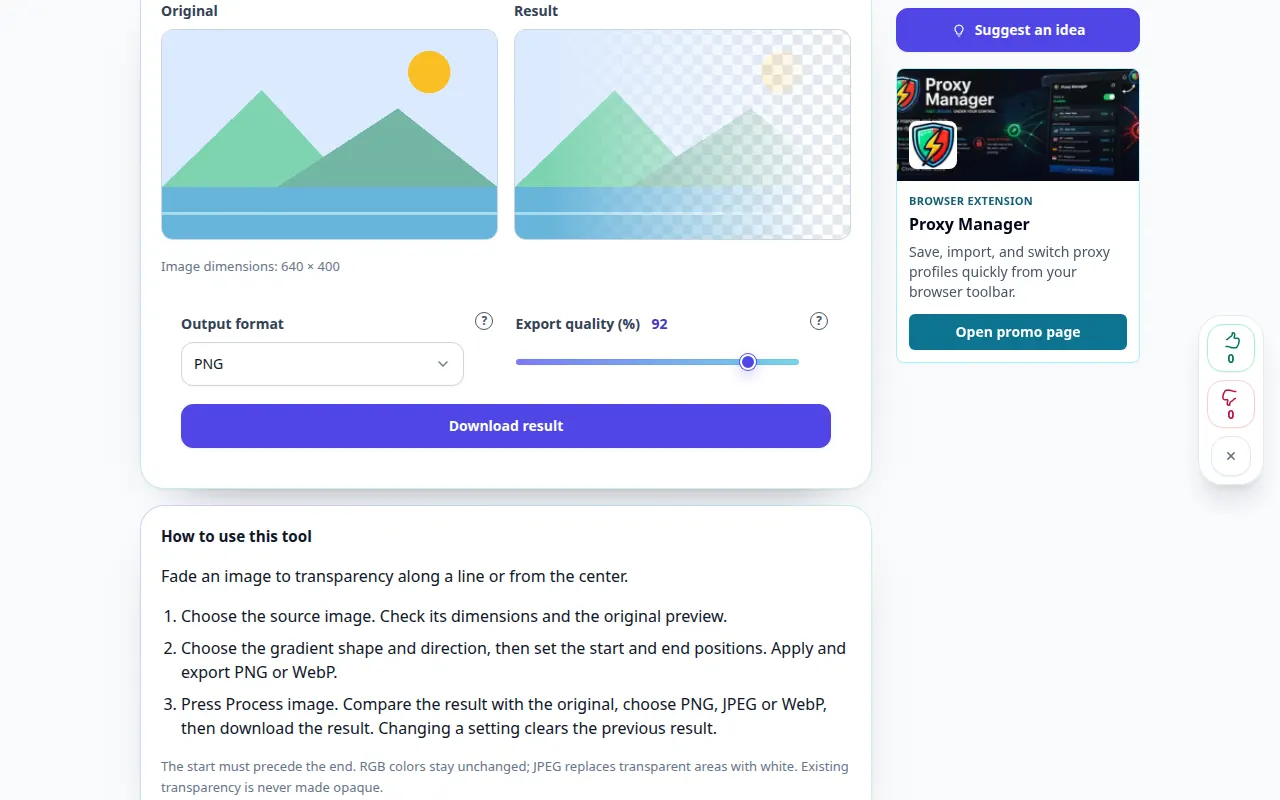
How to use this tool: Gradient image transparency — Desktop demonstration
Fade an image to transparency along a line or from the center. This recording shows a demonstration input and the resulting output in the tool.
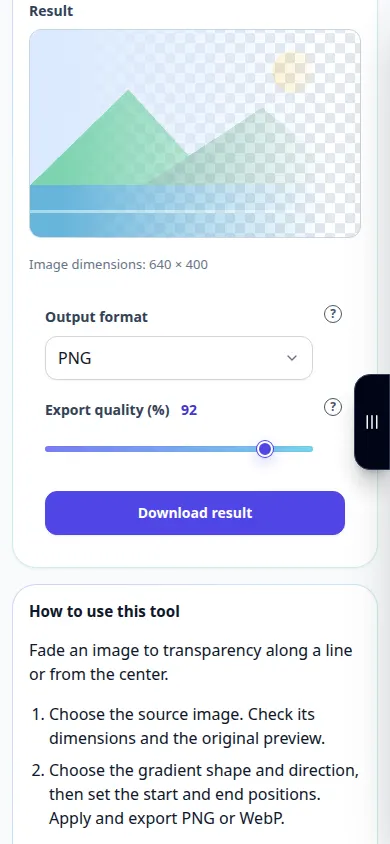
How to use this tool: Gradient image transparency — Phone demonstration
Fade an image to transparency along a line or from the center. This recording shows a demonstration input and the resulting output in the tool.
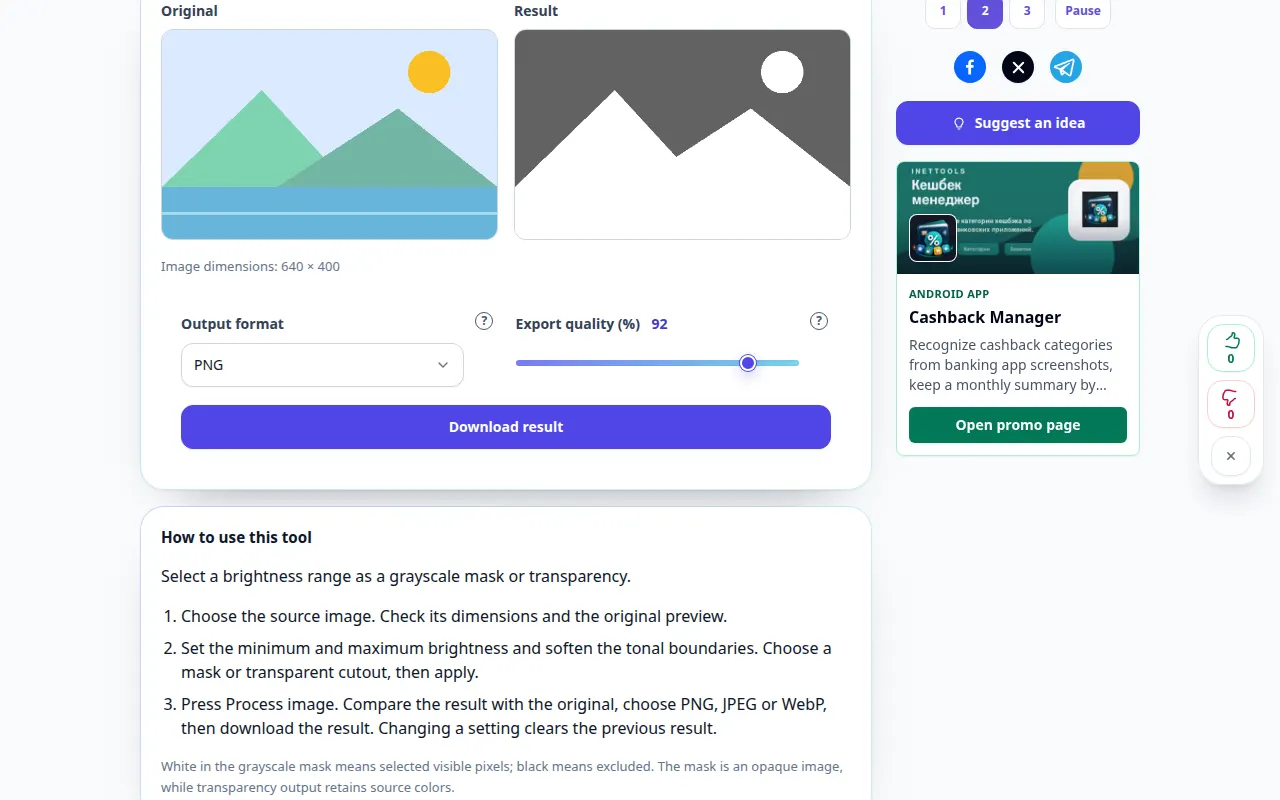
How to use this tool: Create a luminosity mask — Desktop demonstration
Select a brightness range as a grayscale mask or transparency. This recording shows a demonstration input and the resulting output in the tool.
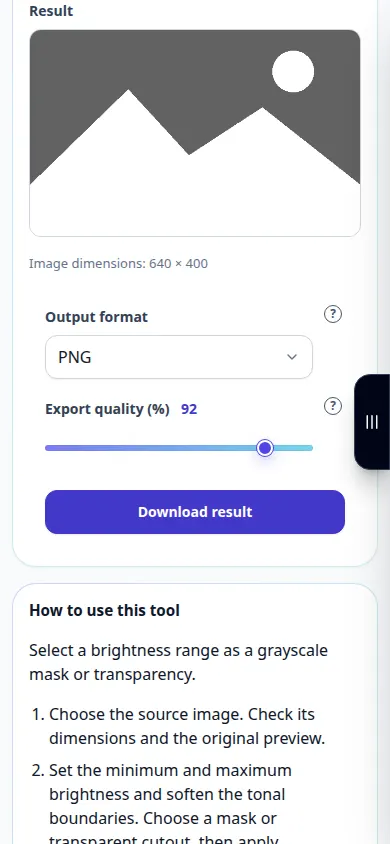
How to use this tool: Create a luminosity mask — Phone demonstration
Select a brightness range as a grayscale mask or transparency. This recording shows a demonstration input and the resulting output in the tool.
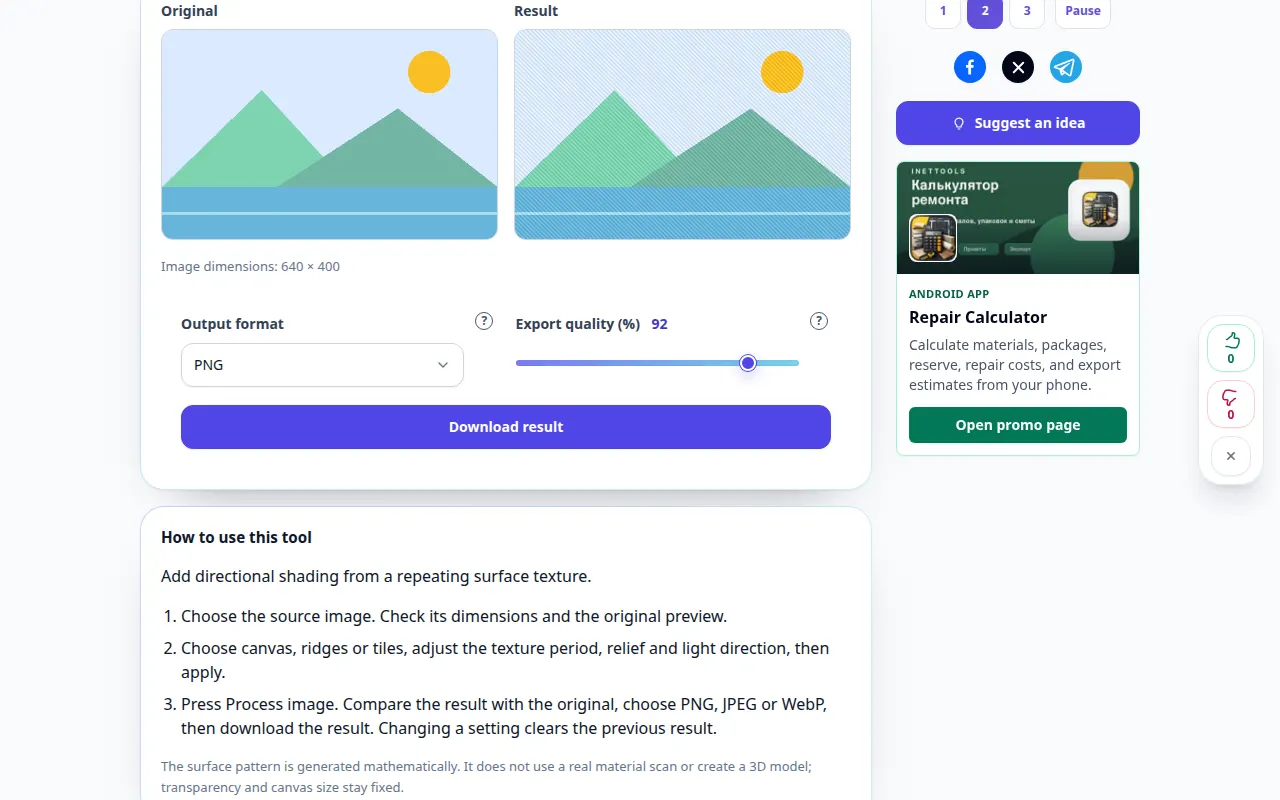
How to use this tool: Canvas and surface texture — Desktop demonstration
Add directional shading from a repeating surface texture. This recording shows a demonstration input and the resulting output in the tool.
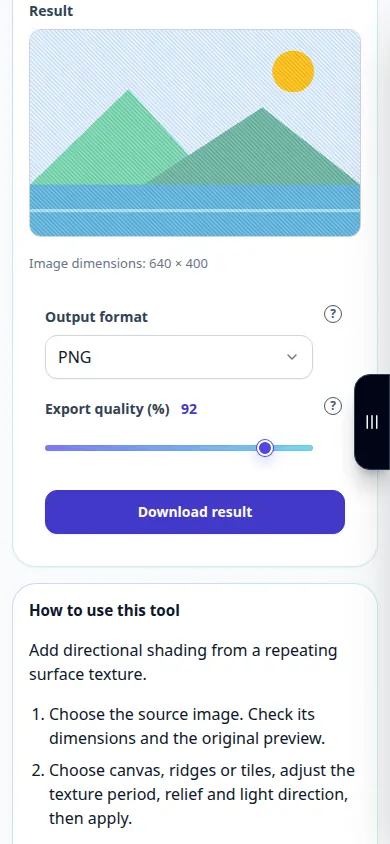
How to use this tool: Canvas and surface texture — Phone demonstration
Add directional shading from a repeating surface texture. This recording shows a demonstration input and the resulting output in the tool.
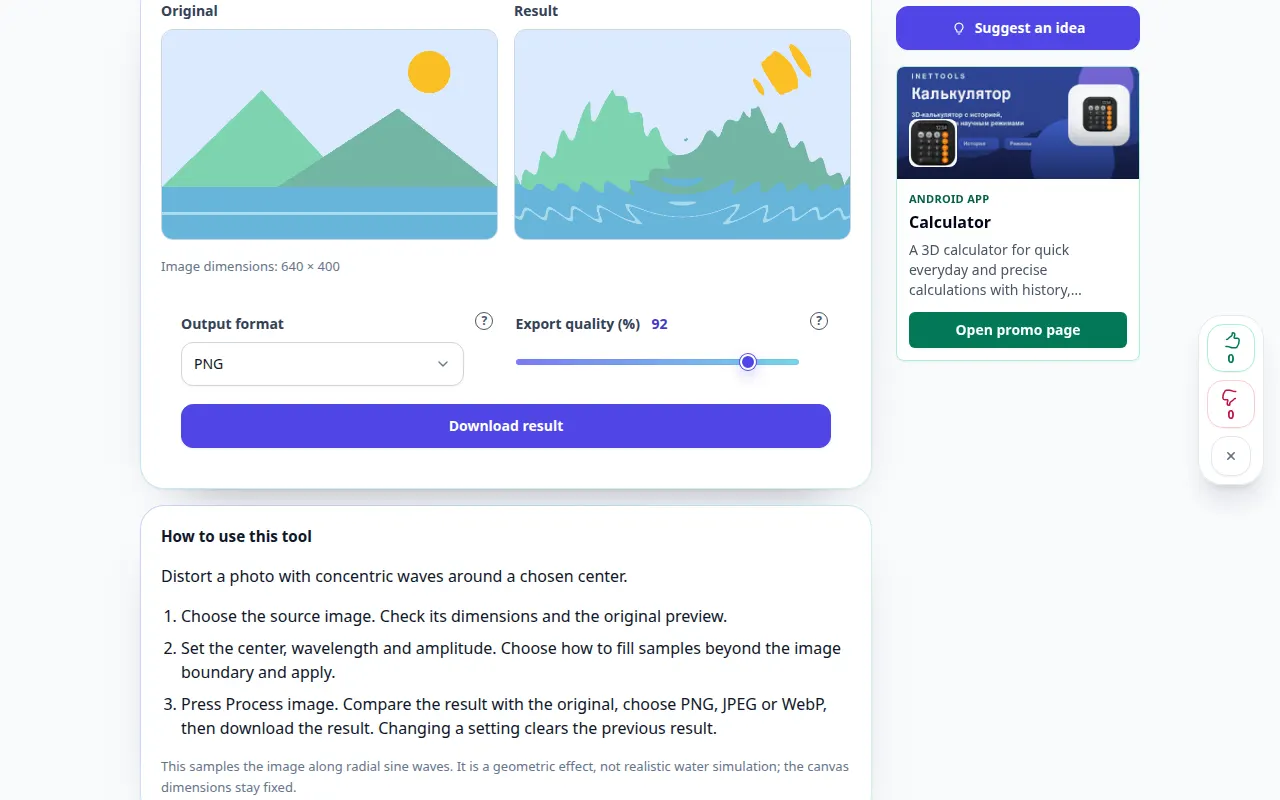
How to use this tool: Concentric ripple distortion — Desktop demonstration
Distort a photo with concentric waves around a chosen center. This recording shows a demonstration input and the resulting output in the tool.
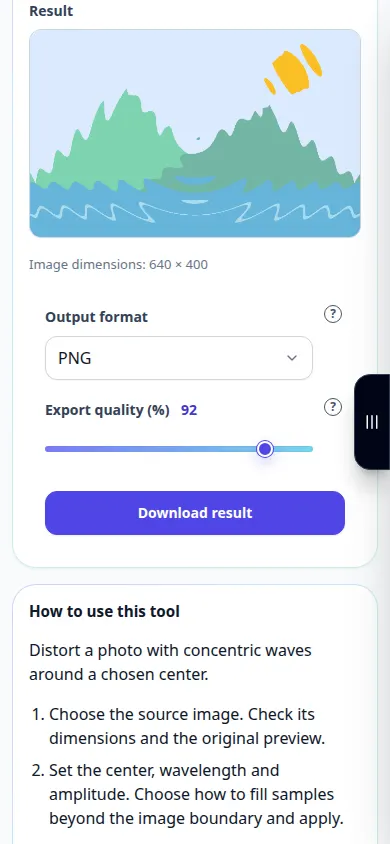
How to use this tool: Concentric ripple distortion — Phone demonstration
Distort a photo with concentric waves around a chosen center. This recording shows a demonstration input and the resulting output in the tool.
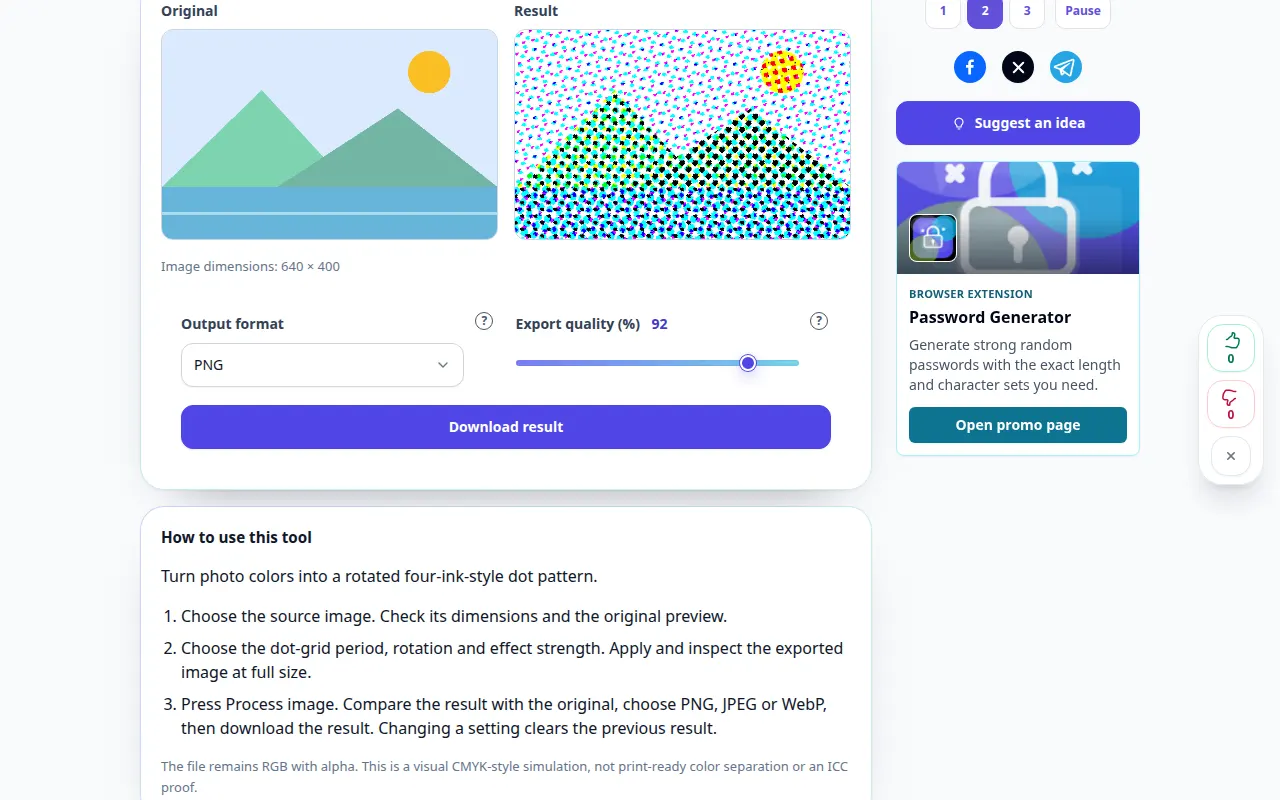
How to use this tool: Color halftone screen — Desktop demonstration
Turn photo colors into a rotated four-ink-style dot pattern. This recording shows a demonstration input and the resulting output in the tool.
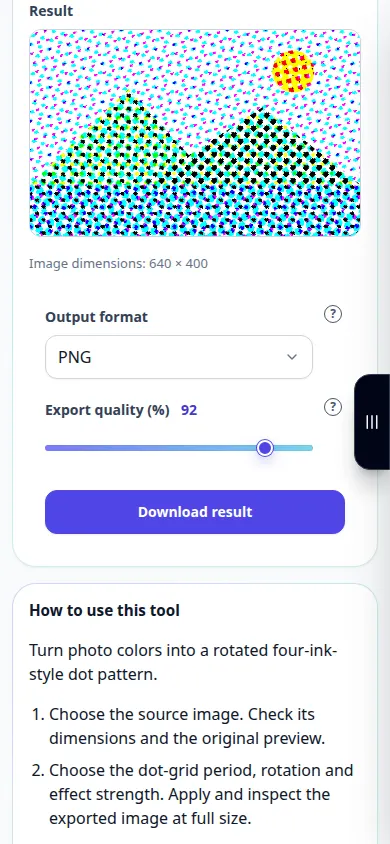
How to use this tool: Color halftone screen — Phone demonstration
Turn photo colors into a rotated four-ink-style dot pattern. This recording shows a demonstration input and the resulting output in the tool.
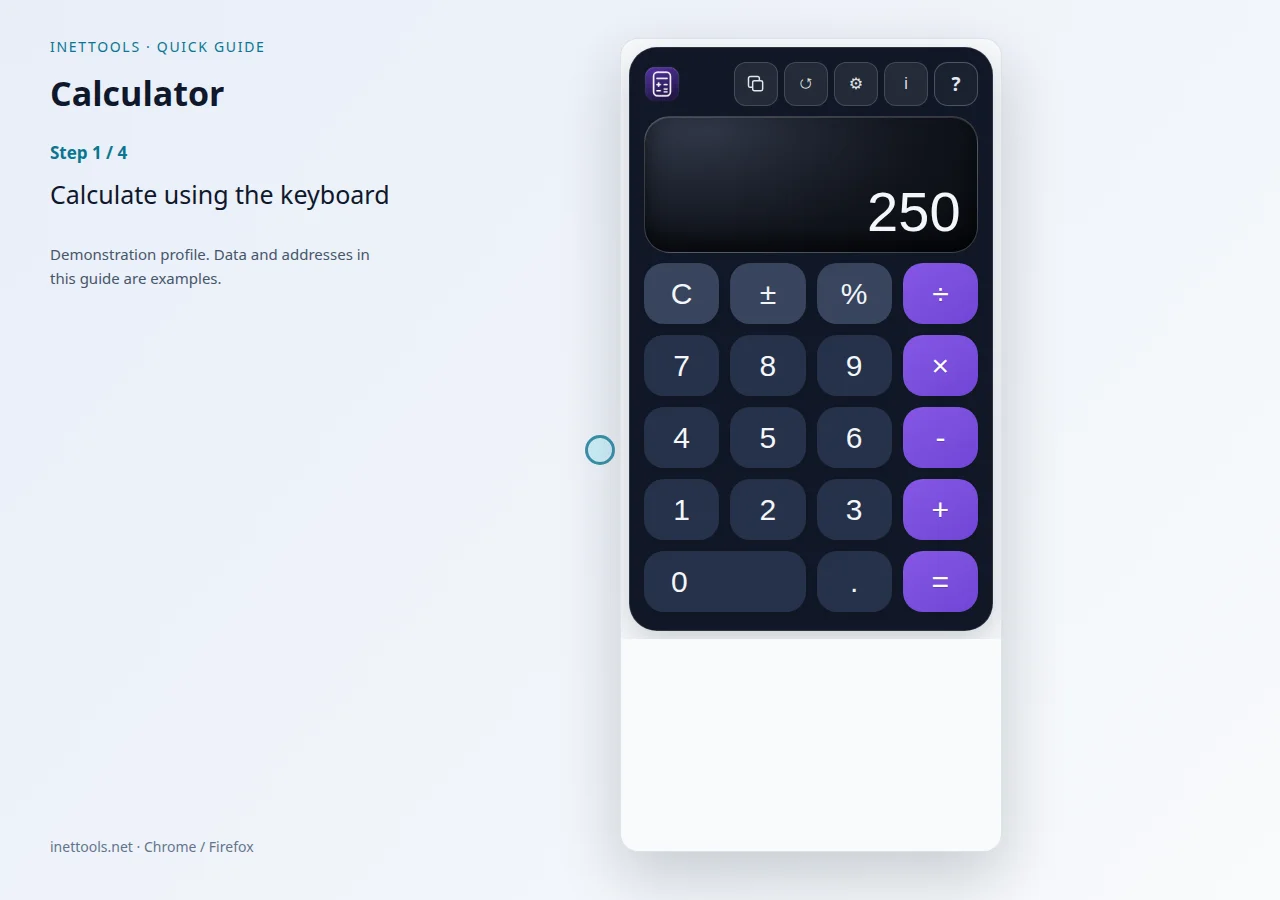
Calculator — Watch the video
Calculate using your keyboard, switch between three modes and revisit your history directly in the browser.
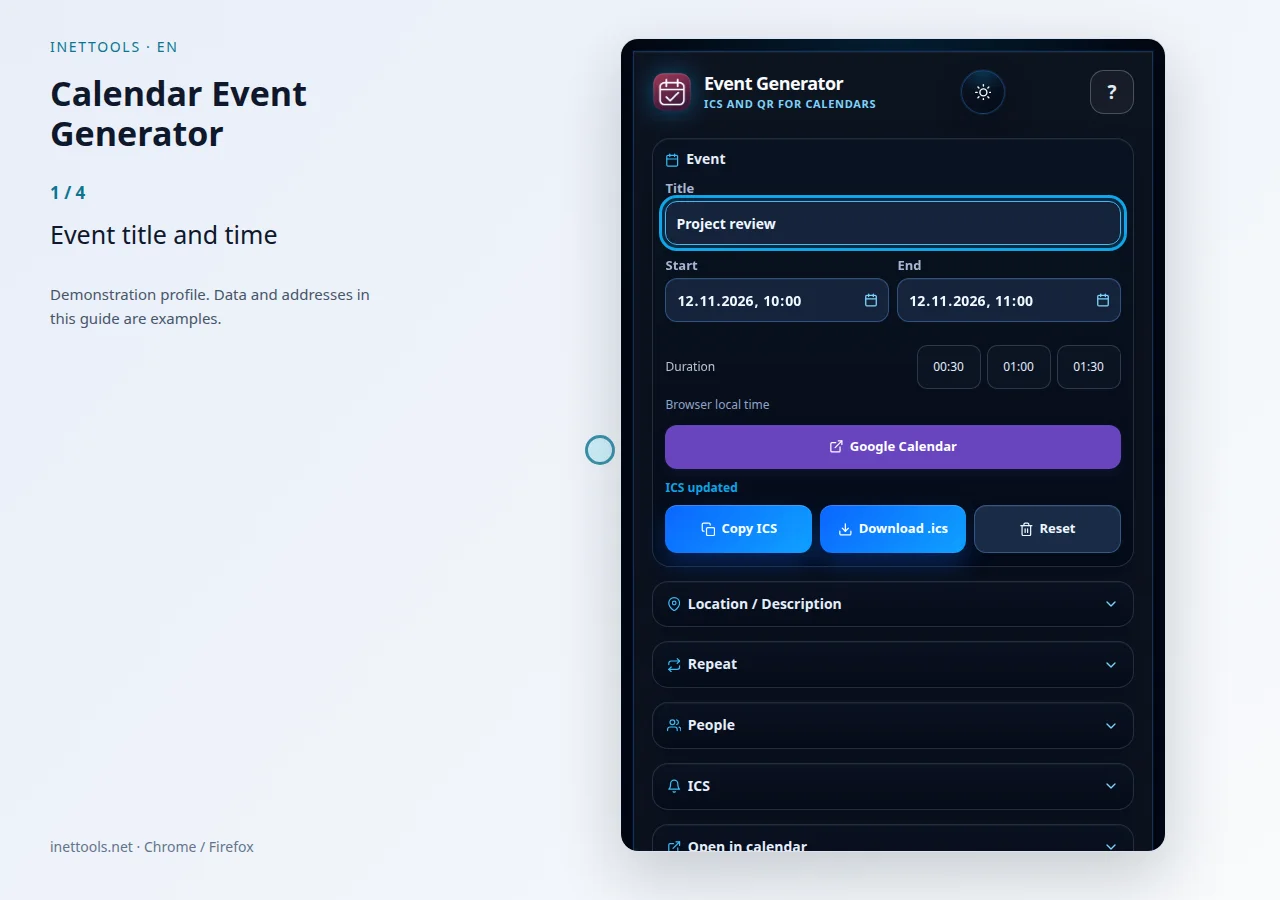
Calendar Event Generator — Watch the video
Prepare an event with dates, recurrence and a reminder, then create an ICS file or open your chosen calendar.
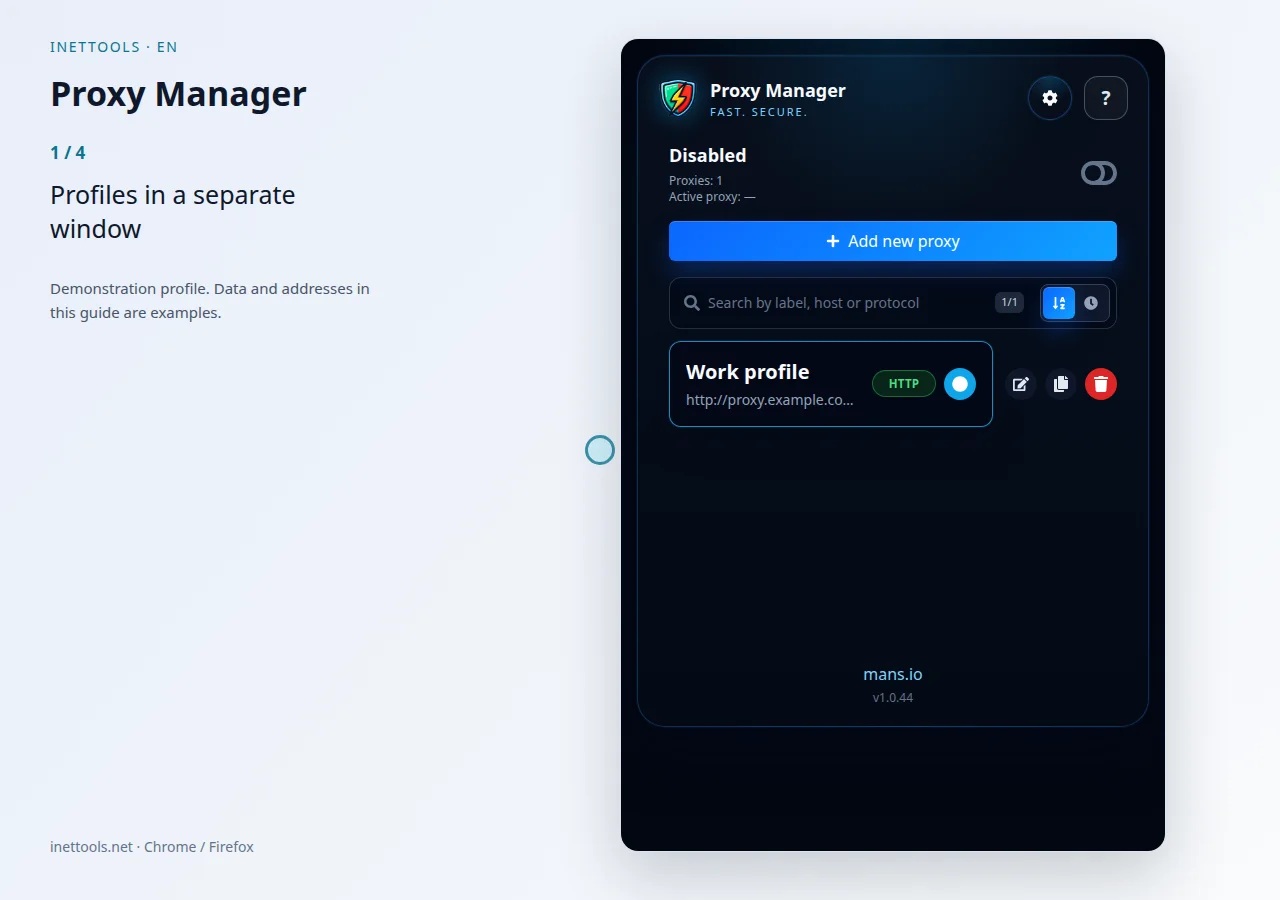
Proxy Manager — Watch the video
Manage proxy profiles in a separate window, find servers, import lists and switch your browser proxy settings.
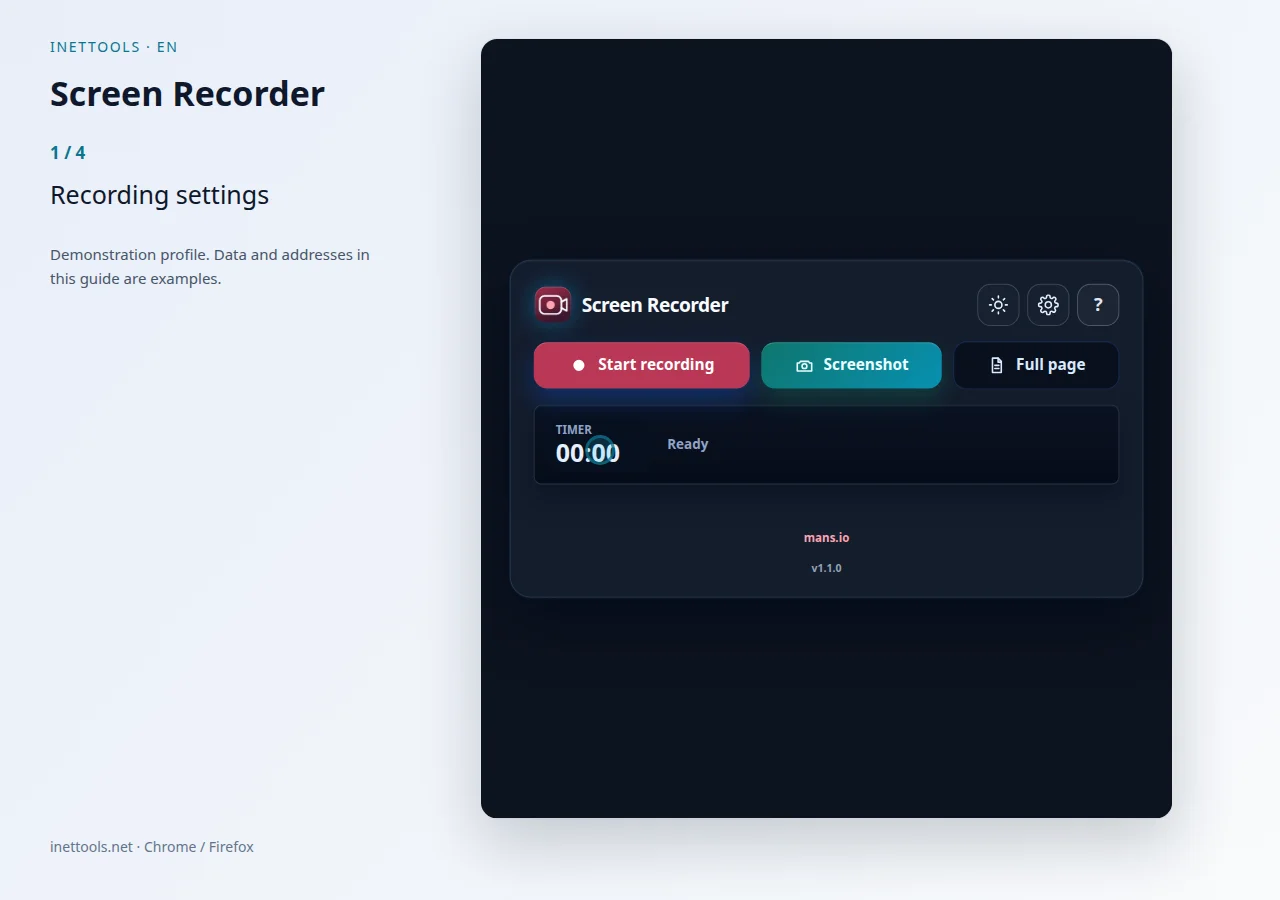
Screen Recorder — Watch the video
Record a screen, window or tab, pause and resume, then save the finished recording to your device.
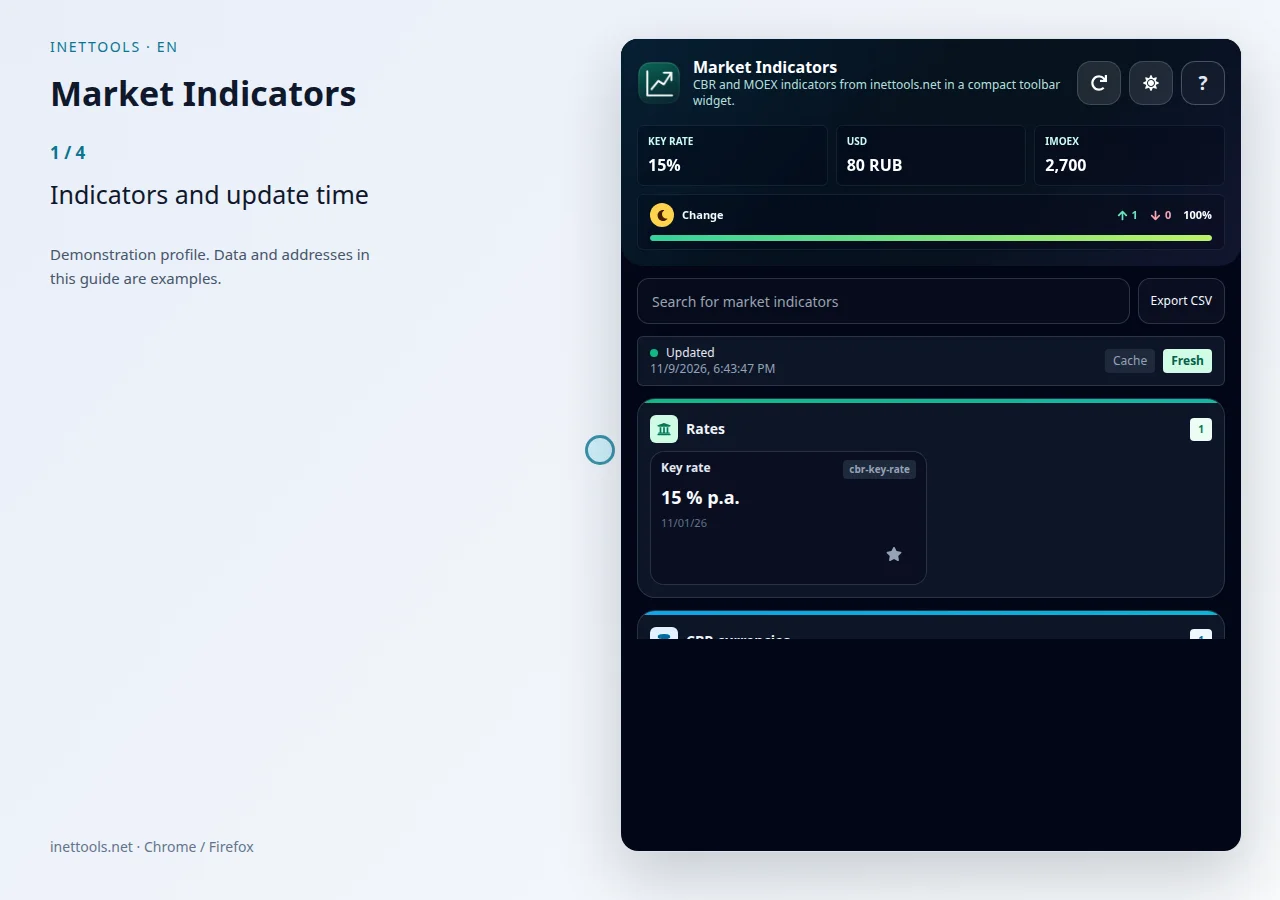
Market Indicators — Watch the video
Keep currencies, rates and indexes in favorites, find indicators quickly and export your selection as CSV.
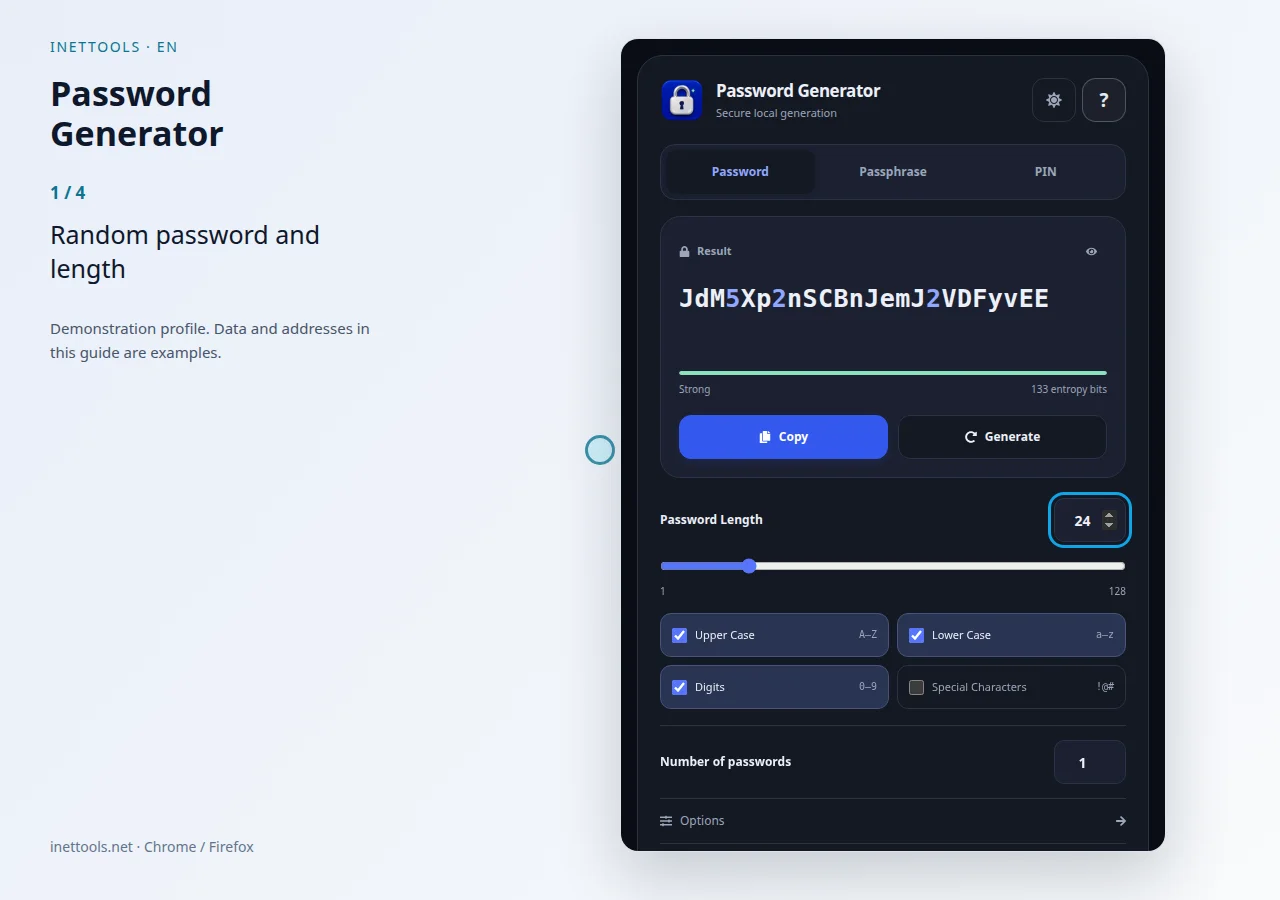
Password Generator — Watch the video
Create random passwords, English passphrases and PINs, set the length and save results in a convenient format.
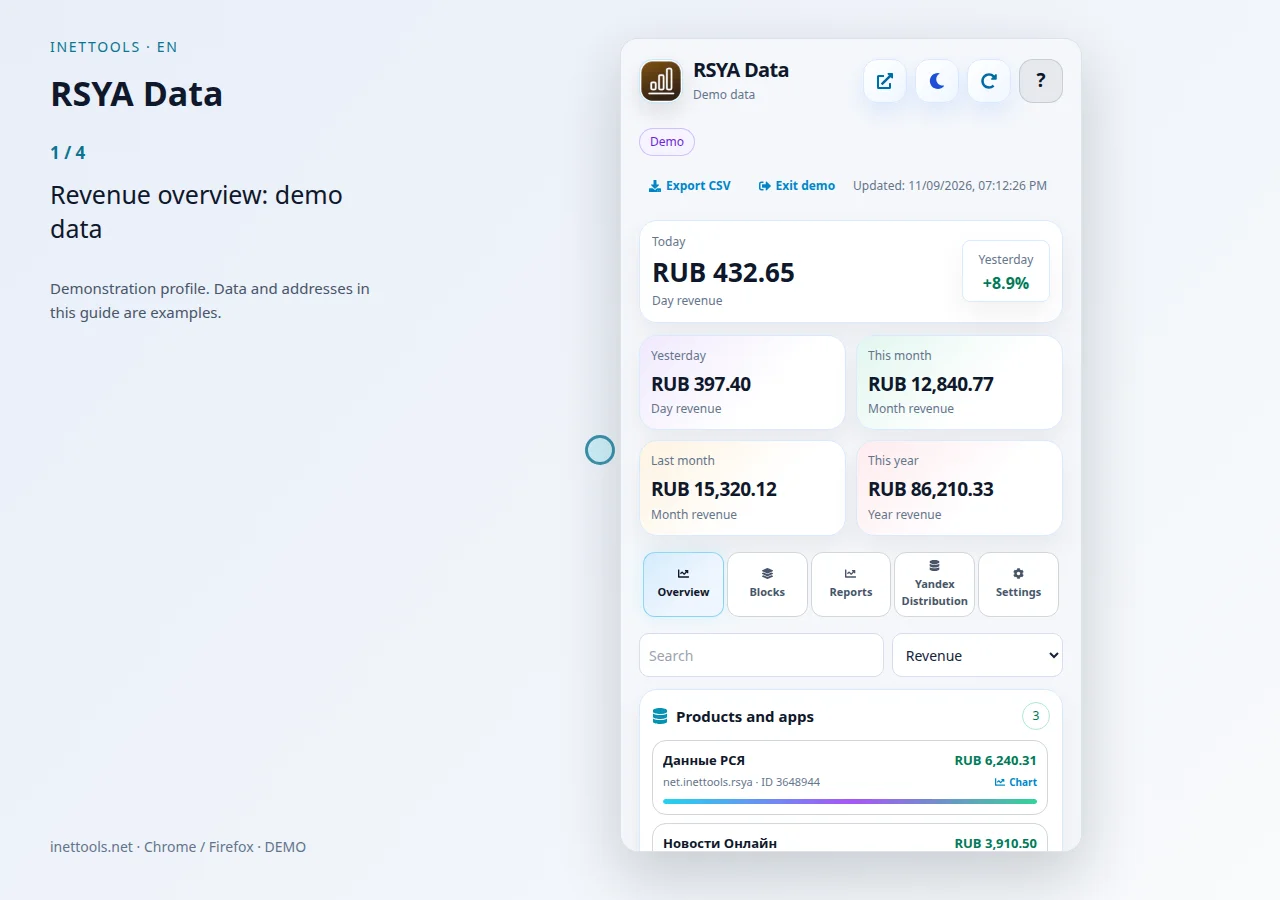
RSYA Data — Watch the video
YAN revenue, configurable reports, period comparison and Distribution with multiple accounts and result exports.
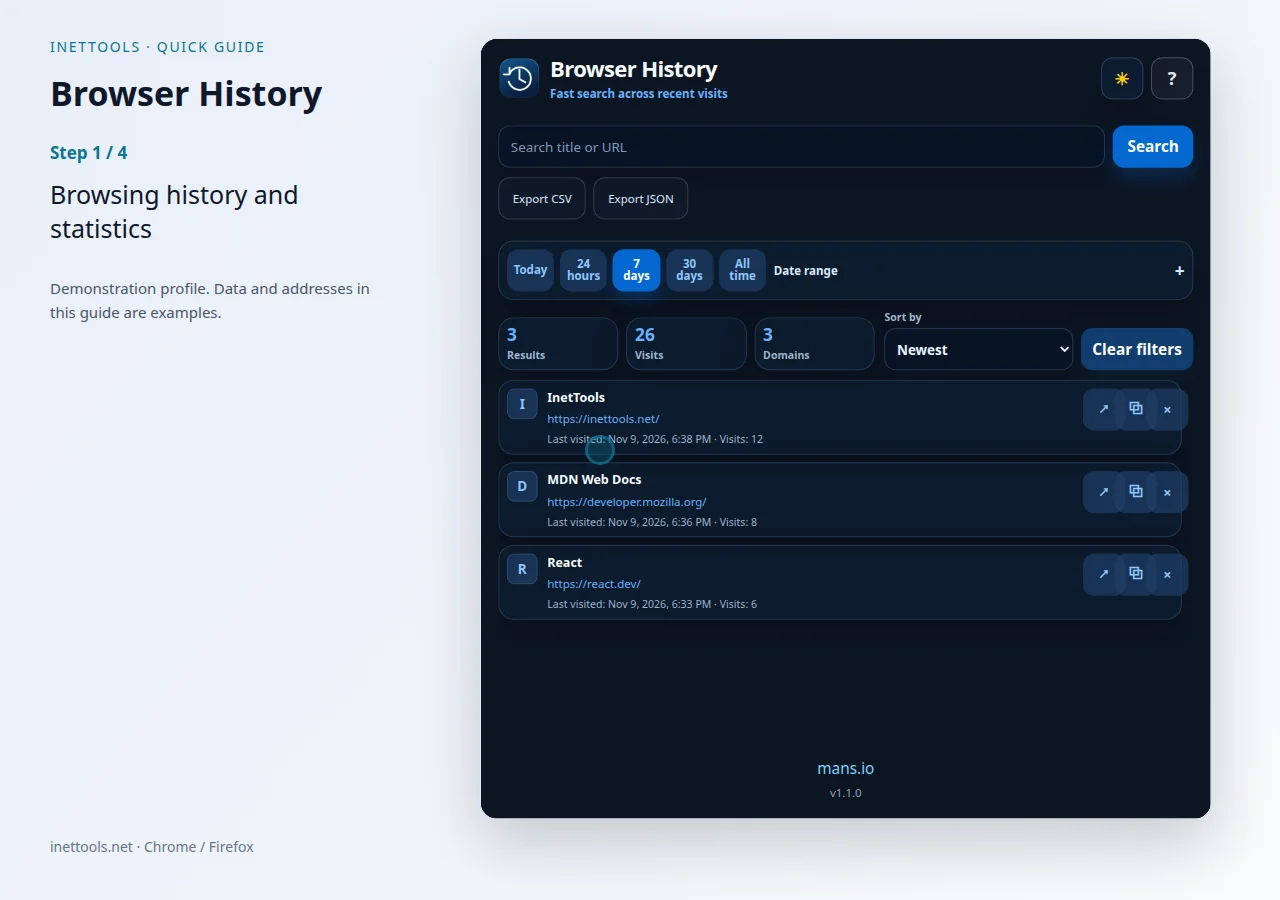
Browser History — Watch the video
Find visited pages by title and address, inspect browsing statistics and export matching entries as CSV or JSON.

AutoLog — Watch the video
InetTools mobile app for iOS and Android: track maintenance, mileage, expenses, notes, service history, and reminders for your car.
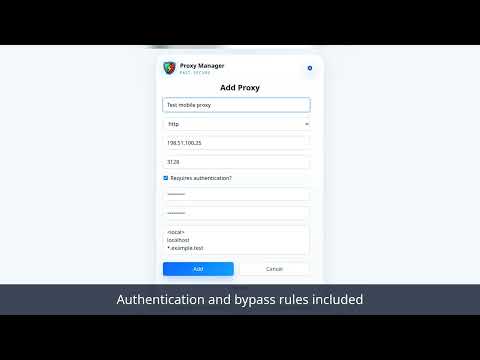
Proxy Manager — Watch the video
Manage proxy profiles in a separate window, find servers, import lists and switch your browser proxy settings.