Guide updated:
Choose an archive, inspect its contents and save the extracted files you need on a computer or phone.
Open this guide using the “How to use this tool” link below the tool name. It includes steps, screenshots and videos for computers and phones.
Before you start
Prepare an archive in a format accepted by the file picker. Use archives from sources you trust. Do not open unfamiliar executable files simply because extraction succeeded.
These small files were created for this guide and contain no personal data.
Step-by-step instructions
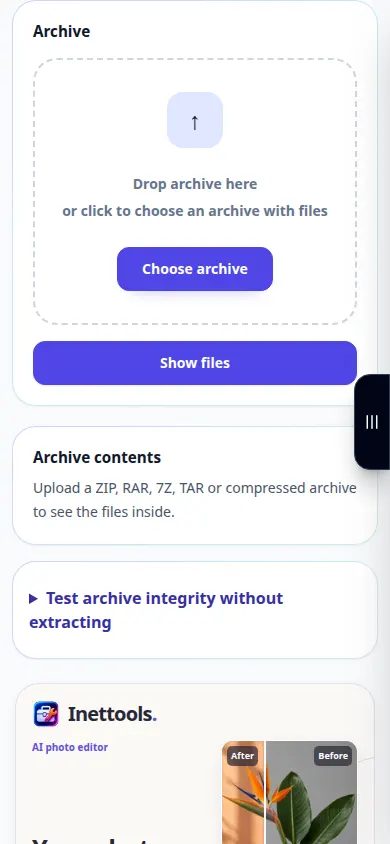
- Open Archive Extractor and choose the archive from your device.
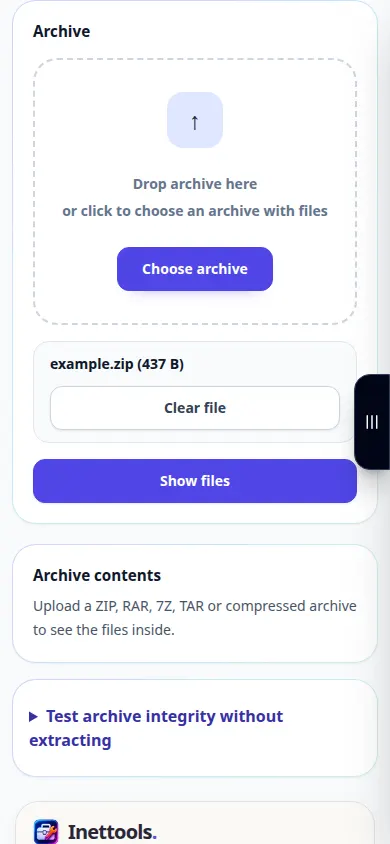
- Check the selected file and start extraction. If a password field is offered and the archive is encrypted, enter the correct password.
- Wait for the list of extracted files. Read the file names and sizes before choosing what to keep.
- Use the download control next to a file you need. If a combined result is offered, check its contents after saving.
- Open the saved files with applications that support their formats. Keep the original archive until you have checked the extracted copies.
On a computer
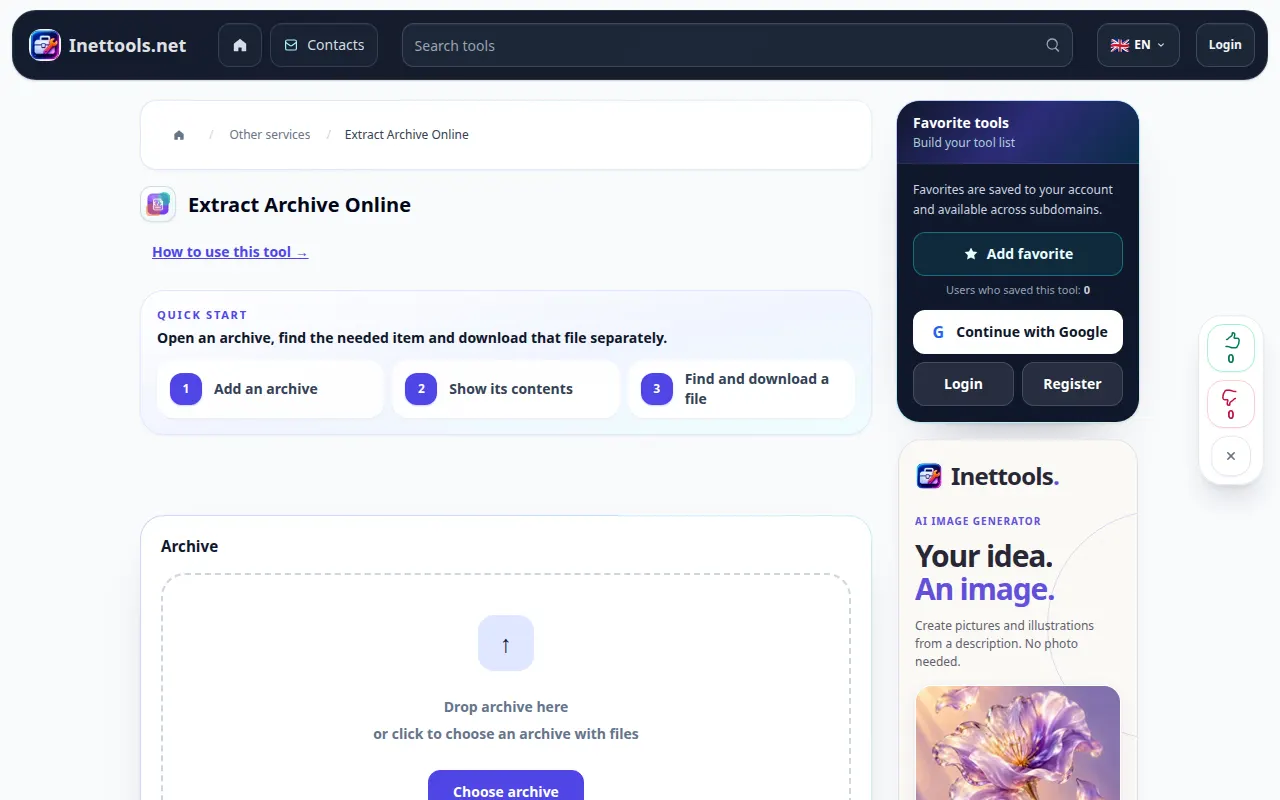
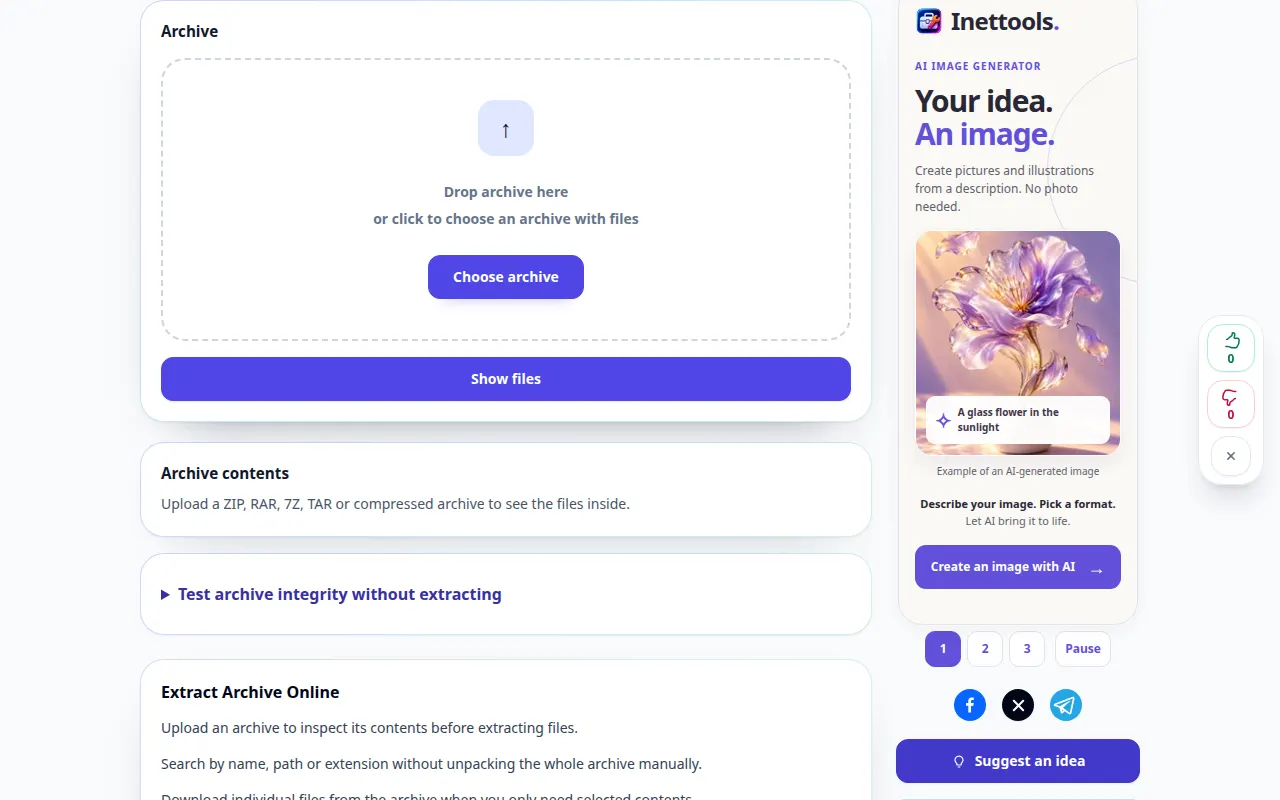
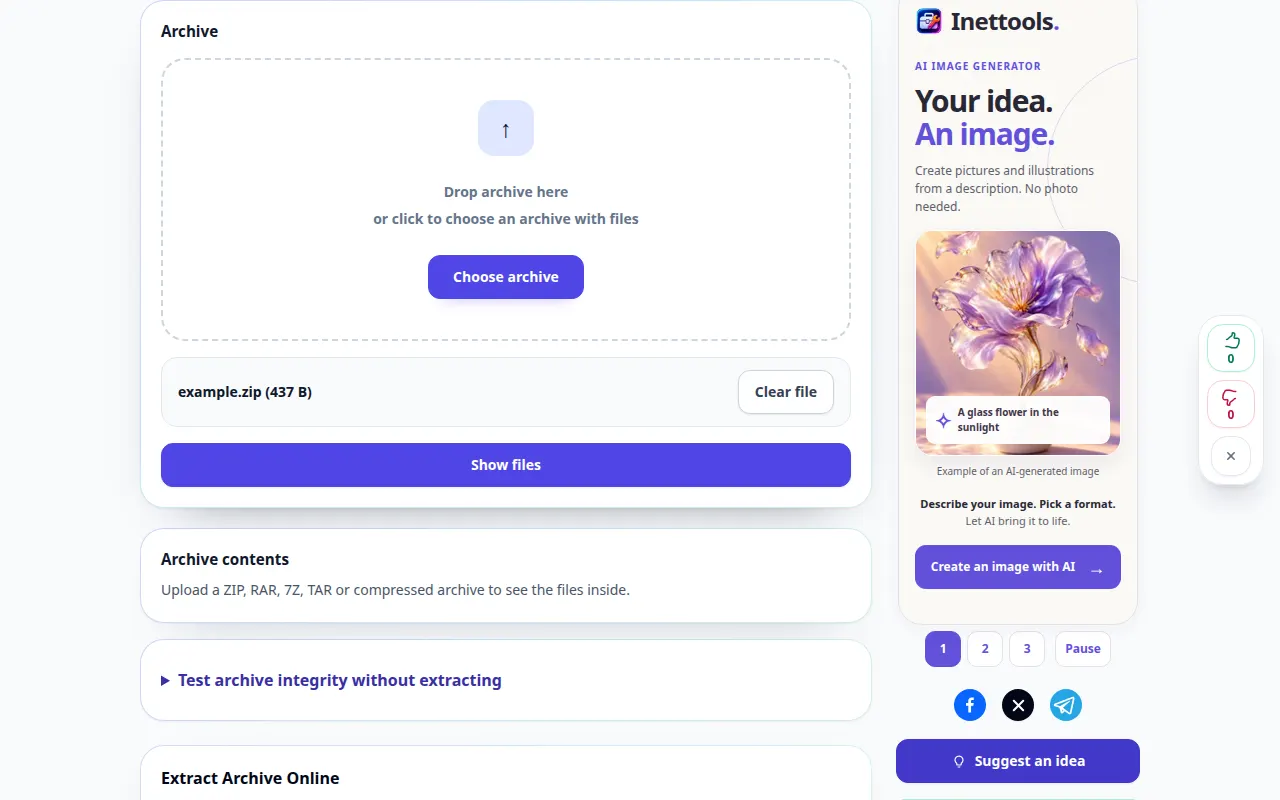
Drag the archive onto the upload area. Review the file list and save individual items to a folder where you can find them easily.
On a phone
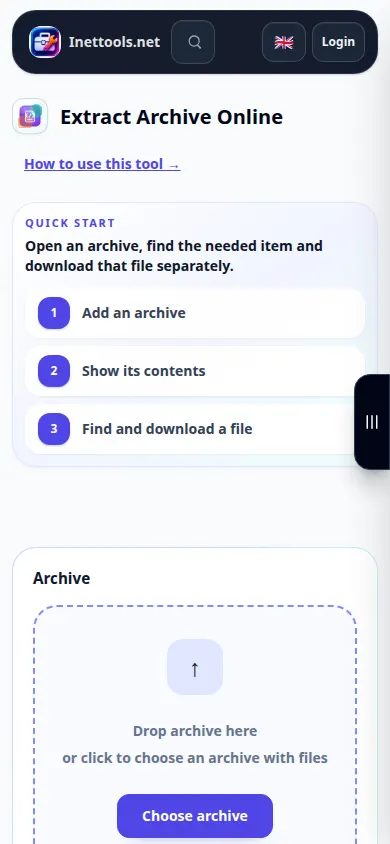
Choose the archive from Files or Downloads. Save extracted items to Files on iPhone or the Downloads folder on Android, then open them in a suitable application.
In Safari on iPhone, open the sharing menu and choose Save to Files if the result opens in a new tab. In Android Chrome, check Downloads. Keep this tab open until processing finishes.
For a better result
An extracted file can still be unsafe or damaged. The tool unpacks the archive; successful extraction does not certify the contents.
Screenshots and video
Desktop demonstration
The recording shows the English interface. Follow the translated steps above; the controls are in the same order. This recording shows processing a demonstration file and opening the result.
Phone demonstration
The recording shows the English interface. Follow the translated steps above; the controls are in the same order. This recording shows processing a demonstration file and opening the result.
Questions and troubleshooting
Why does extraction stop with an error?
The archive may be incomplete, damaged, encrypted or in an unsupported variant. Check the password, re-copy the complete archive and try a supported format.
Why can I save a file but not open it?
The file may need a specific application or may itself be damaged. Check its extension and compare it with the original archive contents.
If you see a message that the service is overloaded, wait and try again later. A failed attempt does not mean that your source file has changed.