Guide updated:
Find the correct video link, choose an available video format and save the result on desktop or mobile.
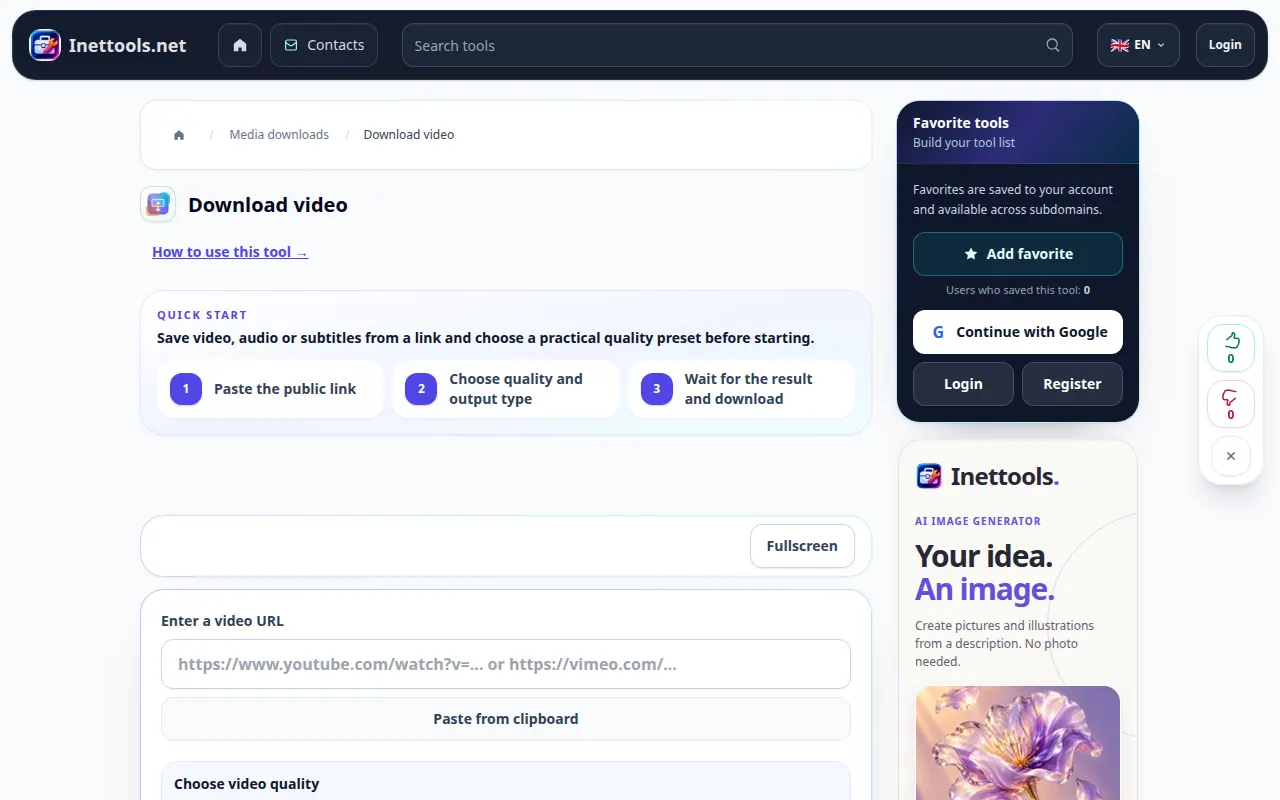
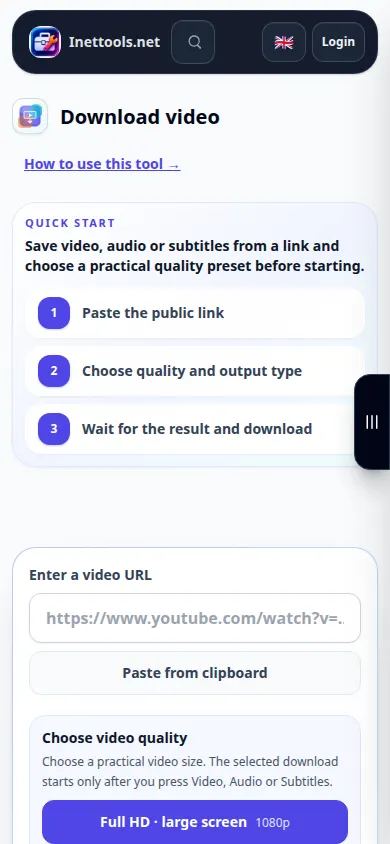
Open this guide using the “How to use this tool” link below the tool name. It includes steps, screenshots and videos for computers and phones.
Before you start
Use a public video that you own or have permission to save. Copy its direct link. Private, deleted, members-only or restricted videos may not be accessible.
Step-by-step instructions
- Open the video on YouTube and copy its link using Share or the address bar.
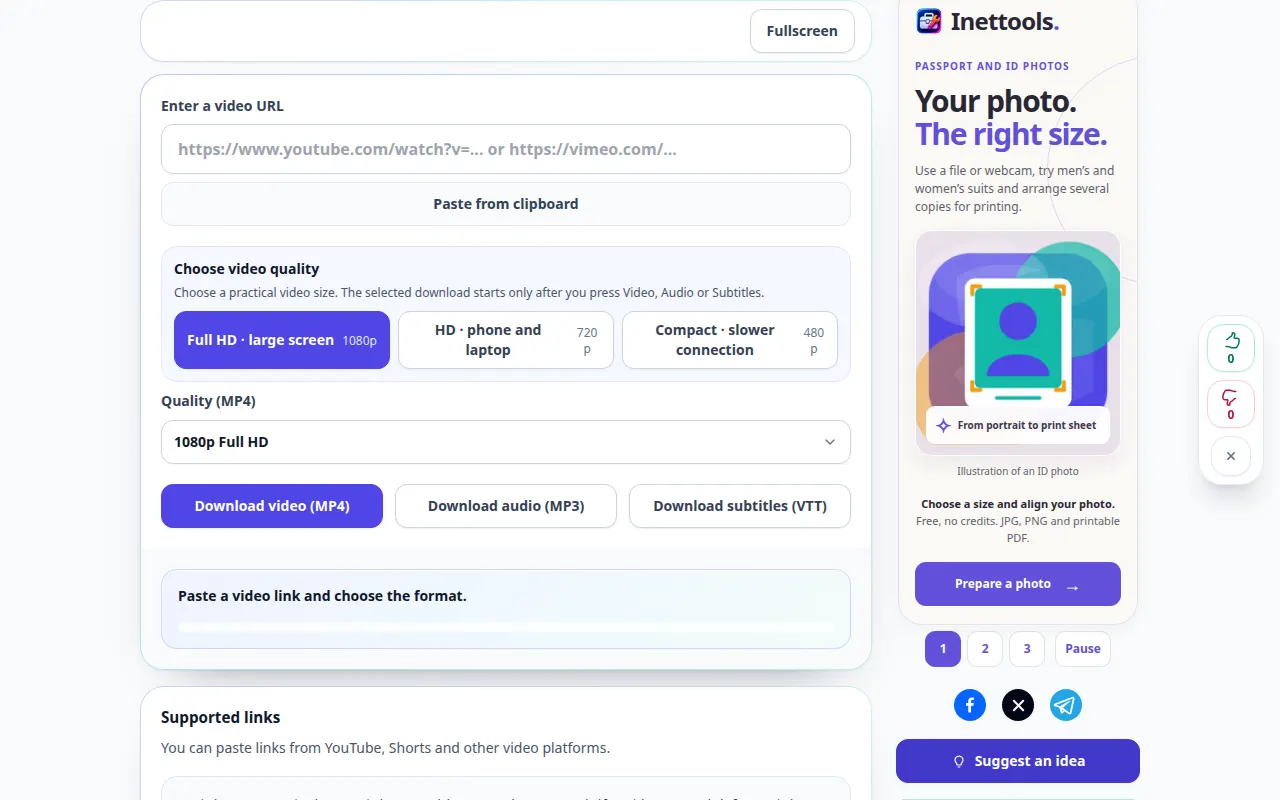
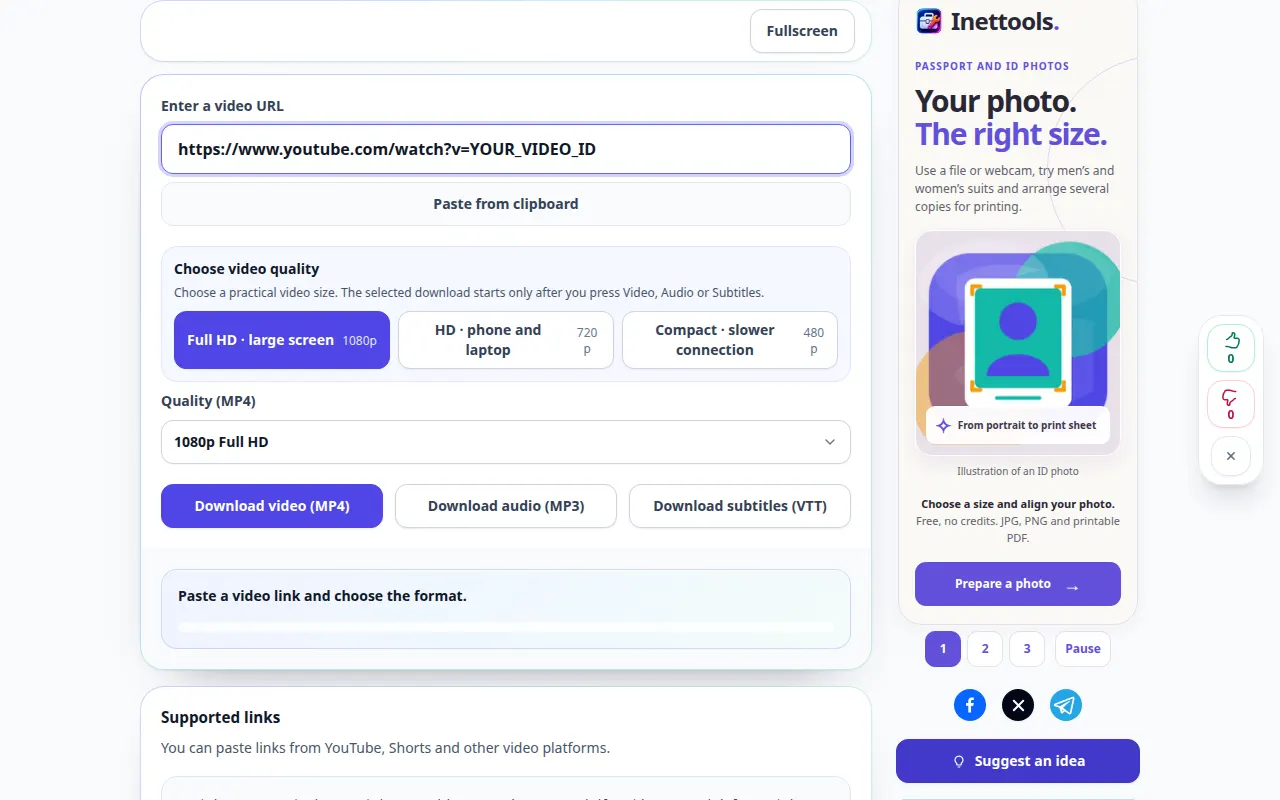
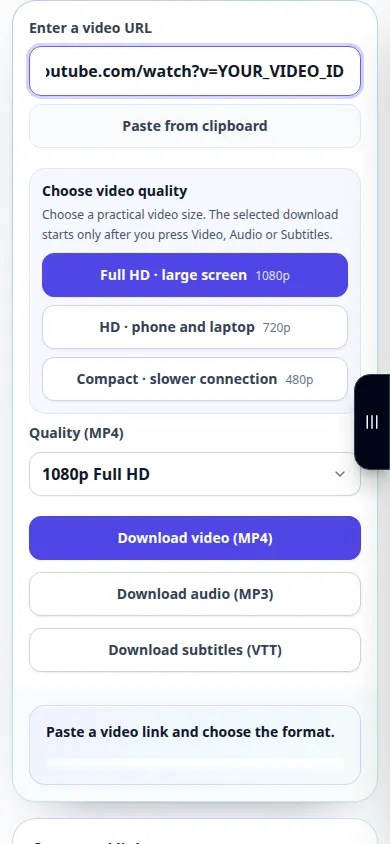
- Open the video downloader and paste the link into the URL field. Check that it points to the intended video.
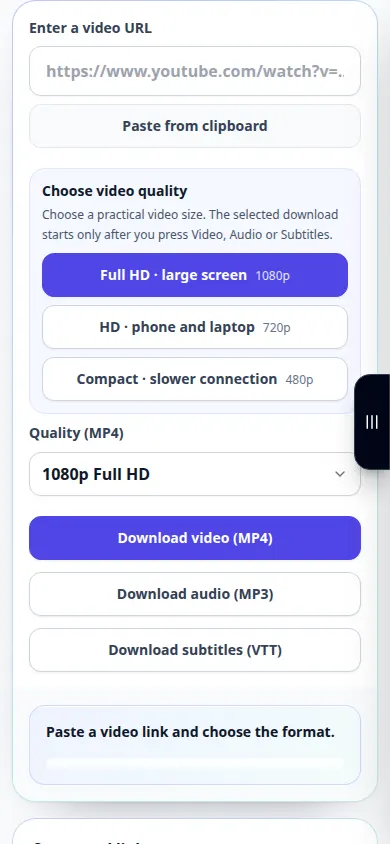
- Select a video option if the page offers one, then start the download request. Wait for the queue and preparation to finish.
- When a result link appears, check the displayed format and size, then use the download control to save the video.
- Open the saved file from your device and check both picture and sound before closing the service tab.
On a computer
Copy the link from the browser address bar. Leave the service tab open while it prepares the file. The browser normally saves the result to Downloads unless you choose a different folder.
On a phone
In the YouTube app, choose Share and Copy link. Return to the browser and paste it into the tool. On iPhone, use Save to Files if the result opens in a player.
In Safari on iPhone, open the sharing menu and choose Save to Files if the result opens in a new tab. In Android Chrome, check Downloads. Keep this tab open until processing finishes.
For a better result
A smaller available resolution is often faster to prepare and easier to store on a phone. Available formats vary by video.
Screenshots and video
Desktop demonstration
The recording shows the English interface. Follow the translated steps above; the controls are in the same order. This short recording shows file selection and settings before processing. The steps above explain how to start processing and save the result.
Phone demonstration
The recording shows the English interface. Follow the translated steps above; the controls are in the same order. This short recording shows file selection and settings before processing. The steps above explain how to start processing and save the result.
Questions and troubleshooting
Why is the requested resolution missing?
The source video may not offer that resolution or the service may not be able to prepare it at the moment. Choose an available option.
Why does a link fail?
Check the URL and whether the video is publicly accessible. For a temporary overload message, wait and retry. Do not repeatedly submit the same request while it is still processing.
If you see a message that the service is overloaded, wait and try again later. A failed attempt does not mean that your source file has changed.