Guide updated:
Turn a song into separate vocal and backing tracks. Learn how to choose a source, set the output and listen to the result on a computer or phone.
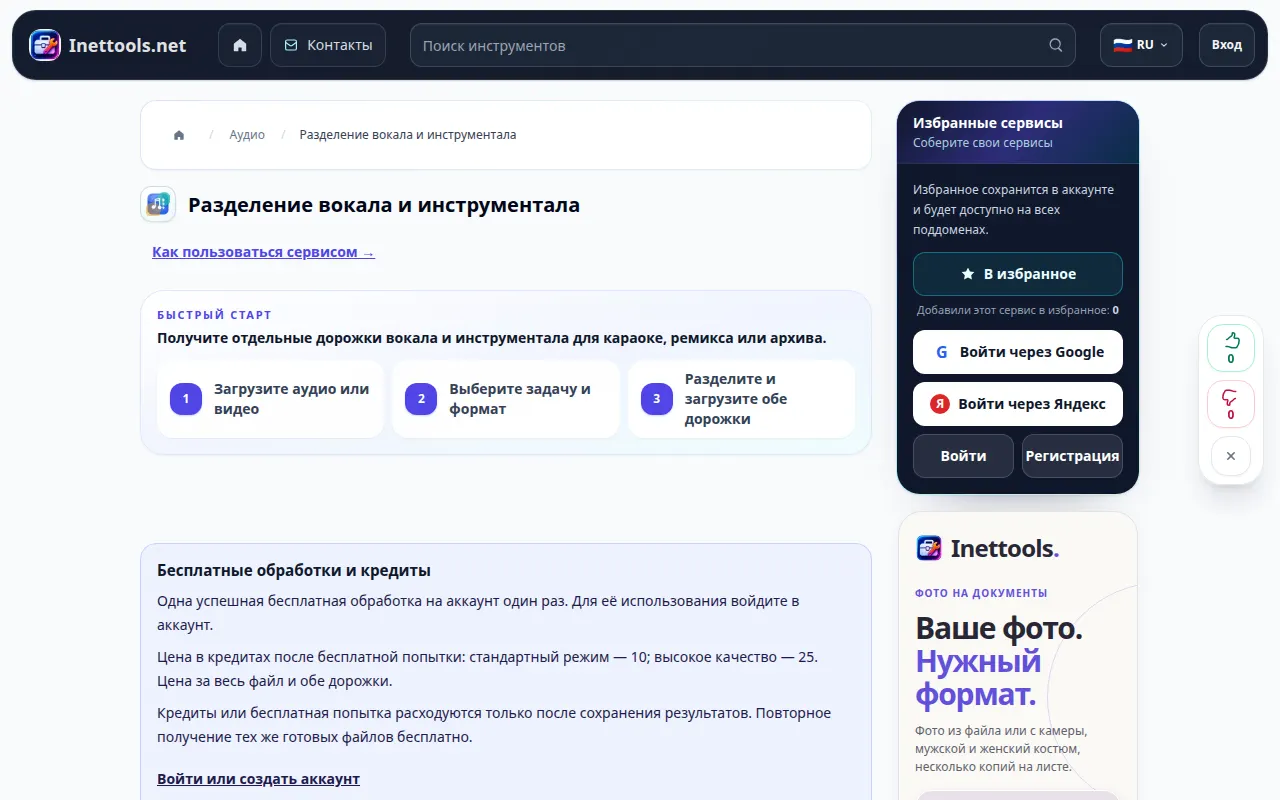
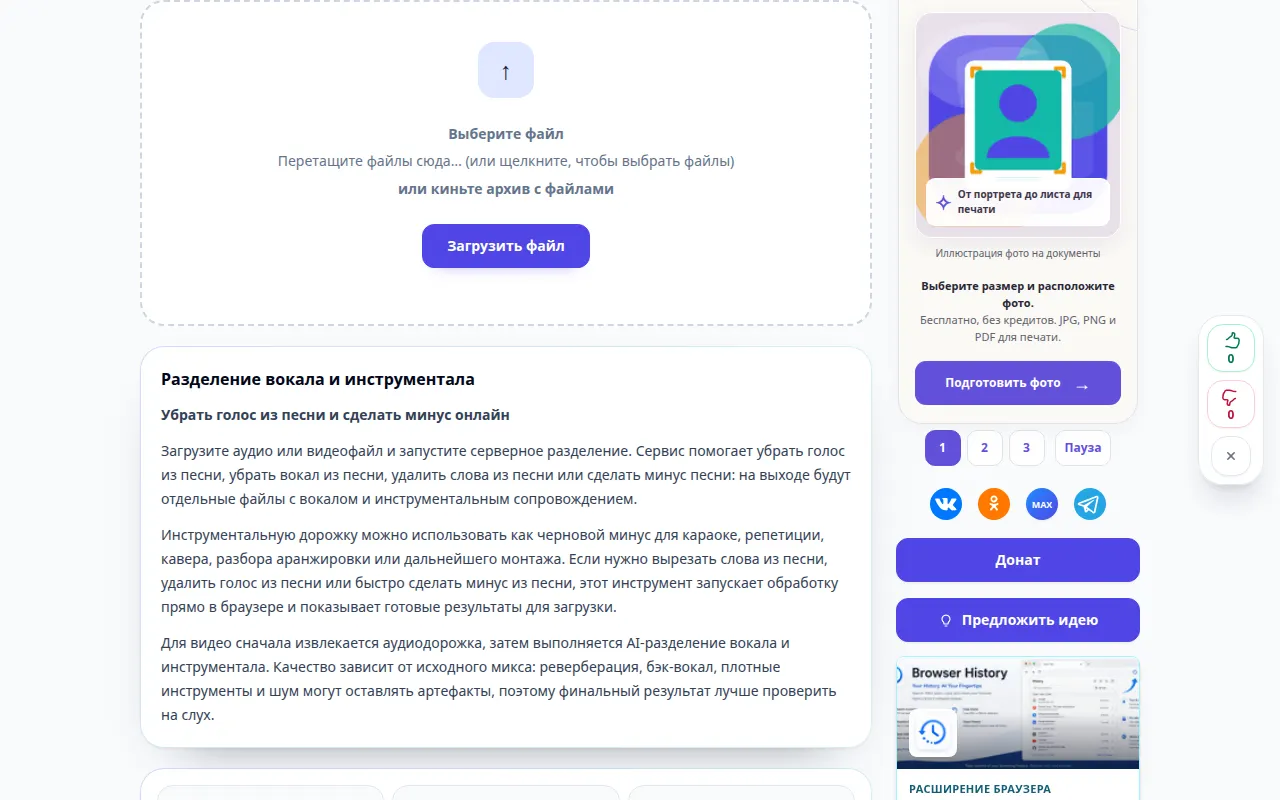
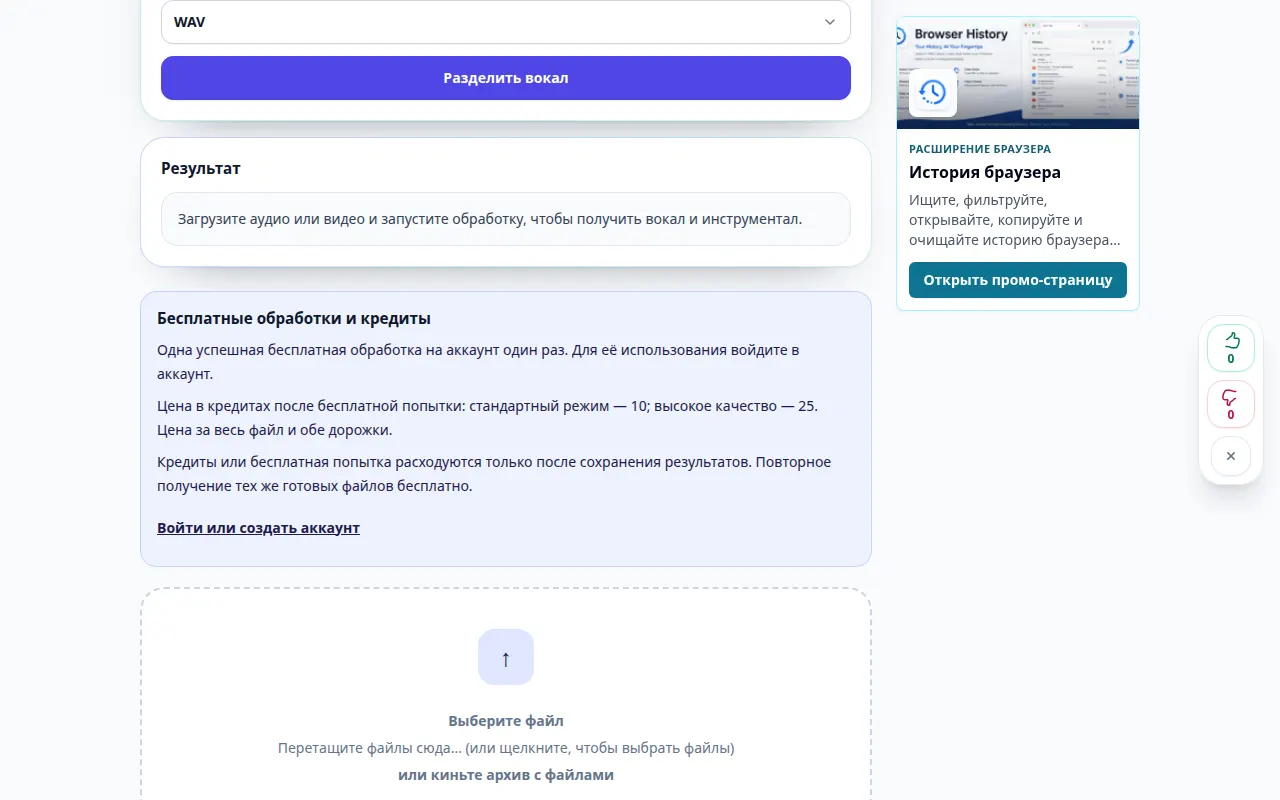
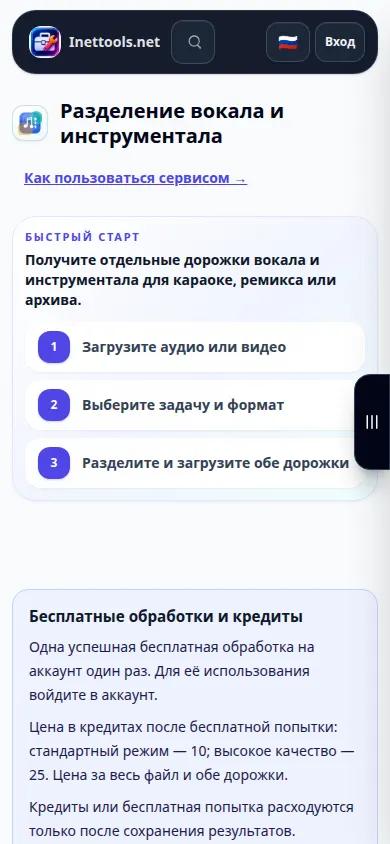
Open this guide using the “How to use this tool” link below the tool name. It includes steps, screenshots and videos for computers and phones.
This tool is currently available on the Russian-language site. The button opens that version.
Before you start
Prepare an audio file that you have permission to use. A clean original usually separates better than a recording played through speakers. Sign in if the tool asks; review the displayed price before confirming processing.
Step-by-step instructions
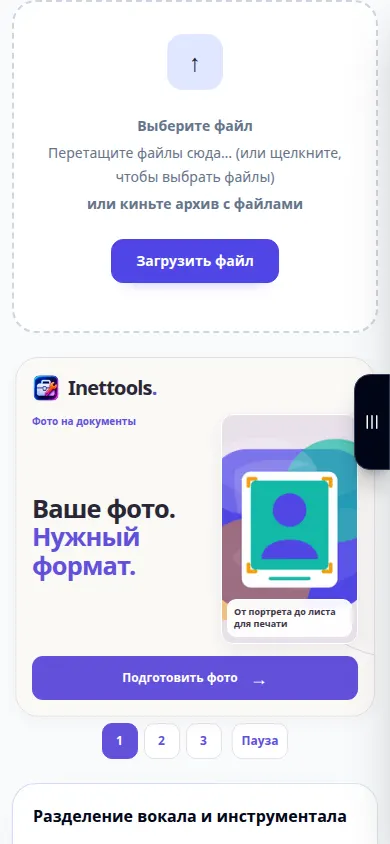
- Open the separator and choose your audio file. Wait for the upload and the source player to appear.
- Listen to a short section to check that this is the right song. Choose the separation mode and output format from the options available on the page.
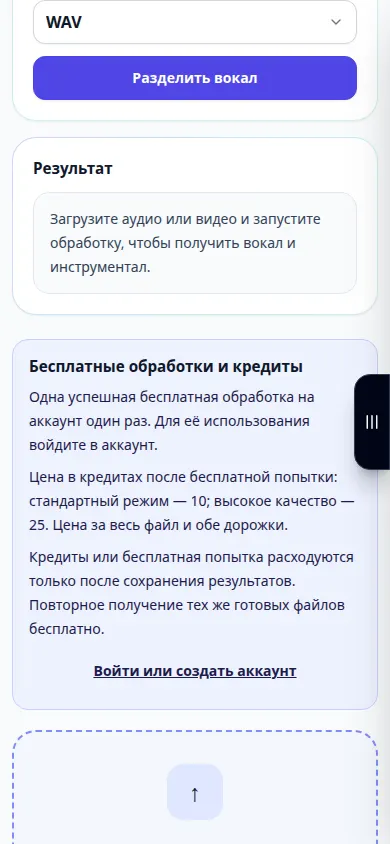
- Check any displayed duration, price or confirmation. Start separation and keep the page open while the job is queued and processed.
- When the result appears, listen to both the vocal track and the instrumental track. Some reverb or backing vocals may remain.
- Use the result download controls to save the tracks you need. Keep the original so you can compare another setting later.
On a computer
Use the file picker or drag the audio into the upload area. Headphones make it easier to hear leakage between the two tracks.
On a phone
Choose audio from Files on iPhone or the file manager on Android. Switch away from the page only after processing finishes; mobile browsers can pause background tabs.
In Safari on iPhone, open the sharing menu and choose Save to Files if the result opens in a new tab. In Android Chrome, check Downloads. Keep this tab open until processing finishes.
For a better result
Start with the standard mode and compare the same chorus in both tracks. Separation estimates the sources; it cannot guarantee a studio-quality instrumental.
Screenshots and video
Desktop demonstration
The recording shows the Russian interface. Follow the translated steps above; the controls are in the same order. This short recording shows file selection and settings before processing. The steps above explain how to start processing and save the result.
Phone demonstration
The recording shows the Russian interface. Follow the translated steps above; the controls are in the same order. This short recording shows file selection and settings before processing. The steps above explain how to start processing and save the result.
Questions and troubleshooting
Why can I still hear a faint voice in the instrumental?
Reverb, overlapping instruments and backing vocals can blend with the music. Try another available mode, but keep expectations realistic.
Why is a mode unavailable?
Available modes depend on the service and the selected file. Choose an enabled mode. If the whole service is busy, retry later.
If you see a message that the service is overloaded, wait and try again later. A failed attempt does not mean that your source file has changed.