Guide updated:
Use a video link to prepare an audio file, then save it to your computer or phone. Learn where to find the result and what to do if preparation fails.
Open this guide using the “How to use this tool” link below the tool name. It includes steps, screenshots and videos for computers and phones.
Before you start
Copy a direct link to a public video whose audio you have permission to save. This tool extracts the audio track; it does not remove vocals or separate music from speech.
Step-by-step instructions
- Copy the video link from YouTube using Share or the address bar.
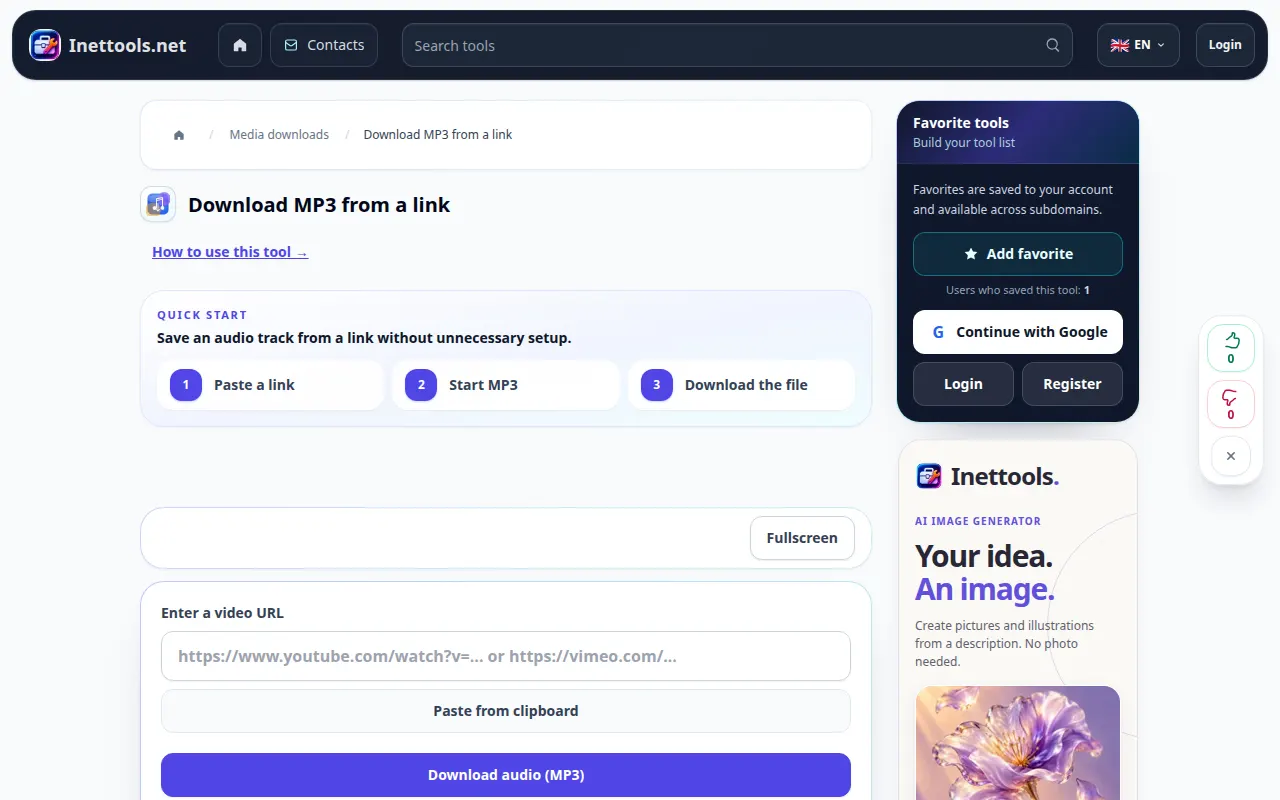
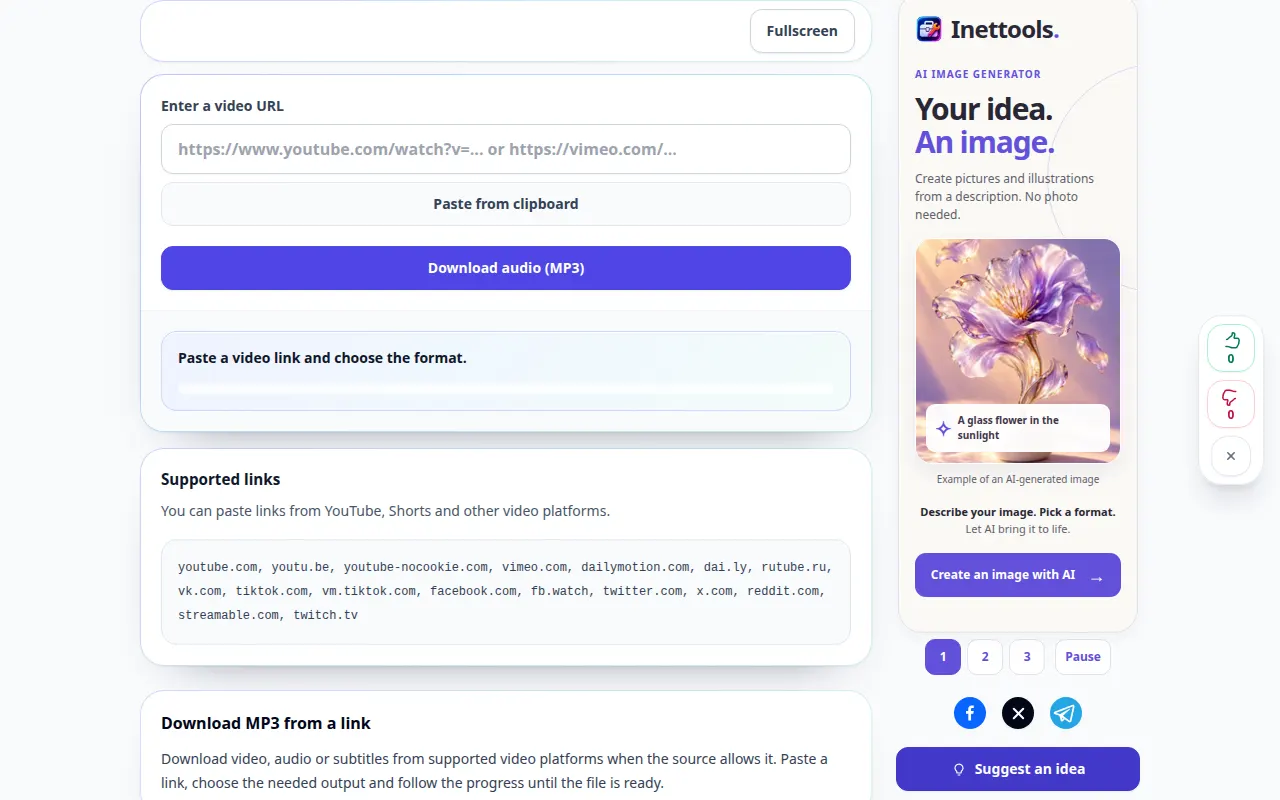
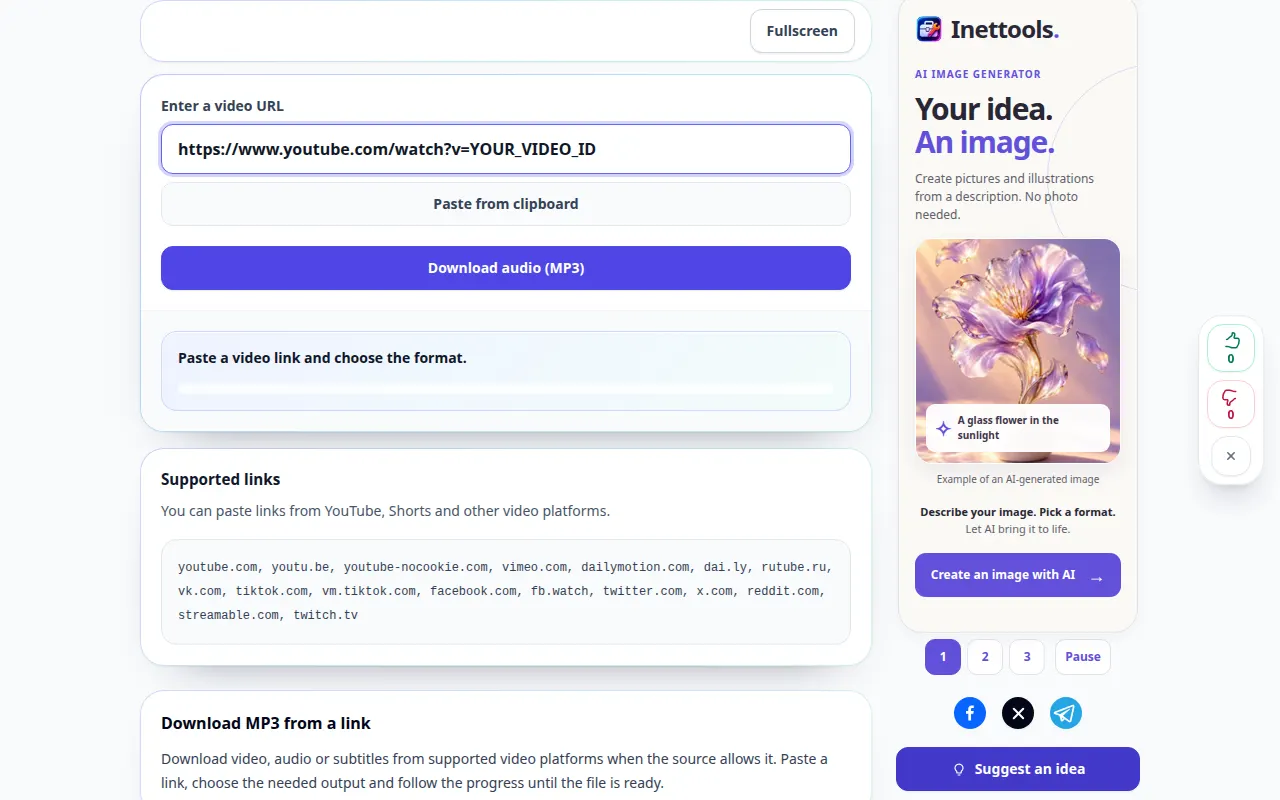
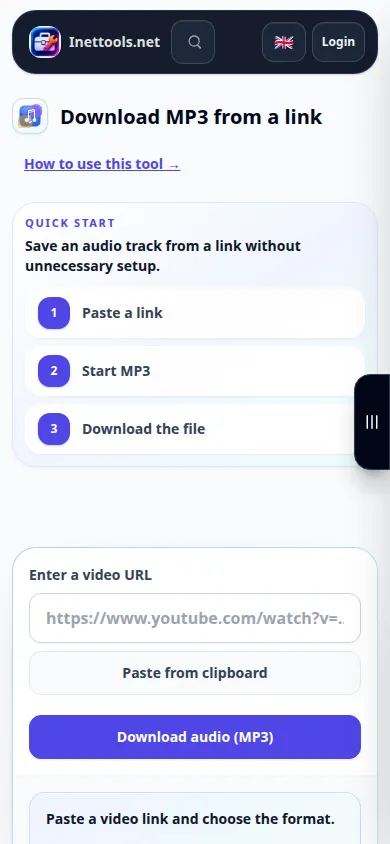
- Open the YouTube MP3 tool and paste the link into the URL field.
- Check the audio option and any available output settings, then start preparation. Keep the tab open while the request is queued.
- Wait for the MP3 result link. Use the download control to save the audio to your device.
- Listen to the saved MP3 and check that it contains the intended video audio. For a backing track, use the separate vocal separator after saving a permitted source.
On a computer
Paste the copied link into the tool. The browser may ask where to save the MP3; otherwise look in Downloads. Open the file in an audio player to check it.
On a phone
Use Share → Copy link in the YouTube app, then paste the link into the browser tool. If the MP3 opens in a browser player, use the sharing menu to save it to Files.
In Safari on iPhone, open the sharing menu and choose Save to Files if the result opens in a new tab. In Android Chrome, check Downloads. Keep this tab open until processing finishes.
For a better result
Converting audio to MP3 cannot improve the quality of the original stream. Keep an original permitted recording when you need the best quality for later editing.
Screenshots and video
Desktop demonstration
The recording shows the English interface. Follow the translated steps above; the controls are in the same order. This short recording shows file selection and settings before processing. The steps above explain how to start processing and save the result.
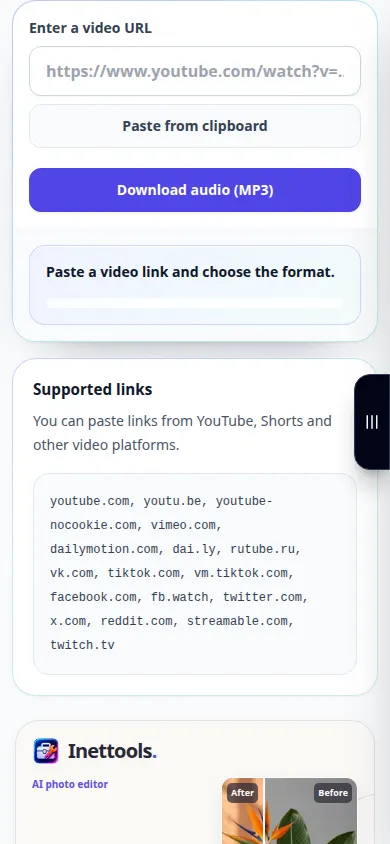
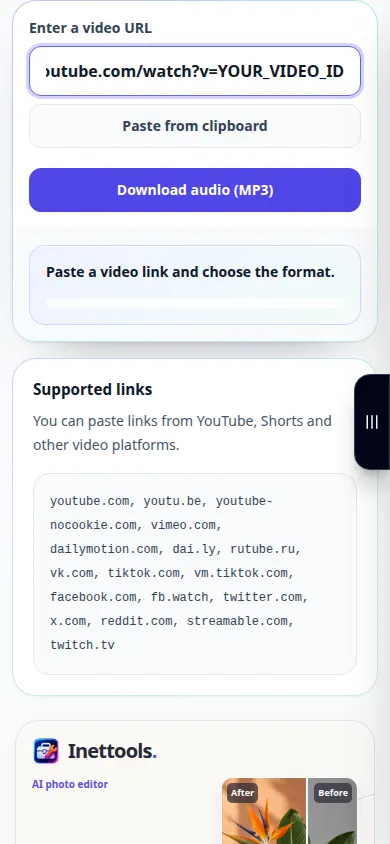
Phone demonstration
The recording shows the English interface. Follow the translated steps above; the controls are in the same order. This short recording shows file selection and settings before processing. The steps above explain how to start processing and save the result.
Questions and troubleshooting
Does this remove the voice from a song?
No. MP3 preparation preserves the video soundtrack. To separate vocals and music, use the vocal separator with an audio file.
The file is not on my phone. Where should I look?
Check the browser Downloads list and the Files app. Opening a player does not always save a copy; use the browser save or sharing control.
If you see a message that the service is overloaded, wait and try again later. A failed attempt does not mean that your source file has changed.