Guide updated:
View a document in your browser without installing an office suite. Open a file, check its pages and save the generated PDF preview.
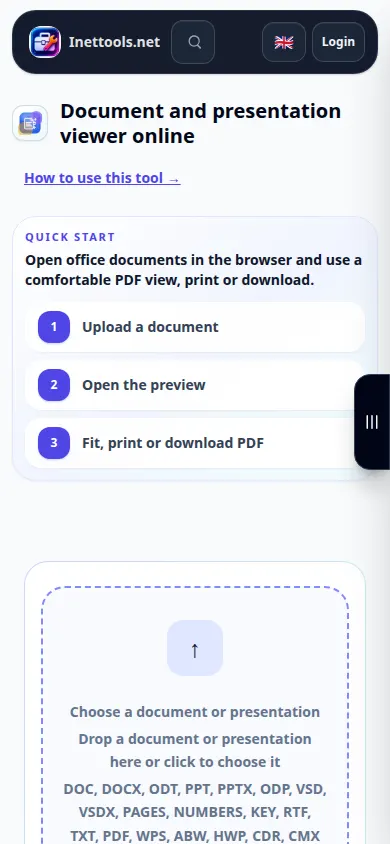
Open this guide using the “How to use this tool” link below the tool name. It includes steps, screenshots and videos for computers and phones.
Before you start
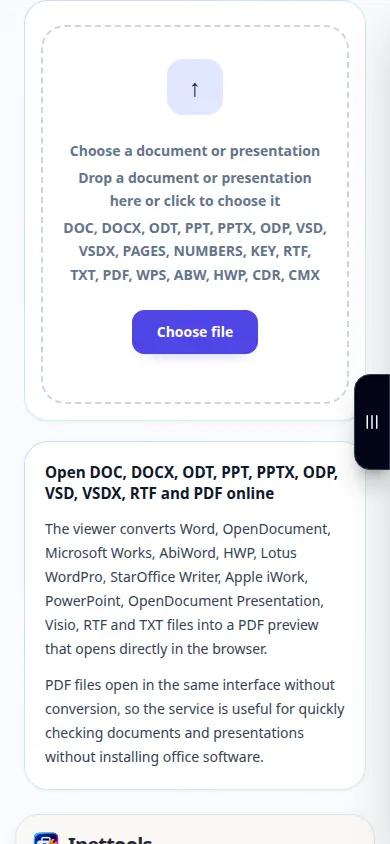
Keep an original copy of the document. The file picker lists accepted formats, including common office documents and PDF. Password-protected or damaged files may need to be repaired or unlocked first.
These small files were created for this guide and contain no personal data.
Step-by-step instructions
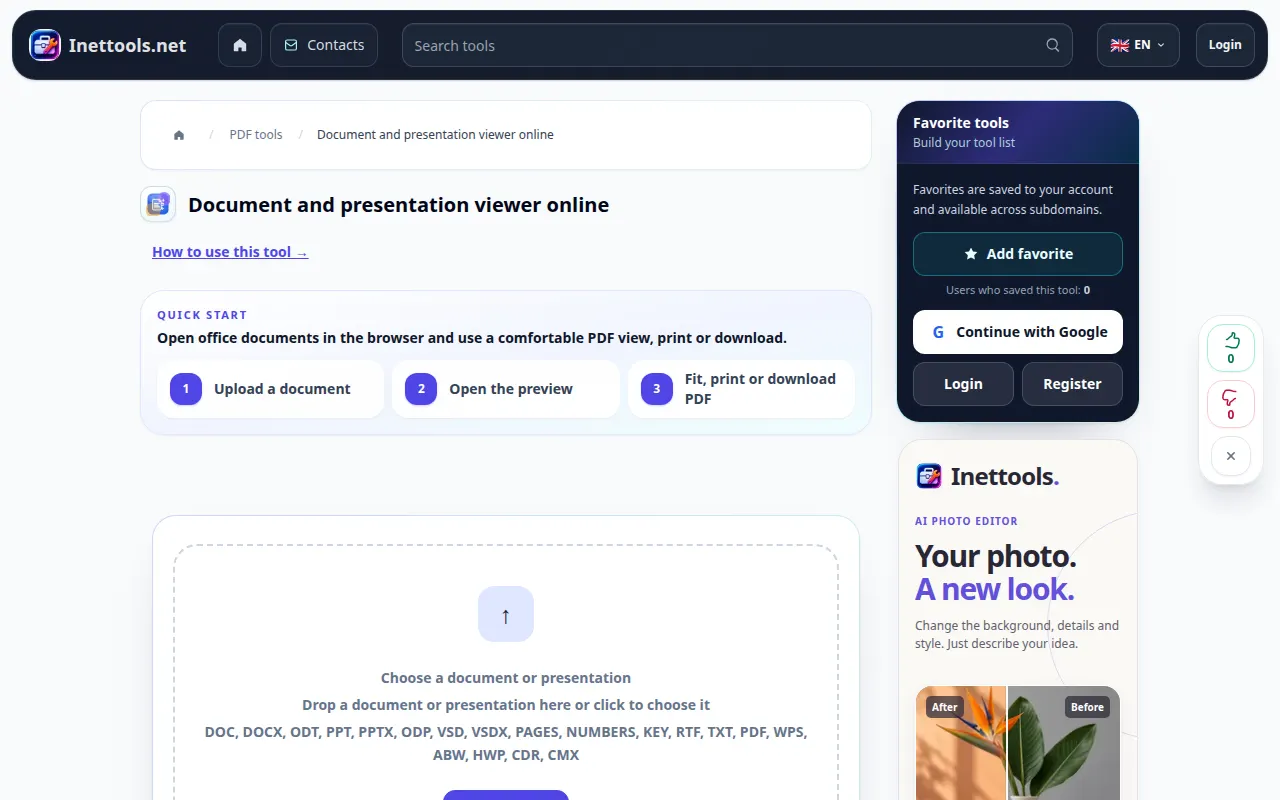
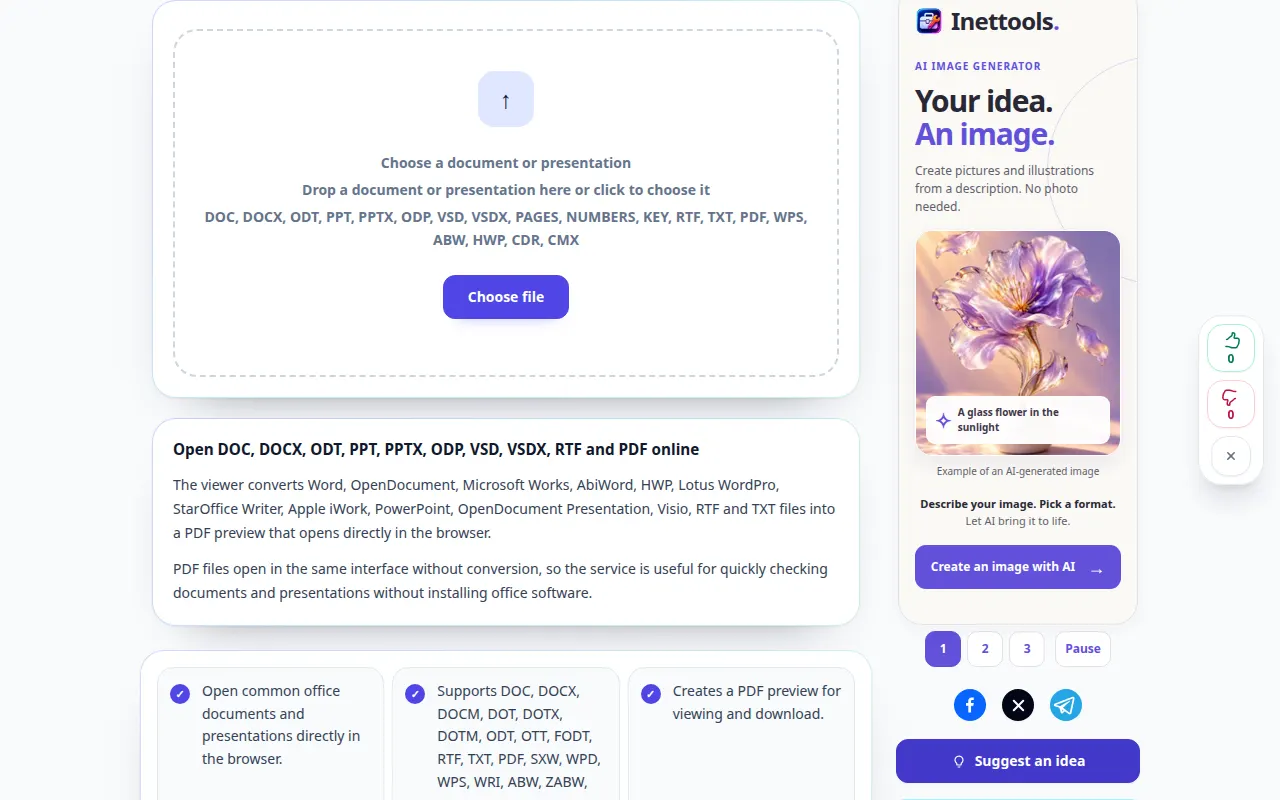
- Open Document Viewer and choose the document from your device.
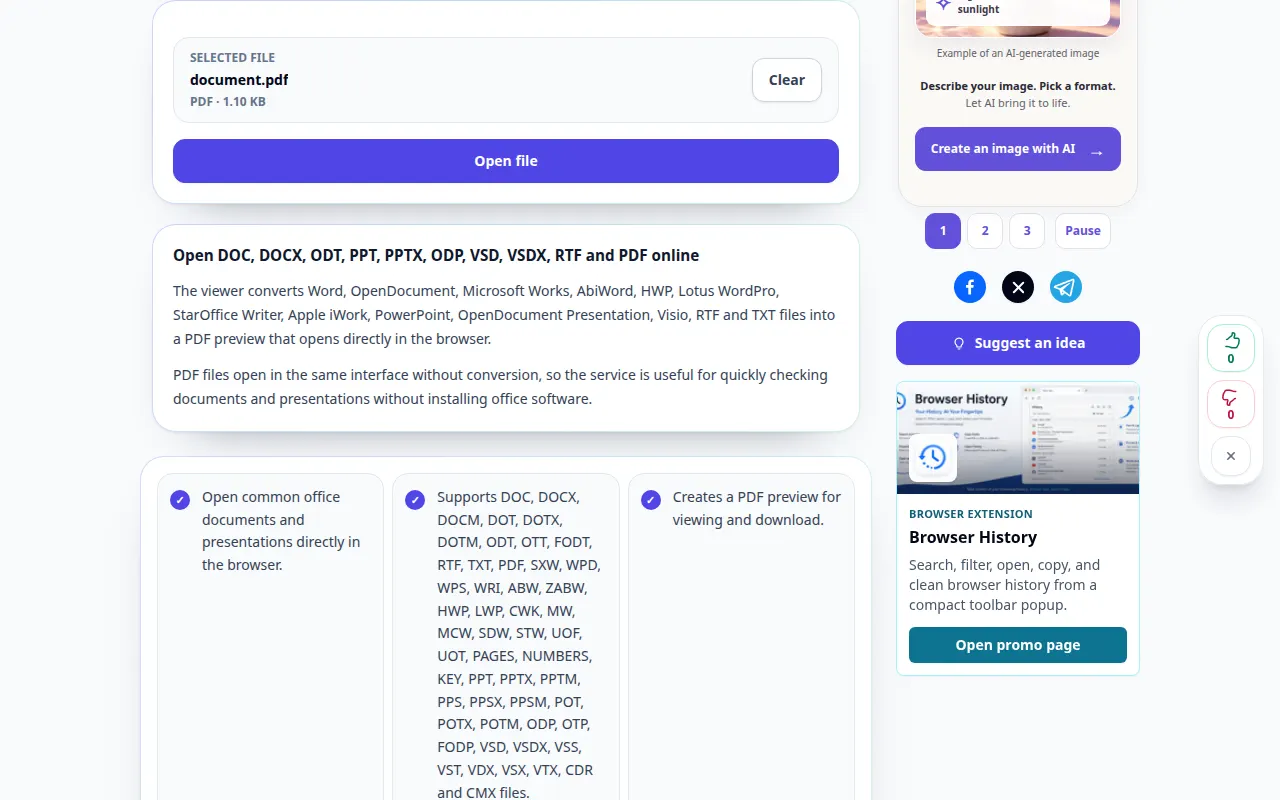
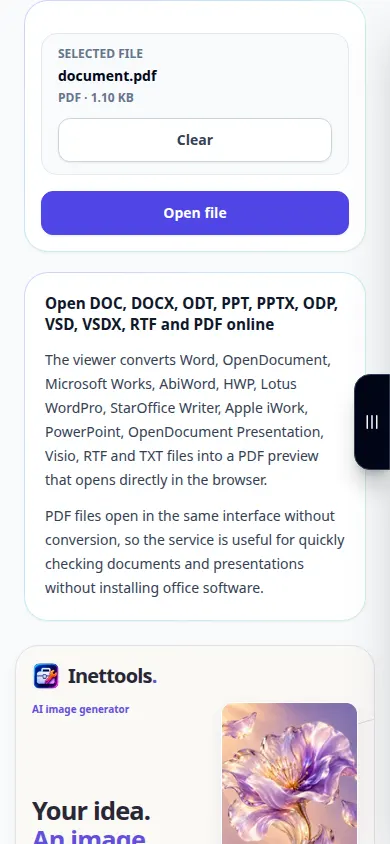
- Check the file name and select Open file. Wait for the preview to be prepared.
- Use Fit to width for readable text or Whole page to check the layout. Scroll through several pages, especially tables and images.
- Open the generated PDF in a new tab if the embedded preview does not appear. You can also use the PDF download control.
- Save the PDF preview to your device. To open another document, clear the current file and choose a new source.
On a computer
Drag the document onto the upload area. Fit to width is useful on a laptop; fullscreen gives more space for pages. Printing uses the browser print dialog.
On a phone
Choose the document from Files or your file manager. On a narrow screen, use Fit to width. If your browser opens PDFs separately, use Open in new tab and return to the original tab afterward.
In Safari on iPhone, open the sharing menu and choose Save to Files if the result opens in a new tab. In Android Chrome, check Downloads. Keep this tab open until processing finishes.
For a better result
Check page breaks and uncommon fonts before sharing the PDF. The viewer creates a preview; it does not edit the original document.
Screenshots and video
Desktop demonstration
The recording shows the English interface. Follow the translated steps above; the controls are in the same order. This recording shows processing a demonstration file and opening the result.
Phone demonstration
The recording shows the English interface. Follow the translated steps above; the controls are in the same order. This recording shows processing a demonstration file and opening the result.
Questions and troubleshooting
Why does the layout differ from my office application?
Missing fonts and advanced office features can change the converted preview. Check the PDF and export a PDF from the original application when exact layout is essential.
The preview is blank. What should I do?
Try Open in new tab or save the generated PDF. If conversion itself failed, verify that the file opens in its original application and is not password protected.
If you see a message that the service is overloaded, wait and try again later. A failed attempt does not mean that your source file has changed.