Guide updated:
Set playback speed for the whole video or one fragment, preview it and save a new file.
Practical instructions with desktop and phone screenshots, short demonstrations and answers to common questions.
Before you start
Keep your original video. This demonstration shows upload, local preview and settings before a server render. Check the current price in the tool before starting your own processing.
Try with a demonstration file — video.mp4
These small files were created for this guide and contain no personal data.
Step-by-step instructions
-
Choose a video and wait for it to appear in the workspace. Check the source name and duration.
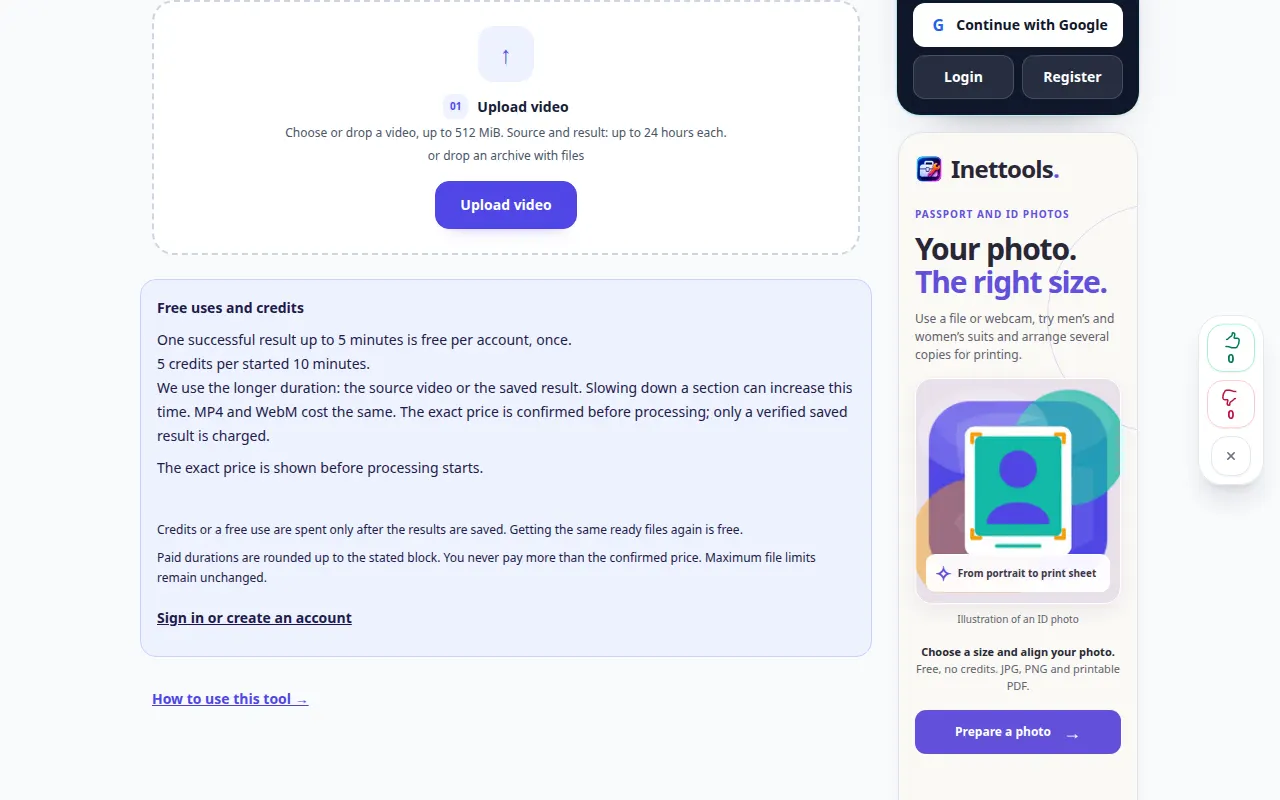
Selecting the source 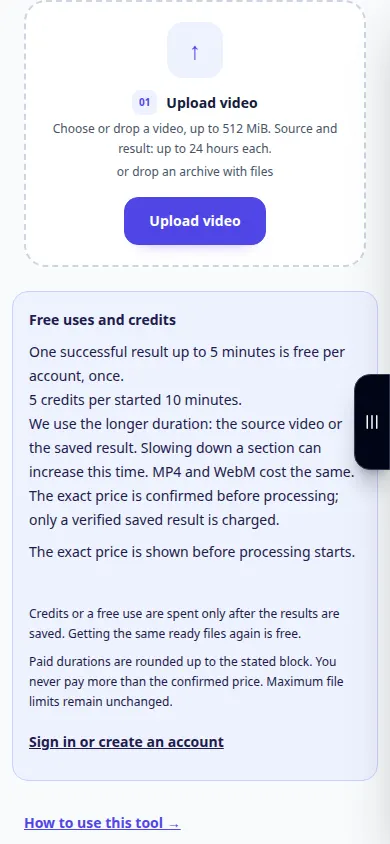
Selecting the source -
Choose a speed: below 1× slows down the video, above 1× speeds it up. Compare the estimated output duration.
-
Play the preview. It changes playback locally; this is not yet a saved file. Keep voice pitch or change it with speed.
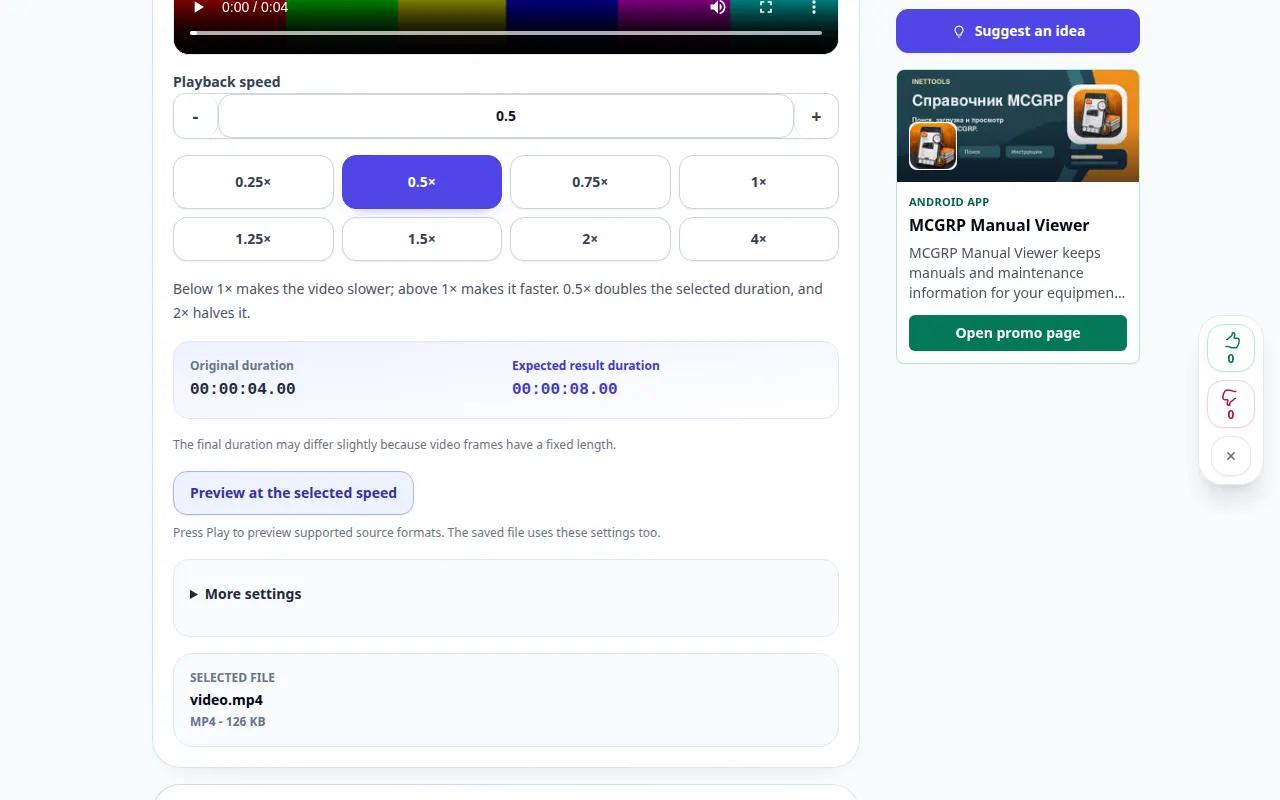
Settings and next action 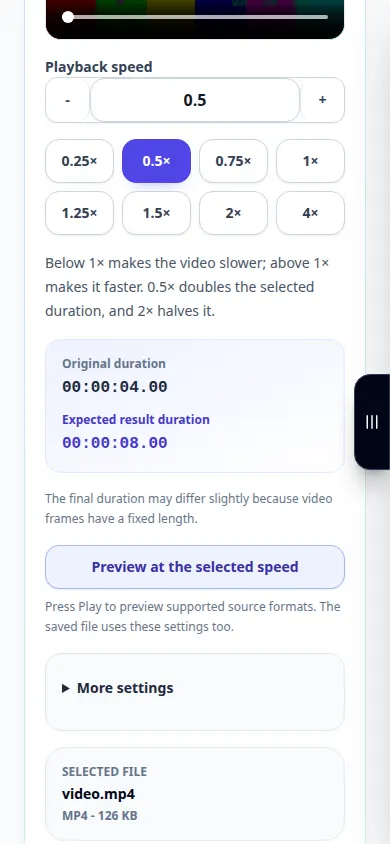
Settings and next action -
To change only part of the video, enable fragment mode and set its start and end. The parts outside this fragment keep their original speed.
-
Choose MP4 or WebM, sound and quality. Review the quoted price and start processing once. The demonstration stops before this paid operation.
-
After processing succeeds, play the result and save it. Check picture, sound and the transitions around a changed fragment.
On a computer
Use the preset speed buttons or enter a custom value from 0.25× to 4×. Preview the chosen fragment before rendering.
On a phone
Choose the video from Files or your gallery. Close the keyboard after entering times and check the preview before starting.
In Safari on iPhone, open the sharing menu and choose Save to Files if the result opens in a new tab. In Android Chrome, check Downloads. Keep this tab open until processing finishes.
For a better result
A preview changes playback in the browser. Only a successful render creates a file with the new speed. Slow motion cannot restore frames missing from the original.
Screenshots and video
Desktop demonstration
This recording shows the source and available settings before the main action. Follow the steps above to start processing and save the result.
Phone demonstration
This recording shows the source and available settings before the main action. Follow the steps above to start processing and save the result.
Questions and troubleshooting
Can I change only one fragment?
Yes. Enable fragment mode and set start and end. The rest of the video retains its original speed.
When are credits charged?
Check the exact quote before starting. Credits are charged only for a verified saved result; the preview itself does not start rendering.
If you see a message that the service is overloaded, wait and try again later. A failed attempt does not mean that your source file has changed.