Guide updated:
Choose two references, describe the shared scene and inspect the saved composition.
Practical instructions with desktop and phone screenshots, short demonstrations and answers to common questions.
Before you start
Prepare two JPG, PNG or WebP references, each up to 20 MB and 24 megapixels. Use only photos you have permission to process. Review the current price and provider-processing notice.
Try with a demonstration file — landscape.png

These small files were created for this guide and contain no personal data.
Step-by-step instructions
-
Choose two reference photos that you have permission to use. Wait for both previews and confirm their order.
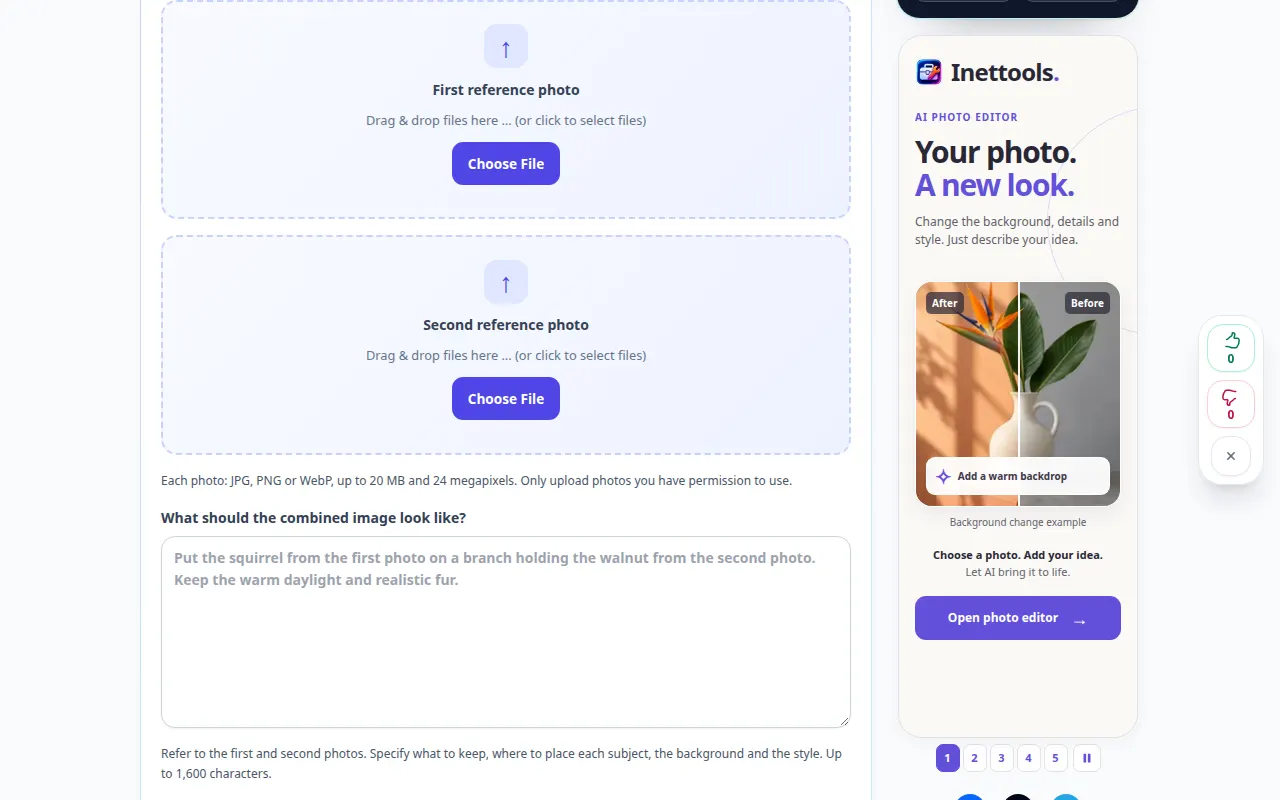
Selecting the source 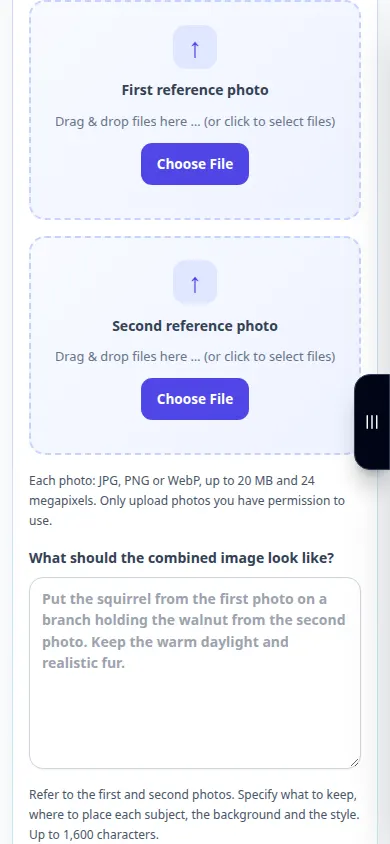
Selecting the source -
Describe how the first and second photos should be combined. State what to keep from each reference and where to place it.
-
Choose an available aspect ratio and quality. Review the current price and the notice about sending both images to an AI provider.
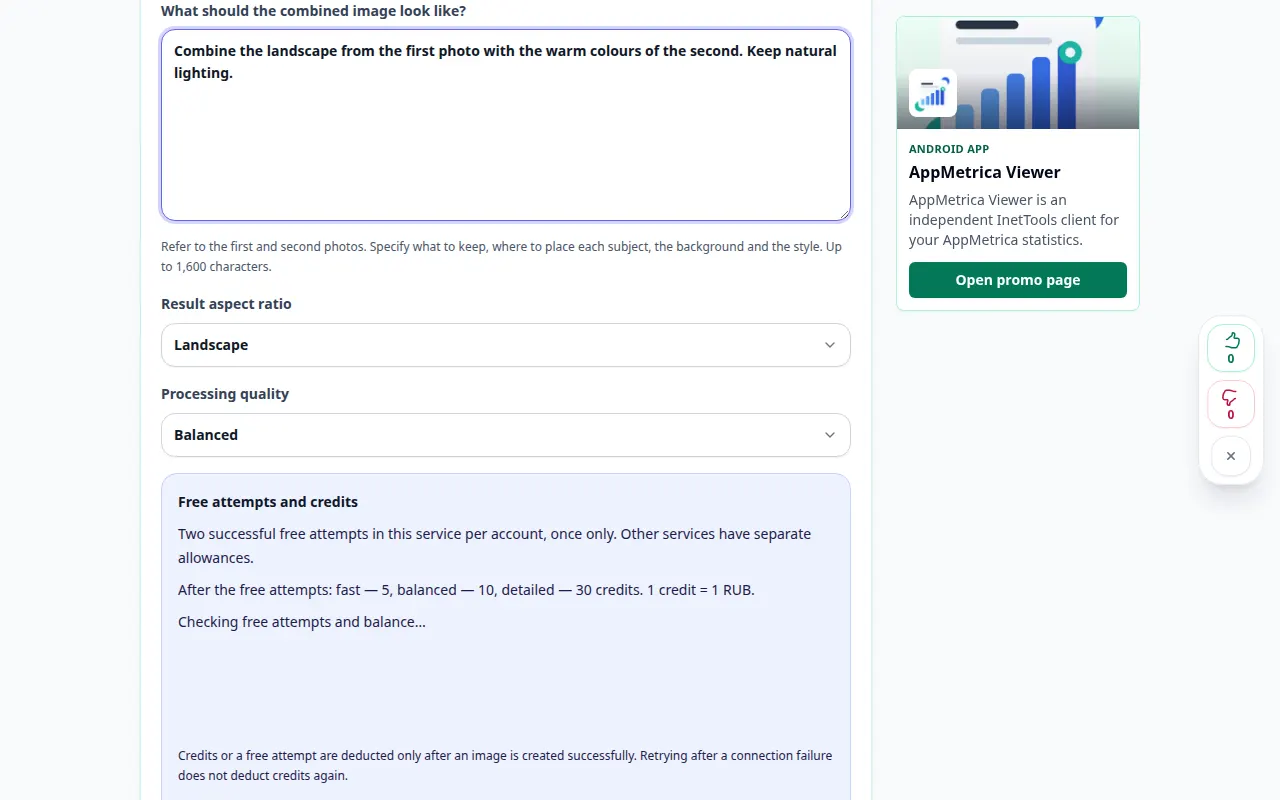
Settings and next action 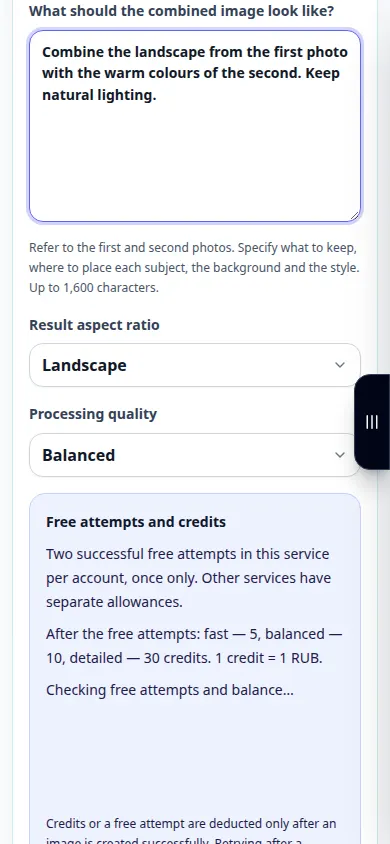
Settings and next action -
Sign in if requested and start composition once. Recover the same request if confirmation is delayed.
-
Inspect the new scene, faces, hands and small objects. AI creates a new composition rather than an exact cut-and-paste of the references.
-
Save the approved image and inspect the file. Keep both originals privately for another composition.
On a computer
Compare the source preview and settings before starting. Inspect the saved image at a useful zoom after processing.
On a phone
Choose photos from the device file picker. Review each preview, then scroll through the settings before starting. Keep the tab open while processing.
In Safari on iPhone, open the sharing menu and choose Save to Files if the result opens in a new tab. In Android Chrome, check Downloads. Keep this tab open until processing finishes.
For a better result
AI can reinterpret faces, objects and lighting. This tool creates a new image; it is not an exact layer compositor.
Screenshots and video
Desktop demonstration
This recording shows the source and available settings before the main action. Follow the steps above to start processing and save the result.
Phone demonstration
This recording shows the source and available settings before the main action. Follow the steps above to start processing and save the result.
Questions and troubleshooting
Does generation keep every original detail?
No. AI may change features and small details. Inspect the result before publishing it.
What if the result is not confirmed?
Use the recovery control with the same reference files and settings. Do not repeatedly start new generations while the original request is uncertain.
If you see a message that the service is overloaded, wait and try again later. A failed attempt does not mean that your source file has changed.