Guide updated:
Turn geographic coordinates into another supported notation and check their location.
Open this guide using the “How to use this tool” link below the tool name. It includes steps, screenshots and videos for computers and phones.
Before you start
Know the source coordinate notation and datum. Do not mix decimal degrees with projected coordinates or silently swap latitude and longitude.
Step-by-step instructions
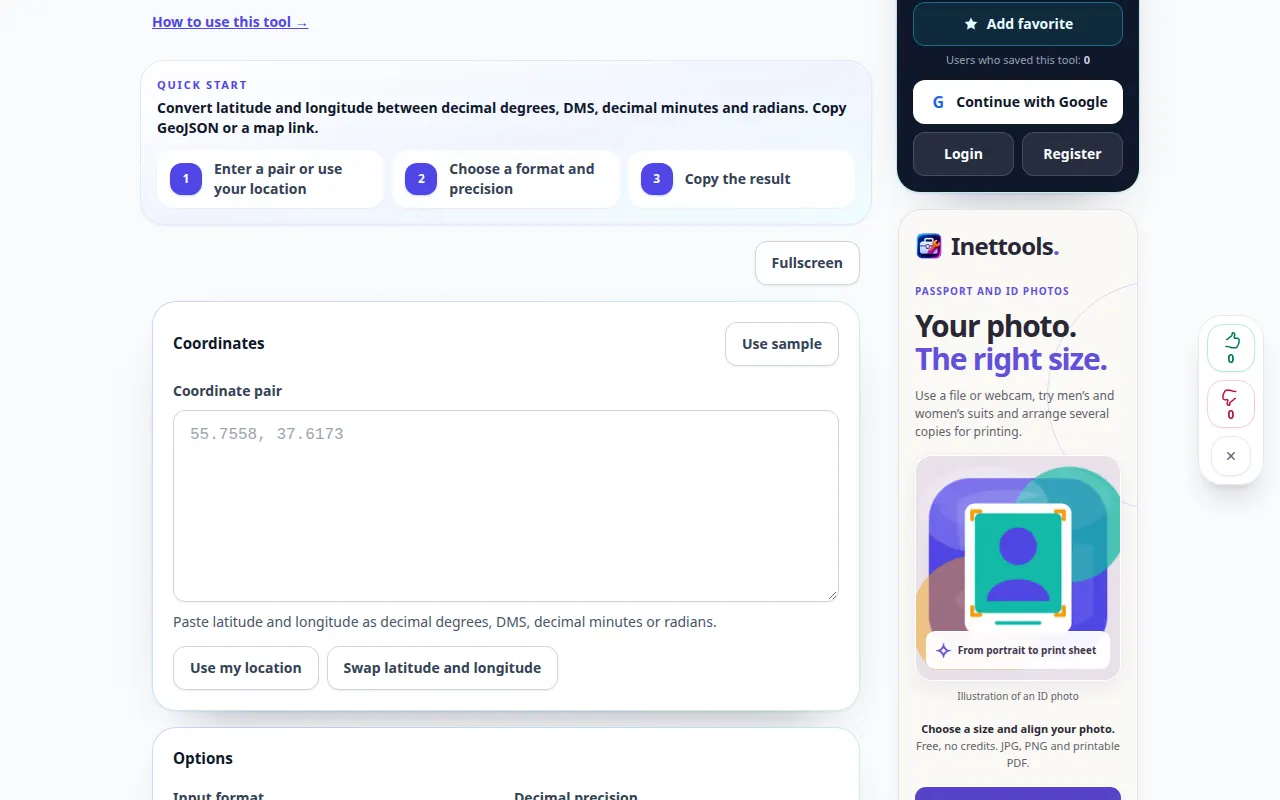
- Open Coordinate Converter and choose the supported input notation.
- Enter latitude and longitude, keeping hemisphere letters or minus signs consistent.
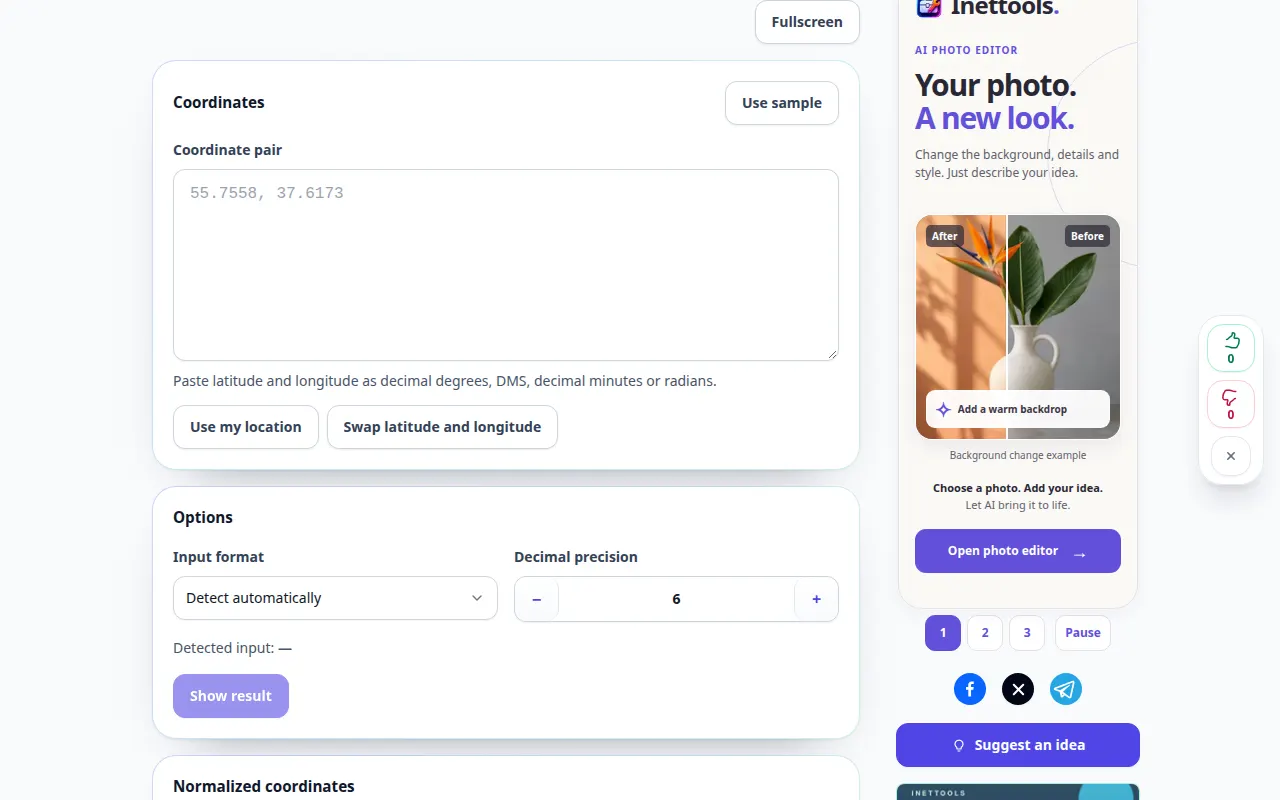
- Select the required output notation and run the conversion if it is not updated automatically.
- Compare the result with the map or geographic context when available. Check the order of the two coordinates.
- Copy the converted values or use the offered export, keeping enough decimal places for the intended use.
On a computer
Keep the input and output visible together to compare symbols, hemispheres and precision before copying.
On a phone
Use the text fields carefully: check decimal separators and minus signs after pasting coordinates from another app.
In Safari on iPhone, open the sharing menu and choose Save to Files if the result opens in a new tab. In Android Chrome, check Downloads. Keep this tab open until processing finishes.
For a better result
Latitude ranges from −90 to 90 degrees and longitude from −180 to 180. A plausible number can still point to the wrong place if the axes are swapped.
Screenshots and video
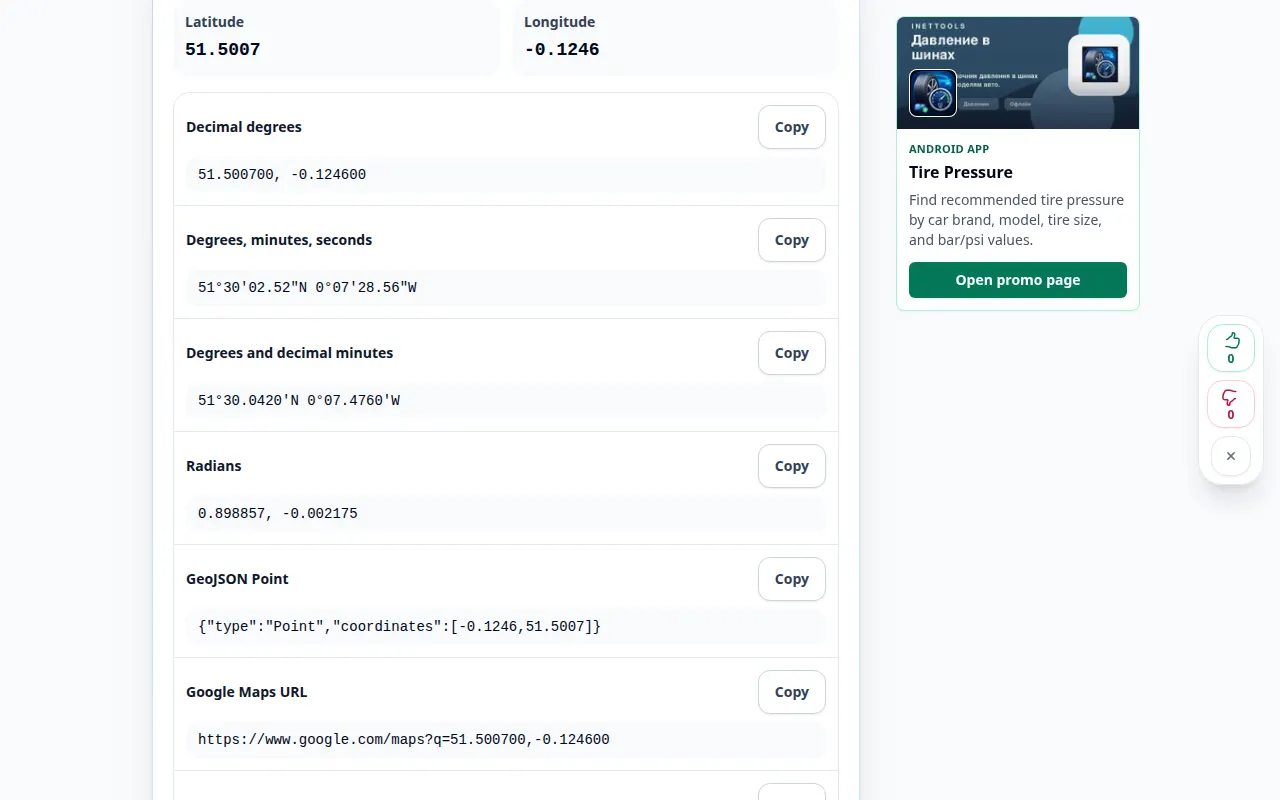
Desktop demonstration
The recording shows the English interface. Follow the translated steps above; the controls are in the same order. This recording shows a demonstration input and the resulting output in the tool.
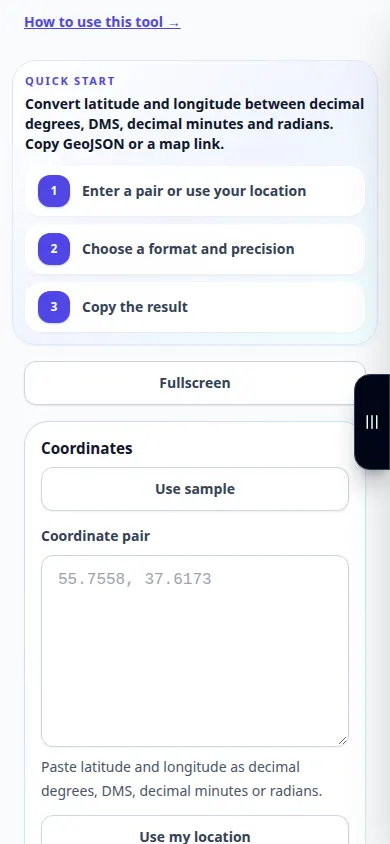
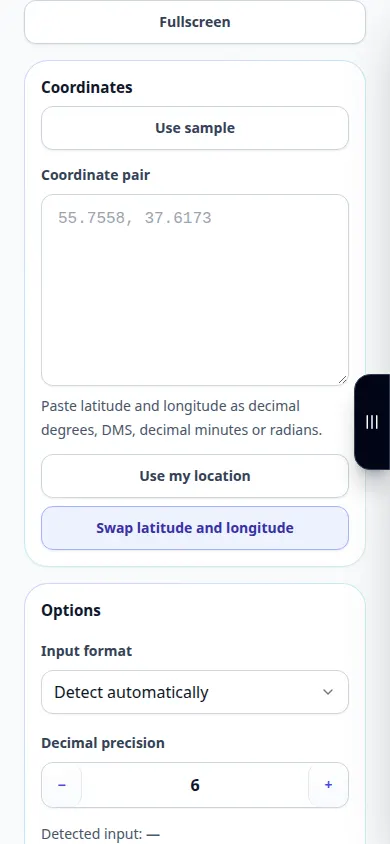
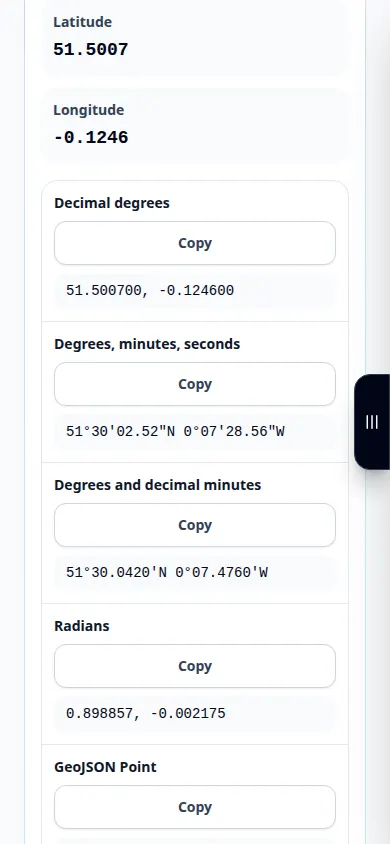
Phone demonstration
The recording shows the English interface. Follow the translated steps above; the controls are in the same order. This recording shows a demonstration input and the resulting output in the tool.
Questions and troubleshooting
Why does the result point to another country?
Check coordinate order, minus signs, hemispheres and the selected source notation.
Does more decimal precision make a measurement accurate?
No. Additional digits describe a smaller interval but do not improve the accuracy of the original measurement.
If you see a message that the service is overloaded, wait and try again later. A failed attempt does not mean that your source file has changed.