Guide updated:
Convert a DOC file to PDF, review the settings and check the saved copy.
Practical instructions with desktop and phone screenshots, short demonstrations and answers to common questions.
Before you start
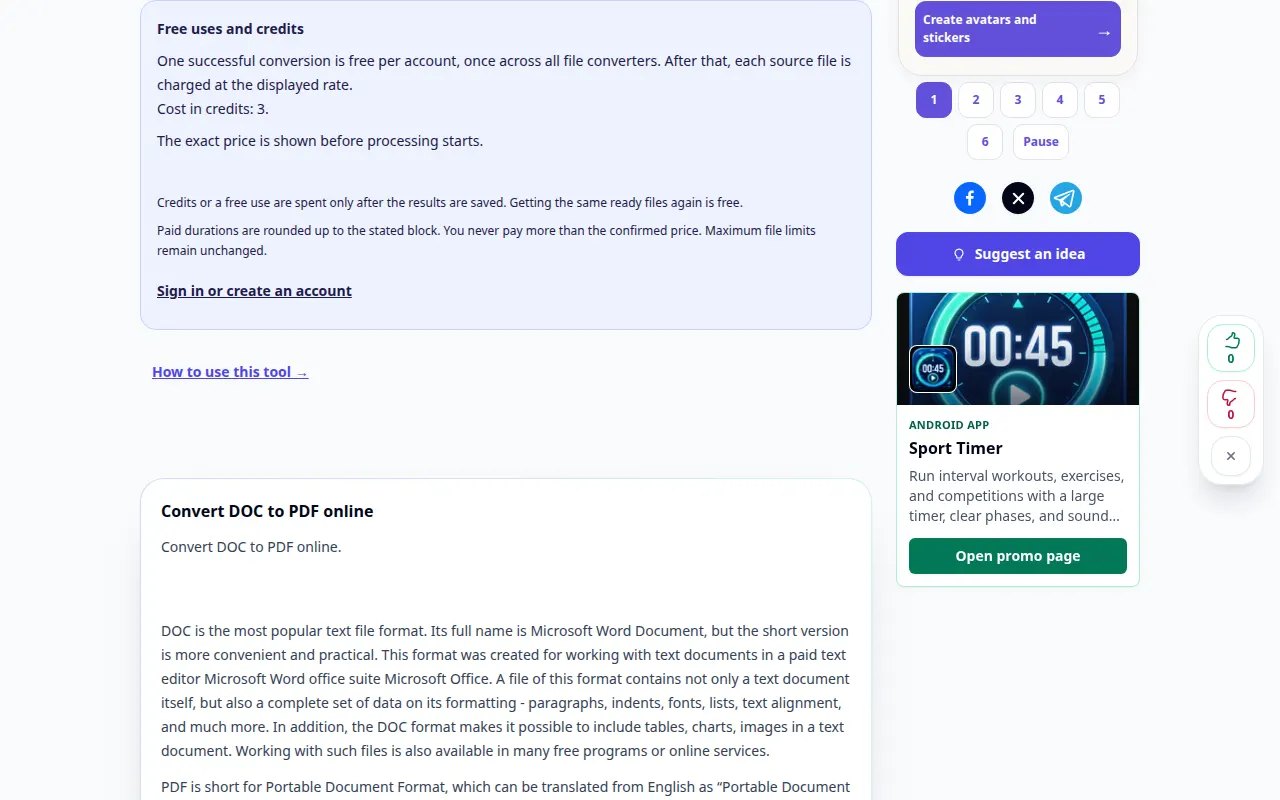
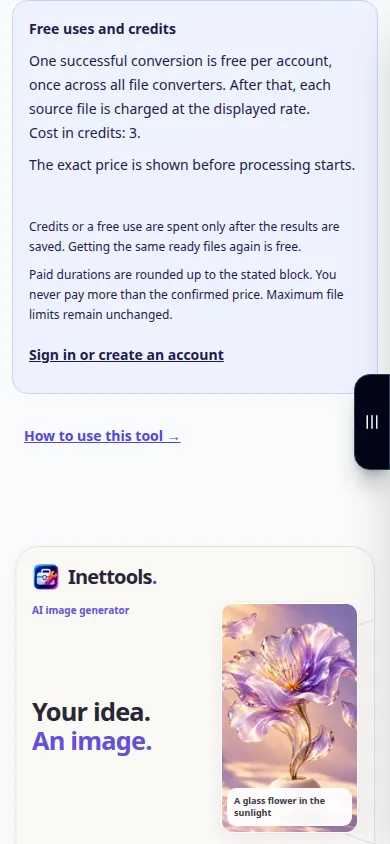
Keep the DOC original. The file is sent to the server for conversion. Read the current price and file limits before selecting it.
Step-by-step instructions
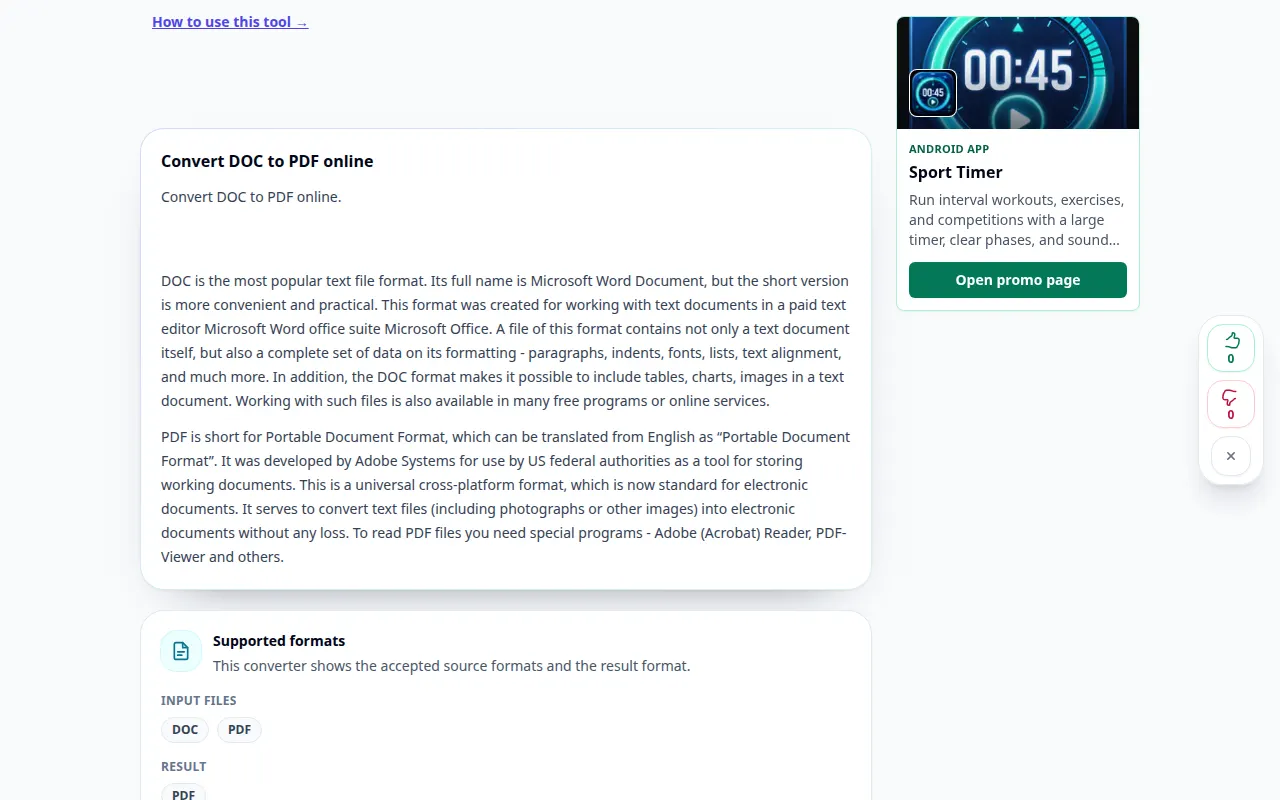
- Open the converter and check that the direction is DOC to PDF.
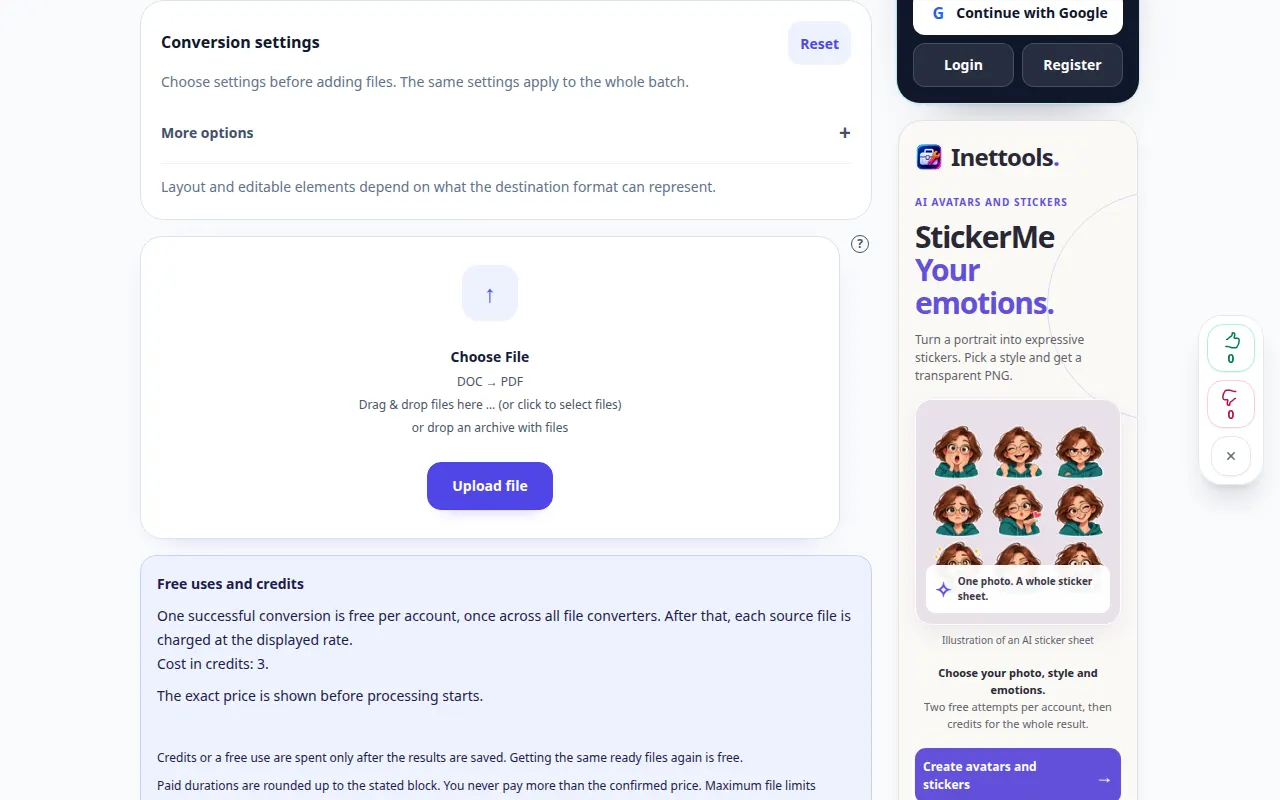
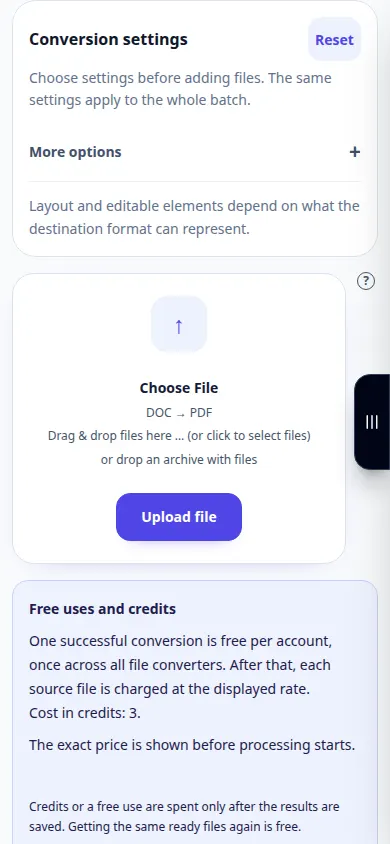
- Review the available conversion settings before choosing a file. Only options shown on this page apply to this conversion.
- Choose a small DOC file from your device. Selecting a file starts upload and conversion; do not select it until you are ready.
- If a price confirmation appears, review it before continuing. Wait for upload, the queue and conversion to finish; keep the tab open.
- When the result appears, save the PDF copy. Open it in the application where you intend to use it and compare it with the original.
On a computer
Review the settings above the file picker. Choose one file first and inspect its result before processing a batch.
On a phone
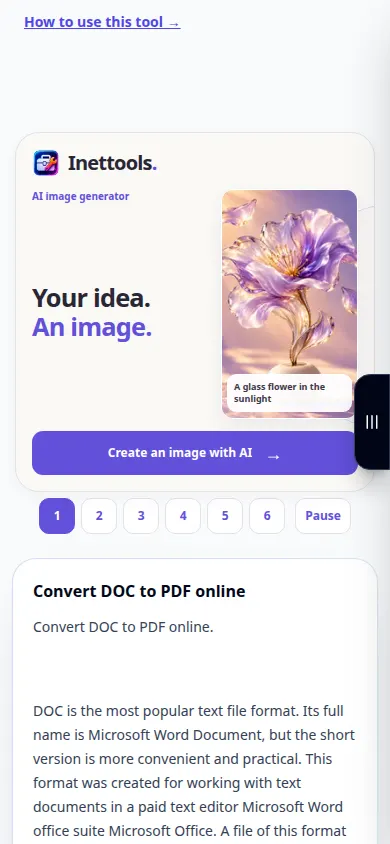
Choose the file from Files or the device file manager. Scroll to the result and keep the browser tab open until conversion finishes.
In Safari on iPhone, open the sharing menu and choose Save to Files if the result opens in a new tab. In Android Chrome, check Downloads. Keep this tab open until processing finishes.
For a better result
Check fonts, tables and page breaks in the saved PDF, especially in older Word documents.
Screenshots and video
Desktop demonstration
This recording shows the source and available settings before the main action. Follow the steps above to start processing and save the result.
Phone demonstration
This recording shows the source and available settings before the main action. Follow the steps above to start processing and save the result.
Questions and troubleshooting
Does this replace my original file?
No. The converted file is a separate copy. Keep the original on your device.
Why is there no result yet?
Check the upload status and queue. If an error appears, read its message and verify the source format before trying again.
If you see a message that the service is overloaded, wait and try again later. A failed attempt does not mean that your source file has changed.