Guide updated:
Describe a change to a photo, review the processing options and compare the generated result.
Practical instructions with desktop and phone screenshots, short demonstrations and answers to common questions.
Before you start
Prepare a photo you have permission to edit. Sign in when requested and review the displayed quality, price and available attempts.
Try with a demonstration file — landscape.png
These small files were created for this guide and contain no personal data.
Step-by-step instructions
- Open the photo editor and select the original image.
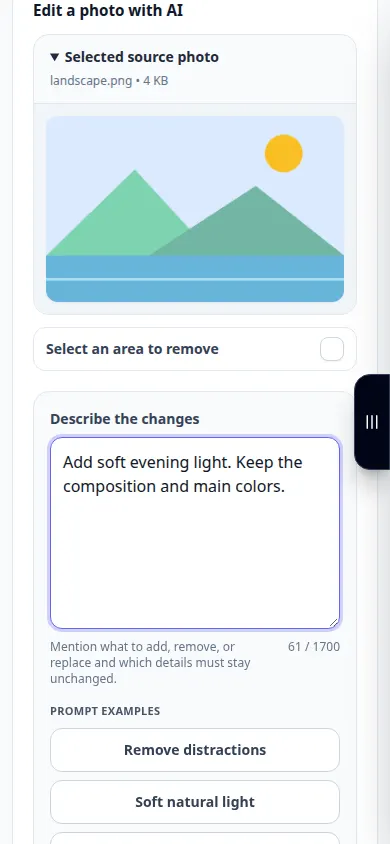
- Describe the desired change clearly: name the subject, the area to change and the details that should remain.
- Choose an available quality option and review the displayed charge or free allowance.
- Confirm generation and wait for the result. If the service is overloaded, retry later rather than sending repeated requests.
- Compare the result with the source, especially faces and text. Save the image or continue editing using the result controls.
On a computer
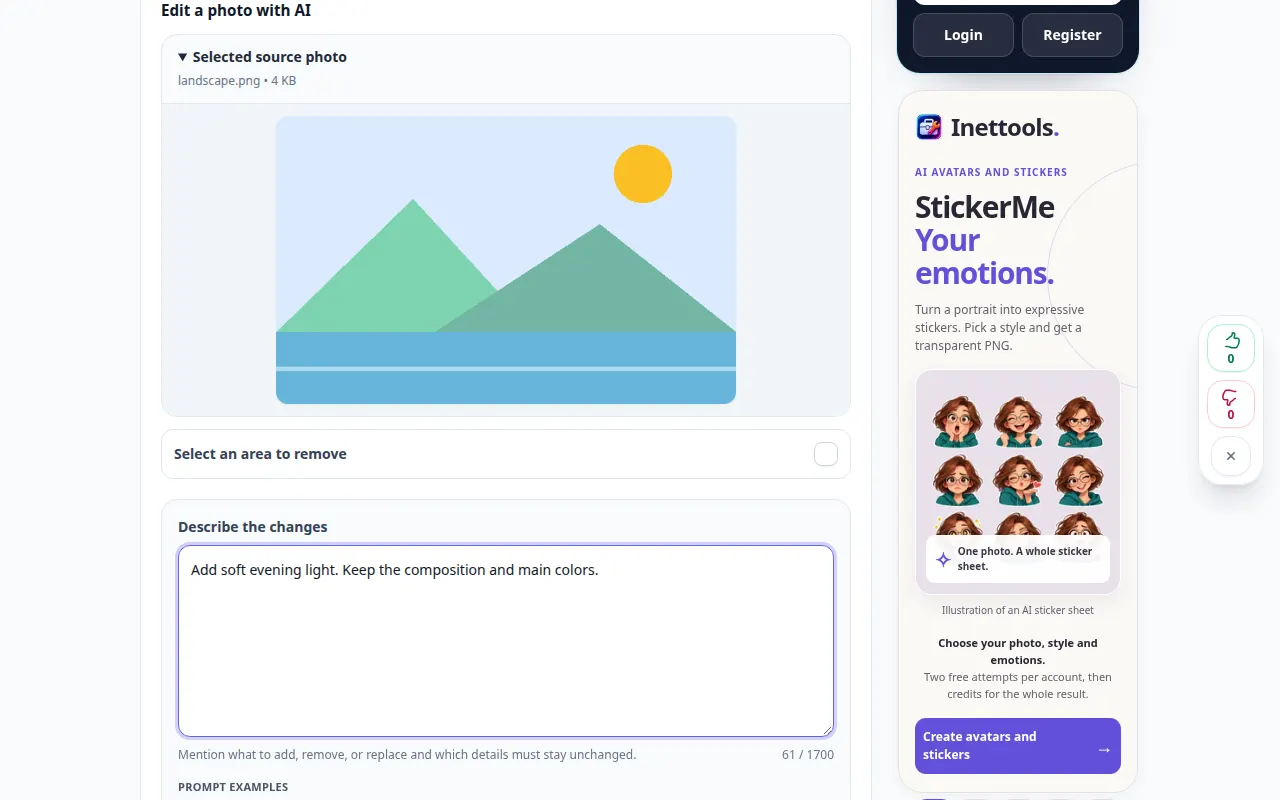
Use the full-width working panel to compare the source, settings and result. Keep the original file so you can try another setting without replacing it.
On a phone
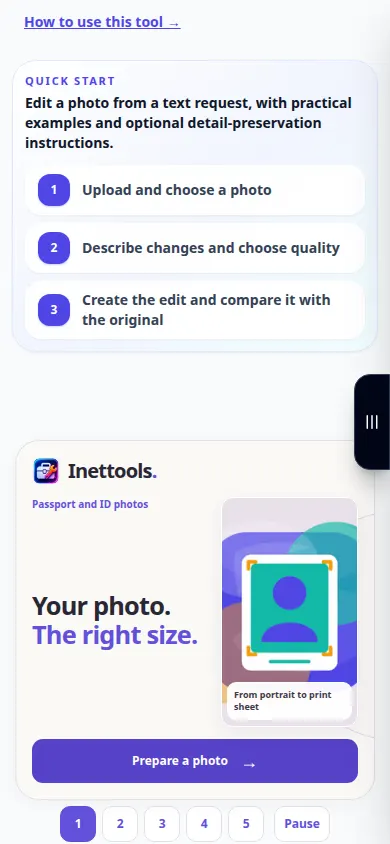
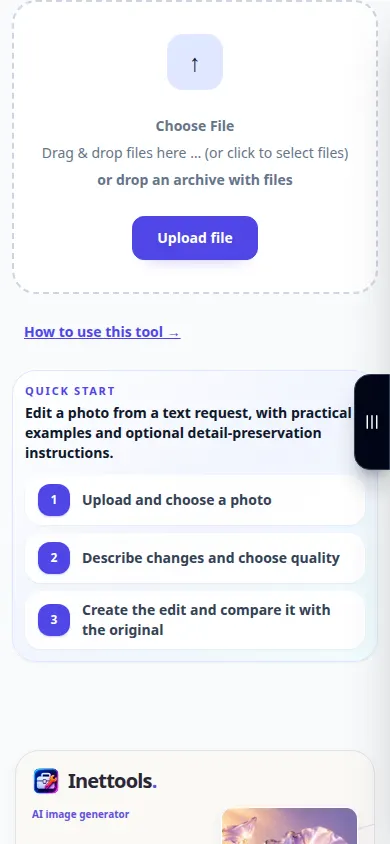
Choose the source from Files or your device file manager. Scroll down to the settings and result; keep this tab open until the operation finishes.
In Safari on iPhone, open the sharing menu and choose Save to Files if the result opens in a new tab. In Android Chrome, check Downloads. Keep this tab open until processing finishes.
For a better result
Ask for one clear change at a time. A precise description helps, but generated details still need checking.
Screenshots and video
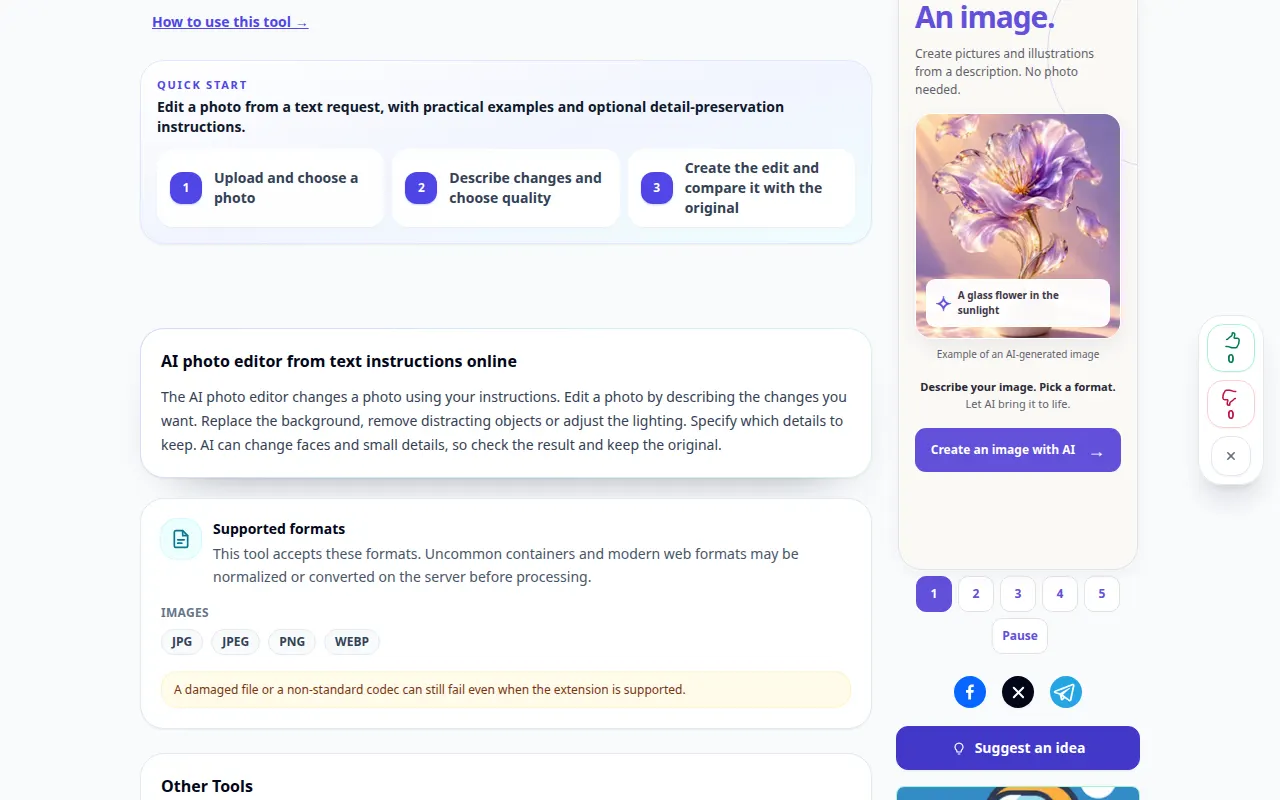
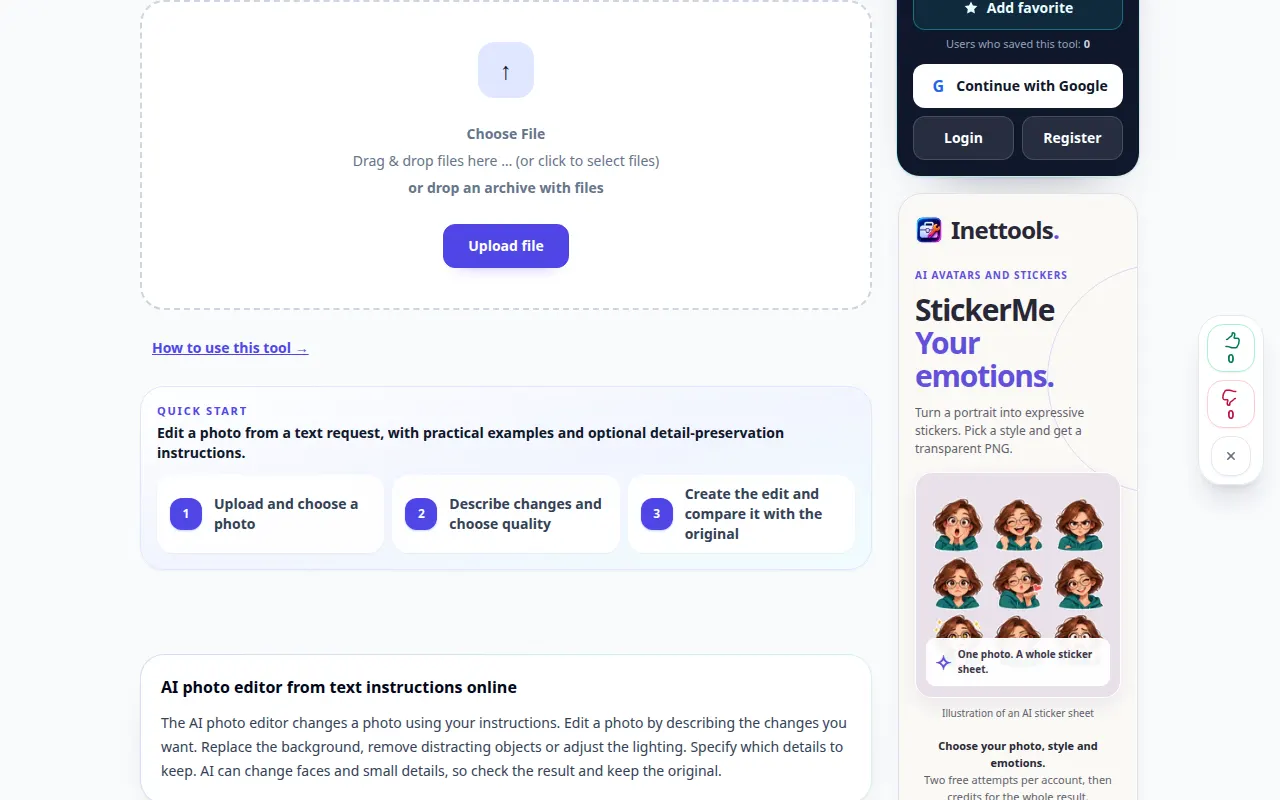
Desktop demonstration
The recording shows the English interface. Follow the translated steps above; the controls are in the same order. This recording shows the source and available settings before the main action. Follow the steps above to start processing and save the result.
Phone demonstration
The recording shows the English interface. Follow the translated steps above; the controls are in the same order. This recording shows the source and available settings before the main action. Follow the steps above to start processing and save the result.
Questions and troubleshooting
Why did an unrelated detail change?
The editor generates an updated image and may reinterpret surrounding content. Make the instruction more specific and compare each result.
Does a failed request consume a successful attempt?
An error should not consume a successful generation or its reserved credits. Check the restored result before starting a separate request.
If you see a message that the service is overloaded, wait and try again later. A failed attempt does not mean that your source file has changed.