Guide updated:
Normalize a demonstration email list with explicit provider options.
Practical instructions with desktop and phone screenshots, short demonstrations and answers to common questions.
Before you start
Open the tool in a current browser. The demonstrated operation runs locally on your device and needs no account or credits. Use the public example values below.
Step-by-step instructions
- Open the tool using the button next to the video. Keep the default mode unless the next step specifies a different one.
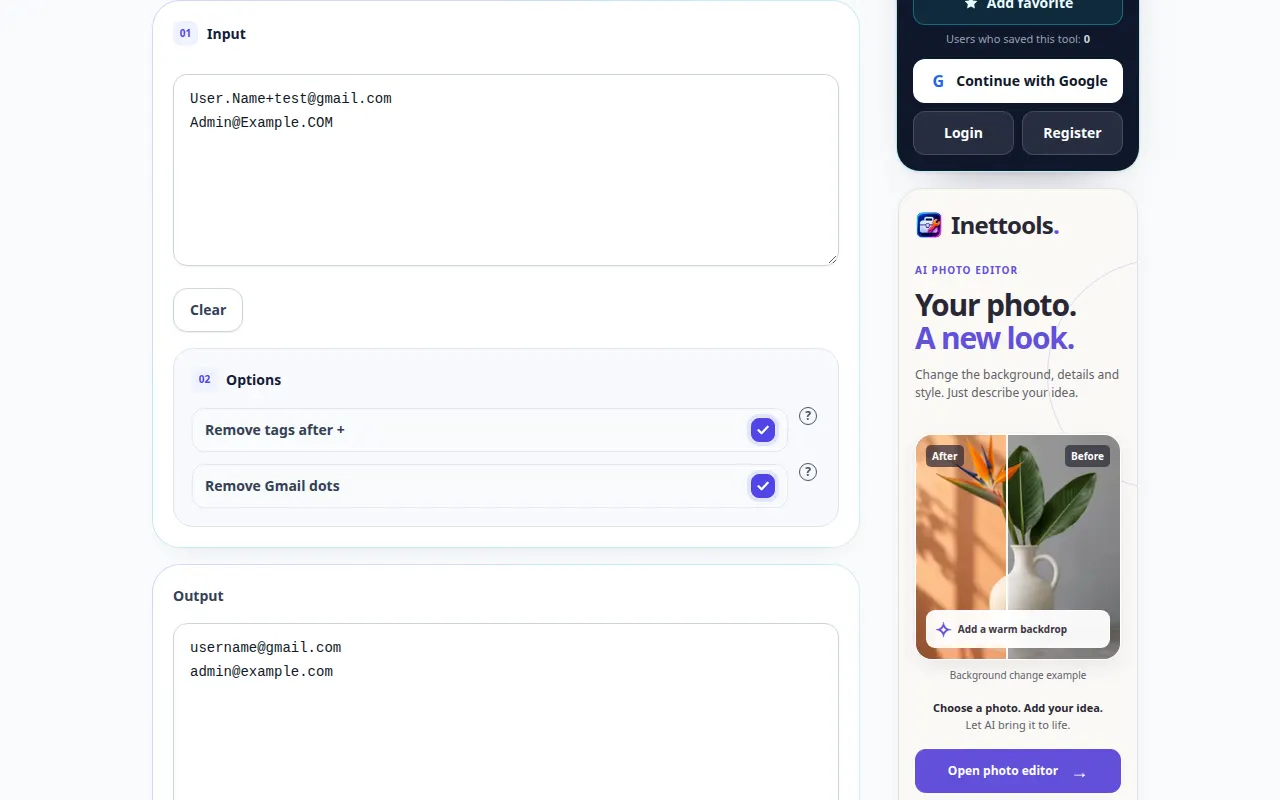
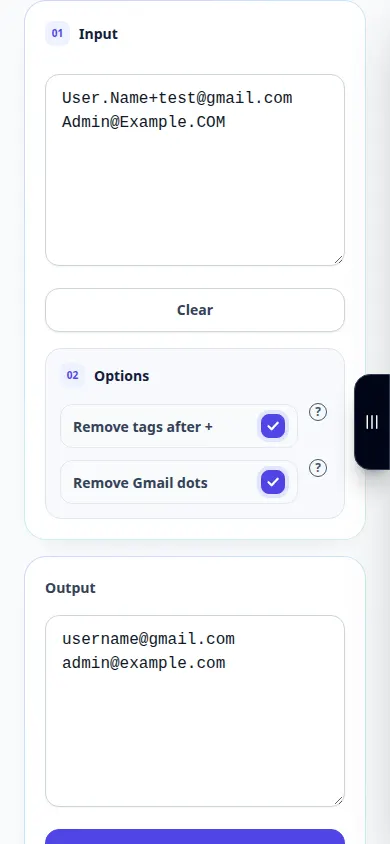
- Enter User.Name+demo@gmail.com and inspect the normalized result with the displayed Gmail options.
- Inspect the result shown below the inputs. If the tool has an action button, press it after editing; live converters update as you type.
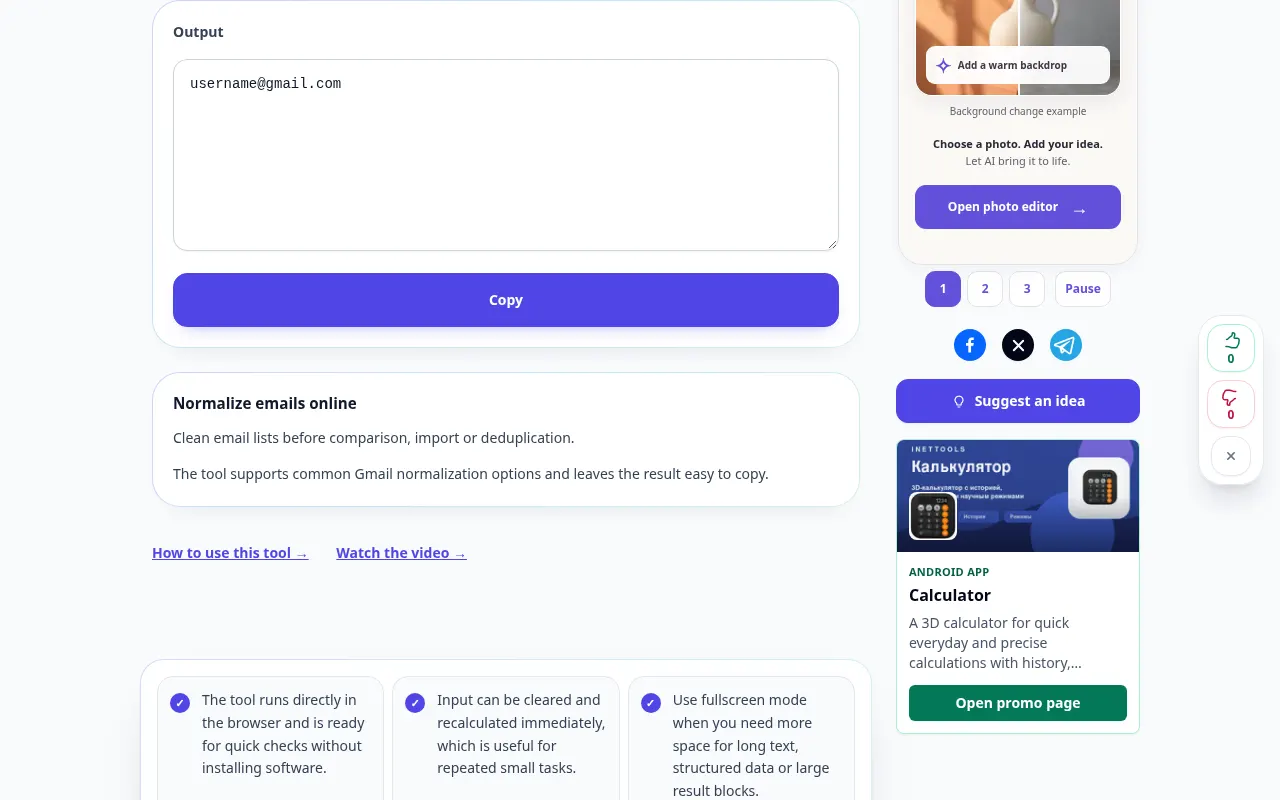
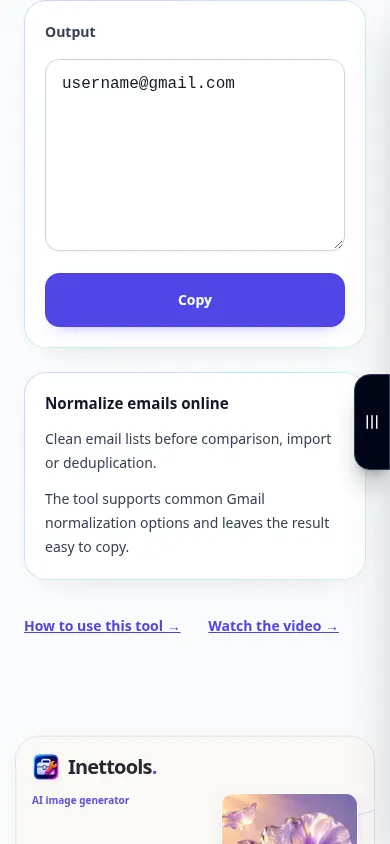
- Copy or export the result using the controls provided by this tool. Check the output before using it in another application.
- Provider-specific dot and plus-tag rules do not apply to every domain. Normalizing an address does not verify delivery or account ownership.
On a computer
Use the keyboard to enter the example values. Review the options, then inspect the output and use Copy or an export action when available.
On a phone
Tap the input field and enter the example. Close the on-screen keyboard to review the options and result; keep the tab open until you finish.
In Safari on iPhone, open the sharing menu and choose Save to Files if the result opens in a new tab. In Android Chrome, check Downloads. Keep this tab open until processing finishes.
For a better result
Provider-specific dot and plus-tag rules do not apply to every domain. Normalizing an address does not verify delivery or account ownership.
Screenshots and video
Desktop demonstration
This recording shows a demonstration input and the resulting output in the tool.
Phone demonstration
This recording shows a demonstration input and the resulting output in the tool.
Questions and troubleshooting
Does this demonstration use my real data?
No. The recording uses public example values created for the guide. The service operates on the input you enter in your own browser.
What should I check before relying on the result?
Provider-specific dot and plus-tag rules do not apply to every domain. Normalizing an address does not verify delivery or account ownership.
If you see a message that the service is overloaded, wait and try again later. A failed attempt does not mean that your source file has changed.