Guide updated:
Read text with the intended character encoding and prepare a correctly encoded copy.
Open this guide using the “How to use this tool” link below the tool name. It includes steps, screenshots and videos for computers and phones.
Before you start
Keep the original bytes. A file already saved with replacement characters may have lost information.
Try with a demonstration file — text-utf8.txt
These small files were created for this guide and contain no personal data.
Step-by-step instructions
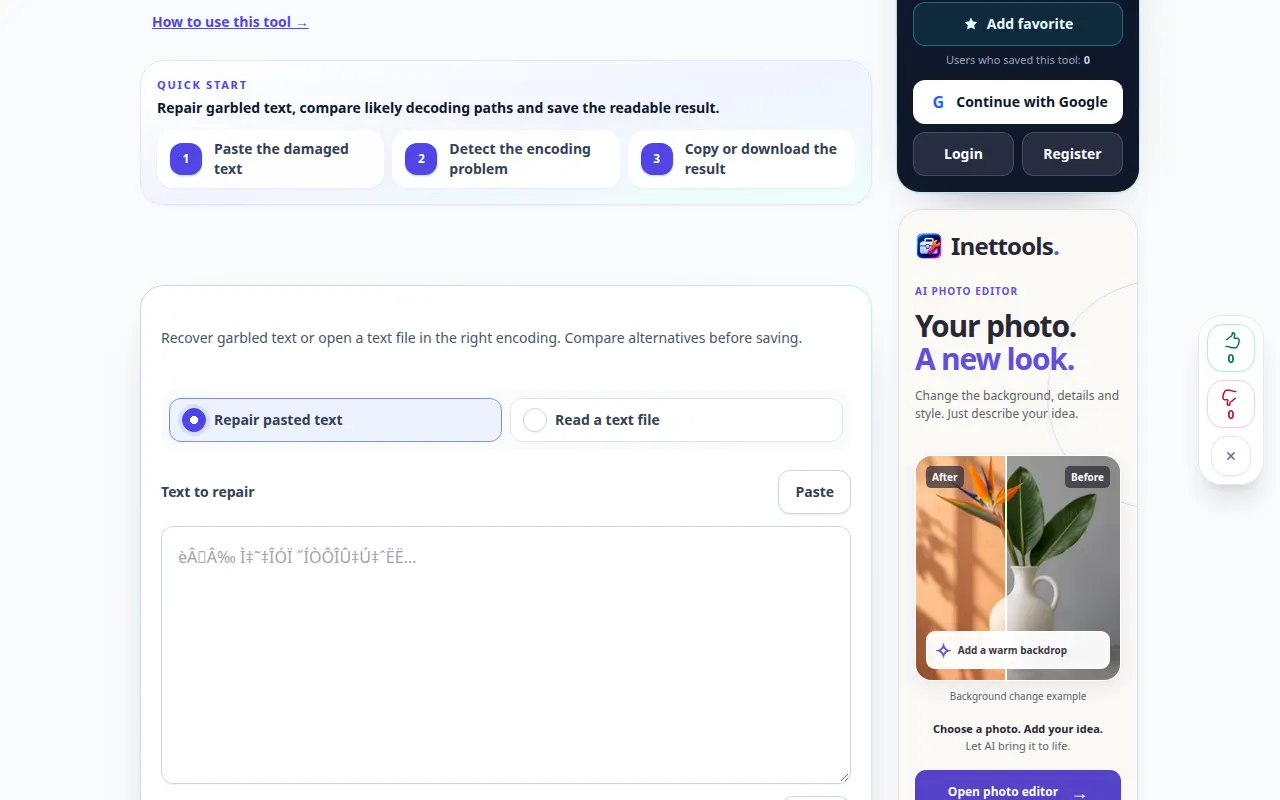
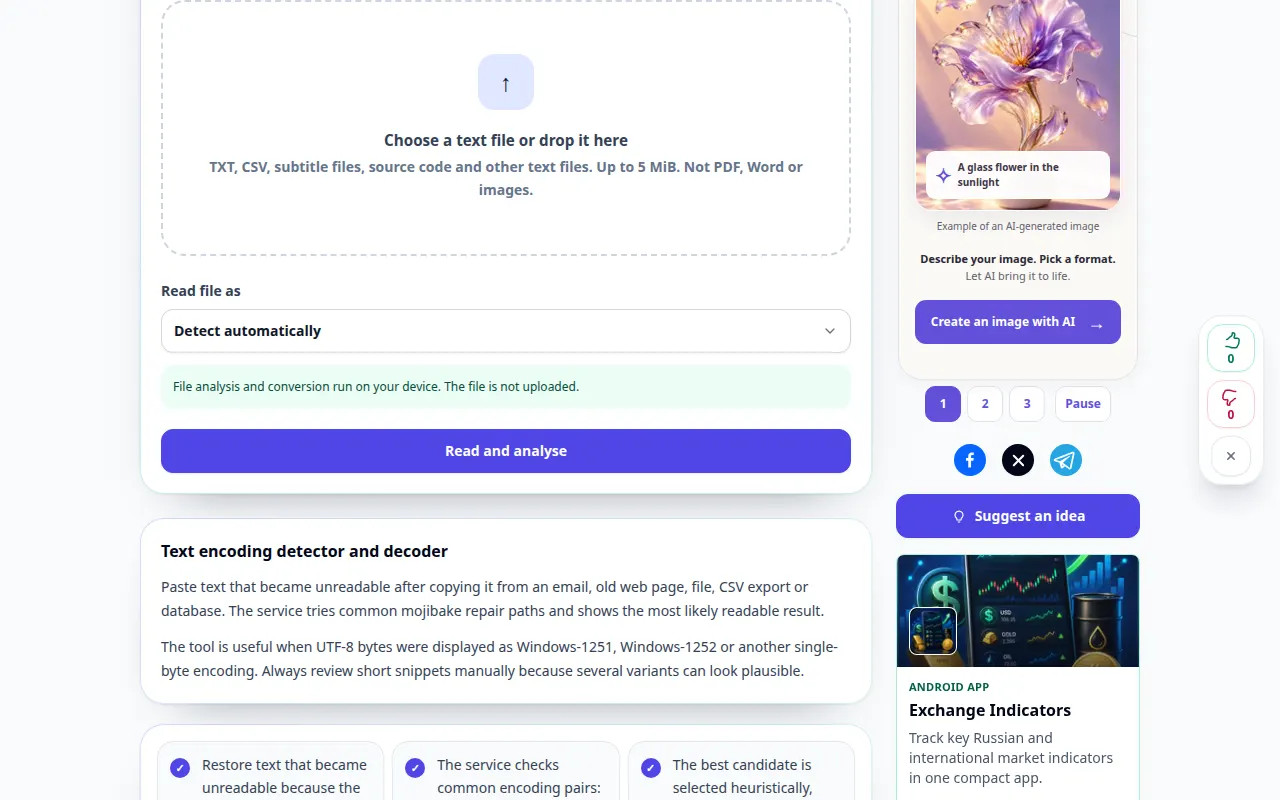
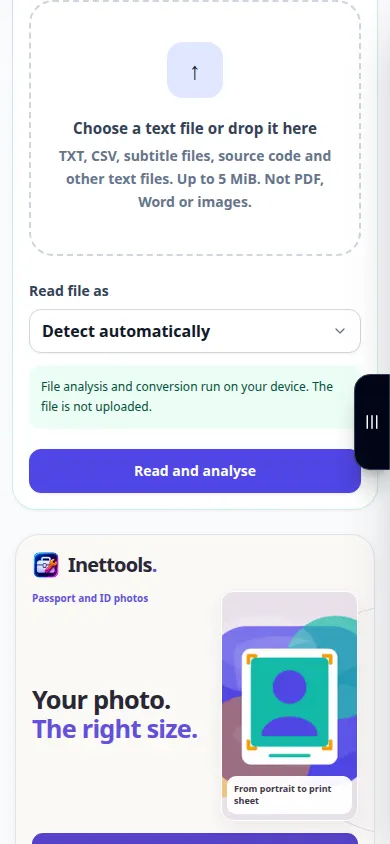
- Open the encoding tool and choose the available file or text input.
- Select the source encoding when you know it, or compare the offered detection results.
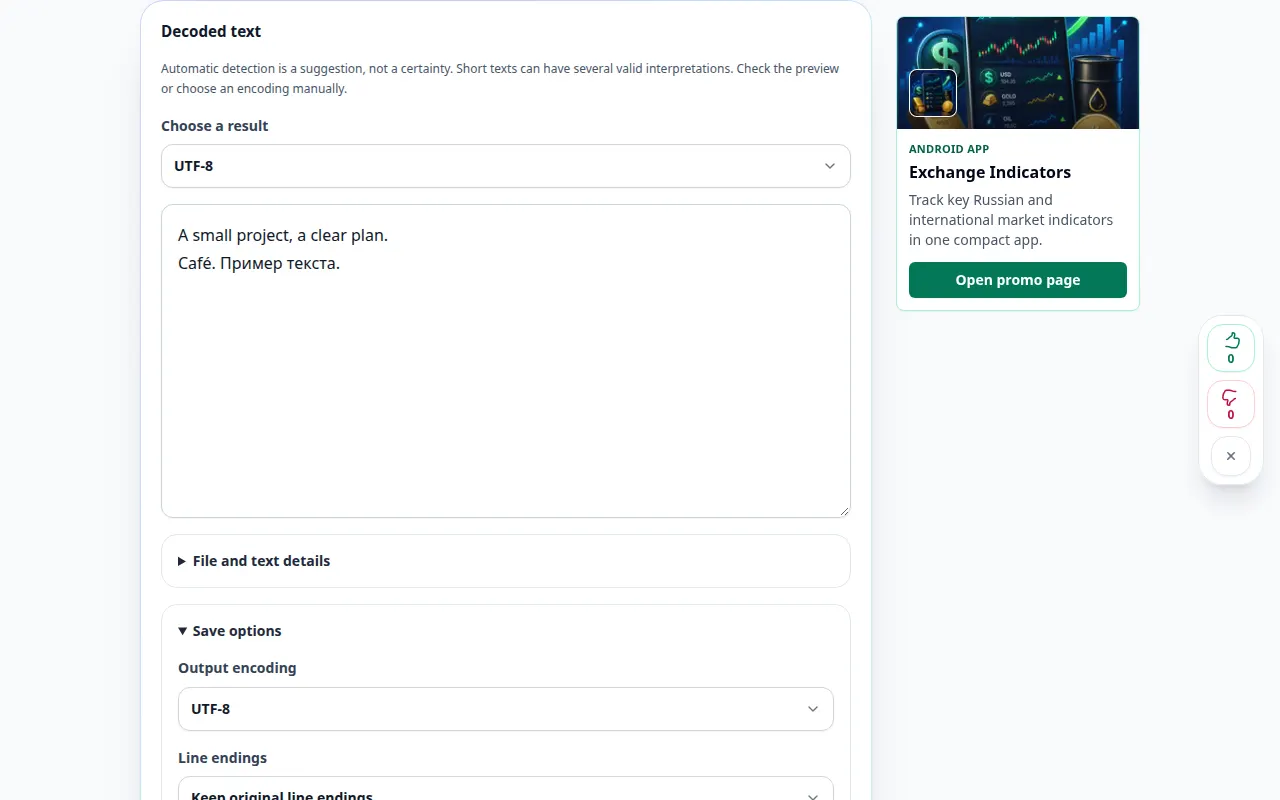
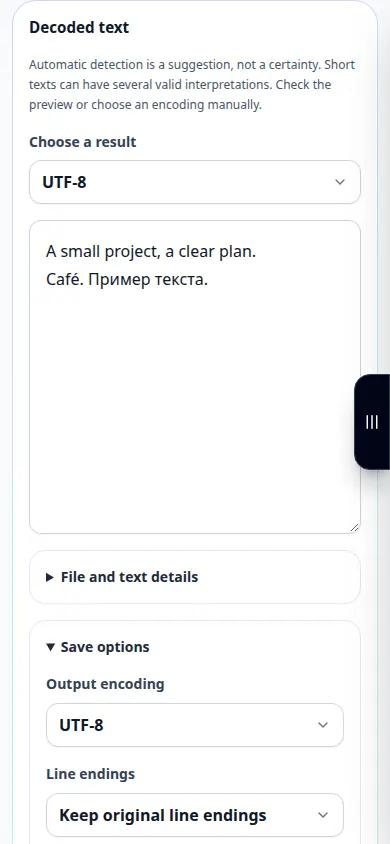
- Inspect accented or non-Latin words to see whether they are readable.
- Open Export options in the result, choose the target encoding and review line endings or other available export settings.
- Copy or save the result, reopen it with the intended encoding, and compare a few lines with the source.
On a computer
Compare source and result side by side and inspect a line containing accented or non-Latin characters.
On a phone
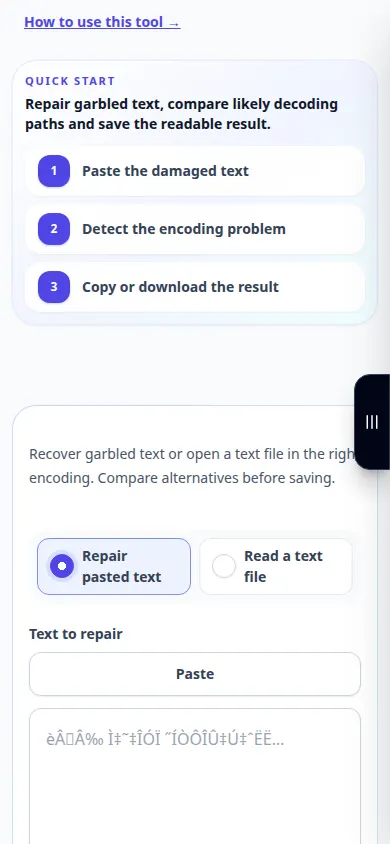
Paste a short representative section first. Check the keyboard language and the chosen encoding before copying the full result.
In Safari on iPhone, open the sharing menu and choose Save to Files if the result opens in a new tab. In Android Chrome, check Downloads. Keep this tab open until processing finishes.
For a better result
An encoding guess is not proof. Compare familiar words and punctuation before saving over an original.
Screenshots and video
Desktop demonstration
The recording shows the English interface. Follow the translated steps above; the controls are in the same order. This recording shows a demonstration input and the resulting output in the tool.
Phone demonstration
The recording shows the English interface. Follow the translated steps above; the controls are in the same order. This recording shows a demonstration input and the resulting output in the tool.
Questions and troubleshooting
Why do question marks remain after conversion?
The original bytes may already have been replaced when the text was saved incorrectly. Try an earlier untouched copy.
Is this the same as fixing a keyboard layout?
No. Encoding describes bytes and characters; keyboard-layout correction changes characters typed with the wrong keyboard mapping.
If you see a message that the service is overloaded, wait and try again later. A failed attempt does not mean that your source file has changed.