Guide updated:
Save a video soundtrack as a separate audio file for listening or further editing, on a computer or phone.
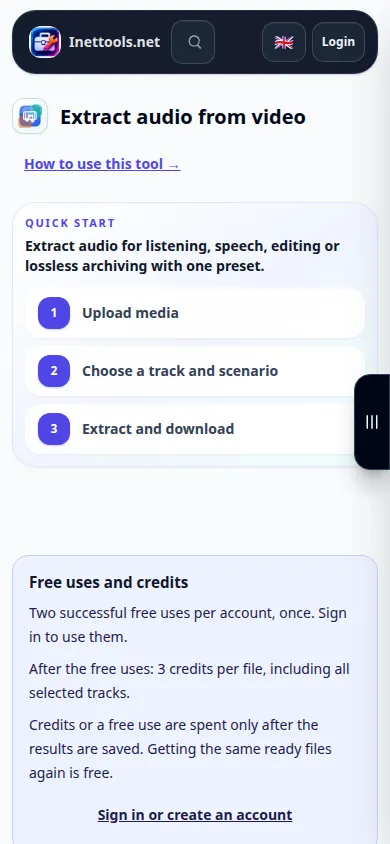
Open this guide using the “How to use this tool” link below the tool name. It includes steps, screenshots and videos for computers and phones.
Before you start
Prepare a video with an audio track. A silent video cannot yield sound. Keep the original and sign in if the tool asks before processing; review any confirmation shown on the page.
These small files were created for this guide and contain no personal data.
Step-by-step instructions
- Open the audio extraction tool and choose the video file from your device.
- Wait for the source to load. Check that the file name and duration match the video you intended to use.
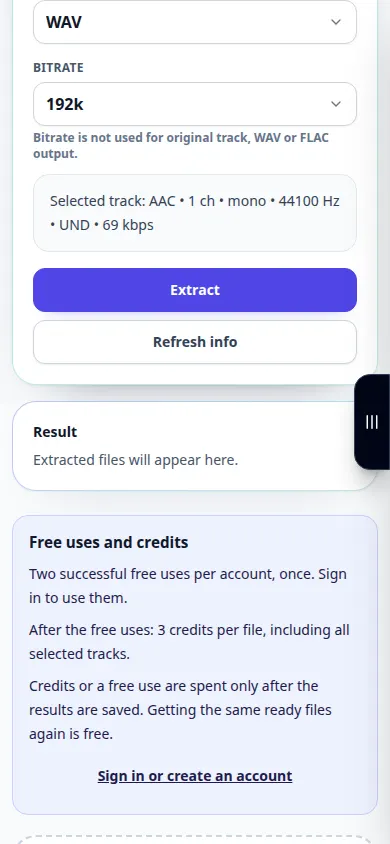
- Choose an available audio output format. MP3 is convenient for listening; WAV is useful for further editing when offered.
- Start extraction, confirm any displayed processing terms and wait for the result. Leave the tab open until the operation finishes.
- Play the resulting audio and save it to your device using the result download control.
On a computer
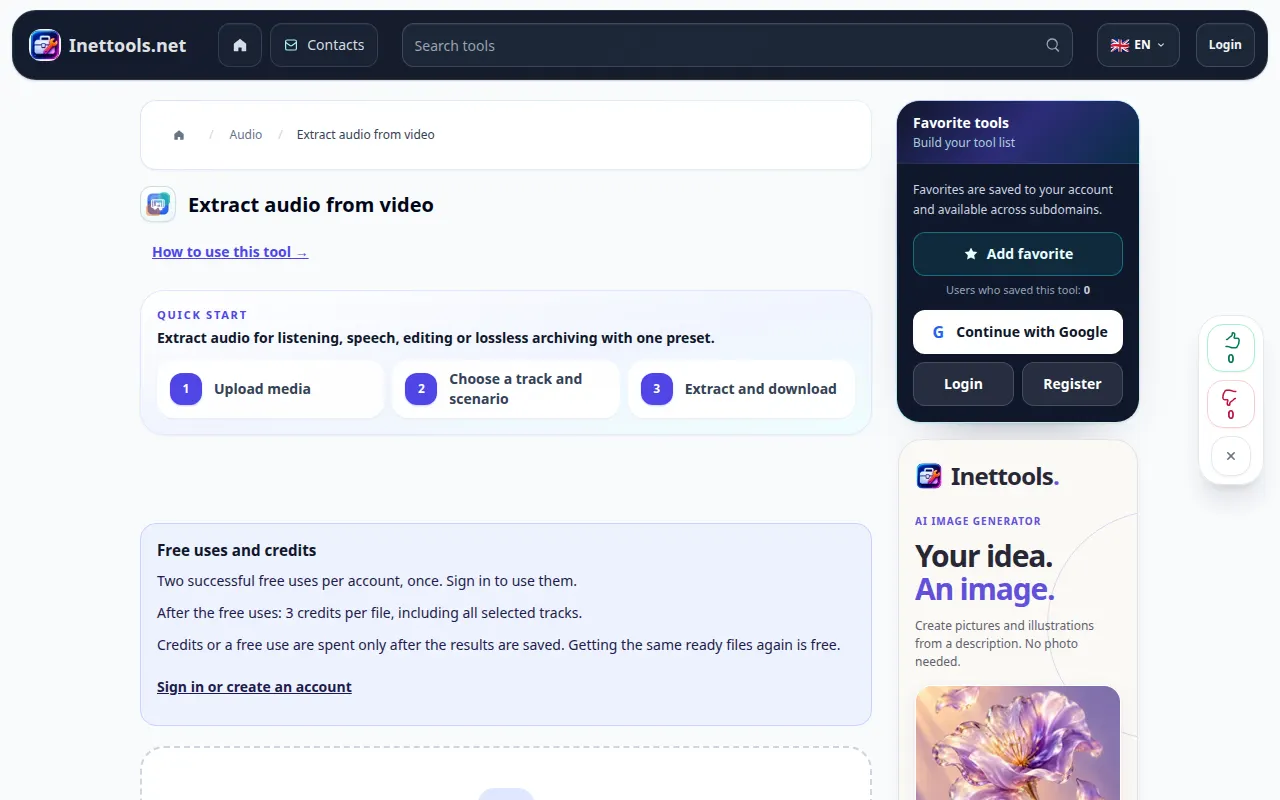
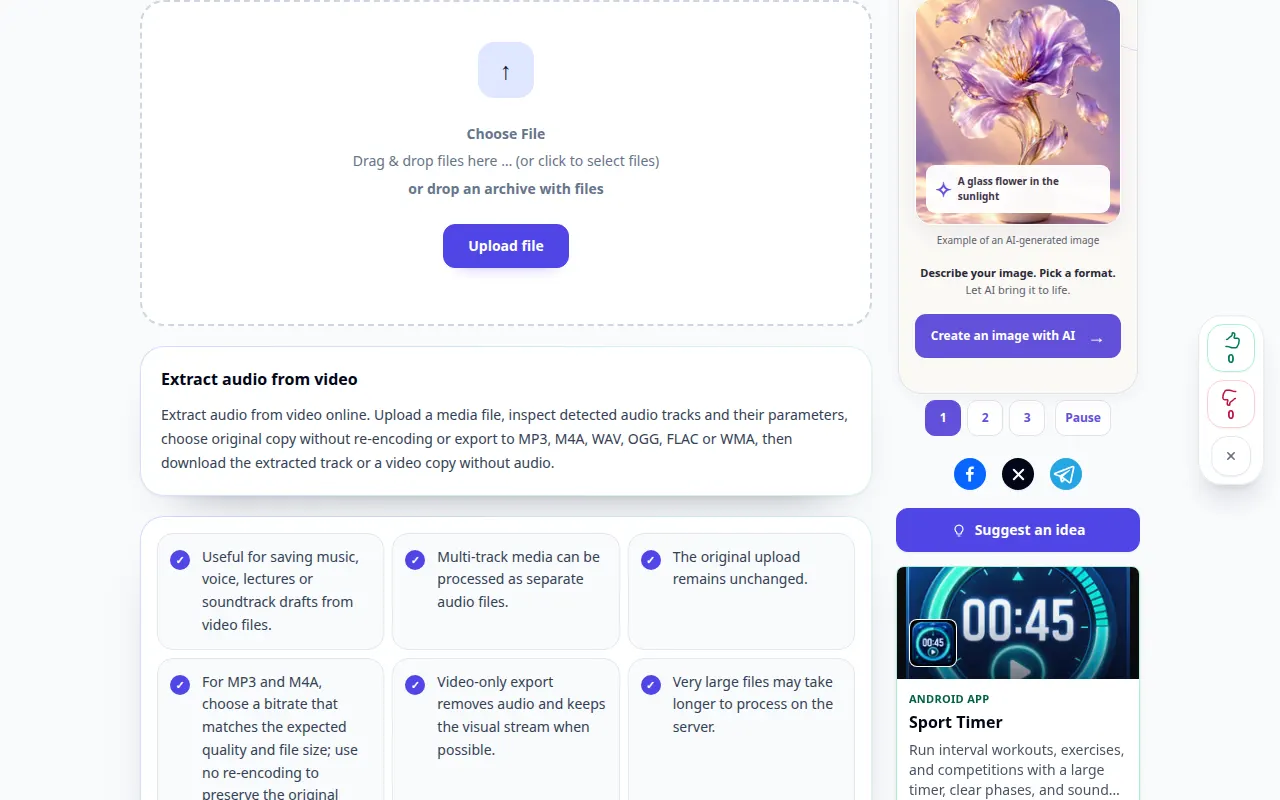
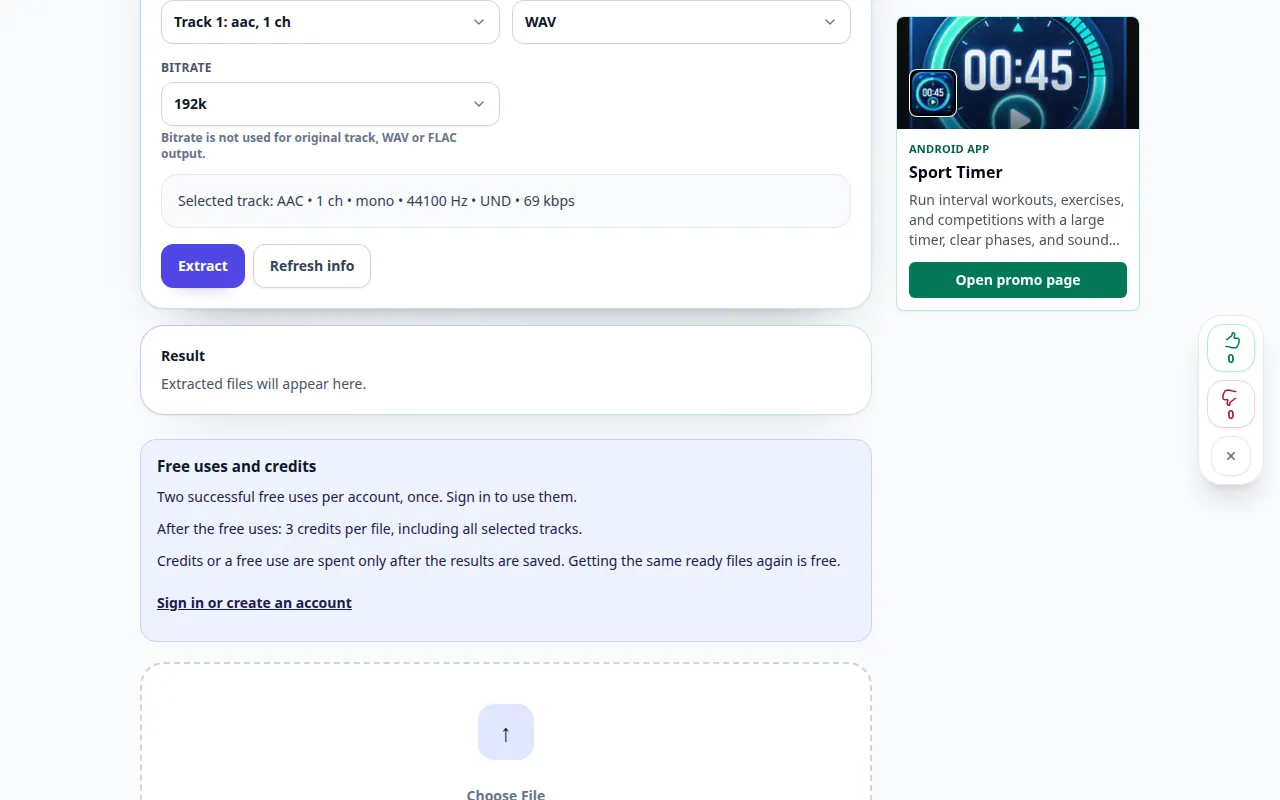
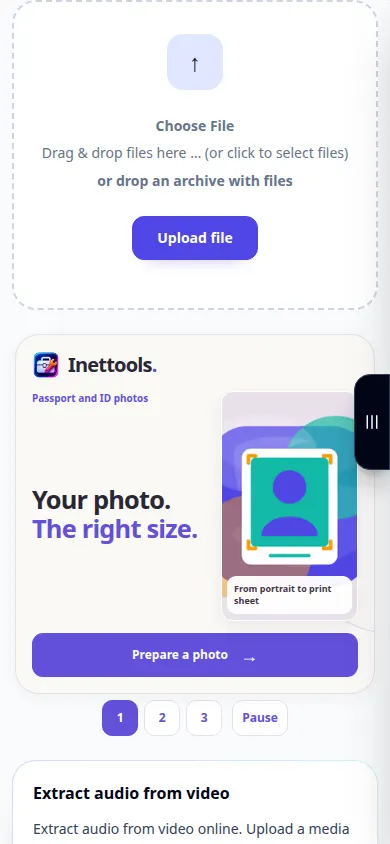
Drag a video into the upload area and choose your output format in the settings below. Check the sound in the result player before saving.
On a phone
Choose the original video from Files or the photo library when offered. Some phones export a new copy from Photos; allow time for that preparation and the upload.
In Safari on iPhone, open the sharing menu and choose Save to Files if the result opens in a new tab. In Android Chrome, check Downloads. Keep this tab open until processing finishes.
For a better result
Extracting the soundtrack keeps voices, music and background sounds together. Use a separate tool if you need noise reduction or vocal separation afterward.
Screenshots and video
Desktop demonstration
The recording shows the English interface. Follow the translated steps above; the controls are in the same order. This short recording shows file selection and settings before processing. The steps above explain how to start processing and save the result.
Phone demonstration
The recording shows the English interface. Follow the translated steps above; the controls are in the same order. This short recording shows file selection and settings before processing. The steps above explain how to start processing and save the result.
Questions and troubleshooting
Why is the extracted file silent?
First check that the source video contains an audible track. Also check the player volume and whether the original uses an unsupported audio codec.
Will WAV make the recording sound better?
WAV avoids another lossy encoding step when supported, but it cannot restore detail missing from the source audio.
If you see a message that the service is overloaded, wait and try again later. A failed attempt does not mean that your source file has changed.