Guide updated:
Check the live waveform and input levels, then record and listen to a short sample on your device.
Practical instructions with desktop and phone screenshots, short demonstrations and answers to common questions.
Before you start
Connect your microphone and allow this website to use it when you start. Use headphones when listening to a recording.
Step-by-step instructions
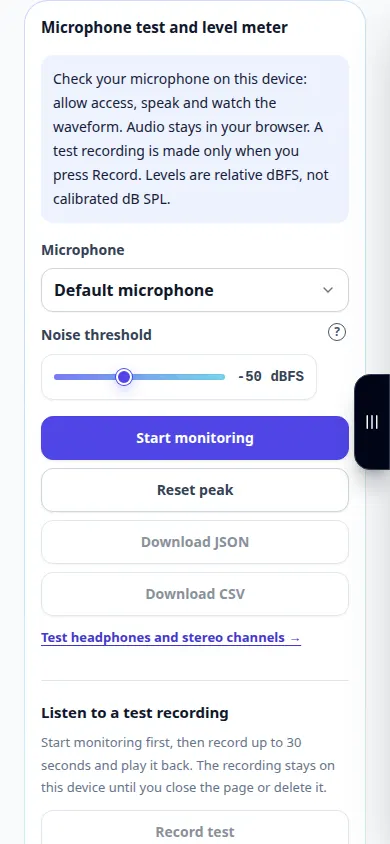
- Choose a microphone and press Start monitoring. Allow access in the browser.
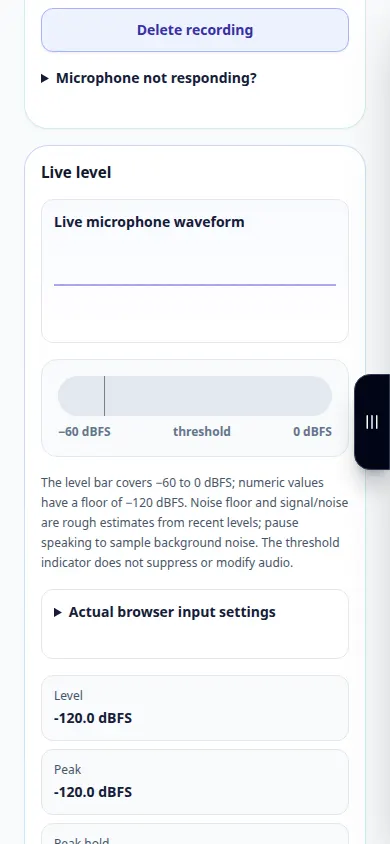
- Speak at your normal recording distance. The waveform and level meter should respond to your voice.
- Record a short test. Press Finish recording, or let the 30-second limit stop it automatically.
- Stop monitoring, listen to the result and download the recording if you want to keep it. Delete it before making another private sample.
- Review held peaks and clipping. Change your input gain or microphone position and test again. Export a CSV or JSON measurement report if needed.
On a computer
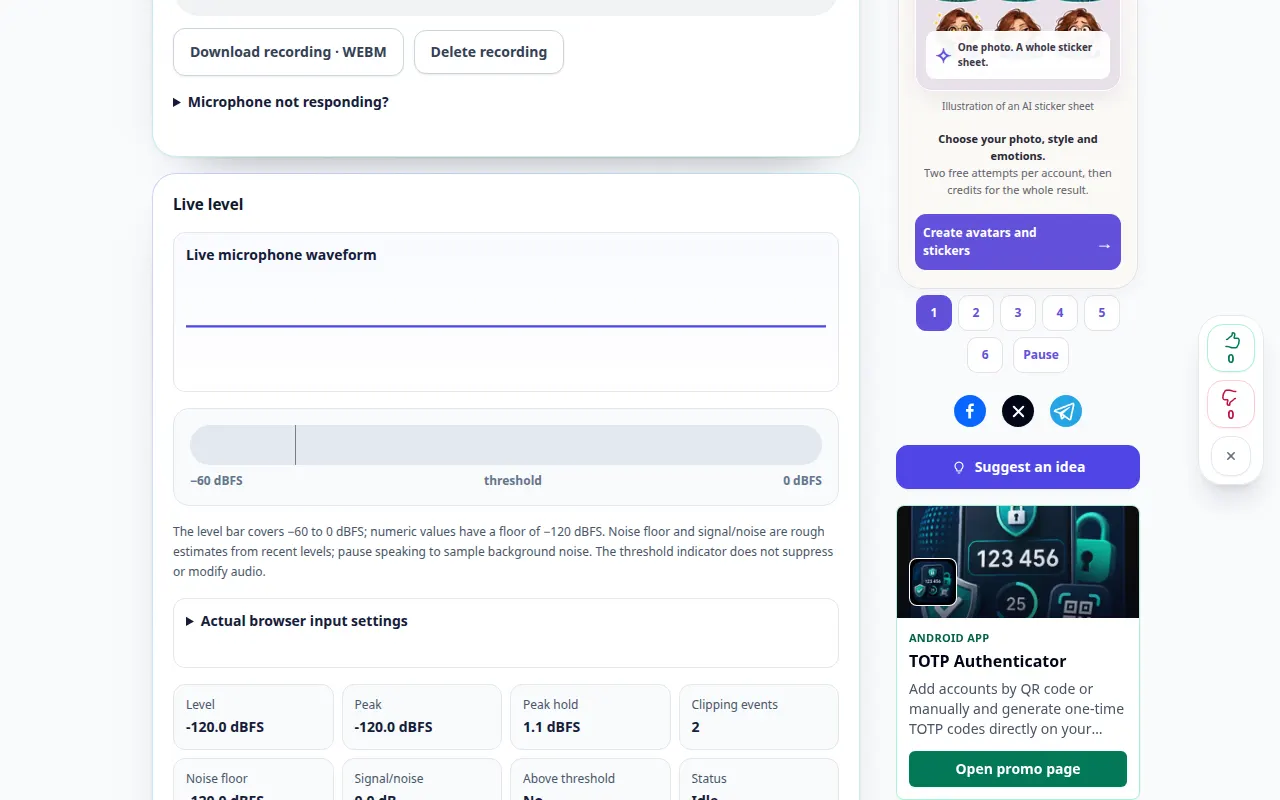
Choose the correct input from the microphone list. Actual browser settings show whether noise suppression, echo cancellation or automatic gain are enabled.
On a phone
Allow microphone access in both browser and system settings. The test stops when the page is hidden. Rotate or unfold your phone without losing the on-page result.
In Safari on iPhone, open the sharing menu and choose Save to Files if the result opens in a new tab. In Android Chrome, check Downloads. Keep this tab open until processing finishes.
For a better result
The threshold is an indicator; it does not remove noise. Measurements are relative dBFS and rough noise estimates, not calibrated sound-pressure readings.
Screenshots and video
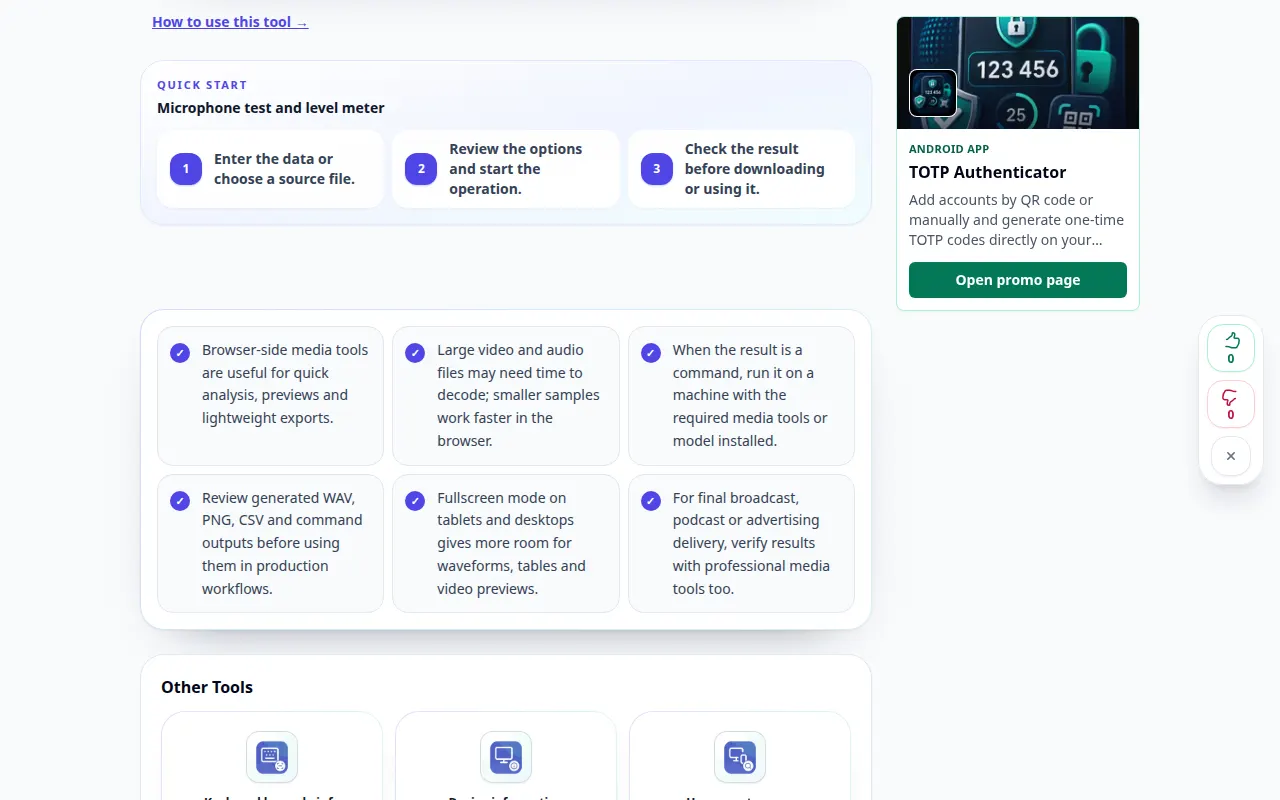
Desktop demonstration
The recording shows the English interface. Follow the translated steps above; the controls are in the same order. This recording shows a demonstration input and the resulting output in the tool.
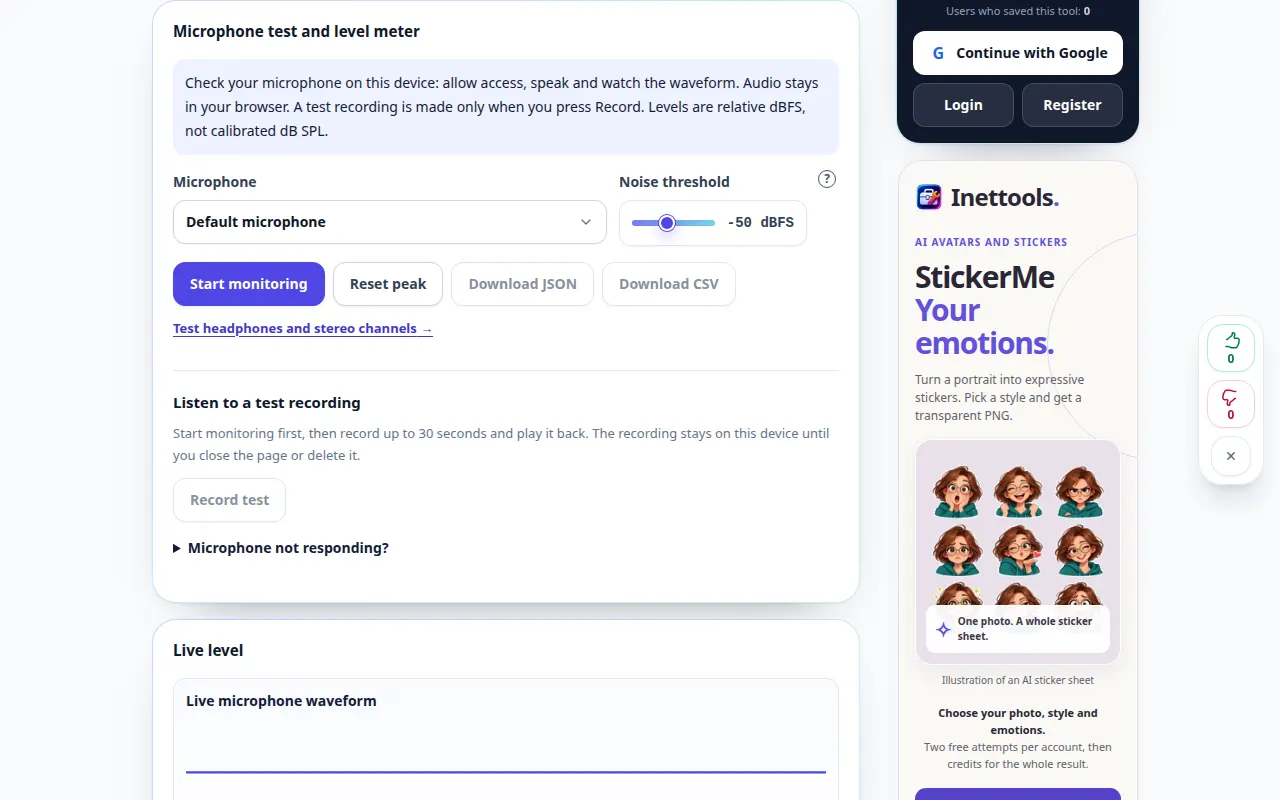
Phone demonstration
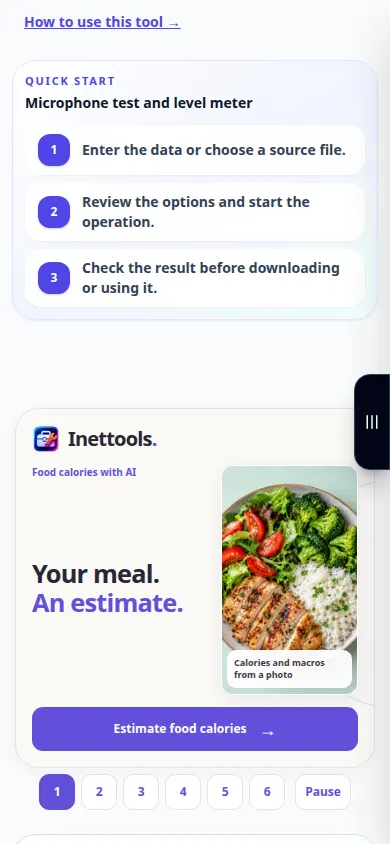
The recording shows the English interface. Follow the translated steps above; the controls are in the same order. This recording shows a demonstration input and the resulting output in the tool.
Questions and troubleshooting
Is my voice sent to a server?
No. Monitoring and optional recording run in the browser. Download the recording to keep it after closing the page.
Why is there no input?
Check browser and system permissions, the selected microphone and its mute switch. Reconnect the device or close other apps using it, then start again.
If you see a message that the service is overloaded, wait and try again later. A failed attempt does not mean that your source file has changed.