Guide updated:
Create a mosaic effect, adjust the block size and save the processed image from desktop or mobile.
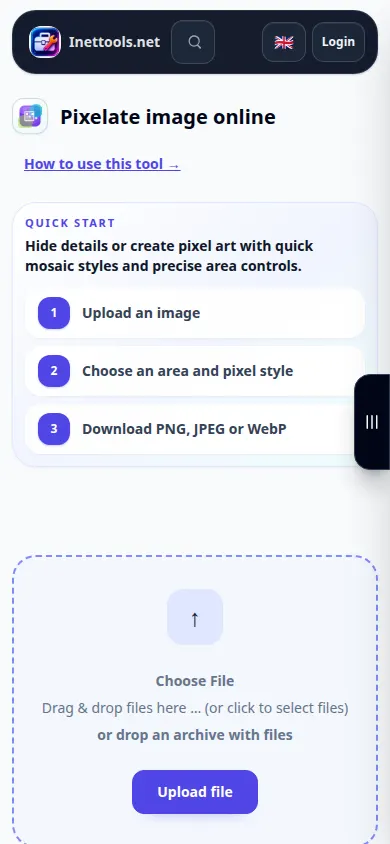
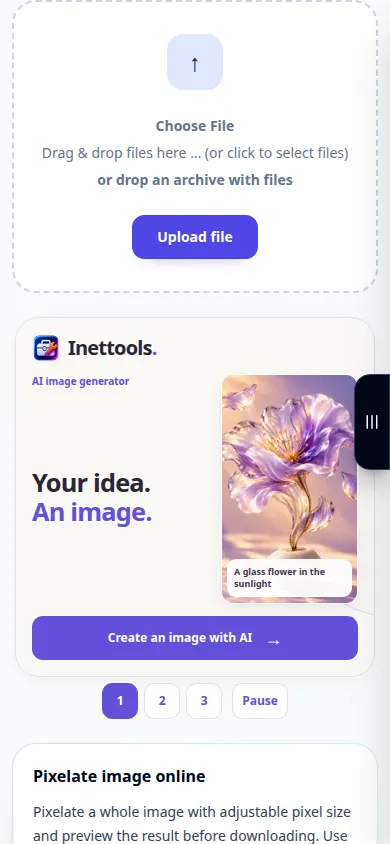
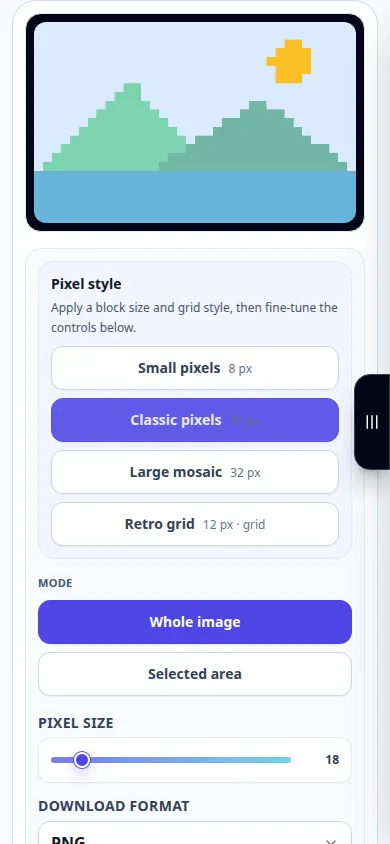
Open this guide using the “How to use this tool” link below the tool name. It includes steps, screenshots and videos for computers and phones.
Before you start
Choose an image that you are allowed to edit. Keep an original copy. Pixelation is a visual effect; do not rely on a mild mosaic to securely hide confidential text or a recognizable face.
These small files were created for this guide and contain no personal data.
Step-by-step instructions
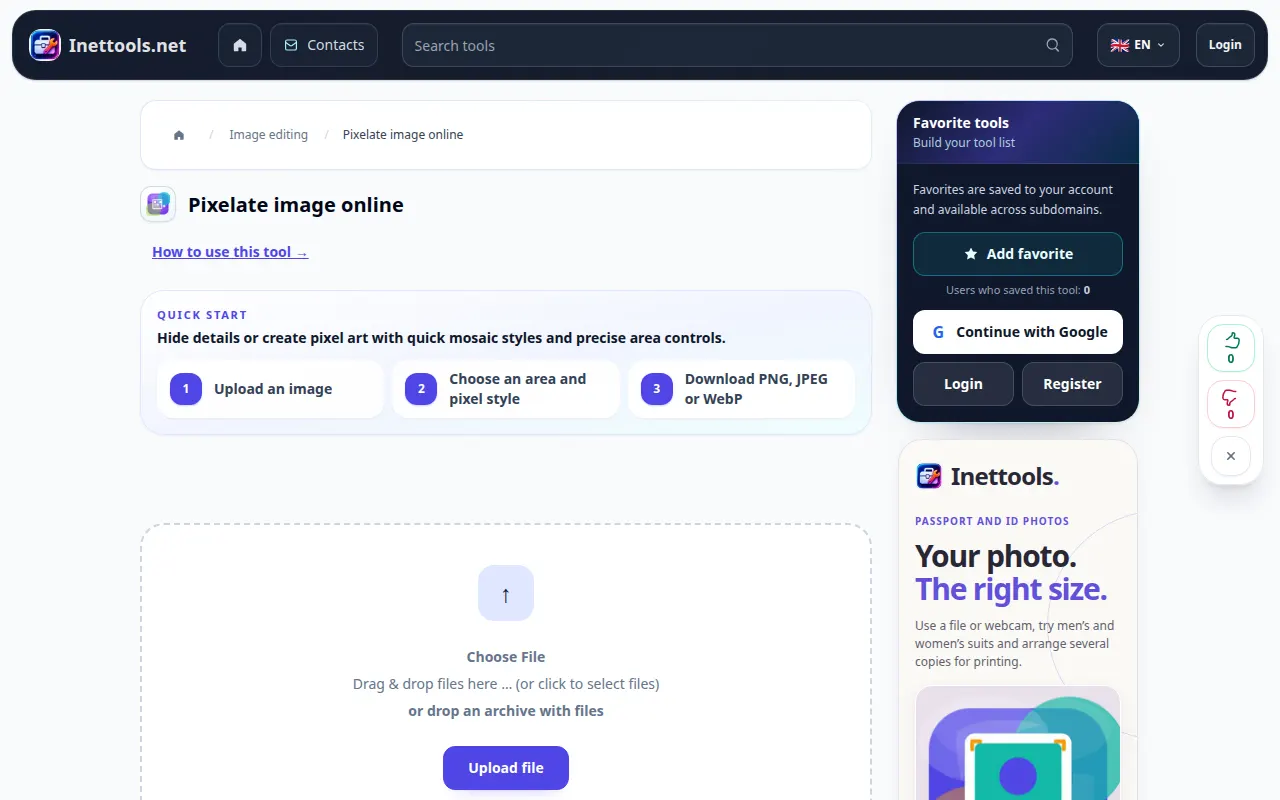
- Open the pixelation tool and choose the source image.
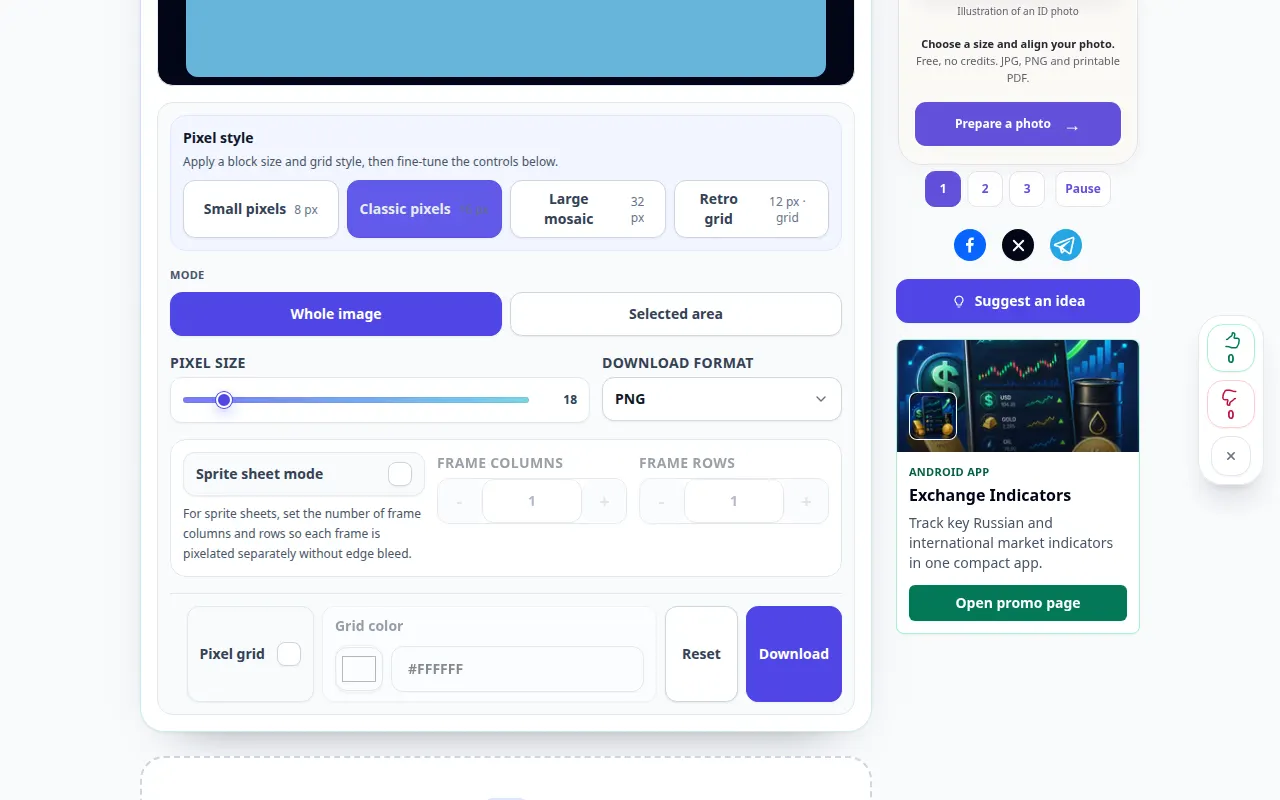
- Wait for the image and mosaic settings to appear. Adjust the pixel or block size; larger blocks create a stronger mosaic.
- Check the preview and adjust the strength until it suits the intended effect.
- Choose an available output format. Use PNG if you need its lossless properties, or a smaller photo format when offered.
- Use the result download control to save the image. Open the saved copy and inspect it at its normal viewing size.
On a computer
Use a larger preview to compare several block sizes. Save a copy rather than overwriting the original when your browser asks for a file name.
On a phone
Choose an image from Photos or Files. Change the block size in small steps, then save the result to Files or the browser Downloads folder.
In Safari on iPhone, open the sharing menu and choose Save to Files if the result opens in a new tab. In Android Chrome, check Downloads. Keep this tab open until processing finishes.
For a better result
If your goal is privacy, remove sensitive regions or cover them with an opaque fill using a suitable editor, then check the exported image. Pixelation alone is not a security guarantee.
Screenshots and video
Desktop demonstration
The recording shows the English interface. Follow the translated steps above; the controls are in the same order. This recording shows processing a demonstration file and opening the result.
Phone demonstration
The recording shows the English interface. Follow the translated steps above; the controls are in the same order. This recording shows processing a demonstration file and opening the result.
Questions and troubleshooting
Why can I still recognize the subject?
A mosaic can retain outlines, colors and context. Increase the block size for a stronger effect, or remove the sensitive part instead.
Why does the downloaded image look different from the small preview?
The preview may be scaled to fit the screen. Inspect the saved image at its actual dimensions before using it.
If you see a message that the service is overloaded, wait and try again later. A failed attempt does not mean that your source file has changed.