Guide updated:
Choose a recovery method and understand when a reference video can help restore an MP4 structure.
Open this guide using the “How to use this tool” link below the tool name. It includes steps, screenshots and videos for computers and phones.
Before you start
Make a copy of the damaged file and keep the original. Repair can recover readable data, but it cannot recreate video bytes that were never saved.
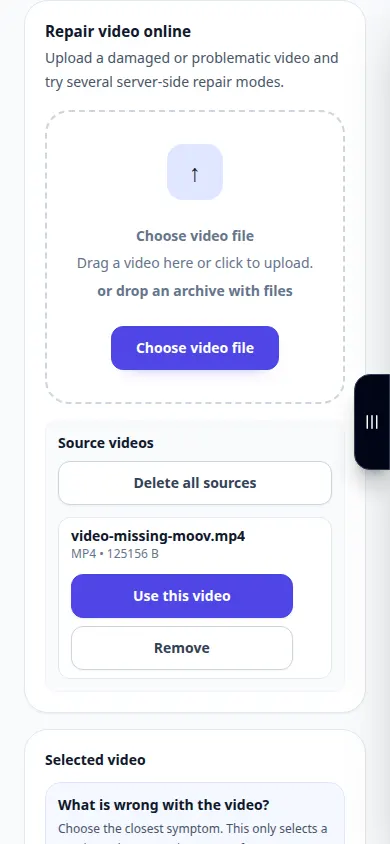
Try with a demonstration file — video-missing-moov.mp4
These small files were created for this guide and contain no personal data.
Step-by-step instructions
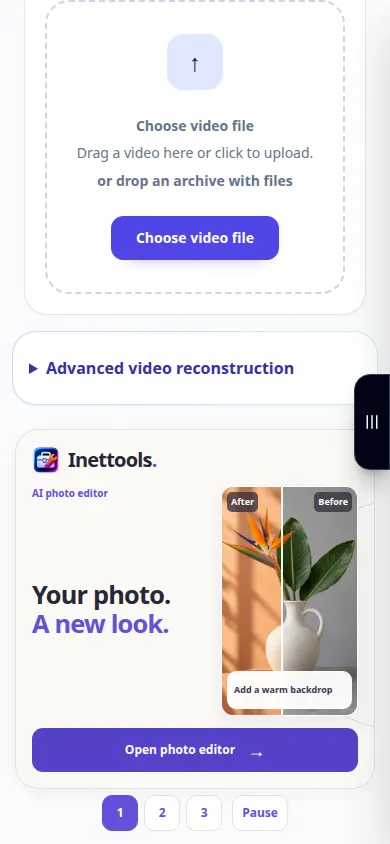
- Choose the damaged video and wait for the available analysis or repair options.
- Read the diagnostic result, if shown, and select a suitable available recovery method.
- If a reference is requested, choose an intact clip from the same device and recording settings. A server example is an alternative to try, not a guaranteed match.
- Review the chosen options and any displayed charge, then start recovery and wait for the result.
- Play several parts of the recovered file and check audio synchronization. Keep a separately saved copy of every useful result.
On a computer
Use the full-width working panel to compare the source, settings and result. Keep the original file so you can try another setting without replacing it.
On a phone
Choose the source from Files or your device file manager. Scroll down to the settings and result; keep this tab open until the operation finishes.
In Safari on iPhone, open the sharing menu and choose Save to Files if the result opens in a new tab. In Android Chrome, check Downloads. Keep this tab open until processing finishes.
For a better result
For a missing moov structure, a matching intact recording can supply structural information. It does not replace missing footage or guarantee recovery.
Screenshots and video
Desktop demonstration
The recording shows the English interface. Follow the translated steps above; the controls are in the same order. This recording shows the source and available settings before the main action. Follow the steps above to start processing and save the result.
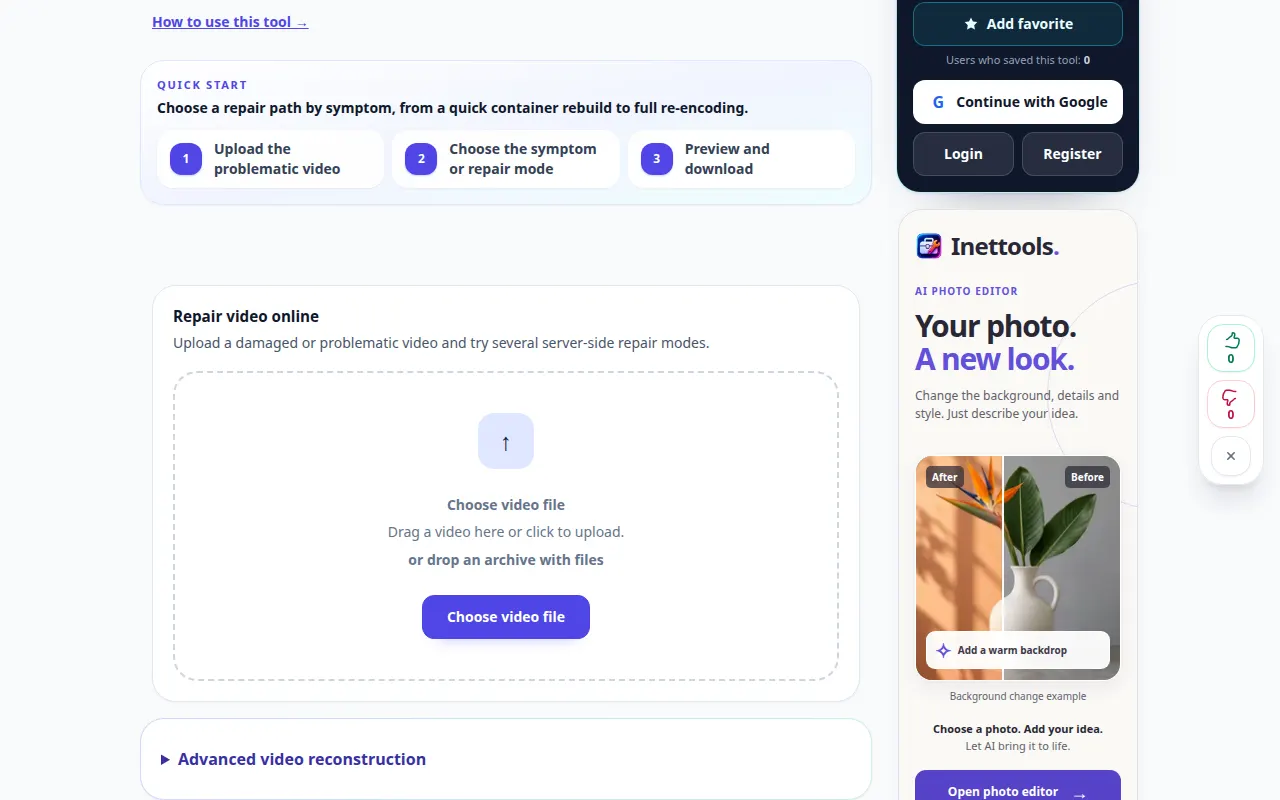
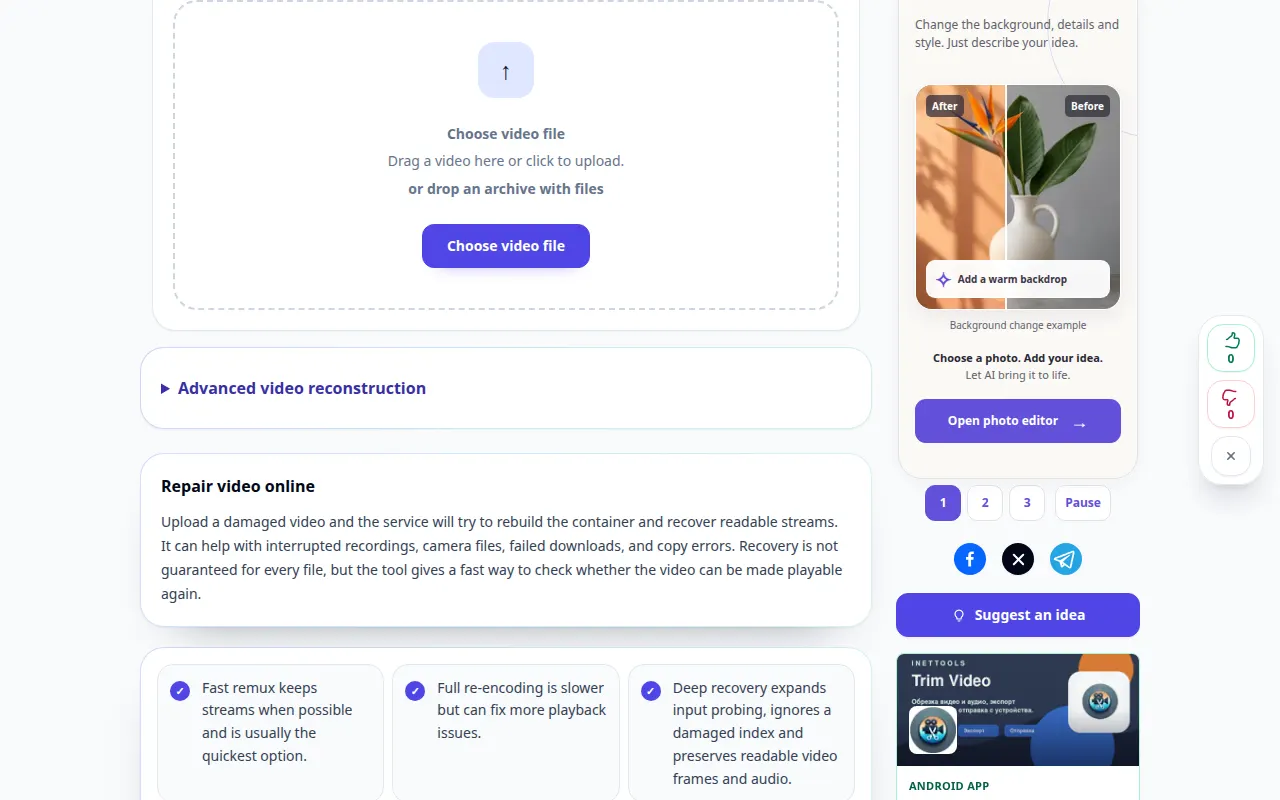
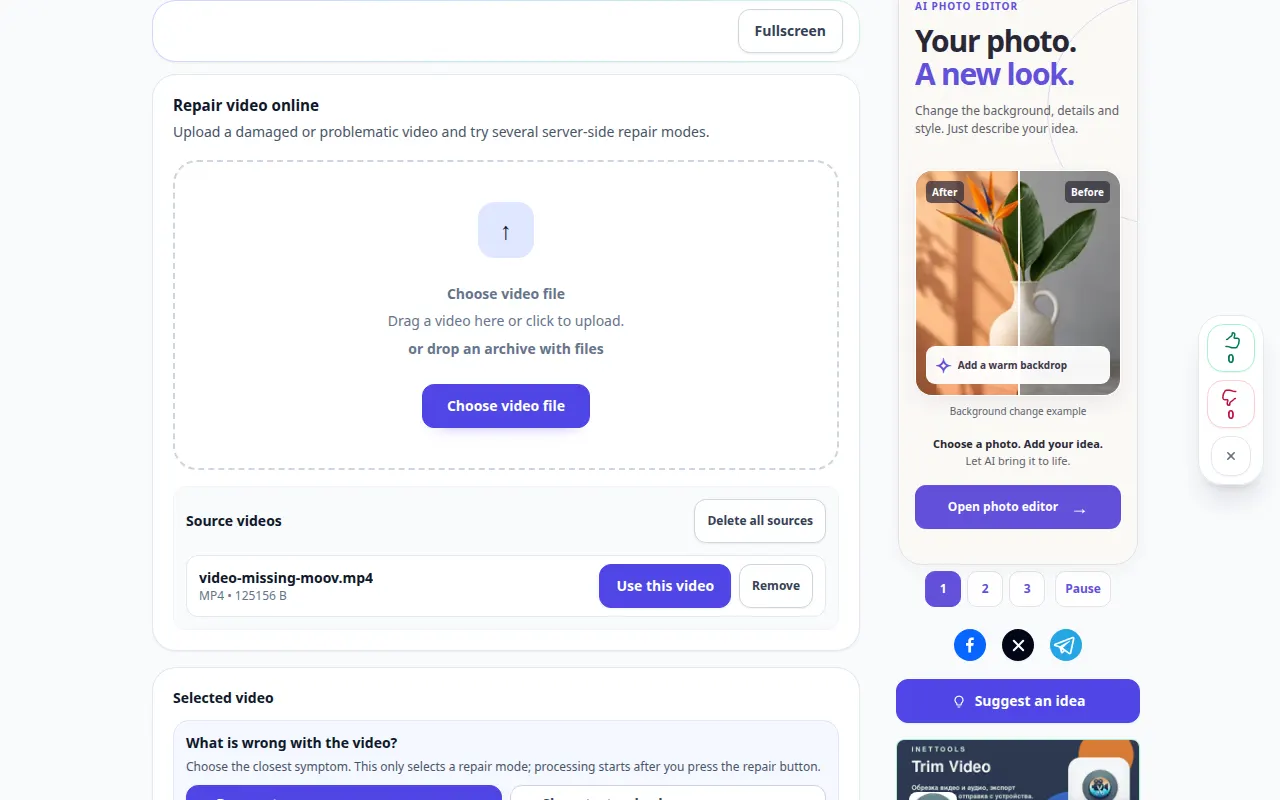
Phone demonstration
The recording shows the English interface. Follow the translated steps above; the controls are in the same order. This recording shows the source and available settings before the main action. Follow the steps above to start processing and save the result.
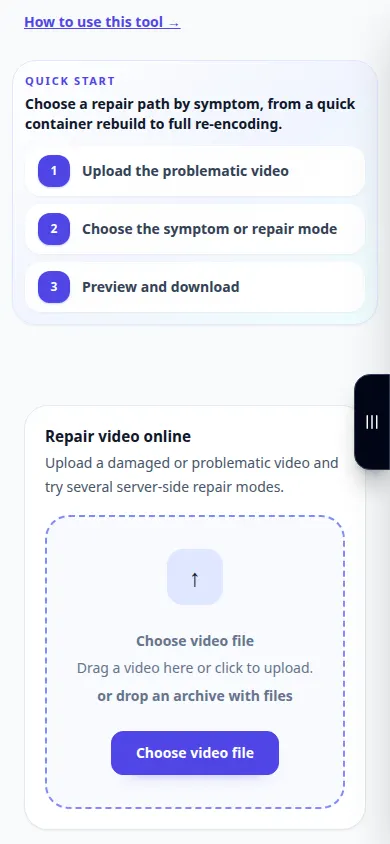
Questions and troubleshooting
Can an iPhone or Samsung example repair every recording?
No. Device model, codec, resolution, frame rate and recording mode can differ. Your own intact clip with the same settings is often a better reference.
Why does a repaired file still stop halfway through?
Part of the media stream may be missing or unreadable. Compare another supported method, but keep expectations limited to the data actually present.
If you see a message that the service is overloaded, wait and try again later. A failed attempt does not mean that your source file has changed.