Guide updated:
Convert text to an FB2 ebook, set the available book information and inspect a bounded chapter and text preview.
Practical instructions with desktop and phone screenshots, short demonstrations and answers to common questions.
Before you start
Keep the TXT original. The file is sent to the server for conversion. Read the current price and file limits before selecting it.
Step-by-step instructions
-
Open the converter and check that the direction is TXT to FB2.
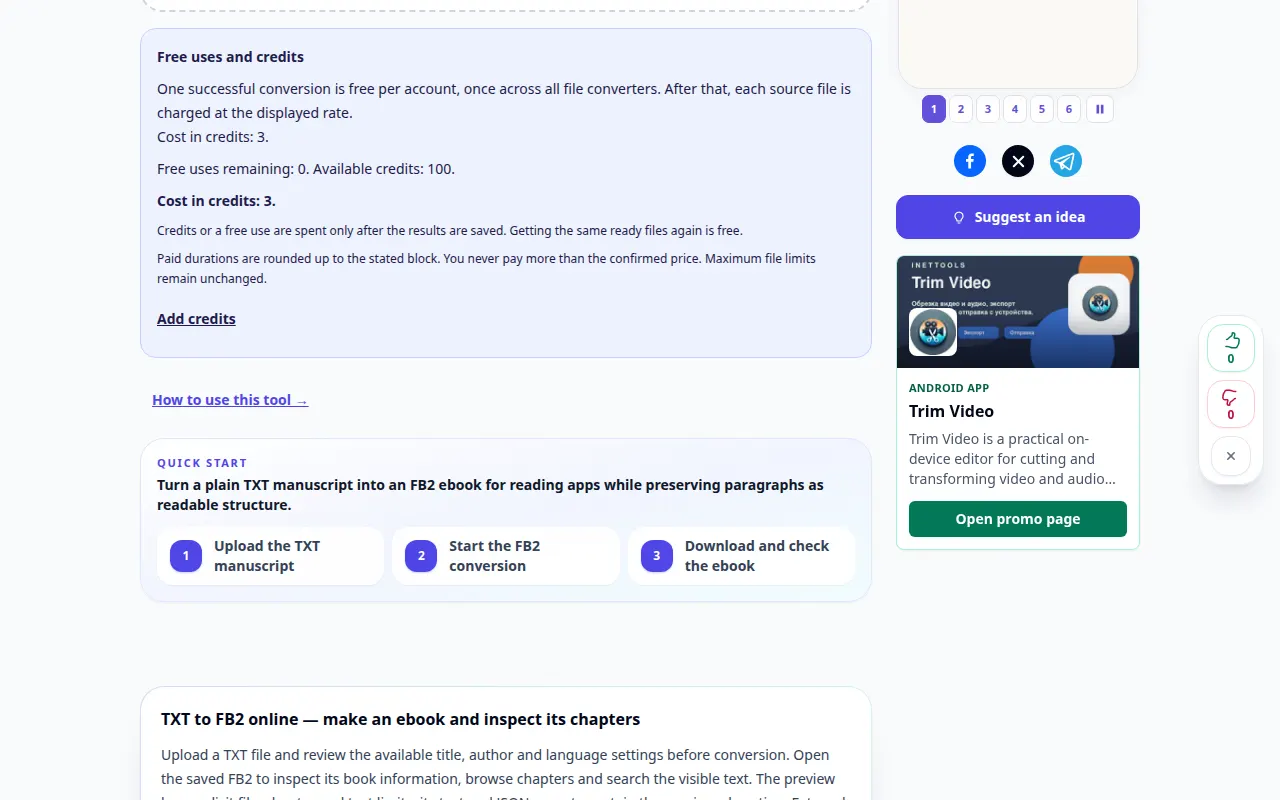
How to use this tool 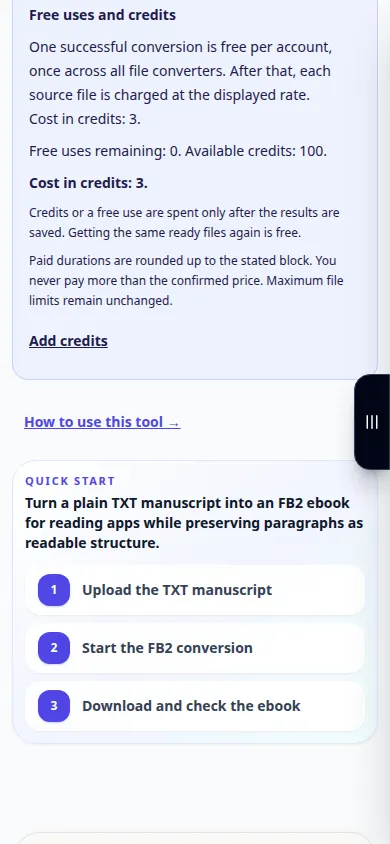
How to use this tool -
Review the available conversion settings before choosing a file. Only options shown on this page apply to this conversion.
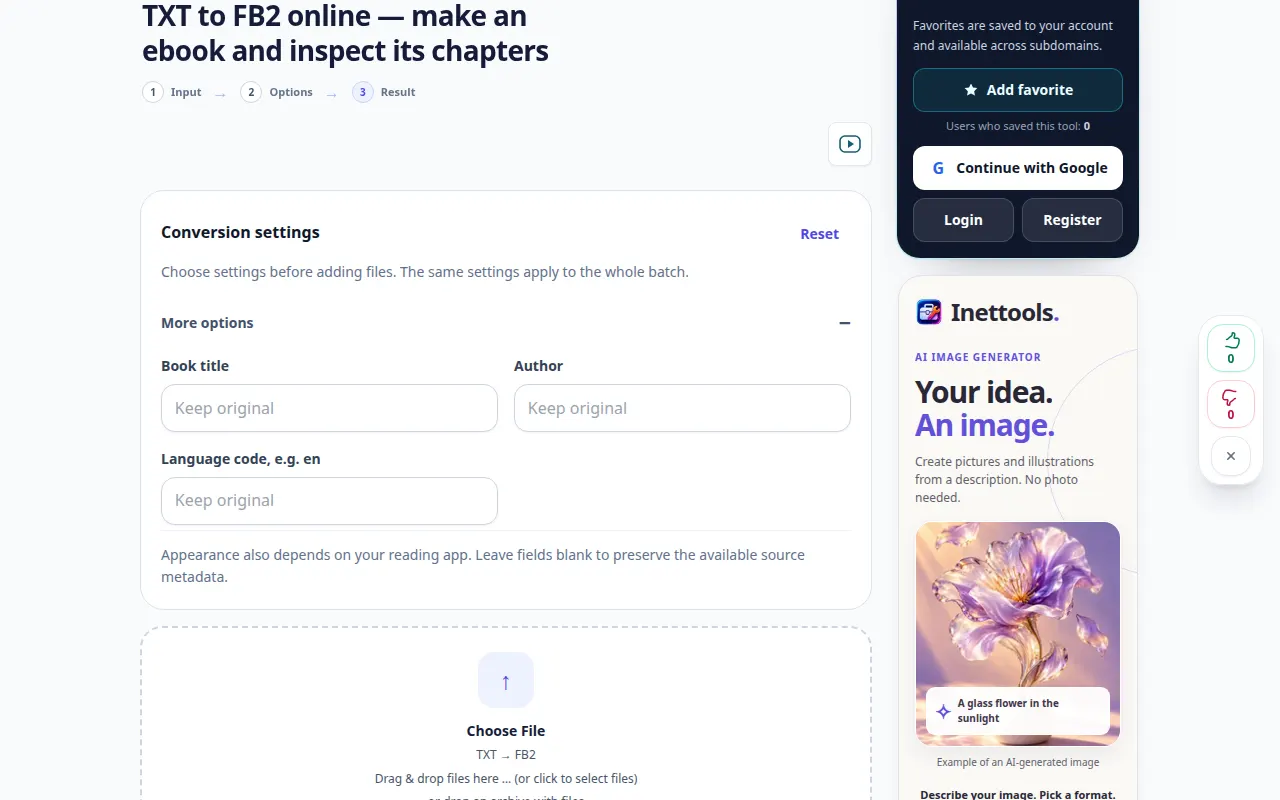
Settings and next action 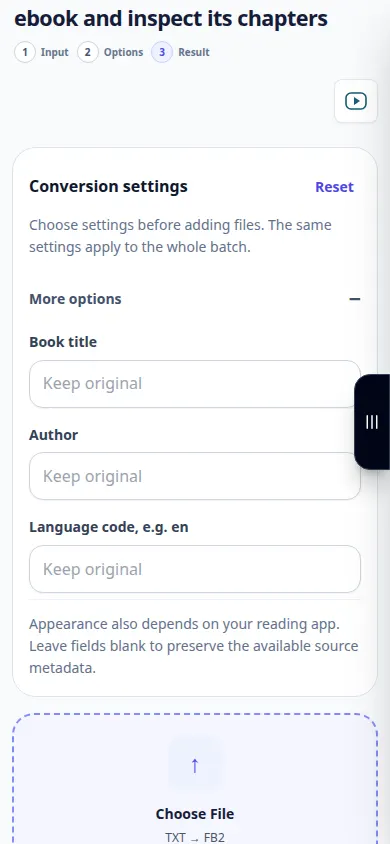
Settings and next action -
Choose a small TXT file from your device. Selecting a file starts upload and conversion; do not select it until you are ready.
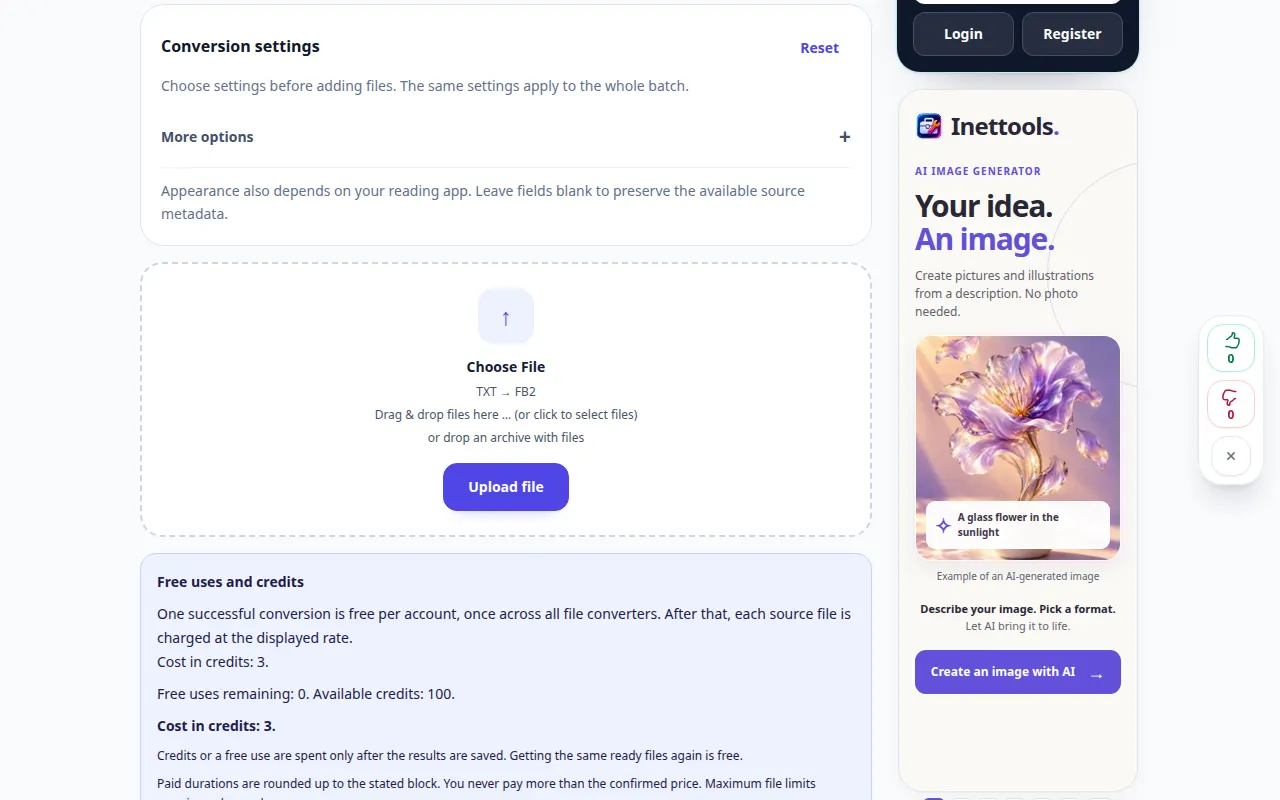
Selecting the source 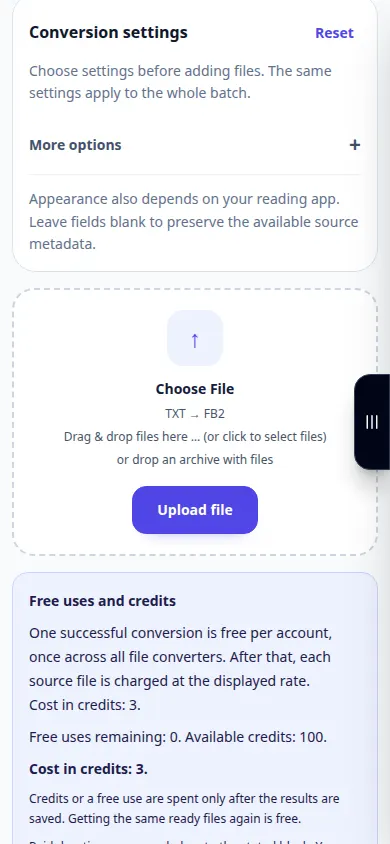
Selecting the source -
If a price confirmation appears, review it before continuing. Wait for upload, the queue and conversion to finish; keep the tab open.
-
Check the result before saving. Preview · FB2. Chapter headings · Search query · TXT · JSON. A text sample and the first chapter headings. Images, links and scripts are not opened. This preview does not start conversion or charge credits. · FB2 ≤2 MiB · Chapter headings ≤40 · ≤80000
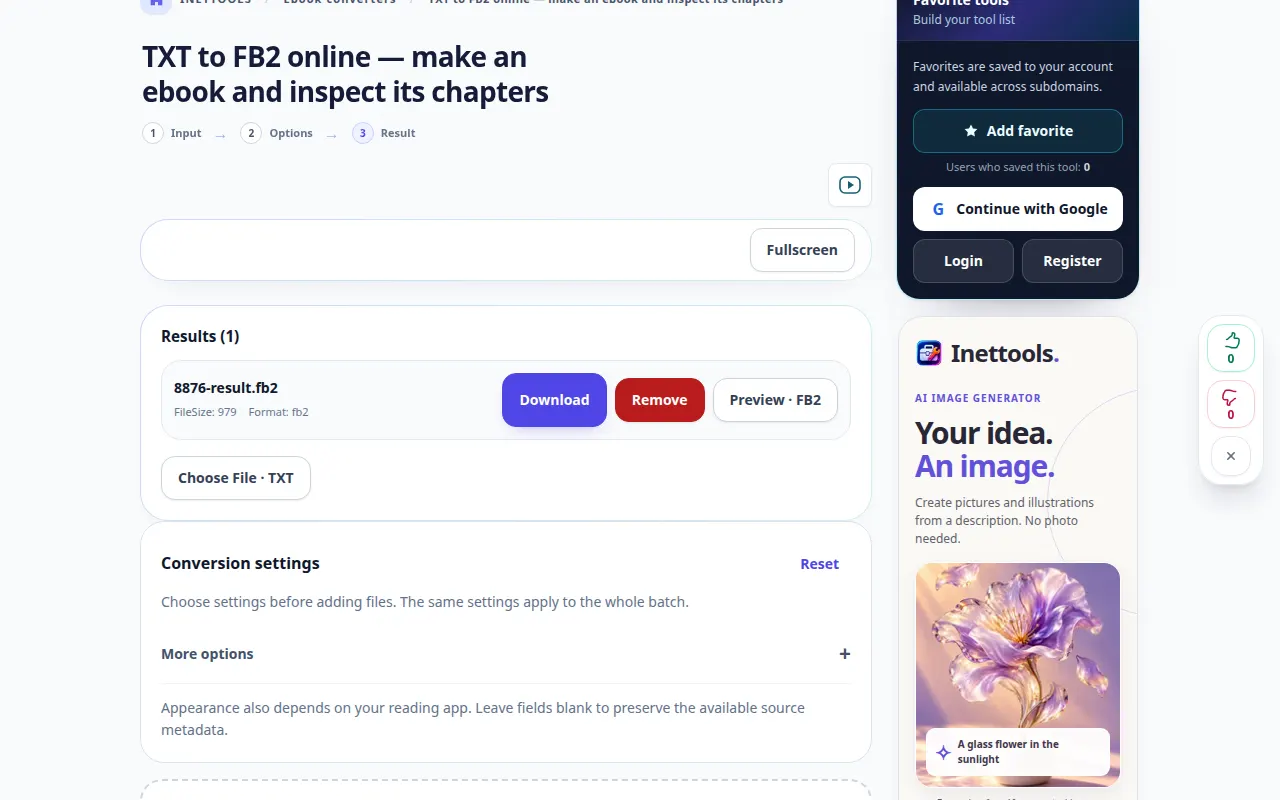
Inspecting the result 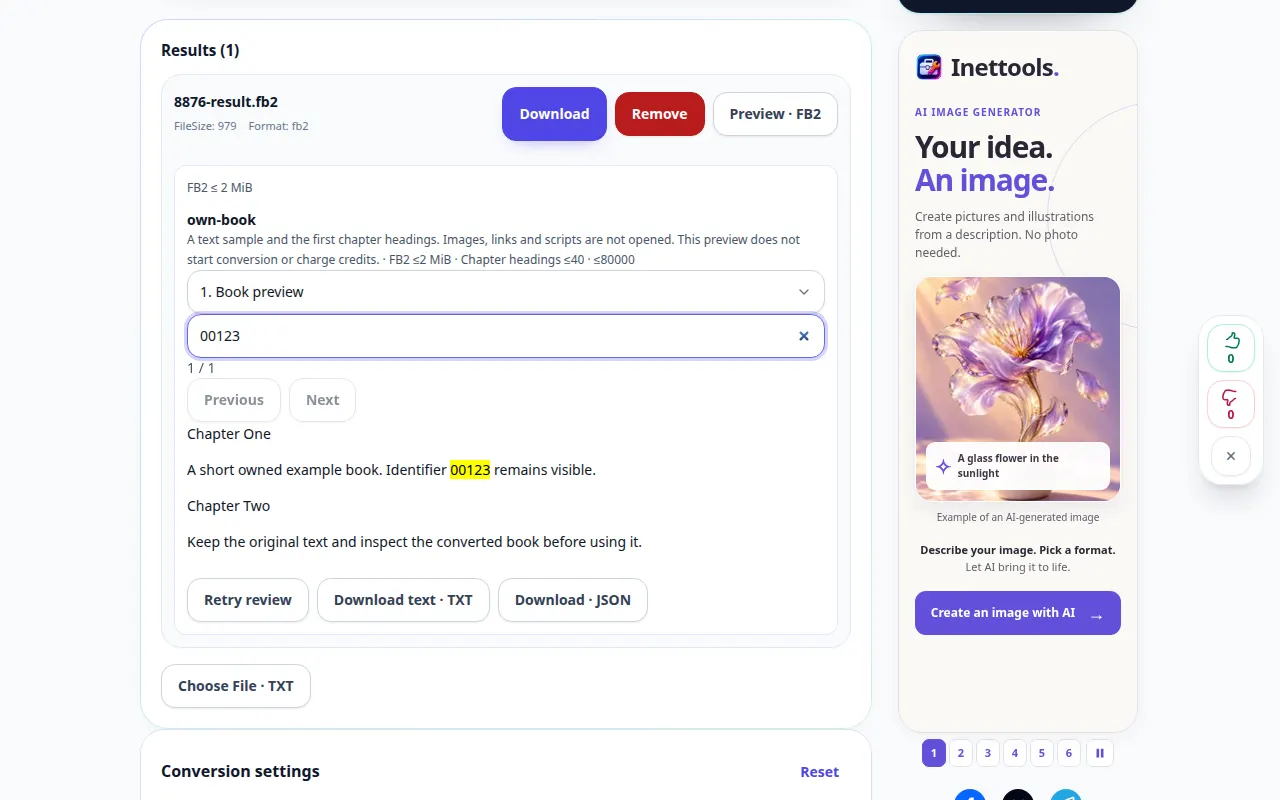
Preview 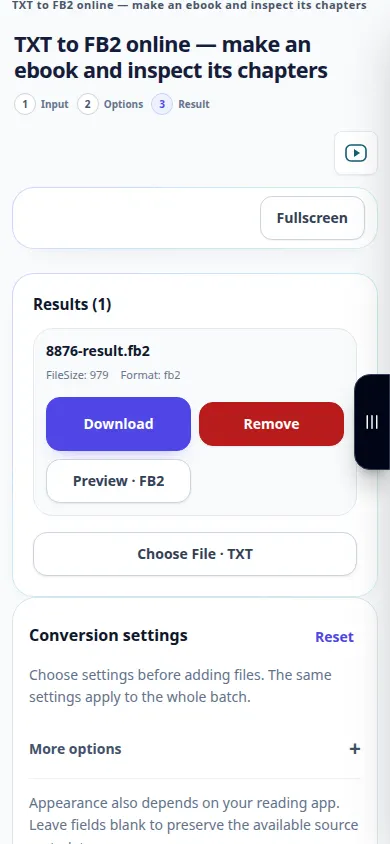
Inspecting the result 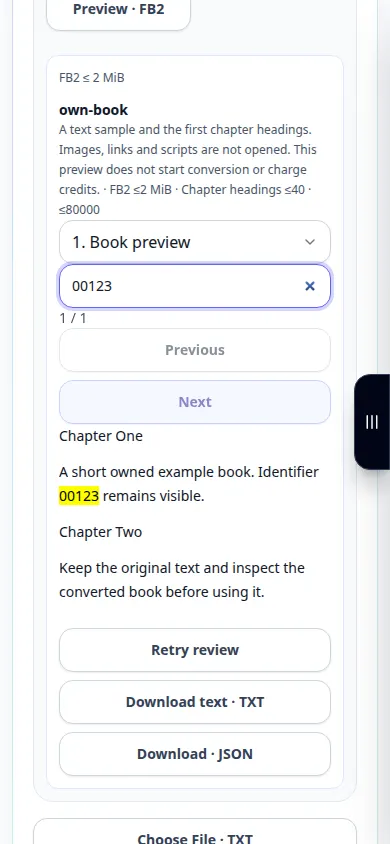
Preview -
When the result appears, save the FB2 copy. Open it in the application where you intend to use it and compare it with the original.
On a computer
Review the settings above the file picker. Choose one file first and inspect its result before processing a batch.
On a phone
Choose the file from Files or the device file manager. Scroll to the result and keep the browser tab open until conversion finishes.
In Safari on iPhone, open the sharing menu and choose Save to Files if the result opens in a new tab. In Android Chrome, check Downloads. Keep this tab open until processing finishes.
For a better result
Upload a TXT file and review the available title, author and language settings before conversion. Open the saved FB2 to inspect its book information, browse chapters and search the visible text. The preview has explicit file, chapter and text limits; its text and JSON exports contain the previewed portion. External images and active document content are not loaded.
Screenshots and video
Desktop demonstration
This recording shows a demonstration input and the resulting output in the tool.
Phone demonstration
This recording shows a demonstration input and the resulting output in the tool.
Questions and troubleshooting
Does this replace my original file?
No. The converted file is a separate copy. Keep the original on your device.
Why is there no result yet?
Check the upload status and queue. If an error appears, read its message and verify the source format before trying again.
If you see a message that the service is overloaded, wait and try again later. A failed attempt does not mean that your source file has changed.