Guide updated:
View DICOM pixels, change the display window and inspect file metadata.
Open this guide using the “How to use this tool” link below the tool name. It includes steps, screenshots and videos for computers and phones.
Before you start
Use a file you are authorized to inspect. For practice, choose the synthetic demonstration file rather than patient records.
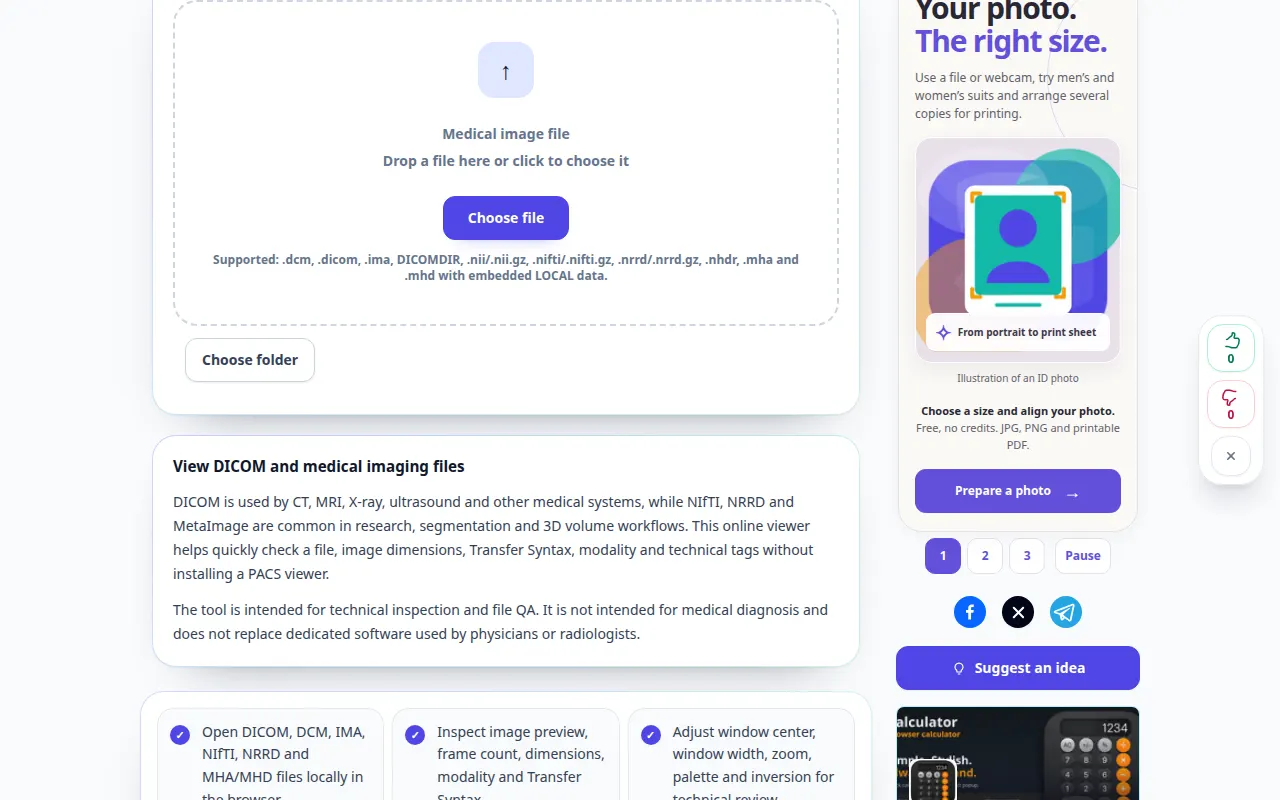
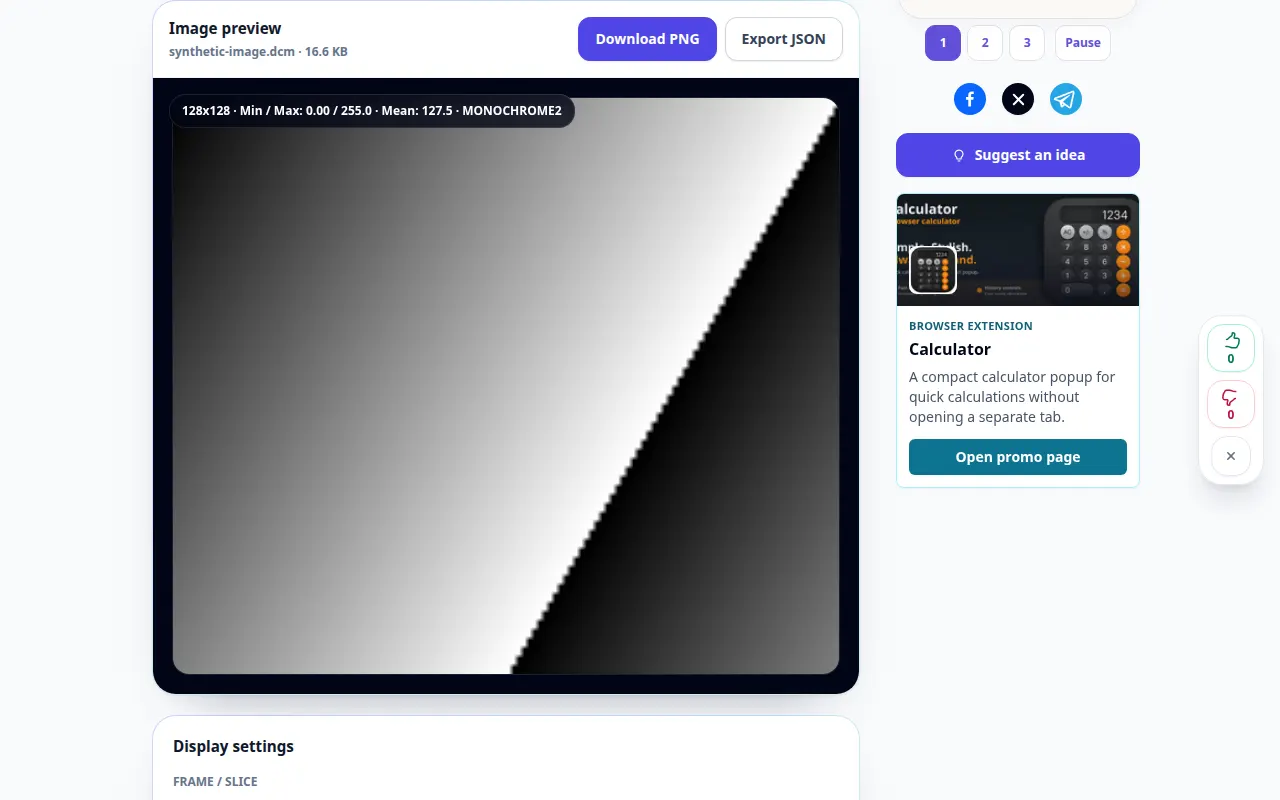
Try with a demonstration file — synthetic-image.dcm
These small files were created for this guide and contain no personal data.
Step-by-step instructions
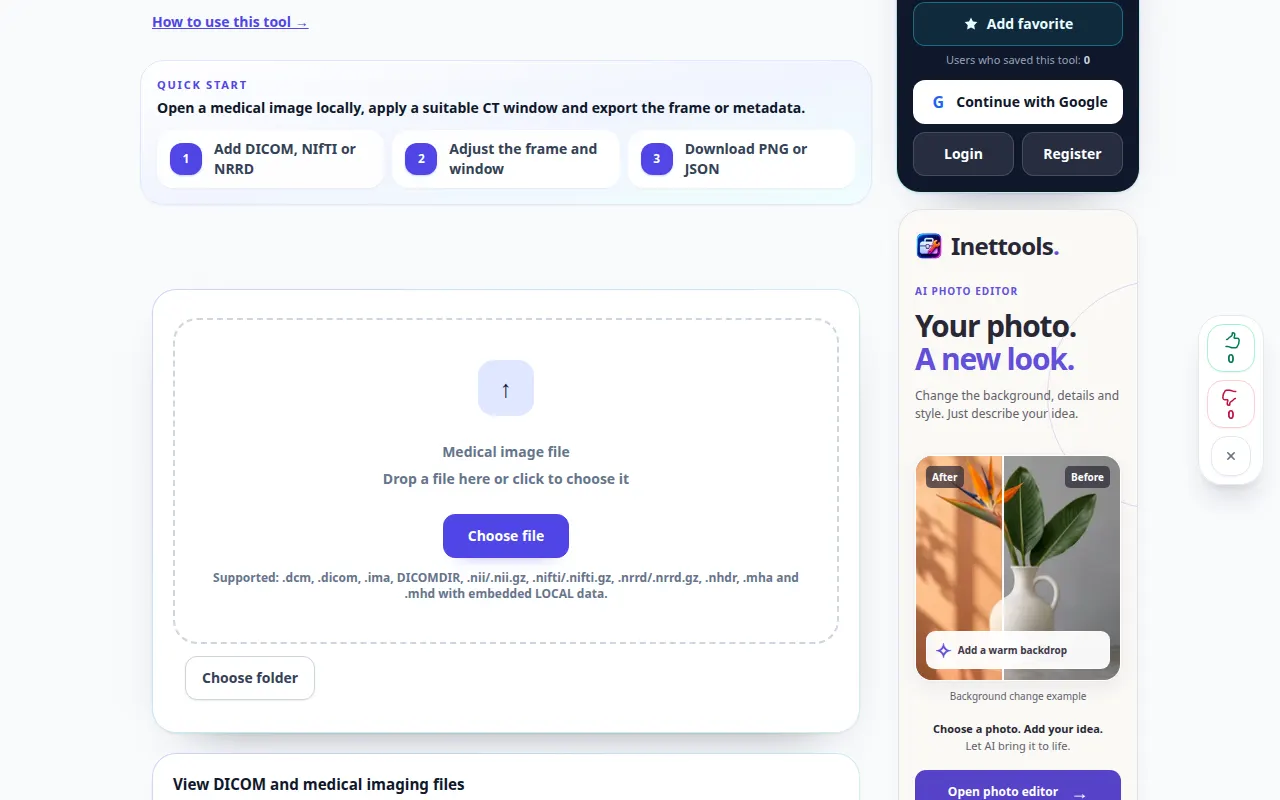
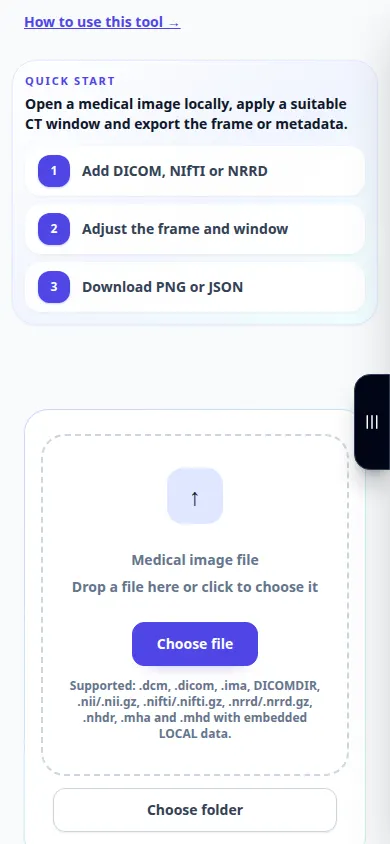
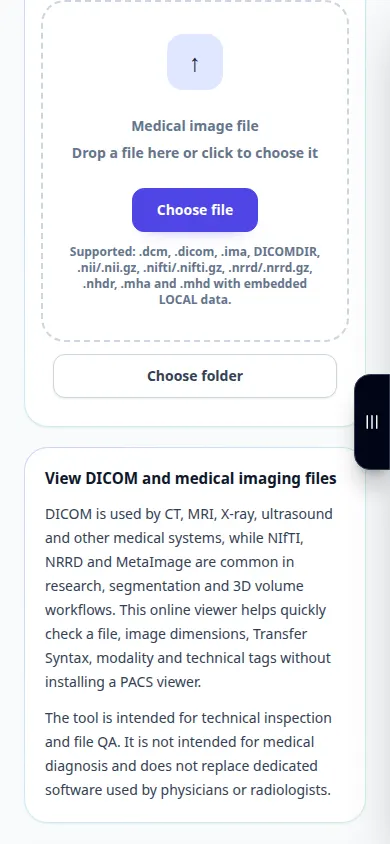
- Open DICOM Viewer and choose a DICOM file. Wait for the image and information panel.
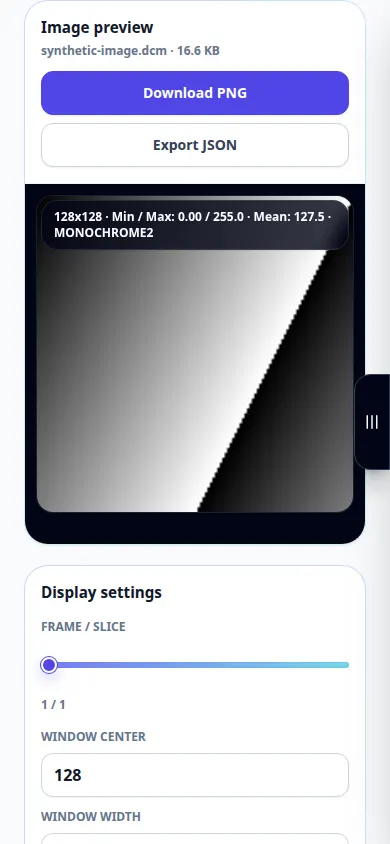
- Use the available frame controls when the file contains several frames.
- Adjust window center and width, try automatic windowing, and use zoom or fit controls to inspect the display.
- Open the tags panel to review metadata. Remember that metadata and exported reports may contain identifying information.
- Use the available PNG or report export for the displayed content. Keep the DICOM original because an image export does not preserve the full study.
On a computer
Use the wider desktop layout to compare the image and tags. Fullscreen gives more room for windowing and zoom controls.
On a phone
Choose the file from your file manager. Scroll between the image and tags, and use the fit control before zooming into a region.
In Safari on iPhone, open the sharing menu and choose Save to Files if the result opens in a new tab. In Android Chrome, check Downloads. Keep this tab open until processing finishes.
For a better result
Windowing changes the display, not the recorded pixels. This guide explains the viewer controls, not medical interpretation.
Screenshots and video
Desktop demonstration
The recording shows the English interface. Follow the translated steps above; the controls are in the same order. This recording shows a demonstration input and the resulting output in the tool.
Phone demonstration
The recording shows the English interface. Follow the translated steps above; the controls are in the same order. This recording shows a demonstration input and the resulting output in the tool.
Questions and troubleshooting
Why does a file say it is not DICOM?
A renamed image is not a DICOM file. A damaged file or unsupported encoding may also be unreadable; keep the original and check its export format.
Why is the image almost black?
Try automatic windowing and check the frame selection. A very narrow or misplaced display window can hide readable pixel values.
If you see a message that the service is overloaded, wait and try again later. A failed attempt does not mean that your source file has changed.