Guide updated:
View slides without installing presentation software. Convert a supported presentation to a browser preview and save its PDF.
Open this guide using the “How to use this tool” link below the tool name. It includes steps, screenshots and videos for computers and phones.
Before you start
Prepare a supported presentation such as PPT, PPTX or ODP. Keep the editable original. The browser preview is a static rendering, so animations and embedded media may not play as they do in the original application.
These small files were created for this guide and contain no personal data.
Step-by-step instructions
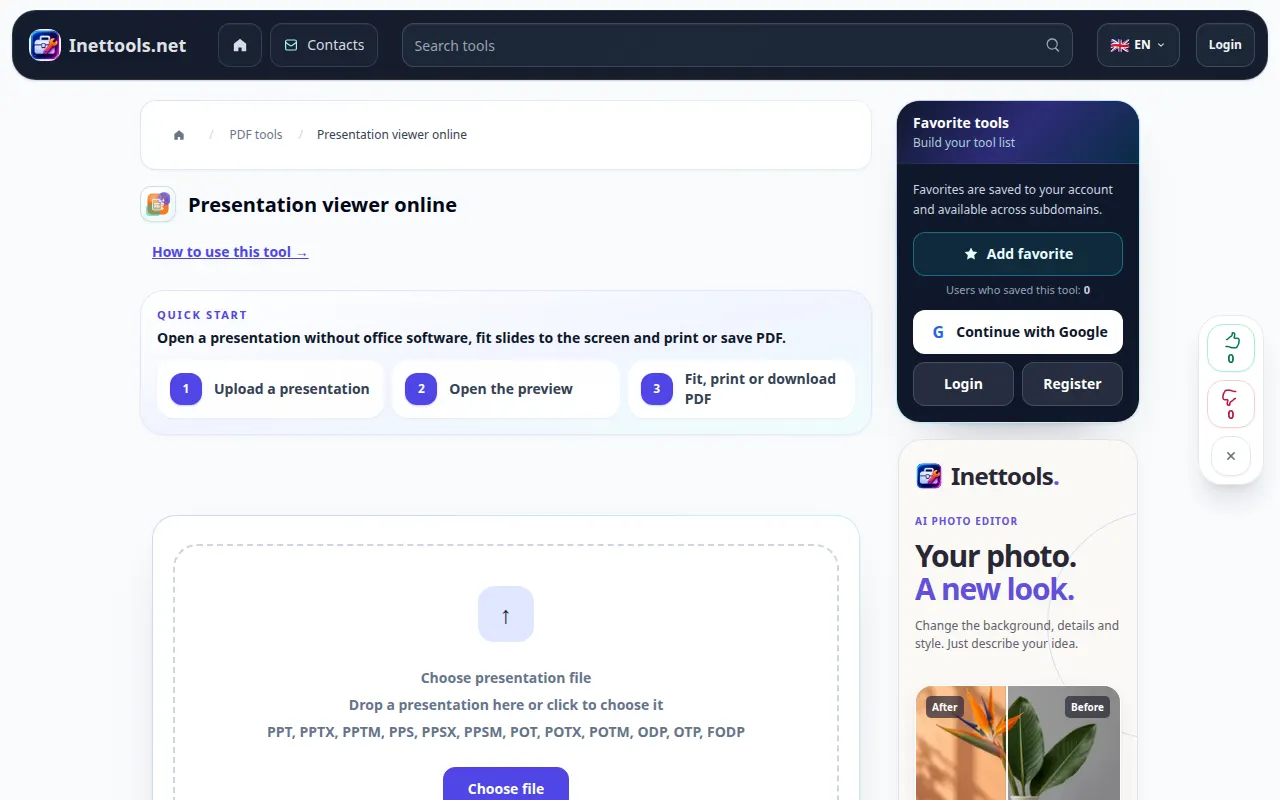
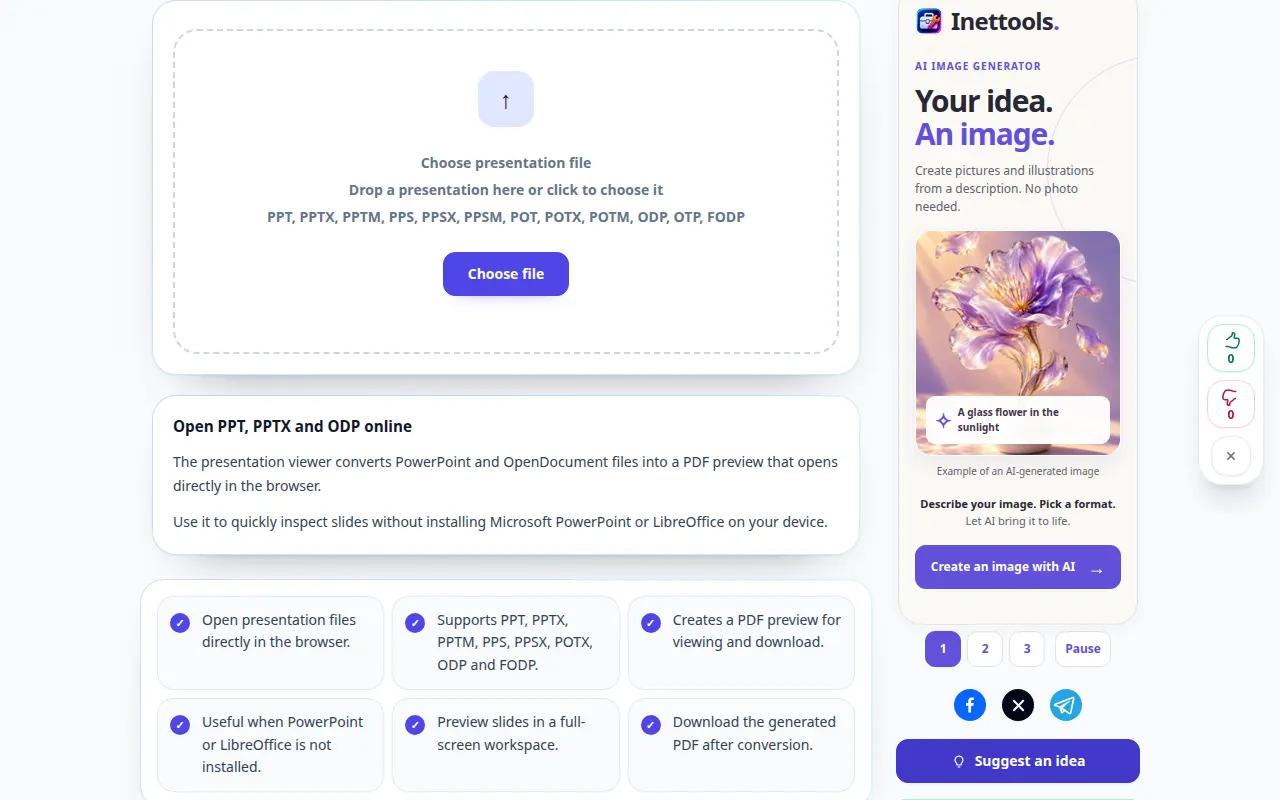
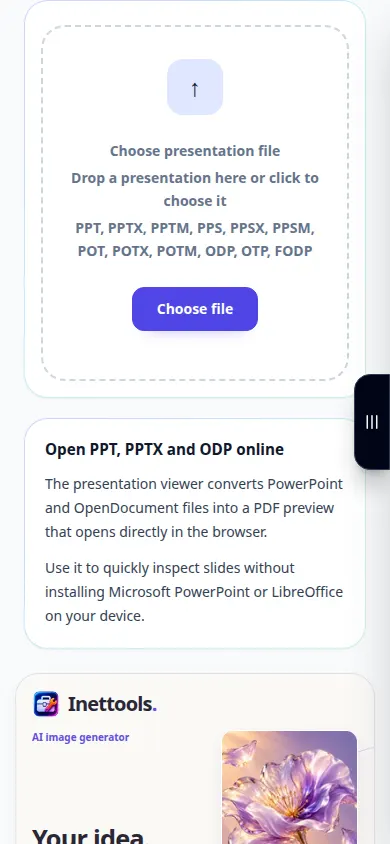
- Open Presentation Viewer and choose the presentation file.
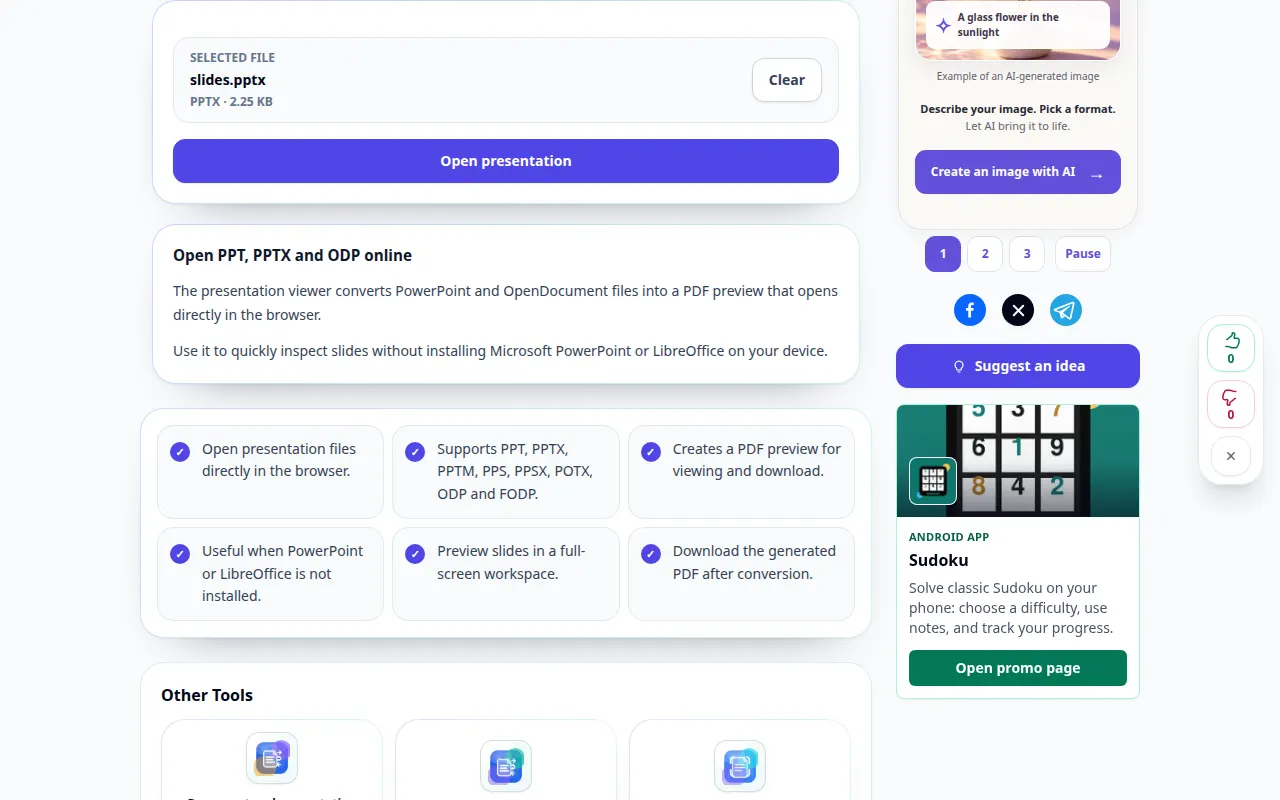
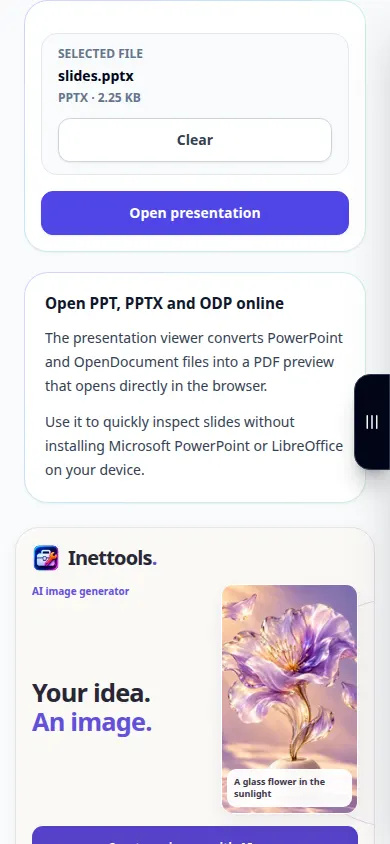
- Check the selected file and choose Open file. Wait while the slides are converted to a preview.
- Scroll through the slides and check fonts, charts and images. Change the fit mode or use fullscreen when those controls are available.
- If the embedded preview is inconvenient, open the generated PDF in a new tab.
- Save the PDF using the result download control. Use Clear to choose a different presentation afterward.
On a computer
Drag the presentation onto the upload area. Use a wide preview or fullscreen to check charts and text on each slide before sharing the PDF.
On a phone
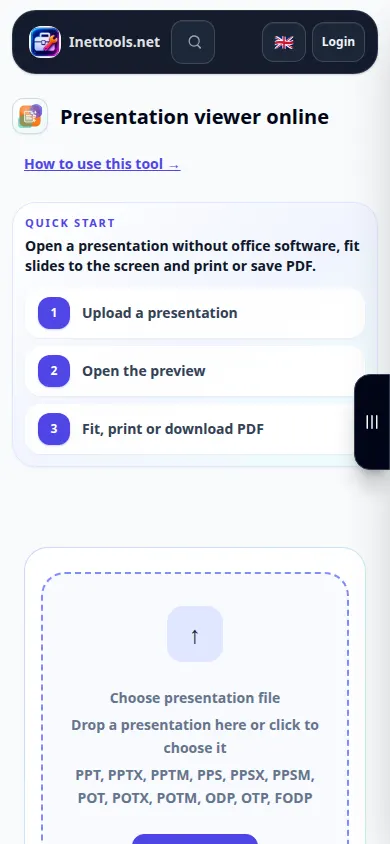
Choose the presentation from Files or your file manager. Use a separate PDF tab if the embedded viewer is cramped; landscape orientation can make wide slides easier to read.
In Safari on iPhone, open the sharing menu and choose Save to Files if the result opens in a new tab. In Android Chrome, check Downloads. Keep this tab open until processing finishes.
For a better result
Check every slide after conversion. Uncommon fonts, animations and linked content can change or disappear in a static PDF preview.
Screenshots and video
Desktop demonstration
The recording shows the English interface. Follow the translated steps above; the controls are in the same order. This recording shows processing a demonstration file and opening the result.
Phone demonstration
The recording shows the English interface. Follow the translated steps above; the controls are in the same order. This recording shows processing a demonstration file and opening the result.
Questions and troubleshooting
Can I edit the slides here?
The viewer is for previewing and exporting a PDF. Keep the original presentation and edit it in an application that supports its format.
Why do animations or a video not play?
A PDF preview contains static pages. Use the original presentation application when interactive elements, transitions or embedded media are essential.
If you see a message that the service is overloaded, wait and try again later. A failed attempt does not mean that your source file has changed.