Guide updated:
Inspect a color in a picture and copy the displayed color code.
Open this guide using the “How to use this tool” link below the tool name. It includes steps, screenshots and videos for computers and phones.
Before you start
Use the source image rather than a screenshot of a color-managed preview when you need a reproducible file color.
Try with a demonstration file — landscape.png
These small files were created for this guide and contain no personal data.
Step-by-step instructions
- Choose the image and wait for the color-picker preview.
- Move or tap the picker over the area whose color you need.
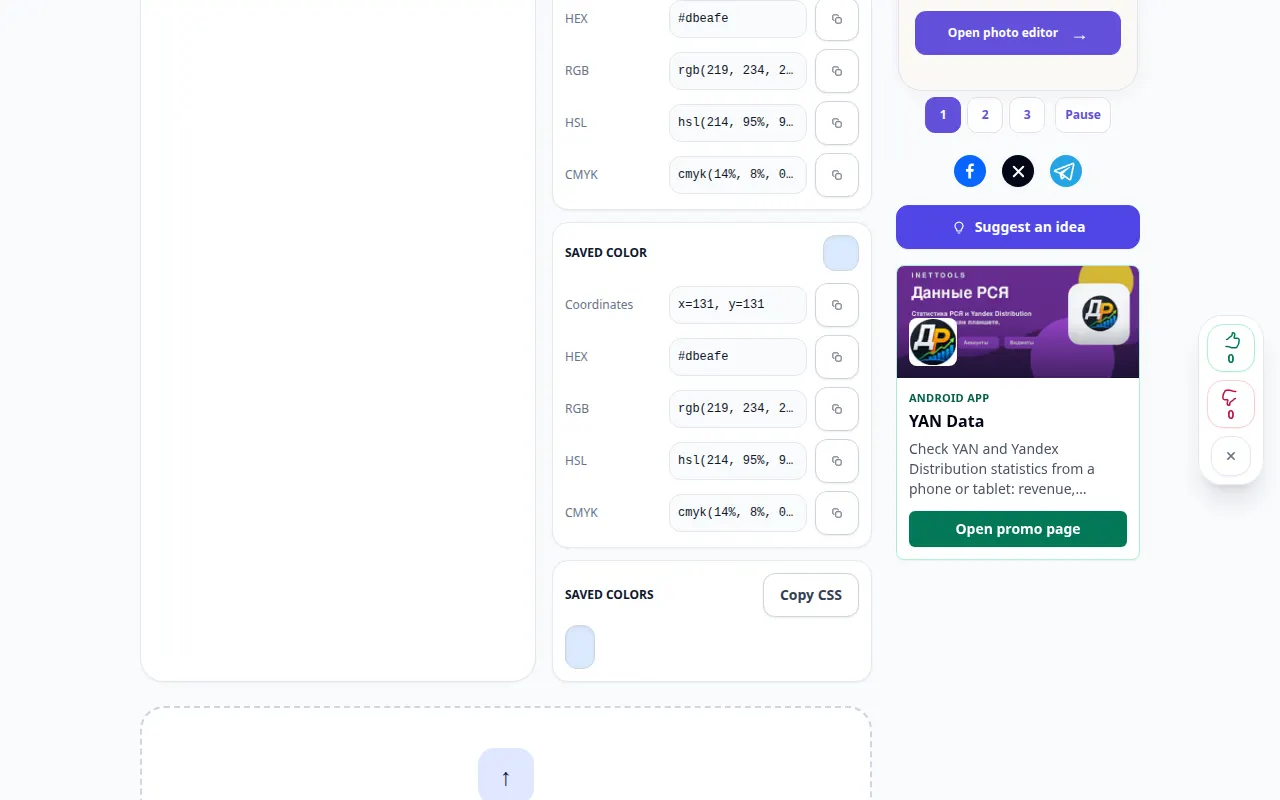
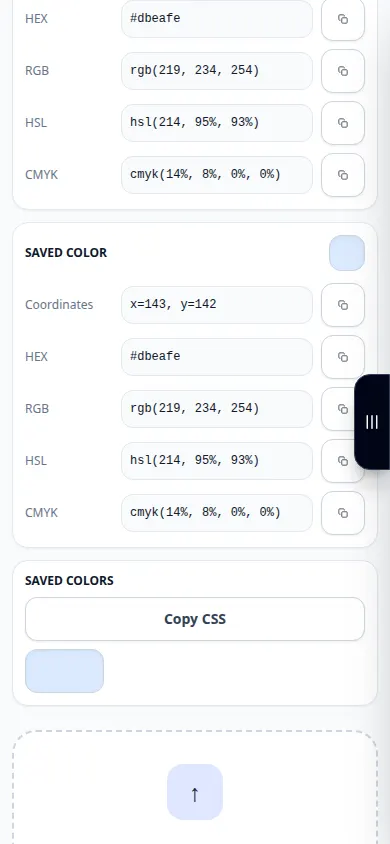
- Check the selected sample and the displayed color values.
- Copy the offered HEX or other color representation, keeping its notation intact.
- Paste the value into your editor and compare it with the intended area of the source image.
On a computer
Use the pointer and available zoom controls to select a precise area, then copy the color value into your editor.
On a phone
Tap inside the image and check the selected-color preview. Zoom or reposition the page carefully when the target area is small.
In Safari on iPhone, open the sharing menu and choose Save to Files if the result opens in a new tab. In Android Chrome, check Downloads. Keep this tab open until processing finishes.
For a better result
Choose a uniform area away from edges and compression artifacts. Neighboring pixels can have slightly different values.
Screenshots and video
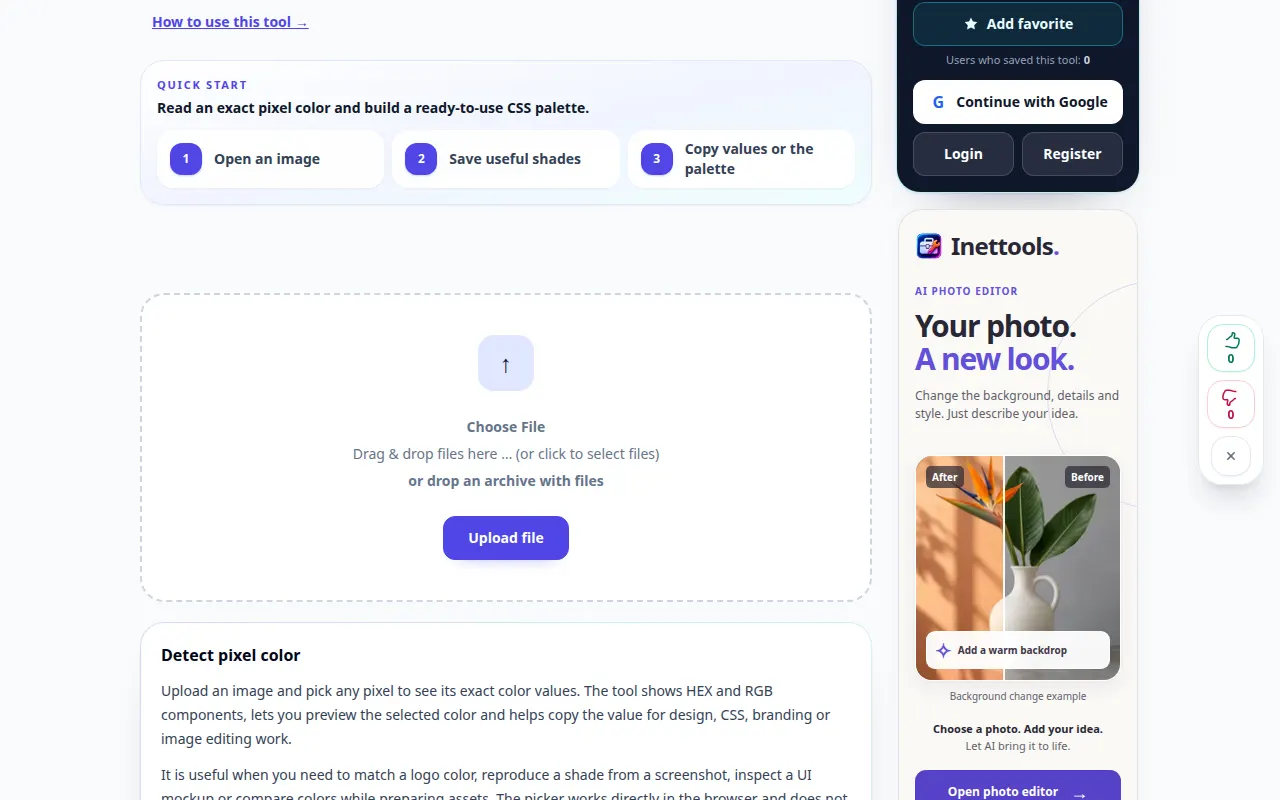
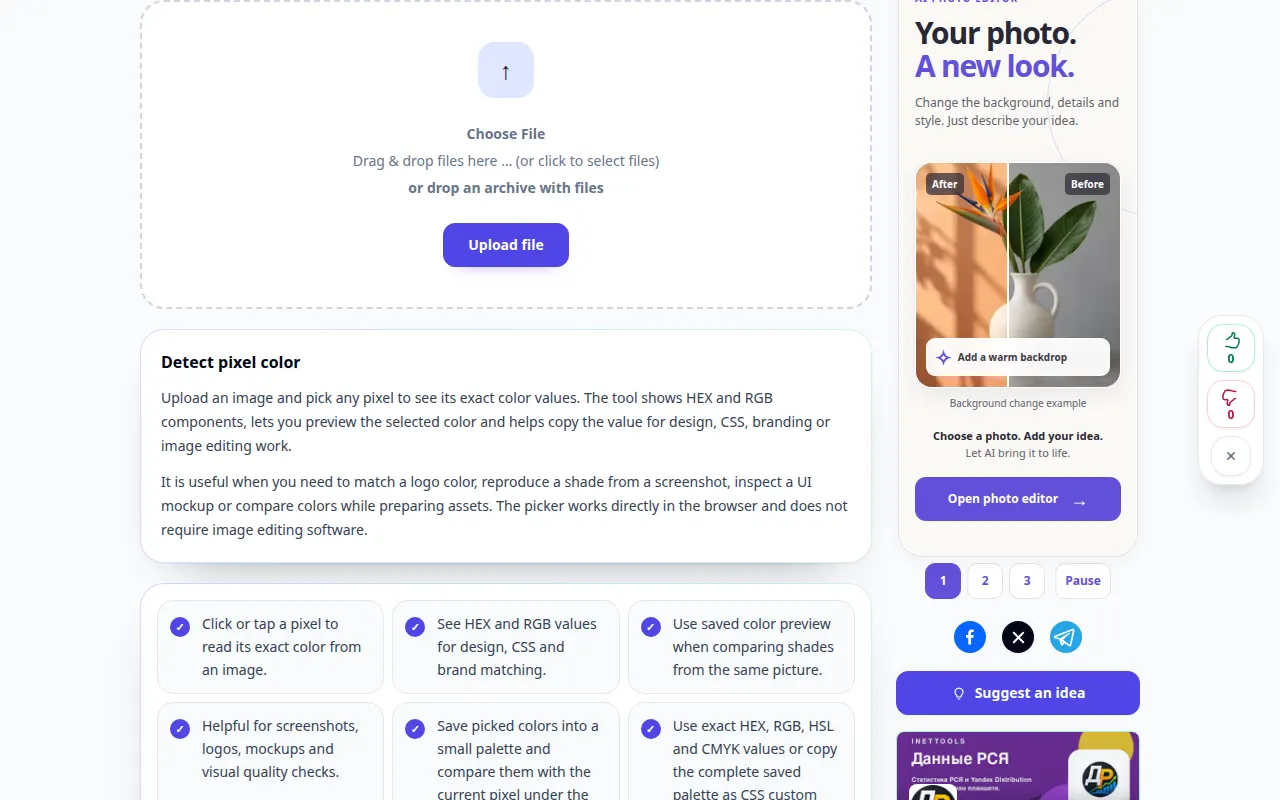
Desktop demonstration
The recording shows the English interface. Follow the translated steps above; the controls are in the same order. This recording shows a demonstration input and the resulting output in the tool.
Phone demonstration
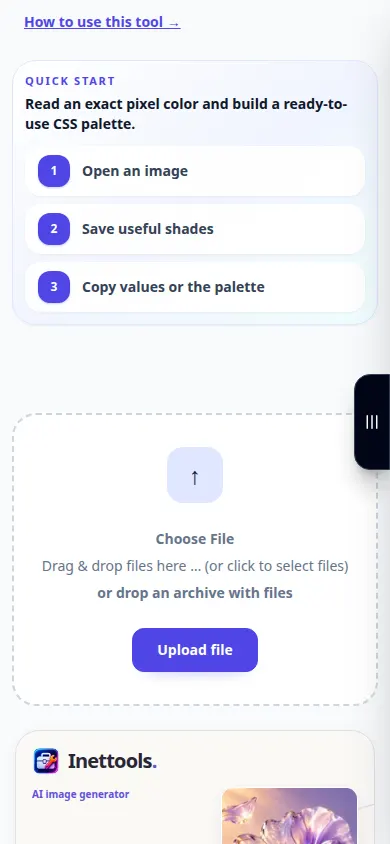
The recording shows the English interface. Follow the translated steps above; the controls are in the same order. This recording shows a demonstration input and the resulting output in the tool.
Questions and troubleshooting
Why are adjacent pixels different?
Anti-aliasing, gradients, JPEG compression and texture can all produce small color variations.
Why does the color look different on another screen?
Display settings, color profiles and surrounding colors influence appearance. A copied numeric value is not a display calibration.
If you see a message that the service is overloaded, wait and try again later. A failed attempt does not mean that your source file has changed.